
Table of Contents >> Show >> Hide
- What Is Midjourney on Discord?
- What You Need Before You Start
- Step 1: Create or Log In to Your Discord Account
- Step 2: Sign In to Midjourney and Connect Discord
- Step 3: Join the Official Midjourney Discord Server
- Step 4: Use the /imagine Command
- Step 5: Accept the Terms of Service
- Understanding the Image Grid
- How to Write a Good Midjourney Prompt
- Essential Midjourney Parameters for Beginners
- Useful Midjourney Discord Commands
- How to Save Your Midjourney Images
- Should You Use Public Channels, Direct Messages, or Your Own Server?
- Beginner Prompt Examples You Can Try
- Common Mistakes When Using Midjourney on Discord
- How to Improve Results with Iteration
- Using Midjourney for Real Projects
- Safety, Privacy, and Good Creative Habits
- Troubleshooting: Why Midjourney Is Not Working on Discord
- Practical Experience: What It Feels Like to Learn Midjourney on Discord
- Conclusion
Midjourney on Discord can feel a little strange the first time you open it. You are not greeted by a giant “Create Masterpiece” button. Instead, you enter a busy Discord server, see people generating dragons, sneakers, cinematic portraits, fantasy castles, and possibly a raccoon wearing a velvet blazer, and wonder, “Am I in the right place?” Yes, you probably are.
This guide explains how to use Midjourney on Discord from the very beginning: creating the right accounts, connecting Discord to Midjourney, joining the official server, using the /imagine command, improving prompts, choosing variations, saving images, and avoiding common beginner mistakes. Whether you want AI art for a blog, brand concept, classroom project, game idea, social post, or just because your brain asked to see “a cyberpunk corgi detective in rainy Tokyo,” you will learn the workflow step by step.
Note: Midjourney’s interface, plans, model versions, and Discord features can change over time. The steps below reflect the current practical workflow, but always check your Midjourney account page and Discord interface if a button has moved. Software buttons enjoy migrating like tiny digital birds.
What Is Midjourney on Discord?
Midjourney is an AI image generation tool that turns written prompts into images. Instead of drawing every line manually, you describe what you want, and Midjourney creates visual options based on your words. Discord is one of the main places where users interact with the Midjourney Bot. You type commands into a Discord message box, and the bot responds with image grids, variation buttons, editing tools, and download options.
The key idea is simple: you write a prompt, Midjourney creates images, and you refine the result. The magic is not just in typing random words; it is in learning how to describe subject, style, mood, composition, lighting, aspect ratio, and useful parameters. A weak prompt gives Midjourney a foggy map. A clear prompt gives it GPS, snacks, and a playlist.
What You Need Before You Start
Before using Midjourney on Discord, make sure you have four things ready. First, you need a Discord account. Second, you need a Midjourney account. Third, your Discord account must be connected to your Midjourney account. Fourth, you need an active Midjourney subscription plan to generate images.
Midjourney offers different subscription tiers, commonly including Basic, Standard, Pro, and Mega. The exact plan details may change, but the general difference is usually the amount of fast GPU time, access to Relax Mode, privacy features such as Stealth Mode on higher plans, and how many jobs you can run. If you are just learning, start modestly. You do not need the “I am building a visual empire before breakfast” plan on day one.
Step 1: Create or Log In to Your Discord Account
Go to Discord and create an account if you do not already have one. You can use Discord in a browser, but the desktop app is often smoother for regular Midjourney work. After signing up, verify your email address and get familiar with the basic Discord layout: servers appear on the left, channels appear next to them, and the message box sits at the bottom.
If you are new to Discord, think of a server as a community building and channels as rooms inside that building. Midjourney’s official server has beginner-friendly channels where people can generate images, ask questions, and observe how others write prompts.
Step 2: Sign In to Midjourney and Connect Discord
Next, sign in to your Midjourney account. In your Midjourney account settings, use the option to connect your Discord account. This connection matters because Midjourney needs to know that the Discord user typing commands is the same person with an active Midjourney subscription.
During authorization, double-check that Discord shows the correct username. This small step prevents a surprisingly annoying problem: connecting the wrong Discord account. If you manage multiple Discord accounts, pause and verify before clicking authorize. Future you will send present you a thank-you muffin.
Step 3: Join the Official Midjourney Discord Server
After your account is ready, join the official Midjourney Discord server. Inside Discord, you can use the server join option and enter the Midjourney invite. Once inside, you will see channels in the sidebar. Beginners should look for channels labeled newbie or general, depending on what is currently available in the server.
These beginner channels are designed for people learning how to use the Midjourney Bot. They can look chaotic at first because many users are generating images at the same time. Do not panic. Everyone starts by wondering why the chat is moving like a caffeinated waterfall.
Step 4: Use the /imagine Command
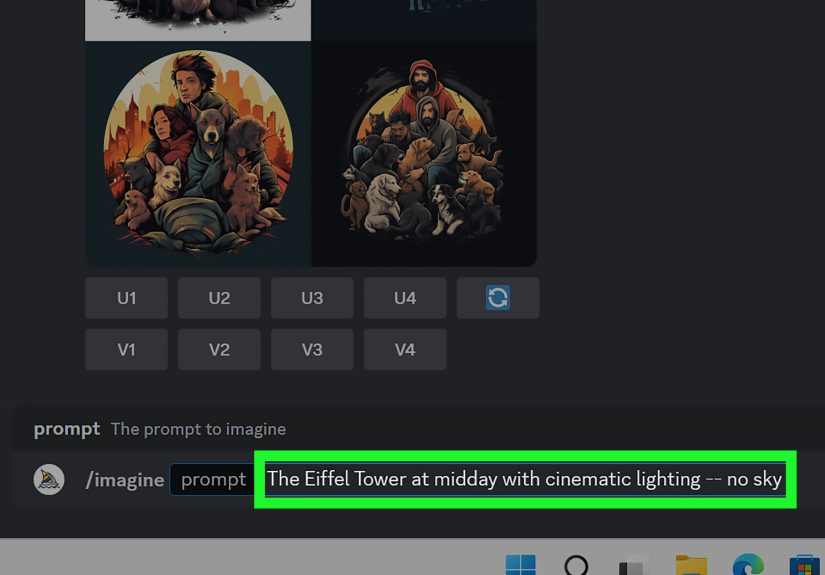
The most important Midjourney Discord command is /imagine. Click the message box in an allowed Midjourney channel, type /, and Discord will show available slash commands. Choose /imagine, then type your prompt into the prompt field.
For example:
Press Enter, and Midjourney will process your request. It usually returns a grid of four images. Each image is a different interpretation of your prompt. Some may be excellent. Some may be strange. Occasionally one may look like it has personally misunderstood furniture. That is normal.
Step 5: Accept the Terms of Service
If this is your first time using Midjourney, the bot may ask you to accept the Terms of Service before generating images. Read the terms, accept them if you agree, and then continue. This step is required before image creation can proceed.
Understanding the Image Grid
After Midjourney generates your image grid, you will see buttons below it. The exact interface may evolve, but beginners should understand three major actions: selecting an image, creating variations, and rerolling the prompt.
U Buttons
The U1, U2, U3, and U4 buttons correspond to the four images in the grid. In the current workflow, these buttons help you separate or select a specific image from the grid, making it easier to download and use additional tools. The numbering normally runs left to right, top to bottom.
V Buttons
The V1, V2, V3, and V4 buttons create variations based on one image. Use these when one result is close to what you want, but not quite there. For example, if image 2 has the right mood but the chair looks like it was assembled by raccoons, click V2 and explore alternatives.
Reroll
The reroll option runs the same prompt again and generates a new grid. Use this when the prompt is good but the results are not. Rerolling is like saying, “Same instructions, please try again, and this time maybe fewer haunted elbows.”
How to Write a Good Midjourney Prompt
A good Midjourney prompt is clear, specific, and visual. Instead of writing a long paragraph full of instructions, describe the image in strong visual phrases. Midjourney generally responds well to prompts that include subject, environment, style, lighting, camera angle, mood, and aspect ratio.
Basic Prompt Formula
Use this simple structure:
Example:
This prompt works because it gives Midjourney a clear subject, setting, style, lighting, and shape. Compare that with “dog on mountain,” which might work, but gives the model fewer clues.
Essential Midjourney Parameters for Beginners
Parameters are special instructions added at the end of your prompt. They help control the output. Always place parameters after the prompt text, with a space before the double dashes.
Aspect Ratio: –ar
The –ar parameter changes the image shape. Midjourney images often start square by default, but you can request a horizontal or vertical format.
Useful aspect ratios include 1:1 for square posts, 16:9 for blog headers and YouTube-style visuals, 9:16 for vertical social content, and 2:3 for portrait-style images.
Version: –v
The –v parameter lets you choose a Midjourney model version. Current documentation lists V7 as the default model, but you can specify a version if needed.
Stylize: –s
The –s or –stylize parameter adjusts how strongly Midjourney applies its artistic interpretation. Lower values often stay more literal; higher values may become more expressive.
No: –no
The –no parameter tells Midjourney what to avoid. It is useful when a recurring unwanted element keeps appearing.
Style Reference: –sref
The –sref parameter can help match the overall visual feel of a reference image. It is useful for maintaining consistent color, texture, lighting, or artistic mood across a project.
Use style references carefully. They should guide the visual vibe, not replace clear prompt writing. A reference image plus a vague prompt is like handing a chef a picture of soup and saying, “Make Tuesday.”
Useful Midjourney Discord Commands
Once you understand /imagine, try a few other commands that make the Discord workflow easier.
/settings
The /settings command opens your personal settings panel in Discord. You can adjust default model version, stylization level, remix mode, variation mode, public or stealth options if your plan supports them, and GPU speed options such as Fast, Relax, or Turbo. Your settings can sync between the website and Discord, so check them before starting a serious project.
/info
The /info command shows account information such as remaining fast GPU time. This is especially helpful if you are experimenting heavily and suddenly realize you have generated 87 versions of “one simple logo idea.” We have all been there.
/blend
The /blend command lets you combine multiple images into a new creation. It is friendly on mobile and useful for visual exploration. For example, you could blend a fabric texture, a landscape image, and a product silhouette to inspire a concept design.
/describe
The /describe tool analyzes an uploaded image and suggests prompt ideas. It is excellent for learning prompt vocabulary. If you see a style you like but do not know how to describe it, Describe can help you discover words related to lighting, composition, medium, and mood.
How to Save Your Midjourney Images
To save an image in Discord, open the selected image, view it at full size, then right-click and choose the save option on desktop. On mobile, long-press the image and use the download option. You can also find your creations on the Midjourney website, where organizing, filtering, and downloading images is often easier for larger projects.
If you are creating images for a client, blog, product page, or social media campaign, organize your files immediately. Use clear filenames such as coffee-shop-header-v1.jpg instead of download-final-final-real-final-7.jpg. Your future file manager will be calmer.
Should You Use Public Channels, Direct Messages, or Your Own Server?
Public beginner channels are great for learning because you can see prompts from other users and understand how Midjourney responds. The downside is noise. Your generations can quickly get buried under everyone else’s images.
Direct messaging the Midjourney Bot is cleaner because you can work one-on-one. However, images may still be subject to Midjourney’s visibility, moderation, and account rules. If privacy matters, review your plan options and settings carefully, especially whether your plan supports Stealth Mode.
Some users prefer adding the Midjourney Bot to their own Discord server. This can make project organization easier because you can create channels for specific campaigns, clients, styles, or experiments. For example, a content creator might create channels named #blog-headers, #product-mockups, and #character-designs.
Beginner Prompt Examples You Can Try
Here are a few starter prompts you can copy, modify, and learn from:
Notice how each prompt gives Midjourney a job. It does not just say “make something cool.” It explains the subject, environment, style, and mood.
Common Mistakes When Using Midjourney on Discord
Writing Prompts That Are Too Long
More words do not always mean better results. A giant prompt full of conflicting instructions can confuse the model. Instead of listing twenty art styles, choose one or two strong directions.
Forgetting Parameters Go at the End
Put parameters after your prompt text. Do not place –ar 16:9 in the middle of the sentence. Also avoid punctuation immediately after parameters.
Using “No” the Wrong Way
If you do not want text, logos, extra fingers, or random objects, use –no. Do not rely on natural language alone, such as “please do not include text.” Midjourney is not offended by commands. It is a bot. It has no delicate feelings about dashes.
Expecting Perfect Text in Images
Midjourney has improved text generation, especially when you place short words or phrases in double quotation marks, but complex typography can still be unpredictable. For professional ads, posters, and labels, it is often better to generate the visual background and add final text in a design tool.
Not Tracking Your Best Prompts
Keep a prompt journal. Save prompts that work, along with the final images. Over time, you will build your own library of useful wording for lighting, camera angles, materials, and styles.
How to Improve Results with Iteration
The best Midjourney users do not expect perfection from one prompt. They iterate. Start with a clear concept, generate a grid, choose the closest image, create variations, adjust the prompt, and test parameters. This process is closer to directing than ordering. You are not pushing a vending machine button; you are giving creative feedback.
For example, if your first prompt creates a coffee shop that feels too dark, revise it:
If it becomes too plain, add character:
Small changes can make a big difference. Replace “nice” with “minimalist,” “luxury,” “rustic,” “playful,” “cinematic,” “editorial,” or “documentary-style.” Specific language produces stronger visual direction.
Using Midjourney for Real Projects
Midjourney on Discord is useful for more than fantasy art. Bloggers can create article hero images. Marketers can explore ad concepts. Interior designers can visualize moods. Teachers can create classroom visuals. Game developers can brainstorm environments. Authors can imagine characters and book covers. Small businesses can test packaging ideas before hiring a designer for final production.
However, treat Midjourney as a creative assistant, not a replacement for judgment. Check image details before publishing. Look for distorted hands, unreadable text, odd brand-like marks, inaccurate product details, and anything that could confuse readers. For commercial work, review Midjourney’s terms and your subscription rights. If the image represents a real person, product, medical claim, legal topic, or historical event, be extra careful.
Safety, Privacy, and Good Creative Habits
Discord and Midjourney both have rules and safety systems. Avoid prompts that violate community standards, harass people, create deceptive content, or misuse someone’s likeness. Do not upload private, sensitive, or confidential images unless you understand how the platform handles them. If you are working for clients, use professional workflows, document approvals, and keep raw prompt records.
Also remember that AI image generation is not a substitute for licensing awareness. If you need brand-safe images, avoid asking for living artists’ exact styles, copyrighted characters, or recognizable trademarks. Build your own visual language. “Warm editorial illustration with hand-painted texture and soft botanical colors” is usually healthier than “make it exactly like [famous living artist].” Originality ages better anyway.
Troubleshooting: Why Midjourney Is Not Working on Discord
If the /imagine command does not appear, make sure you are in a channel where the Midjourney Bot has permission to work. If you are in your own server, confirm the bot has been added correctly. If the bot responds with an account issue, check whether your Discord account is connected to your Midjourney account and whether your subscription is active.
If images are slow, check your GPU mode. Fast Mode uses your monthly fast time. Relax Mode, when available on your plan, may take longer but does not use Fast time for image generation. Turbo Mode can be quicker but may use more Fast time. If the result looks wrong, revise the prompt before blaming the robot. It may simply need clearer instructions.
Practical Experience: What It Feels Like to Learn Midjourney on Discord
The first real experience of using Midjourney on Discord is usually equal parts wonder and confusion. You type a prompt, wait for the grid, and suddenly four images appear that look far more polished than expected. Then you notice the lamp has six legs, the person has a suspiciously creative hand, or the logo text looks like it was written by a sleepy alien. That is when the learning begins.
The biggest lesson is that Midjourney rewards clear visual thinking. Beginners often write prompts like “make a beautiful website image about productivity.” The result might be attractive, but it will probably be generic. A stronger prompt would be: “editorial photo of a focused freelancer planning weekly tasks at a clean wooden desk, laptop, notebook, soft morning window light, calm minimalist mood –ar 16:9.” This prompt works better because it gives the image a subject, setting, mood, and purpose.
Another useful experience is watching other people generate images in public channels. At first, the scrolling feed feels overwhelming. But after a few minutes, it becomes a free classroom. You can see which words produce cinematic results, which parameters shape the image, and how small changes affect the final output. You might notice that “soft volumetric lighting” creates a dreamy glow, “editorial photography” gives a magazine-like feeling, and “isometric illustration” changes the entire composition. Observing other prompts is one of the fastest ways to learn, as long as you do not simply copy everything. Copying prompts forever is like learning guitar by only playing one chord. Eventually, the neighbors will have opinions.
Using Discord also teaches organization. In a public channel, your image can disappear quickly under newer generations. That is why many users move to direct messages or their own Discord server once they understand the basics. A private project channel makes it easier to track ideas, compare versions, and save final images. For example, if you are creating visuals for a blog series, you can create one channel for “article headers,” another for “Pinterest graphics,” and another for “experimental styles.” This keeps your workflow tidy and prevents the classic beginner problem: generating a great image and then losing it in the scroll swamp.
The most practical habit is iteration. Do not stop after the first grid unless the result is perfect, which happens about as often as a printer behaving during an emergency. Select the closest image, create variations, adjust the wording, change the aspect ratio, and test one parameter at a time. If you change the subject, lighting, style, aspect ratio, and stylization all at once, you will not know which change improved the result. Treat each generation like a creative experiment.
Finally, Midjourney on Discord is most powerful when you use it with purpose. Before prompting, ask: Where will this image appear? Who will see it? Should it feel premium, playful, educational, dramatic, calm, or trustworthy? A blog header, product mockup, fantasy concept, and classroom poster all need different visual decisions. The better your goal, the better your prompt. Midjourney is impressive, but it still needs direction. You are the creative director; the bot is the extremely fast assistant who never asks for coffee, although it does consume GPU time like popcorn.
Conclusion
Learning how to use Midjourney on Discord is easier once you understand the basic rhythm: connect your accounts, join an allowed Discord channel, use /imagine, write a clear prompt, review the four-image grid, create variations, adjust parameters, and save your best results. The first session may feel noisy, but the workflow becomes natural quickly.
For beginners, the smartest path is to start simple. Learn /imagine, /settings, /info, –ar, –no, and basic variation buttons before diving into advanced references or complex prompt chains. Strong results come from clear descriptions, patient iteration, and a little creative courage. Also, maybe fewer cyberpunk raccoonsunless that is your brand, in which case, carry on proudly.




 Close
Close