
Table of Contents >> Show >> Hide
- Quick Checklist Before You Start
- How to Turn On Snapchat Notifications on iPhone
- Step 1: Enable Snapchat Notifications in iPhone Settings
- Step 2: Make Notifications Look (and Sound) the Way You Want
- Step 3: Turn On Notifications Inside Snapchat (iPhone)
- Step 4: Turn On Story Notifications for Specific Friends
- Step 5: Mute a Noisy Chat Without Muting Your Whole Social Life
- Bonus: Custom Notification Sounds (Snapchat+)
- How to Turn On Snapchat Notifications on Android
- Troubleshooting: Snapchat Notifications Not Working (iPhone & Android)
- Pro Tips: Get the Right Snapchat Notifications Without the Noise
- Conclusion
- Experience Notes: What People Actually Run Into (and How to Win)
Snapchat without notifications is like ordering fries and getting only the little paper sleevetechnically you’re “in the experience,” but you’re missing the whole point.
If you’re not getting alerts for Snaps, chats, friend requests, or stories, it usually boils down to one of three things: (1) your phone isn’t allowing Snapchat to notify you,
(2) Snapchat’s in-app notification toggles are off, or (3) a “helpful” system feature (Focus, battery optimization, silent mode, etc.) is quietly sabotaging your vibe.
This guide walks you through turning Snapchat notifications on for iPhone and Android, plus how to customize alerts so you get the good stuff
(your best friend’s snaps) without the noise (the 37th “someone added to their Story” alert).
Quick Checklist Before You Start
- Update Snapchat (App Store / Google Play). Old versions can be… let’s say “moody.”
- Check your connection (Wi-Fi or cellular). Notifications don’t teleport.
- Restart your phone if things are weird. Yes, it’s cliché. Yes, it works suspiciously often.
- Log out and back in if you recently changed phones or restored a backup.
How to Turn On Snapchat Notifications on iPhone
On iPhone, you need to enable notifications in iOS Settings first, then make sure Snapchat’s own notification settings are switched on inside the app.
If either one is off, Snapchat will sit quietly in the corner like it’s grounded.
Step 1: Enable Snapchat Notifications in iPhone Settings
- Open Settings.
- Tap Notifications.
- Scroll down and tap Snapchat.
- Turn on Allow Notifications.
- Choose where you want alerts: Lock Screen, Notification Center, and/or Banners.
- Turn on Sounds and Badges if you want audio + that little red “you have a life” bubble.
Step 2: Make Notifications Look (and Sound) the Way You Want
iPhone lets you control how notifications show upbecause not everyone wants Snapchat popping up mid-meeting like a tiny neon billboard.
In the Snapchat notification settings screen (Settings > Notifications > Snapchat), consider:
- Banners: Pick temporary or persistent banners, depending on whether you want “blink and you miss it” alerts.
- Sounds: If you’re getting silent notifications, double-check this is on and your phone isn’t muted.
- Previews: Decide whether message previews show on the lock screen (privacy vs. convenience).
- Time-Sensitive / Priority options (newer iOS): Some iPhones and iOS versions offer settings that prioritize important alerts. Great for “answer now” messagesless great for 2 a.m. streak panic.
Step 3: Turn On Notifications Inside Snapchat (iPhone)
- Open Snapchat.
- Tap your Profile icon (top-left).
- Tap the gear (Settings) icon.
- Tap Notifications.
- Toggle on the types you want (Chats, Snaps, friend requests, mentions, story activity, etc.).
- For story alerts, tap Manage Story Notifications and choose specific accounts you actually care about.
Step 4: Turn On Story Notifications for Specific Friends
Want to know the instant your favorite person posts a story? (No judgment. We all have that one friend whose stories are basically a TV series.)
- Swipe right to open the Chat screen.
- Press and hold the chat with that friend (or group).
- Tap Story Settings.
- Toggle Story Notifications on.
Step 5: Mute a Noisy Chat Without Muting Your Whole Social Life
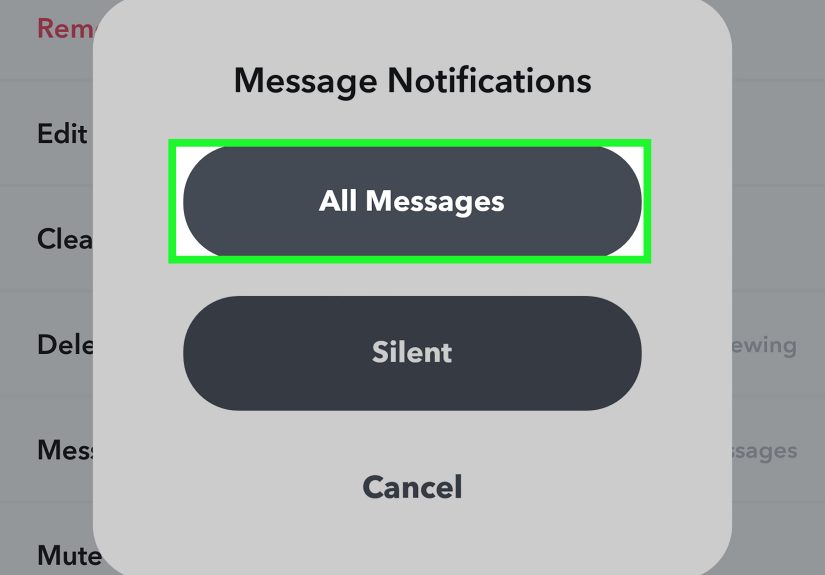
Group chats can go from “fun” to “why is my phone auditioning for a drumline?” in about eight seconds. You can mute chat or call notifications per person:
- Go to the Chat screen.
- Press and hold on a friend’s name.
- Tap Chat and Notification Settings > Notification Settings.
- Toggle Mute Chats and/or Mute Calls.
Bonus: Custom Notification Sounds (Snapchat+)
If you’re a Snapchat+ subscriber, you can assign custom notification sounds for specific friends or groupsso you’ll know who snapped you without even looking.
(This is either peak productivity or peak chaos. Possibly both.)
- Go to Chat, then press and hold a friend or group conversation.
- Tap Chat Settings.
- Tap Notification Sounds, pick a sound, then tap Set Notification Sound.
How to Turn On Snapchat Notifications on Android
Android gives you powerful notification controls, but that also means there are more places for a switch to be off.
The winning strategy: enable notifications at the system level, confirm Snapchat’s in-app settings,
and then check battery/background restrictions if alerts still don’t arrive.
Step 1: Enable Snapchat Notifications in Android Settings
The exact wording varies by phone (Pixel vs. Samsung vs. Motorola, etc.), but the path usually looks like one of these:
- Settings > Notifications > App notifications > Snapchat > Turn on notifications
- Settings > Apps (or Apps & notifications) > Snapchat > Notifications > Turn on
If you see categories (a.k.a. notification channels), make sure the categories you care about (messages, snaps, calls, etc.) are turned on and set to
Alerting rather than Silent.
Step 2: Turn On Notifications Inside Snapchat (Android)
- Open Snapchat.
- Tap your Profile icon.
- Tap the gear icon to open Settings.
- Tap Notifications.
- Make sure Enable Notifications is turned on (if it’s unchecked, Snapchat can’t notify you).
- Toggle on the specific notification types you want.
Step 3: Fix the Two Android “Silent Killers” (Battery + Background Data)
If notifications are enabled but still delayed or missing, Android may be restricting Snapchat in the background to save battery or data.
That’s great for battery life… and terrible for streaks.
- Battery optimization: Go to Settings > Apps > Snapchat > Battery and choose Unrestricted (or disable optimization for Snapchat).
- Background data: Go to Settings > Apps > Snapchat > Mobile data & Wi-Fi and make sure Background data is allowed.
- Data Saver: If Data Saver is on, whitelist Snapchat so it can sync in the background.
Troubleshooting: Snapchat Notifications Not Working (iPhone & Android)
If you’ve turned everything on and Snapchat is still ghosting you, don’t worrythis is a common issue and usually fixable.
Work down this list like you’re defusing a very tiny, very dramatic bomb.
1) Check Focus / Do Not Disturb / Sleep Modes
On iPhone, Focus can block Snapchat alerts unless Snapchat is allowed in that Focus mode. On Android, Do Not Disturb can silence notifications
or hide pop-ups. If you suddenly stopped receiving alerts “for no reason,” this is often the reason.
- iPhone: Settings > Focus > choose your Focus mode > allow Snapchat (or turn Focus off temporarily).
- Android: Settings > Sound (or Notifications) > Do Not Disturb > allow app notifications as needed.
2) iPhone: Confirm Background App Refresh for Snapchat
If Snapchat can’t refresh in the background, notifications may arrive late (or only after you open the app).
Check: Settings > General > Background App Refresh > turn it on, then make sure Snapchat is enabled.
3) Make Sure Alerts Aren’t Being Delivered Quietly
Some settings deliver notifications silently or group them in ways that feel like “nothing is happening.”
For example, iPhone can summarize notifications at scheduled times, and Android can mark categories as Silent.
- iPhone: Settings > Notifications > check whether you’re using notification summaries and how notifications display (Count/Stack/List).
- Android: Settings > Notifications > App notifications > Snapchat > set key categories to Alerting + Pop on screen (if desired).
4) Clear Snapchat Cache (Especially After Updates)
Snapchat’s cache can sometimes cause odd behavior after an update. Clearing it won’t delete your accountit just makes the app tidy its room.
In Snapchat: Profile > Settings (gear) > search for Clear Cache and confirm.
5) The “Last Resort That Works More Than It Should”
- Log out of Snapchat, then log back in.
- Delete and reinstall Snapchat.
- Restart your device after reinstalling (yes, again).
Pro Tips: Get the Right Snapchat Notifications Without the Noise
Use Story Notifications Like a VIP List
Instead of enabling every story notification, pick a handful of accounts in Manage Story Notifications.
You’ll see the stories you care about when they dropwithout feeling like Snapchat is running a 24/7 telethon on your lock screen.
Mute Strategically (Especially Group Chats)
Muting chats for specific friends or groups is the fastest way to reduce interruptions while still getting important notifications from everyone else.
It’s like putting one conversation in time-out without punishing the whole class.
Let Your Phone Help You (But Don’t Let It Overhelp)
Newer iPhones offer features that prioritize or summarize notifications, and Android offers cooldown and category controls. These can be amazing if you set them intentionally.
If you set them accidentally, they can feel like your phone is hiding your social life behind a curtain.
Conclusion
Turning on Snapchat notifications is really a two-key system: your phone must allow notifications, and Snapchat must be configured to send the ones you want.
Once those are lined up, customizing story alerts, muting chat chaos, and fixing background restrictions can take you from “Why is Snapchat silent?” to “Okay, Snapchat, breathe.”
Set it up once, and you’ll spend less time troubleshootingand more time responding to the snaps you actually care about.
Experience Notes: What People Actually Run Into (and How to Win)
A lot of “Snapchat notifications are broken” moments aren’t really Snapchat’s faultthey’re the result of phones trying to be polite. Here’s a super common scenario:
someone upgrades to a new iPhone, opens Snapchat, taps “Don’t Allow” on the notification prompt (because they’re in a hurry), and then forgets that choice existed.
Days later, they’re confused why messages only appear when they open the app. The fix feels almost too simple: iPhone Settings > Notifications > Snapchat > Allow Notifications.
It’s like realizing the lights didn’t “stop working,” you just turned off the switch on your way out.
On Android, the most frequent “gotcha” is battery optimization. Modern Android phones are aggressively protective of battery life, and social apps are often the first to get put on a leash.
So you’ll see this pattern: notifications work for a day or two, then gradually become delayedespecially overnight. The phone has decided Snapchat is “not essential,”
which is a bold opinion for a device that also insists your screen time report is “just for awareness.” Switching Snapchat’s battery mode to Unrestricted (or disabling optimization)
often makes notifications snap back instantly.
Another classic: Focus / Do Not Disturb. People will swear they didn’t change anything, but their phone quietly started a Sleep Focus schedule.
Suddenly Snapchat goes silent from midnight to 7 a.m., and the user assumes the app is broken. Nopeyour phone is just trying to protect your peace.
The fix is either allowing Snapchat inside that Focus mode or adjusting the schedule. Think of Focus as a bouncer: if Snapchat isn’t on the guest list,
it’s not getting in, no matter how good its outfit is.
Then there’s the “notification overload” pendulum swing. Someone turns everything on (Snaps, stories, mentions, friend suggestions, reminders, the entire universe),
gets blasted for 48 hours, and panicsso they turn everything off. A better approach is to curate: enable chat/snaps, choose a few story notifications (your top 5),
and mute the loud group chats. You want Snapchat to be like a good friend who texts when it matters, not like an espresso machine that screams every time it exists.
Finally, don’t sleep on the tiny details: sound settings, silent mode, notification categories, and “silent” delivery options can make it feel like you’re missing alerts when they’re
technically arriving. If your phone vibrates for everything except Snapchat, check whether Snapchat’s category is set to Silent or whether Sounds are disabled for that app.
If you’re on iPhone and everything is “there but quiet,” remember the silent switch and volume settings can also affect what you hear.
In other words: sometimes the problem isn’t Snapchatit’s your phone doing a stealthy “shh.”






 Close
Close