
Table of Contents >> Show >> Hide
- Why Changing Your Desktop Wallpaper Matters
- Before You Start: Choose the Right Wallpaper Image
- How to Add Desktop Wallpaper to Your Computer: 7 Steps
- Step 1: Find or Save the Image You Want to Use
- Step 2: Open Your Desktop Personalization Settings
- Step 3: Choose “Picture,” “Wallpaper,” or “Background”
- Step 4: Browse for Your Image
- Step 5: Adjust the Wallpaper Fit
- Step 6: Set Wallpaper for Multiple Displays, If Needed
- Step 7: Save, Apply, and Check Your Desktop
- How to Add Wallpaper on Windows
- How to Add Wallpaper on Mac
- How to Add Wallpaper on Chromebook
- How to Add Wallpaper on Ubuntu Linux
- Best Practices for a Better Desktop Wallpaper
- Common Wallpaper Problems and How to Fix Them
- Real-World Experiences: What Actually Makes a Good Desktop Wallpaper?
- Conclusion
Your desktop wallpaper is the digital equivalent of decorating your roomexcept you do not need tape, nails, or permission from anyone who pays the rent. Whether you want a peaceful landscape, a family photo, a clean minimalist background, or a motivational quote that politely reminds you to stop opening 47 browser tabs, changing your desktop wallpaper is one of the easiest ways to personalize your computer.
The good news? Adding desktop wallpaper works on nearly every modern computer, including Windows PCs, Macs, Chromebooks, and many Linux systems. The exact buttons may look slightly different depending on your operating system, but the basic process is simple: choose an image, open your personalization settings, select the picture, adjust how it fits, and enjoy your newly refreshed screen.
This guide breaks the process into seven clear steps, explains how to choose the right wallpaper image, covers common desktop background problems, and includes real-world tips from everyday computer use. By the end, you will know how to add desktop wallpaper to your computer without clicking random buttons and hoping for the best. That strategy works sometimes, but it is not exactly a lifestyle.
Why Changing Your Desktop Wallpaper Matters
Desktop wallpaper may seem like a small detail, but it affects how your computer feels every time you sit down to use it. A cluttered or distracting background can make icons harder to see, while a calm, clean wallpaper can make your desktop look organized even when your downloads folder is living its most chaotic life.
For students, a simple wallpaper can reduce visual distractions. For remote workers, a professional background may create a cleaner workspace. For creative users, a mood board-style wallpaper can spark ideas. For everyone else, it is simply nice to look at something better than the default background your computer came with five years ago.
Before You Start: Choose the Right Wallpaper Image
Before changing your desktop background, pick an image that actually works well on a computer screen. Not every photo makes a good wallpaper. A tiny image may look blurry when stretched. A busy image may hide your desktop icons. A photo with important details near the edges may get cropped depending on your screen shape.
Use a High-Resolution Image
For the best results, choose an image that matches or exceeds your screen resolution. Common screen resolutions include 1920 x 1080 pixels for Full HD displays, 2560 x 1440 pixels for QHD monitors, and 3840 x 2160 pixels for 4K screens. If you are not sure what your screen resolution is, check your display settings. A higher-resolution image usually looks sharper and cleaner, especially on large monitors.
Pick the Right Orientation
Most computer screens are horizontal, so landscape images usually work better than vertical photos. A portrait-style phone picture can still be used, but your computer may crop it, center it with empty space, or stretch it in a way that makes your dog look like a furry accordion. Landscape images are safer for desktop wallpaper.
Use Safe, Legal Image Sources
You can use your own photos, built-in wallpapers, licensed stock images, or free image websites that clearly allow personal use. Avoid downloading files from suspicious websites, especially if they ask you to install extra software just to get a wallpaper. A wallpaper should be an image file, not a mysterious program wearing a trench coat.
How to Add Desktop Wallpaper to Your Computer: 7 Steps
The following steps work as a universal guide, with extra instructions for Windows, Mac, Chromebook, and Ubuntu Linux users.
Step 1: Find or Save the Image You Want to Use
Start by choosing the image you want as your desktop wallpaper. This could be a photo from your camera, a downloaded wallpaper, an image from your Pictures folder, or a default wallpaper included with your computer.
If the image is online, save it to your computer first. On most browsers, you can right-click the image and choose an option like “Save image as.” Save it somewhere easy to find, such as the Pictures folder or Downloads folder. Give it a clear name like “mountain-wallpaper.jpg” instead of leaving it as “IMG_8493_final_REAL_final2.jpg.” Your future self will appreciate the tiny act of organization.
Common image formats for wallpaper include JPG, JPEG, PNG, and WEBP. JPG files are common for photos, while PNG files are often better for graphics, illustrations, and images with sharp lines.
Step 2: Open Your Desktop Personalization Settings
Next, open the wallpaper or background settings on your computer. The path depends on your operating system.
On Windows: Right-click an empty area of the desktop and select Personalize. Then choose Background. You can also open the Settings app and go to Personalization > Background.
On Mac: Open System Settings, then choose Wallpaper. You can also control-click an image file in Finder and choose Set Desktop Picture or a similar wallpaper option, depending on your macOS version.
On Chromebook: Right-click the desktop and choose Set wallpaper & style. Then select Wallpaper. You can pick a built-in image, use a downloaded image, or choose from Google Photos if available.
On Ubuntu Linux: Open the Activities overview, search for Appearance, and open the Appearance settings. From there, you can choose a built-in background or select your own image.
Step 3: Choose “Picture,” “Wallpaper,” or “Background”
Once you are in the personalization menu, look for an option labeled Background, Wallpaper, Desktop Picture, or something similar. Most systems let you choose between a single picture, a solid color, or a slideshow.
If you want one specific image, choose Picture or Image. If you prefer a rotating set of wallpapers, choose Slideshow where available. A solid color background can be useful if you want a distraction-free desktop or if your icons are hard to see on photos.
For most users, a single picture is the easiest and cleanest choice. It gives your desktop personality without turning it into a mini art gallery that changes every 30 seconds while you are trying to find a spreadsheet.
Step 4: Browse for Your Image
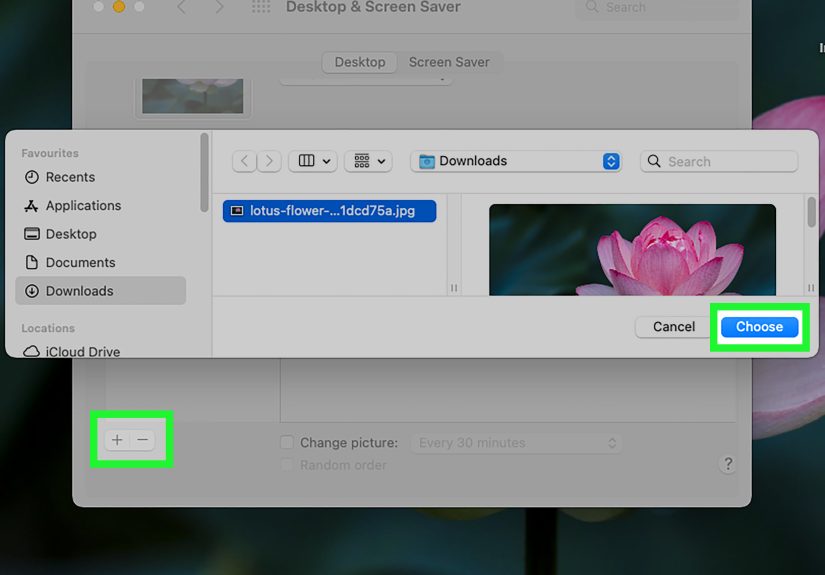
Now select your image. On Windows, click Browse photos or a similar button, then locate the file on your computer. On Mac, click an option such as Add Photo, choose an image from Finder or Photos, and apply it as wallpaper. On Chromebook, choose My Images or another available source. On Ubuntu, select a built-in wallpaper or use the option to add your own picture.
After you click the image, your computer may apply it immediately. Some systems show a preview first, while others update the desktop right away. If your new wallpaper suddenly appears behind your open windows, congratulations: the computer has obeyed you. Enjoy this rare and beautiful moment.
Step 5: Adjust the Wallpaper Fit
Wallpaper fit controls how the image appears on your screen. This matters because not all images have the same shape as your monitor. A photo taken on a phone may not fit a widescreen display perfectly, and a square image may leave empty space unless it is cropped or stretched.
Common wallpaper fit options include:
- Fill: Enlarges the image to cover the whole screen. Some edges may be cropped.
- Fit: Shows the entire image, but may leave empty bars around it.
- Stretch: Forces the image to fill the screen, which can distort it.
- Center: Places the image in the middle without resizing it much.
- Tile: Repeats the image across the desktop, useful for patterns but dangerous for vacation selfies.
- Span: Spreads one image across multiple monitors, if supported.
For most wallpapers, Fill is the best choice because it covers the screen neatly. If the image is getting cropped in an awkward way, try Fit. If you are using a repeating pattern, Tile can look stylish. If you are using a low-resolution photo, avoid Stretch unless you enjoy blurry pixels the size of crackers.
Step 6: Set Wallpaper for Multiple Displays, If Needed
If you use more than one monitor, you may be able to choose the same wallpaper for all displays or set a different image for each screen. Windows, macOS, and many Linux desktops support multiple display customization, although the exact controls vary.
For a clean multi-monitor setup, use images that match each display’s resolution. If your monitors are different sizes, one wallpaper may look perfect on one screen and slightly awkward on another. In that case, choose separate images for each monitor or use a wide panoramic wallpaper designed for dual-screen setups.
A good example: if you have two 1920 x 1080 monitors side by side, a 3840 x 1080 panoramic image can span beautifully across both screens. If you use one laptop screen and one vertical monitor, separate wallpapers usually look better.
Step 7: Save, Apply, and Check Your Desktop
After choosing your wallpaper and adjusting the fit, close or minimize your windows to check the final result. Make sure the image looks sharp, your desktop icons are still readable, and nothing important is hidden behind the taskbar, Dock, shelf, or desktop widgets.
If the wallpaper looks too bright, too busy, or too blurry, choose another image or adjust the fit setting. You may also want to move desktop icons to one side or choose an image with empty space where your icons usually sit.
Once everything looks right, you are done. Your computer now has a custom desktop wallpaper, and your screen no longer looks like it just graduated from factory settings.
How to Add Wallpaper on Windows
Windows makes wallpaper customization especially straightforward. Right-click the desktop, select Personalize, then open Background. From there, choose Picture, Solid color, Slideshow, or Windows spotlight, depending on your version of Windows.
If you choose Picture, click Browse photos and select your image. Then choose a fit option such as Fill, Fit, Stretch, Tile, Center, or Span. Windows also lets you right-click an image file and choose Set as desktop background, which is the fastest method when you already know which picture you want.
If you like variety, use Slideshow mode. Place your favorite wallpaper images into one folder, select that folder, and choose how often Windows should change the background. This is useful for rotating family photos, travel shots, seasonal images, or a collection of calming nature scenes.
How to Add Wallpaper on Mac
On a Mac, open System Settings and select Wallpaper. You can choose Apple’s built-in wallpapers, select a color, use a photo from your library, or add an image from Finder. Many versions of macOS also let you control-click an image file and set it as your desktop picture directly.
Mac users can also take advantage of dynamic wallpapers, which change appearance depending on the time of day or system theme. This is a nice option if you want your desktop to feel alive without manually changing images. Just remember: dynamic wallpaper is charming; changing your wallpaper every five minutes during a workday may be a cry for help from your attention span.
How to Add Wallpaper on Chromebook
On a Chromebook, right-click the desktop and select Set wallpaper & style. Open Wallpaper, then choose from available categories or select your own image. If you have photos stored in Google Photos, you may be able to use them as wallpaper too.
ChromeOS also supports daily refresh options for some wallpaper categories. That means your wallpaper can change automatically, giving your desktop a fresh look without any effort. It is a small feature, but a pleasant onelike finding an extra French fry at the bottom of the bag.
How to Add Wallpaper on Ubuntu Linux
On Ubuntu, open the Activities overview and search for Appearance. In the Appearance panel, choose a built-in background or add your own image. Ubuntu usually includes wallpapers with light and dark variations, which can match the system theme.
Linux desktop environments vary, so if you use KDE Plasma, Cinnamon, XFCE, or another interface, the steps may differ slightly. However, the general method remains the same: right-click the desktop or open system settings, find the background or appearance menu, and select your image.
Best Practices for a Better Desktop Wallpaper
Keep Icons Readable
A beautiful wallpaper is less useful if you cannot see your desktop icons. If your background is colorful or detailed, place icons in an area with darker or lighter space. You can also choose a wallpaper with a simple gradient, blurred background, or clean empty area on one side.
Avoid Extremely Bright Images
Bright white wallpapers can cause eye strain, especially at night. Darker or softer backgrounds are easier to look at for long periods. If you work late, consider a dark wallpaper, a muted landscape, or an image that pairs well with dark mode.
Use Personal Photos Thoughtfully
Personal photos can make your computer feel warm and familiar. However, if you often share your screen during video calls, choose a wallpaper that is appropriate for school, work, or public settings. Your friends may love that ridiculous vacation photo. Your math teacher or project manager may have questions.
Create a Wallpaper Folder
If you like changing wallpapers often, create a dedicated folder named “Wallpapers.” Store your favorite images there so you can find them quickly. This is also helpful if you use slideshow mode, because your computer can rotate through that folder automatically.
Common Wallpaper Problems and How to Fix Them
The Wallpaper Looks Blurry
A blurry wallpaper usually means the image resolution is too low. Choose a larger image that matches your screen resolution. If the image is being stretched, switch the fit setting to Fill or Fit.
The Image Is Cropped
If important parts of the image are cut off, your wallpaper is probably set to Fill. Try Fit or Center instead. You can also crop the image manually in a photo editor so the main subject sits in the middle of the frame.
The Wallpaper Will Not Change
If your wallpaper does not change, make sure the image file is still stored on your computer and is not corrupted. On school or work computers, administrators may restrict wallpaper changes. If the device is managed, you may not be able to customize the background without permission.
The Wallpaper Changes Back by Itself
This can happen if you are using a slideshow, a synced theme, or a system feature that changes wallpaper automatically. Check your personalization settings and turn off slideshow or daily refresh options if you want one permanent image.
Real-World Experiences: What Actually Makes a Good Desktop Wallpaper?
After changing desktop wallpapers on different computers over the years, one lesson becomes obvious: the best wallpaper is not always the prettiest image. It is the image that works well in real life. A dramatic mountain photo may look amazing in a preview, but if the sky is full of tiny clouds and your desktop is full of tiny icons, good luck finding your homework folder. A clean wallpaper with a little empty space often beats a visually complicated masterpiece.
For everyday productivity, simple backgrounds usually win. A soft gradient, a quiet landscape, a blurred city photo, or a minimalist pattern can make the desktop feel organized. When the wallpaper is too busy, your brain has to separate icons, windows, shortcuts, and background details all at once. That may not sound like a big deal, but after a few hours of work, visual clutter can feel surprisingly tiring.
Personal photos are wonderful when used carefully. A family picture, pet photo, or travel memory can make a laptop feel more personal. The trick is choosing a photo with enough open space. For example, a beach photo with the horizon near the top and sand at the bottom often works beautifully because icons can sit on the empty area. A close-up group photo, on the other hand, may feel awkward when app shortcuts cover everyone’s faces like tiny digital stickers.
Wallpaper can also help with mood. A calm nature scene can make a school laptop feel less stressful. A clean dark wallpaper can make a gaming PC look sleek. A bright, colorful illustration can make a creative workspace feel more energetic. The key is matching the wallpaper to how you use the computer. A work machine may benefit from a professional, low-distraction background. A personal laptop can be more playful. A shared family computer should probably avoid anything too personal, too loud, or too likely to start a household debate.
One helpful habit is creating several wallpaper folders by theme. You might have one folder for nature, one for abstract designs, one for family photos, and one for seasonal backgrounds. Then, when you want a quick refresh, you are not digging through years of random downloads. This also makes slideshow mode more useful because you can control the mood of the rotation instead of letting your computer randomly jump from a snowy mountain to a birthday cake to a blurry screenshot from 2019.
Another practical tip is to test wallpapers with your normal desktop layout. Do not judge the image only when your desktop is empty. Open your usual apps, check the taskbar or Dock area, and see whether icons remain visible. If you use multiple monitors, test the wallpaper on each screen. A wallpaper that looks perfect on a laptop may look strange on a wide external monitor. A few seconds of testing can save you from staring at an awkwardly cropped image for the next six months.
Finally, do not be afraid to change your wallpaper regularly. It is one of the fastest ways to make an old computer feel fresh again. You do not need new hardware, a system upgrade, or a fancy desk setup. Sometimes a better background is enough to make your screen feel cleaner, calmer, and more yours.
Conclusion
Adding desktop wallpaper to your computer is a simple customization that can make your device feel more personal, polished, and enjoyable to use. Whether you are using Windows, macOS, ChromeOS, or Ubuntu, the basic process is easy: choose a good image, open the wallpaper settings, apply the picture, adjust the fit, and check the final look.
The best desktop wallpaper is not just attractiveit is practical. It should fit your screen, keep icons readable, match your style, and support the way you use your computer every day. Choose a clean high-resolution image, avoid suspicious downloads, and experiment with fit options until your desktop looks right. Your computer may still have too many tabs open, but at least the background will look fantastic.







 Close
Close