
Table of Contents >> Show >> Hide
- What Is Discord Screen Sharing?
- Why People Use Discord Screen Share
- How to Share Your Screen on Discord on PC
- How to Share Your Screen on Discord on Phone
- Why Discord Screen Share Is Not Working
- How to Improve Discord Screen Share Quality
- Privacy Tips Before You Share Your Screen
- PC vs. Phone: Which Is Better for Discord Screen Sharing?
- Real-World Experiences With Discord Screen Sharing
- Final Thoughts
Screen sharing on Discord is one of those features that feels wildly simple once you know where the button lives. Before that, though, it can feel like a scavenger hunt designed by a goblin with a gaming headset. One minute you are trying to show your friend a game, a slideshow, or a browser tab; the next minute you are clicking icons that look like tiny monitors and wondering why Discord is judging you.
The good news is that Discord screen sharing is actually pretty straightforward on both desktop and mobile. Whether you want to stream gameplay from your PC, walk a classmate through a project, show your family how to fix a setting on their phone, or host a low-budget but high-chaos watch party, Discord makes it possible without needing a separate streaming setup.
In this guide, you will learn how to share your screen on Discord on PC and phone, how to choose between sharing one app or your entire display, what to do when the stream button is grayed out, and how to avoid the classic “Can you see it now?” loop. We will also cover common Discord screen share problems, practical privacy tips, and real-world experiences that make the feature much easier to use.
What Is Discord Screen Sharing?
Discord screen sharing lets you broadcast what is happening on your device to other people in a voice call, direct message, group DM, or server voice channel. On desktop, you can usually choose to share a specific app window or your entire screen. On mobile, the process is even simpler: you typically share the whole phone or tablet display.
This makes Discord useful for far more than gaming. People use it for study groups, remote tech support, design reviews, online tutoring, team brainstorming, and showing off a recipe that somehow turned into a smoke alarm speedrun. In other words, it is part entertainment tool, part productivity shortcut, and part “please tell me why this button is missing” emergency hotline.
Why People Use Discord Screen Share
There is a reason the feature is so popular. It is fast, built into a platform many people already use, and flexible enough for both casual and practical situations.
- Share gameplay with friends in real time
- Walk someone through software, settings, or homework
- Present slides, mockups, or documents without setting up a formal webinar
- Watch videos together in a smaller, more private space
- Get live feedback on design, code, art, or editing work
- Help family members troubleshoot their devices without writing a novel in chat
How to Share Your Screen on Discord on PC
If you are on Windows or Mac, the desktop app is usually the easiest and most reliable way to share your screen on Discord. It gives you more control, better app recognition, and more stream settings than mobile.
Method 1: Share Your Screen in a Server Voice Channel
- Open Discord on your PC or Mac.
- Join the server where you want to stream.
- Enter a voice channel.
- Look for the Screen or Share Your Screen icon near the call controls.
- Choose whether to share an application window or your entire screen.
- Select your preferred stream quality if Discord gives you options.
- Click Go Live or Share.
That is it. You are now broadcasting your screen to the people in that voice channel. If you want to stop, click the stop streaming button or end the stream from the call controls.
Method 2: Share Your Screen in a Direct Message or Group DM
Want a more private stream? A direct message call is your friend.
- Open a DM or group DM in Discord.
- Start a voice call or video call.
- Click the Screen Share icon.
- Select the app window or screen you want to show.
- Choose the quality settings if available.
- Start sharing.
This option is great when you do not want an entire server wandering into your stream like curious raccoons.
Application Window vs. Entire Screen
This is where many people make the wrong choice on their first try.
Share Application is best when you only want people to see one thing, such as a game, browser window, PowerPoint, Photoshop file, or code editor. It helps protect your privacy because viewers cannot see your desktop, your notifications, or your accidental twenty-seven open tabs.
Share Entire Screen is better when you need to switch between multiple apps, move things around, or demonstrate a workflow that spans your full desktop. It is flexible, but it also means people may see anything that pops up. Yes, including that message preview you forgot existed.
Best Settings for PC Screen Sharing
The best stream settings depend on what you are sharing.
- For text, slides, and documents: prioritize clarity and readability.
- For games and fast motion: prioritize smoother video and higher frame rate.
- For casual calls: default settings are usually fine.
- For serious presentations: share the app window instead of the full screen whenever possible.
If your stream looks choppy, lower the quality settings before you start blaming your router, your laptop, or the moon.
How to Share Your Screen on Discord on Phone
Discord mobile screen share works on both iPhone and Android, and it is surprisingly useful when you need to show a mobile game, an app issue, a shopping page, or a setting buried eleven menus deep.
How to Screen Share on Discord Using iPhone or Android
- Open the Discord app on your phone.
- Join a voice channel, direct message call, or group call.
- Open the call controls or swipe up if needed to reveal more options.
- Tap the Share Your Screen icon.
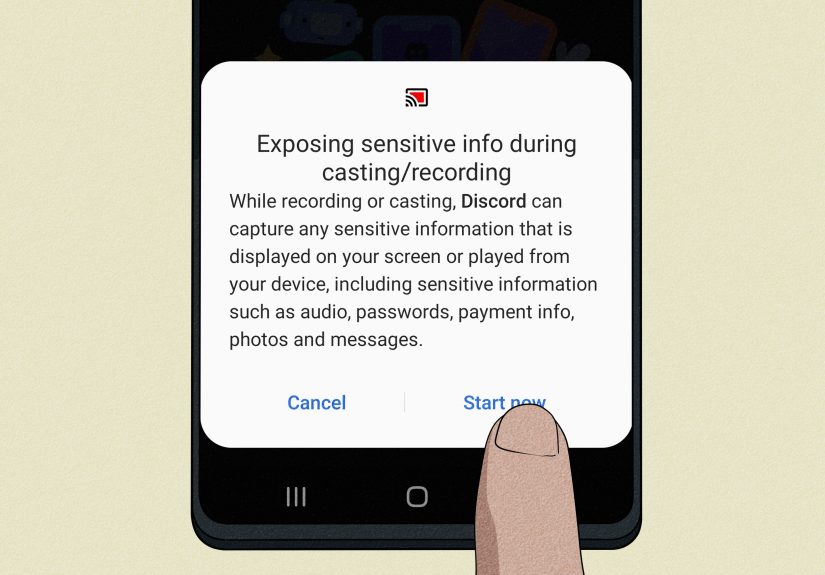
- Confirm the screen broadcast when your device asks for permission.
- Return to the app or screen you want to show.
On mobile, Discord usually shares your full screen, not a single app window. That means viewers can see incoming notifications, recent app switching, and anything else that appears on your display. So before you start, consider enabling Do Not Disturb unless you enjoy surprise cameos from every app on your phone.
Mobile Screen Sharing Tips
- Mute or silence notifications before you begin
- Close private tabs, messages, and unrelated apps
- Use a stable Wi-Fi connection for smoother streaming
- Keep your phone charged or plugged in because screen sharing can drain battery fast
- Rotate your phone deliberately if you want viewers to see portrait or landscape content better
Why Discord Screen Share Is Not Working
If Discord screen share is not working, do not panic. Most problems come down to permissions, app detection, device settings, or performance issues. In plain English: Discord is usually not broken forever. It is just being dramatic.
1. You Do Not Have Permission to Stream
If the screen share button is grayed out in a server, you may not have permission to stream in that voice channel. Ask a server admin or moderator to check your role permissions.
2. Discord Cannot Detect the App or Game
Sometimes Discord does not recognize what you are trying to share, especially if it is a game or a full-screen application. In that case, open the app first, then return to Discord and try again. On desktop, you may also need to add the app manually in your activity or game settings.
3. Mac Permissions Are Blocking the Stream
If you are on a Mac and your stream is black, blank, or missing audio, check your system permissions. Discord may need access to screen recording and, in some cases, system audio settings. Without those permissions, your stream can fail even though the button looks ready to go.
4. Your Stream Has No Sound
Audio issues are common. On desktop, audio sharing depends on your operating system, app choice, and whether you are sharing a single application or your whole screen. On mobile, audio support can also vary by device and app. Some apps block audio or video from being shared, especially protected streaming content.
5. The Stream Is Laggy or Low Quality
If your Discord screen share is lagging, the usual suspects are weak internet, too many apps running in the background, high stream settings, or hardware acceleration issues. Start simple: close extra apps, lower stream quality, and restart Discord.
6. Discord Needs an Update
An outdated app can cause screen share bugs on both desktop and phone. Update Discord first before trying more heroic solutions. Sometimes the fix is gloriously boring.
How to Improve Discord Screen Share Quality
If you want your stream to look better and run more smoothly, a few small changes can make a big difference.
Use These Practical Fixes
- Use the Discord desktop app instead of juggling too many browser tabs
- Choose app sharing when possible to reduce clutter and privacy risks
- Close bandwidth-hungry apps running in the background
- Use wired internet or strong Wi-Fi for desktop streaming
- Lower the resolution or frame rate if the stream stutters
- Restart Discord if the stream preview looks frozen
- Keep your graphics, OS, and Discord app updated
If you stream text-heavy content like spreadsheets, design mockups, or documents, do not chase flashy frame rates. Clarity matters more than smooth motion. Nobody needs buttery-smooth bullet points.
Privacy Tips Before You Share Your Screen
Screen sharing is helpful, but it can also be brutally honest. Discord will show exactly what you tell it to show, which is both the feature and the problem.
- Choose a single application window whenever possible
- Turn on Do Not Disturb before streaming
- Close email, messages, and private tabs
- Hide desktop clutter if you are sharing your entire display
- Use Streamer Mode on desktop if you want extra privacy protections
- Double-check what is visible before saying, “Yep, go ahead, I’m sharing”
That ten-second review can save you from sharing your bank tab, your surprise birthday plan, or your deeply embarrassing search history involving whether plants can feel betrayal.
PC vs. Phone: Which Is Better for Discord Screen Sharing?
Both options work, but they serve different needs.
Use PC When:
- You need better stream controls
- You want to share one app instead of everything
- You are streaming games, presentations, or multitasking workflows
- You care more about quality and readability
Use Phone When:
- You need to quickly show a mobile app or phone setting
- You are helping someone troubleshoot on the go
- You want to stream a mobile game
- You do not mind sharing the whole screen
In short, desktop is the cleaner and more controlled option. Mobile is the handy emergency tool that gets the job done fast.
Real-World Experiences With Discord Screen Sharing
One of the funniest things about learning how to share your screen on Discord is how often the first attempt turns into a tiny live performance of user error. Someone joins a call ready to present a game, a demo, or a school project, clicks around with supreme confidence, and then says the universal phrase: “Wait, can you see that?” On the other side, four friends are staring at a perfectly still desktop wallpaper and trying to be supportive.
For PC users, the most common experience is discovering that sharing a single app is much better than sharing the whole screen. At first, people often pick the full-screen option because it sounds easier. Then they realize that every notification, random tab, and accidental alt-tab becomes part of the show. After one or two mildly chaotic sessions, most users become fierce believers in application-only sharing. It is cleaner, more professional, and far less likely to reveal something awkward.
Students and remote workers tend to love Discord screen sharing because it feels less formal than a standard meeting platform. You can hop into a server, jump into voice, and explain a project without sending a calendar invite that looks like it was written by a tax attorney. Designers use it to get feedback on layouts, writers use it to review drafts, and study groups use it to walk through assignments line by line. The vibe is usually more relaxed, which makes collaboration easier.
Mobile users usually have a different experience. The feature is convenient, but it can also feel a little more exposed. Since your phone shares the whole screen, there is always that tiny moment of panic before you begin. Did you mute notifications? Did you close your messages? Is your battery at three percent and hanging on through sheer optimism? Once you get used to it, though, mobile screen sharing is incredibly useful for showing app settings, social media bugs, payment issues, or game progress without needing to explain every tap in words.
Another common experience is discovering that audio is the sneaky troublemaker. Video might look fine, but then someone says they cannot hear the game, the clip, or the app. That is usually the moment people learn that operating systems, app permissions, and content restrictions all matter. It is not glamorous knowledge, but it is the kind that saves ten minutes of confused yelling.
Then there is the emotional side of Discord streaming: it feels oddly personal. Sharing your screen is not just broadcasting content; it is inviting people into your real-time experience. That can mean showing friends a boss fight, asking for help with code, or letting someone talk you through a setting that has been hiding from you all afternoon. The best Discord screen share sessions often feel less like presentations and more like hanging out with a purpose. Messy, helpful, funny, and occasionally powered by snacks and mutual confusion.
Final Thoughts
Learning how to share your screen on Discord is not difficult once you know where the controls are and what each option actually does. On PC, you get the best balance of quality, control, and privacy. On phone, you get convenience and speed, especially for quick demos and troubleshooting. Either way, the smartest move is to choose the right screen-sharing mode, test your permissions, and keep your notifications from becoming uninvited co-stars.
If you remember just one rule, make it this: share only what you mean to share. Your future self will thank you, your audience will see exactly what they need, and your Discord call will look a lot less like a reality show pilot.





 Close
Close