
Table of Contents >> Show >> Hide
- Before You Reset: Choose the Right “Reset Level”
- How to Reset an HP Photosmart Printer: 10 Steps
- Step 1: Confirm Your Symptom (So You Don’t Reset the Wrong Thing)
- Step 2: Save What You’ll Need After the Reset
- Step 3: Perform the Recommended HP Power Reset (The “Unplug, Wait, Replug” One)
- Step 4: Clear Any Physical Problems (Paper, Cartridges, and “Oops, That’s a Sticker”)
- Step 5: Restore Factory Defaults from the Printer Control Panel (When You Need the Big Reset)
- Step 6: Restore Network Settings (If Wi-Fi Is the Problem)
- Step 7: Reconnect the Printer to Wi-Fi the Clean Way
- Step 8: Update Firmware and Run HP’s Built-In Fix Tools (If Available)
- Step 9: Clear the Print Queue (Because One Stuck Job Can Ruin Everyone’s Day)
- Step 10: Reinstall or Re-Add the Printer (And Print a Test Page)
- After the Reset: Quick Setup Checklist
- Common Reset Mistakes (Avoid These, Save Your Sanity)
- FAQ
- Extra: Real-World Experiences and Tips (The Part You’ll Actually Remember)
Your HP Photosmart printer is usually a cheerful little machine that spits out photos, homework, and shipping labels like it was born for glory.
And then one day it decides it’s “offline,” refuses to connect to Wi-Fi, or jams a print job in the queue like it’s trying to preserve it for a museum exhibit.
When that happens, a reset can be the fastest way to turn “why is nothing working?” into “oh… it’s fine now.”
This guide covers the safest, most reliable ways to reset an HP Photosmart printerwithout doing anything sketchy, destructive, or “press seven buttons while hopping on one foot.”
You’ll learn the difference between a simple power reset and a full factory reset, exactly when to use each, and what to do after the printer comes back to life.
Before You Reset: Choose the Right “Reset Level”
“Reset” can mean a few different things, and picking the right one saves time (and avoids wiping settings you actually wanted).
Here are the common reset levels for many HP Photosmart models:
1) Power Reset (aka “Soft Reset”)
Best for: frozen screens, random error messages, printer won’t print, Wi-Fi glitches, “offline” weirdness.
This clears temporary memory and restarts the printer’s internal electronics.
It’s the most common fixand the least dramatic.
2) Network Reset
Best for: Wi-Fi changes, new router, wrong password, printer connects to the wrong network, printer won’t show up in the HP app.
This wipes network settings only (Wi-Fi name/password, IP settings), not everything else.
3) Factory Reset (Restore Defaults)
Best for: stubborn setup issues, you’re giving the printer away, you changed a setting and now everything is haunted.
This restores printer settings back to default. You’ll need to re-do setup afterward.
How to Reset an HP Photosmart Printer: 10 Steps
Follow these steps in order. Most people are back in business by Step 3 or Step 5.
A full factory reset is powerfulbut treat it like hot sauce: helpful in the right amount, regrettable if you overdo it.
Step 1: Confirm Your Symptom (So You Don’t Reset the Wrong Thing)
- Printer frozen or acting weird? Start with a Power Reset.
- Wi-Fi won’t connect or changed routers? Do a Network Reset.
- Printer is being sold/gifted or setup is totally broken? Consider Factory Reset.
Quick tip: if you’re not sure, start with the least destructive option (Power Reset), then escalate.
Step 2: Save What You’ll Need After the Reset
Before you reset anything, gather these so you’re not scrambling later:
- Your Wi-Fi network name (SSID) and password
- The computer’s admin password (if you might reinstall drivers)
- Printer model name (e.g., Photosmart 6520, C4780, D110a, etc.)
If you’re doing a factory reset, expect to reselect language/region and rejoin Wi-Fi afterward.
Step 3: Perform the Recommended HP Power Reset (The “Unplug, Wait, Replug” One)
This is the reset HP commonly recommends because it actually drains residual power and clears temporary faults.
Do it exactly like this:
- Turn the printer on (yes, on).
- Disconnect the power cord from the back of the printer.
- Unplug the power cord from the wall outlet.
- Wait 60 seconds. (Count it. This is not the time for “roughly-ish.”)
- Plug the power cord back into a wall outlet (skip surge protectors for now).
- Reconnect the power cord to the printer.
- Turn the printer on if it doesn’t automatically power up.
Why the wall outlet matters: a weak power strip or surge protector can cause flaky power delivery, which leads to flaky printer behavior.
Printers are surprisingly sensitive for devices that happily live next to dust bunnies.
Step 4: Clear Any Physical Problems (Paper, Cartridges, and “Oops, That’s a Sticker”)
If you’re getting jams, carriage errors, or weird “printer failure” messages, do a quick physical sanity check:
- Open access doors and remove any jammed paper gently (pull in the direction of paper travel if possible).
- Remove and reseat ink cartridges (make sure they click in firmly).
- Check for packing materials if the printer was recently moved or “mysteriously reappeared from storage.”
Then try printing a simple test page after Step 3. If the printer is still acting up, keep going.
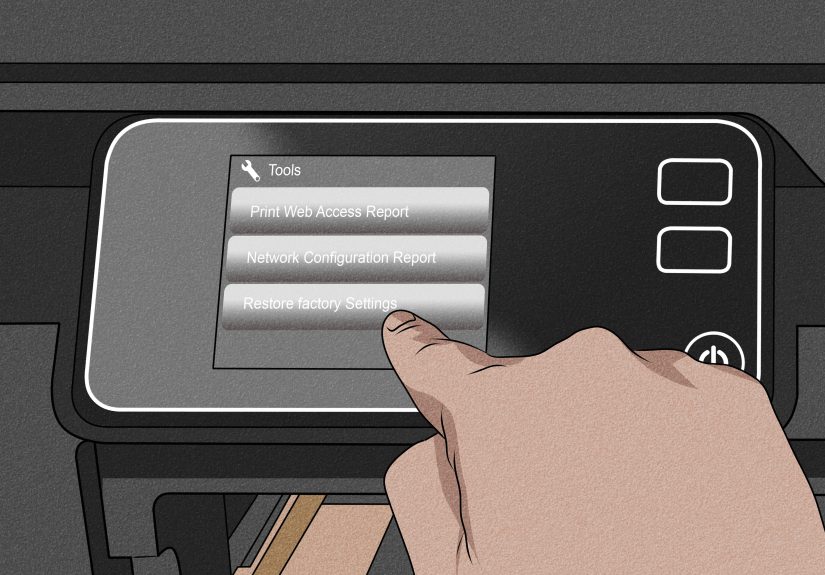
Step 5: Restore Factory Defaults from the Printer Control Panel (When You Need the Big Reset)
Many HP Photosmart printers can restore defaults from the menu. The exact wording varies by model, but common paths look like:
- Setup (or a wrench/gear icon) → Tools → Restore Factory Defaults
- Setup → Printer Maintenance → Restore → Restore Factory Defaults
- Settings → Service (or Maintenance) → Restore Defaults
If your Photosmart has a touchscreen, you may need to tap the menu icon and scroll.
If it has buttons, use arrows/OK to navigate.
Confirm the reset, and wait for the printer to restart.
Important: Factory reset usually clears settings like language, region, custom preferences, and network info.
It typically does not erase internal page counts, but it does put the printer back into “first-day-of-school” mode.
Step 6: Restore Network Settings (If Wi-Fi Is the Problem)
If printing works over USB but Wi-Fi is a messor you changed routersdo a network reset.
Common menu paths:
- Wireless (antenna icon) → Settings → Restore Network Settings
- Setup → Network Setup → Restore Network Settings
Confirm the restore. The printer will forget saved Wi-Fi networks and you’ll reconnect next.
Step 7: Reconnect the Printer to Wi-Fi the Clean Way
After a network reset (or factory reset), reconnect using the Wireless Setup Wizard if your model has it:
- Open the printer’s Wireless or Network menu.
- Select Wireless Setup Wizard (or similar).
- Choose your Wi-Fi network name.
- Enter the password carefully (printers love turning one typo into a two-hour hobby).
If your Photosmart supports WPS and your router has a WPS button, you can try WPSbut the wizard is often less fussy and more predictable.
Step 8: Update Firmware and Run HP’s Built-In Fix Tools (If Available)
Firmware updates can resolve odd bugs, connectivity problems, and recurring error states.
If your printer supports updates through an HP app or control panel, check for updates once it’s connected.
Also, many HP apps include “Diagnose & Fix” features that can automatically correct common connection and queue issues.
Think of it as the printer equivalent of “turn it off and on again,” but with more menus.
Step 9: Clear the Print Queue (Because One Stuck Job Can Ruin Everyone’s Day)
Sometimes the printer is innocent and the computer is the one hoarding a broken print job like it’s a treasured family heirloom.
If you reset the printer but printing still fails:
On Windows
- Open the print queue for your printer and cancel stuck jobs.
- If jobs won’t cancel, restart the Print Spooler service and clear the spooler queue (advanced but effective).
On macOS
- Open the printer queue and delete stalled jobs.
- If the printer keeps going “offline,” remove and re-add the printer in system settings.
Clearing the queue is especially important after a factory reset, because the computer may still be sending jobs to the printer’s old network address.
Yes, computers also hold grudges.
Step 10: Reinstall or Re-Add the Printer (And Print a Test Page)
After resets, your device might need a fresh handshake with the printer:
- Remove the printer from your computer’s printer list.
- Re-add it (preferably using the HP app or your operating system’s add-printer flow).
- Print a test page and (if applicable) a simple color photo to confirm ink and alignment.
If the printer is still failing after all 10 steps, you may be dealing with hardware issues (paper feed rollers, cartridge contacts, power supply) or a model-specific fault code.
At that point, it’s reasonable to search the exact error message plus your Photosmart model number.
After the Reset: Quick Setup Checklist
- Select language/region (factory reset often asks again)
- Reconnect to Wi-Fi
- Re-add printer on Windows/macOS
- Run alignment or calibration if print quality looks off
- Print a test page and one real-world document (like a PDF)
Common Reset Mistakes (Avoid These, Save Your Sanity)
Using the wrong “unplug”
For the power reset, unplug from the printer and the wall, wait the full 60 seconds, and plug into a wall outlet.
Skipping the wait is like microwaving leftovers for two seconds and wondering why they’re still cold.
Doing a factory reset when you only needed a network reset
If the only problem is Wi-Fi, restore network settings first. Factory reset is overkill for “I got a new router.”
Forgetting the computer might still be stuck
A reset printer won’t help if your computer is still stuck on a broken print job or an old driver.
Clear the queue and re-add the printer when needed.
FAQ
Will resetting my HP Photosmart delete everything?
A power reset doesn’t delete settingsit just clears temporary memory.
A network reset deletes only network settings.
A factory reset restores many settings to default and usually requires full setup again.
How often should I reset my printer?
Ideally: rarely. Resets are troubleshooting tools, not a weekly wellness ritual.
If you’re resetting constantly, the underlying cause might be firmware, driver issues, unstable Wi-Fi, or hardware wear.
What if my Photosmart has no touchscreen?
Many button-based Photosmart models still have a Setup menu and Tools options.
Use arrow keys and OK to find “Restore Defaults” or “Restore Factory Defaults.”
Extra: Real-World Experiences and Tips (The Part You’ll Actually Remember)
Resetting a printer sounds simple until you’re standing there watching it blink like it’s communicating in Morse code.
So here are some very real, very common situations people run intoand what usually works best.
Scenario 1: “It says Offline, but it’s literally right here.”
This is often a network identity crisis. The printer may have changed its IP address after a router reboot, and your computer is still trying to send jobs to the printer’s old “address.”
The fastest fix combo is: power reset the printer, then clear the print queue, then remove and re-add the printer on your computer.
It’s like introducing two friends who swear they’ve never met, even though they went to the same party.
Scenario 2: “New router, new Wi-Fi name, new me… same printer problems.”
If you changed routers (or even just renamed your Wi-Fi), your printer is still trying to connect to the old network like it’s texting an ex.
Do a network reset, then use the Wireless Setup Wizard to connect to the new Wi-Fi.
If you skip the network reset and keep typing the password, you can end up with a printer that looks connected but won’t show up in appsbecause it’s half-connected in the most annoying way possible.
Scenario 3: “I unplugged it to reset it… and now it’s worse.”
This happens when the unplug was too quick, or it was plugged into a flaky power strip.
The HP-style power reset (unplug from printer and wall, wait 60 seconds, plug into a wall outlet) is oddly specific because it works.
If the printer is still unstable, try a different wall outlet. Seriously. Power issues masquerade as “printer issues” all the time.
Scenario 4: “It prints, but the colors look like a sad alternate universe.”
A reset won’t magically fix clogged nozzles or low ink, but it can help if the printer’s internal state is stuck.
After resetting, run alignment or print-quality tools from the printer menu.
Then print a simple photo with a mix of colors. If black text is fine but photos are rough, the next steps are usually maintenance (cleaning/alignment) rather than more resets.
Scenario 5: “I’m giving this printer away. I want it to forget me.”
This is where factory reset shines. Restore factory defaults, then restore network settings so it doesn’t cling to your Wi-Fi credentials.
Bonus points: print a configuration or network status page afterward (if your model supports it) to confirm it’s back to default behavior.
Your future self (and the next owner) will thank you.
The best order of operations (when you’re not sure):
Power reset first. If it’s a Wi-Fi problem, network reset next. If setup is completely broken or you’re transferring ownership, factory reset last.
That’s the printer equivalent of “try the simple thing before you rebuild the whole house.”






 Close
Close