
Table of Contents >> Show >> Hide
- Before You Start: 4 Quick Checks (So You Don’t Move Into a Brick Wall)
- Method 1: Move Photos Using the Files App (Files by Google or Built-In)
- Method 2: Use Gallery/My Files + Change Camera Save Location (Great for Samsung, Motorola, and Carrier Guides)
- Method 3: Use a Computer (or an SD Card Reader) for the Fastest Bulk Transfer
- Troubleshooting: The “Why Won’t It Let Me?!” Section
- Best Practices (So Your SD Card Doesn’t Become a Surprise Plot Twist)
- Conclusion
- Real-World Experiences: What Actually Happens After You “Move” Everything (500-ish Words)
Your Android phone is basically a tiny computer that also happens to take 4K photos, record 1080p videos,
and store 6,000 screenshots of receipts you swear you’ll expense someday. Eventually, storage runs out.
If your phone has a microSD slot, congratulationsyou own the world’s smallest “extra closet.”
This guide walks you through three reliable methods to move pictures from Android to an SD card,
plus the real-life “wait, why did my Gallery disappear?” stuff people actually run into.
Before You Start: 4 Quick Checks (So You Don’t Move Into a Brick Wall)
1) Confirm your phone can use an SD card
Not every Android has a microSD slot. Many newer flagships skip it. If your phone has a tray labeled “SIM/SD”
or “microSD,” you’re good. If not, Method 3 (computer + external reader) can still help you store photosjust not inside the phone.
2) Make sure the SD card is inserted and recognized
Go to Settings > Storage (wording varies) and look for your SD card. If it’s not showing,
skip to the troubleshooting section.
3) Decide: Move vs. Copy
- Move frees up internal storage immediately (photos end up on the SD card only).
- Copy keeps a backup on your phone until you delete the originals (safer if you’re nervous).
If you’ve ever lost files to a “mystery card error,” you already know: copy first is the emotionally stable choice.
4) Know where your pictures actually live
Common folders include:
DCIM/Camera (camera photos),
Pictures/Screenshots (screenshots),
and app folders like WhatsApp Images or Telegram.
Your Gallery app is basically a fancy window into these folders.
Method 1: Move Photos Using the Files App (Files by Google or Built-In)
This is the most universal method because it works across many Android brands. If you have
Files by Google (or a similar “Files” app), you can move or copy photos in a few taps.
Step-by-step (Files by Google)
- Open Files (often called Files by Google).
- Find your photos by going to a category like Images, or browse folders under Internal storage.
- Press and hold a photo to select it. Tap more photos to select in bulk.
- Tap the More (three dots) menu.
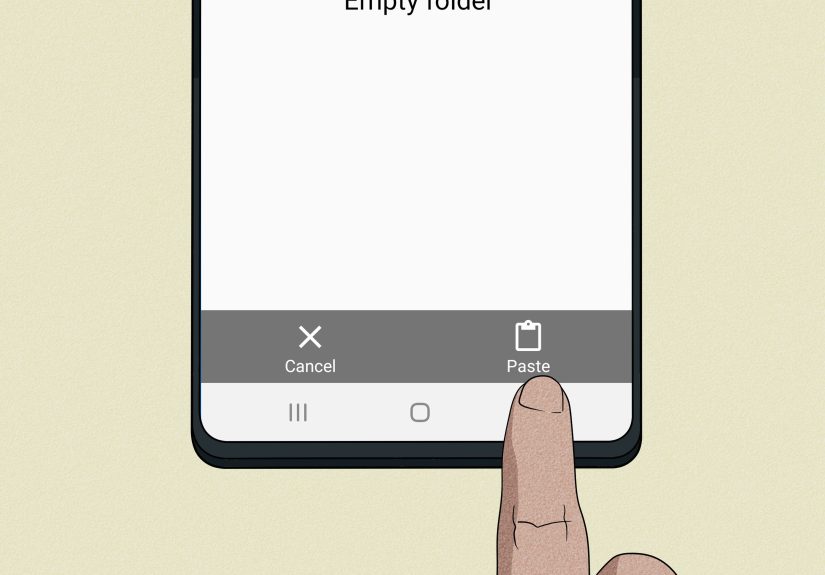
- Choose Move to (or Copy to if you want a safety net).
- Select SD card as the destination.
- Pick a folder (or create one), then tap Move here / Copy here.
Smart folder choices (so your Gallery stays sane)
- SD card/DCIM/Camera: best if you want the SD card to look like your “main camera roll.”
- SD card/Pictures: a clean, general-purpose option.
- Keep folders separated: Screenshots, Downloads, and messaging app images are easier to manage if they don’t all move into one mega-pile.
If you don’t see “Move” (or it fails)
Sometimes Android will act protectivelike it’s guarding your screenshots from the outside world.
Try these fixes:
- Use Copy instead, confirm everything is on the SD card, then delete originals from internal storage.
- Grant permissions if prompted (Android may ask to allow SD card access).
- Avoid moving app-managed albums from inside certain apps; use the Files app to move the actual files instead.
Method 2: Use Gallery/My Files + Change Camera Save Location (Great for Samsung, Motorola, and Carrier Guides)
Many Android brands offer a built-in shortcut: move photos straight from the Gallery or a manufacturer file manager like
Samsung My Files. This method feels “native” and is often the easiest for non-technical users.
A) Samsung Gallery method: Move pictures to an SD card album
On many Samsung devices, the Gallery app can move images by creating an album stored on the SD card, then moving photos into it.
- Open Gallery > go to Albums.
- Tap More (three dots) > choose Create album.
- Select Internal storage and switch it to SD card.
- Name the album (example: Moved from Phone).
- Go back to your photos, press and hold to select pictures.
- Tap More > choose Move to album.
- Select the SD card album you created.
Result: your pictures live on the SD card, and Gallery still “sees” them like normal.
B) Samsung My Files (and similar “File Manager” apps): Move by folder
If you prefer folders (or you’re moving thousands of images), use a file manager.
Samsung’s My Files is a common example, and carrier tutorials often mirror these steps.
- Open My Files (sometimes inside a Samsung folder).
- Tap Internal storage.
- Open DCIM > Camera (and any other picture folders you want).
- Tap Edit or press and hold to select items.
- Tap Move (or Copy), then choose SD card.
- Select a destination folder and confirm.
C) Bonus: Set your camera to save new pictures to the SD card
Moving existing photos helps today. Setting your camera to store new photos on the SD card helps tomorrow.
Not all phones support this, but many do (especially older models and midrange devices with SD slots).
- Open the Camera app.
- Tap Settings (often a gear icon).
- Look for Storage location (or Save to / Data storage).
- Select SD card.
After this, your phone typically creates a DCIM/Camera folder on the SD card for new photos.
If you don’t see the option, your device or camera app may not allow itno conspiracy, just Android being Android.
Method 3: Use a Computer (or an SD Card Reader) for the Fastest Bulk Transfer
If your phone is crawling, your Gallery won’t load, or you’re moving a truly heroic number of pictures,
a computer transfer can be faster and less annoying.
Option 1: Transfer via USB cable (Windows PC / Mac)
- Connect your Android phone to your computer with a USB cable that supports data transfer.
- Unlock your phone (your computer usually can’t browse files if it’s locked).
- On your phone, tap the USB notification and choose File transfer (sometimes called MTP).
- On your computer, open the phone’s storage and navigate to DCIM and Pictures.
- Drag photos to a folder on your computer (optional “backup first” step).
- Then drag the photos into your SD card folder (either the SD card inside the phone, or an SD card connected to the computer).
- Eject safely, disconnect, and confirm the photos appear on the phone.
Pro tip: If your SD card is in the phone, you can often drag directly to the phone’s SD card directory.
If things glitch, copy to your computer first, then copy to the SD card.
Option 2: Use a USB-C OTG SD card reader (no laptop required)
If your phone supports OTG (most do), you can plug in a USB-C SD card reader, insert the card,
and move photos with your Files app. It’s basically Method 1, but with a “tiny external drive” twist.
- Insert the SD/microSD card into the reader.
- Plug the reader into your phone’s USB-C port.
- Open Files, select your photos, then choose Move to > the SD card.
- Confirm transfer, then unplug the reader.
Troubleshooting: The “Why Won’t It Let Me?!” Section
Problem: The SD card doesn’t show up
- Remove the card, reinsert it, and restart your phone.
- Try the card in another device (or a computer) to confirm it isn’t dead.
- If prompted, format the card only after backing up anything important (formatting erases data).
- Make sure the card capacity and format are supported by your phone.
Problem: Photos moved, but Gallery isn’t showing them
Usually this is just the media scanner taking its sweet time.
- Wait a minute or two (especially after big moves).
- Restart the phone to force a rescan.
- Open the folder in Files oncesometimes that “wakes up” the indexing.
Problem: “Access denied” or “Can’t move file”
- Use Copy instead of Move, then delete originals.
- Make sure the Files app has SD card permission if Android asks.
- Avoid moving files that belong to certain apps while the app is openclose the app and try again.
Problem: “I use Google Photoswhy can’t I just move everything?”
Google Photos is often a mix of cloud backups and on-device files.
If a photo is only in the cloud, you must download it to the device first before it can be moved to an SD card.
If it’s already on your phone (in DCIM/Pictures), moving it with a Files app works normally.
Best Practices (So Your SD Card Doesn’t Become a Surprise Plot Twist)
- Use a quality card. A slow microSD can make browsing photos feel like dial-up internet.
- Keep a backup. SD cards are great, but they’re not immortal. Consider also backing up to a computer or trusted cloud service.
- Organize as you move. Create folders like “Camera,” “Screenshots,” and “Family Trips” so future-you doesn’t get mad at past-you.
- Don’t yank the card mid-transfer. This is how “corrupted card” horror stories are born.
- Copy-then-delete is the safest workflow if you’re moving critical photos and don’t want surprises.
Conclusion
If you want the simplest, works-on-most-phones approach: use Method 1 (Files app).
If you’re on Samsung (or a brand with strong built-in tools): Method 2 feels smooth and “native,”
and setting your camera to save to SD can prevent future storage drama.
If you’re moving a mountain of photosor your phone is already strugglingMethod 3 is your fastest path to freedom.
Pick the method that matches your comfort level, keep your folders tidy, and your phone storage will stop screaming for help.
(At least until you discover 8K video.)
Real-World Experiences: What Actually Happens After You “Move” Everything (500-ish Words)
The first time most people move pictures from Android to an SD card, they expect a clean victory: phone storage goes up,
photos remain perfectly organized, and the universe applauds. In reality, it’s usually more like a sitcom episode where you
win in the endbut not before your Gallery app briefly acts like it forgot who you are.
One common experience: you move 2,000 photos, then open Gallery and think you deleted your entire life. You didn’t.
The phone is just re-indexing files. Give it a minute, open the Files app, maybe restart once, and suddenly your photos
reappear like they were only hiding behind the couch cushions. This is especially true if you moved big folders like
DCIM/Camera in one shot.
Another real-world surprise is duplicatesusually caused by good intentions. People often choose Copy
(smart!), confirm the pictures are on the SD card (also smart), and then forget to delete the originals. A week later,
storage is still full and they’re convinced the SD card “didn’t work.” It did. Your internal storage is just still holding
the same photos like a clingy roommate. If you copy first, make a “cleanup day” plan: delete the originals after you verify
the SD card files open correctly.
Speed is another big one. A bargain-bin microSD can make viewing photos feel slow, especially if you’re scrolling fast,
loading thumbnails, or using a photo editor that reads images directly from the card. Upgrading to a better card can feel
like upgrading your phone, without actually upgrading your phone. If your Gallery pauses on every third photo, your SD card
might be begging for retirement.
The folder organization lesson usually arrives like this: you move everything into one folder named “Photos,”
and two weeks later you can’t find screenshots, receipts, or the one picture of your parking spot.
The fix is simpleseparate folders. “Camera,” “Screenshots,” “Downloads,” and “Messaging” folders keep your sanity intact.
Once you do that, your Gallery albums start making sense again (which is rare and precious).
Lastly, there’s the “why can’t this one app move its images?” moment. Some apps store media in their own managed areas or
require permissions before you can write to SD. The practical workaround is to use the Files app to move the actual image files,
or to export/download them into a normal folder first. It’s not you. It’s Android being cautious and slightly dramatic.
The good news: once you’ve done this once, the process becomes routine. Many people end up with a simple habit:
set the camera to save to SD (when available), move screenshots monthly, and do a computer backup every few months.
Storage stops being a crisis and turns into a maintenance chorelike brushing your teeth, but with fewer dentists.







 Close
Close