
Table of Contents >> Show >> Hide
- First: “Homepage” vs “Startup Page” vs “New Tab”Yes, They’re Different
- Pick Your Yahoo Flavor
- Make Yahoo Your Homepage in Google Chrome (Windows & Mac)
- Make Yahoo Your Homepage in Safari (Mac)
- Safari on iPhone & iPad: The “Homepage” Workaround That Actually Works
- Make Yahoo Your Homepage in Microsoft Edge (Windows & Mac)
- Make Yahoo Your Homepage in Mozilla Firefox (Windows, Mac, Linux)
- “& More”: Brave, Opera, and Other Chromium Browsers
- Don’t Forget the Address Bar: Set Yahoo as Your Default Search Engine
- Make Yahoo Feel Like Your Yahoo (Not Just “A Yahoo”)
- Troubleshooting: When Yahoo “Won’t Stick” (Or Shows Up Uninvited)
- Experience Section: Field Notes From the “Make It My Homepage” Trenches (500+ Words)
- Conclusion
If your browser were a house, the homepage would be the front door. And right now, you’re basically asking,
“How do I make Yahoo the place I trip into every morningideally without stepping on digital Legos?”
Good news: whether you’re on Chrome, Safari, Edge, Firefox, or a few “bonus” browsers, making Yahoo your homepage
is usually a quick settings tweaknot a sacred ritual.
In this guide, you’ll learn how to set Yahoo as your homepage (and when it makes more sense to set it
as your startup page or default search engine). We’ll also cover common “why won’t it stick?”
problems, mobile workarounds, and a few personalization tricks to make Yahoo feel less like a billboard and more like
your command center.
First: “Homepage” vs “Startup Page” vs “New Tab”Yes, They’re Different
Browsers love confusing terminology almost as much as they love updates. Here’s the cheat sheet:
- Startup page: What opens when you launch the browser (or open a new window, depending on settings).
- Homepage: The page you go to when you click the little house icon (the “Home” button).
- New tab page: What appears when you open a new tab. Some browsers let you customize this; some do not.
- Default search engine: Where searches go when you type into the address bar (omnibox).
You can set Yahoo for one, two, or all four. The “right” setup depends on how you browse:
if you want Yahoo every time you open the browser, focus on startup. If you only want it one click away,
set the Home button. If you want Yahoo results when you type a search, set the default search engine.
Pick Your Yahoo Flavor
Before you change settings, decide which Yahoo page you want:
- Yahoo Home:
www.yahoo.com(news, weather, trends, quick links) - Yahoo Mail-first: use the Yahoo Mail page if email is your daily mission control
- My Yahoo: a more customizable dashboard-style experience if you like widgets and personalization
Pro tip: open the exact page you want first. Many browsers include a “Use current page” option, which is basically
the browser saying, “Cool, I’ll just copy what you already did.”
Make Yahoo Your Homepage in Google Chrome (Windows & Mac)
Option A: Make Yahoo your startup page (opens when Chrome launches)
- Open Chrome and click the three-dot menu (top-right).
- Click Settings.
- Find On startup.
- Select Open a specific page or set of pages.
- Click Add a new page and enter
www.yahoo.com(or your preferred Yahoo page). - Click Add (or Done, depending on your version).
Now, every time you open Chrome, Yahoo shows up like that friend who’s always “in the neighborhood.”
Option B: Turn on Chrome’s Home button and set it to Yahoo
- In Chrome Settings, click Appearance.
- Toggle on Show home button.
- Choose Enter custom web address.
- Type
www.yahoo.com.
This is the best setup if you don’t want Yahoo forced on you at launch, but you do want it one click away.
Bonus: What if you want Yahoo on startup and Google for search?
Totally allowed. Set Yahoo as the startup page (Option A), then set your default search engine separately.
This way, Yahoo is your front door, but Google/Bing/whatever is your search engine under the hood.
It’s like living in one city and ordering pizza from the place across town because it’s just better.
Make Yahoo Your Homepage in Safari (Mac)
Safari on Mac is straightforwardalmost suspiciously so.
Set Yahoo as Safari’s homepage
- Open Safari.
- Click Safari in the menu bar, then choose Settings (or Preferences on older macOS).
- Go to the General tab.
- In Homepage, enter
www.yahoo.com. - If you already opened Yahoo, click Set to Current Page to auto-fill it.
Make new windows and tabs open to Yahoo (optional, but satisfying)
Still in Safari > Settings > General, look for:
- New windows open with → choose Homepage
- New tabs open with → choose Homepage (if that’s your preference)
If you do this, Yahoo becomes the “start here” point for both fresh windows and new tabs. If you prefer Safari’s
Start Page for new tabs (favorites, reading list, etc.), you can keep that and only set Yahoo as the homepage.
Safari on iPhone & iPad: The “Homepage” Workaround That Actually Works
Here’s the deal: iPhone/iPad Safari doesn’t behave like desktop Safari when it comes to a traditional homepage.
Instead, it leans heavily on the Start Page (favorites, frequently visited sites, privacy report, and so on).
The simplest way to get “Yahoo as homepage vibes” is to use a shortcut.
Option A: Add Yahoo to your Home Screen (acts like a one-tap homepage)
- Open Safari and go to
www.yahoo.com. - Tap the Share icon.
- Select Add to Home Screen.
- Name it “Yahoo” (or “Daily Distraction,” no judgment) and tap Add.
Now Yahoo is an app-like icon on your Home Screen. Tap it and you’re instantly on Yahoo without detouring through tabs.
Option B: Customize Safari’s Start Page for quicker Yahoo access
You can add Favorites and control what appears on the Start Page. For many people, pinning Yahoo as a Favorite
is close enough to “homepage” without fighting iOS design choices.
Make Yahoo Your Homepage in Microsoft Edge (Windows & Mac)
Edge gives you both worlds: a Home button you can set to Yahoo, plus a startup behavior you can customize.
Turn on the Home button and set it to Yahoo
- Open Edge and click the three-dot menu (top-right).
- Choose Settings.
- Go to Start, home, and new tab page.
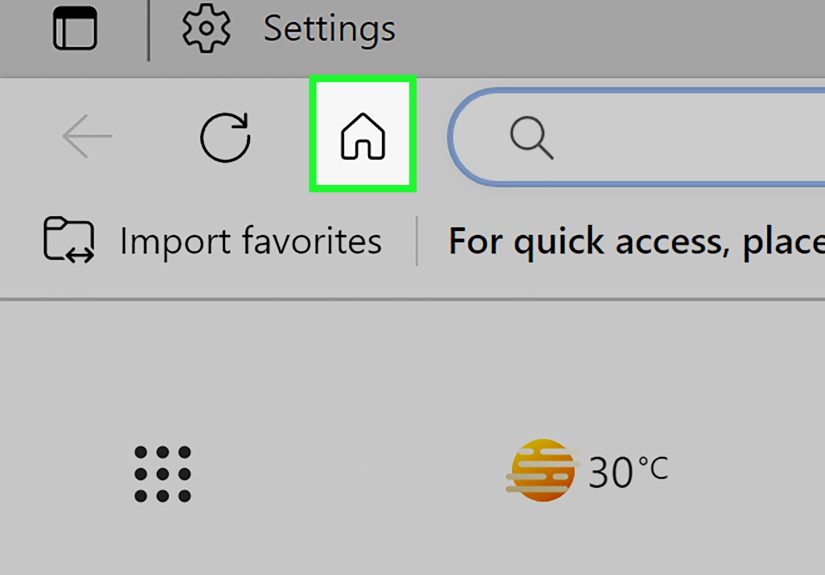
- Toggle on Show home button on the toolbar.
- Select Enter URL and type
www.yahoo.com.
Make Edge open Yahoo when it starts (optional)
In the same settings area, you can choose what Edge shows at startup. If you want Yahoo to appear immediately
when you launch Edge, set the startup behavior to open a specific page (Yahoo).
Edge on mobile (Android/iPhone): set a Home page
Edge’s mobile app includes a Home page setting in its options. If you want Yahoo to appear when you tap Home,
set the Home page to a specific URL and use www.yahoo.com.
Make Yahoo Your Homepage in Mozilla Firefox (Windows, Mac, Linux)
Firefox is refreshingly clear about what it’s doing, which is rare in 2026 internet terms.
Set Yahoo as Firefox’s homepage and new windows page
- Open Firefox and go to Settings.
- Click Home in the left sidebar.
- Under Homepage and new windows, choose Custom URLs.
- Paste
www.yahoo.com.
Set Yahoo for new tabs too (optional)
In the same Home section, Firefox lets you decide what new tabs show. If you want Yahoo every time
you hit “+”, set new tabs to a custom URL. If you’d rather keep a clean Firefox new tab page, set Yahoo only for
homepage/new windows.
“& More”: Brave, Opera, and Other Chromium Browsers
Many modern browsers are Chromium-based, meaning their homepage/startup settings look a lot like Chrome’s:
you’ll typically find options for On startup, a Home button (sometimes called “Show Home button”),
and a New tab page.
- Look for “On startup” to open Yahoo when the browser launches.
- Look for “Appearance” to enable a Home button and set it to Yahoo.
- Use a bookmark or pinned shortcut if the browser limits custom new-tab behavior.
Translation: if you can find Settings, you’re 90% of the way there.
Don’t Forget the Address Bar: Set Yahoo as Your Default Search Engine
Setting Yahoo as your homepage doesn’t automatically make Yahoo your search engine. If you type
“best pizza near me” into the address bar, your browser sends that query to whichever search engine is default.
If you want Yahoo Search results, set Yahoo as the default search engine too.
Chrome (desktop): set Yahoo as the default search engine
- Open Chrome Settings.
- Go to Search engine.
- Choose Yahoo as the default search engine (or manage search engines and set Yahoo as default).
Edge: set Yahoo as the default search engine
- Open Edge Settings.
- Go to Privacy, search, and services (then search settings / address bar settings).
- Select Yahoo as Search engine used in the address bar.
iPhone/iPad Safari: switch search engine to Yahoo
On iOS/iPadOS, Safari’s default search engine can be changed in the device settings. If you pick Yahoo there,
your address bar searches go to Yahoo by default.
Make Yahoo Feel Like Your Yahoo (Not Just “A Yahoo”)
Once Yahoo is your homepage, you can make it more useful than “headline roulette.”
A few quick personalization ideas:
- Sign in so Yahoo can show your Mail alerts, saved preferences, and local info.
- Try My Yahoo if you prefer a dashboard layout with modules and columns.
- Pin your daily essentials: weather, finance watchlists, sports scores, or quick links.
- Use a “work” vs “personal” approach: one browser profile opens Yahoo Mail, another opens My Yahoo.
The goal is simple: your homepage should save you time, not steal it. (Yes, even if celebrity news is calling your name.)
Troubleshooting: When Yahoo “Won’t Stick” (Or Shows Up Uninvited)
Sometimes the issue isn’t “How do I make Yahoo my homepage?” It’s “Why does Yahoo keep showing up even when I didn’t ask?”
That can happen for normal reasons (sync, managed devices, settings in multiple places)… and for not-so-normal reasons
(browser hijackers, sketchy extensions).
1) Check extensions first (fastest win)
- Open your browser’s Extensions page.
- Disable anything you don’t recognizeespecially “search tools,” “coupon finders,” and “PDF helpers” you never invited.
- Restart the browser and test again.
If your search engine keeps changing to Yahoo, an extension (or unwanted software) is a common culprit.
2) Confirm your startup + homepage settings are both correct
In Chromium browsers, it’s easy to set a Home button and forget the startup setting (or vice versa).
If you want Yahoo at launch, set On startup. If you want it on the Home button, set Appearance.
If you want both, set both.
3) Clear site data if things behave oddly
If Yahoo pages load strangely, logins loop, or settings don’t seem to apply, clearing cookies/cache can help.
On Apple devices, you can remove Safari website data in system settings. On desktop browsers, clear browsing data
selectively (cookies + cached files) and try again.
4) Scan for browser hijackers (the not-fun but important part)
If your browser keeps redirecting searches, swapping your default engine, or changing your homepage back after you fix it,
treat it like a security problem. Reputable security vendors describe “browser hijackers” as threats that modify browser settings
and push redirects. Run a trusted anti-malware scan, remove unwanted programs, and consider resetting your browser settings
if the problem persists.
5) One more “it’s not you, it’s IT” scenario
Work/school devices can be managed. If your browser says it’s “managed by your organization,” some settingsstartup, homepage,
search enginemay be locked. In that case, the fix is policy-based, not willpower-based.
Experience Section: Field Notes From the “Make It My Homepage” Trenches (500+ Words)
Here’s what usually happens in real life: someone decides they want Yahoo as their homepage because it’s convenientnews, weather,
email, finance, sportsall in one place. Five minutes later, they’re staring at four different settings menus wondering why the browser
keeps “doing its own thing.” If that’s you, congratulations: you’re having a completely normal modern browsing experience.
The biggest aha moment for most people is realizing the browser has multiple “starting points.” Chrome alone can have:
(1) a startup page (what appears when you open Chrome), (2) a homepage (what the Home button opens), and (3) a new tab page
(what you see when you open a new tab). If you set Yahoo in only one of those places, the browser isn’t brokenit’s just being
extremely literal. A common “I swear I set this already” situation is turning on the Home button for Yahoo, then expecting Yahoo
to appear on launch. The fix is simply setting Yahoo under On startup too.
Another real-world pattern: households. One person wants Yahoo because they check Yahoo Mail; another wants a blank page because
they like their browser “minimalist.” The easiest compromise is: set Yahoo as the Home button, but keep startup behavior as
“Continue where you left off” or “New Tab.” That way, Yahoo is always one click away, but nobody feels like the browser is forcing
a daily news briefing before coffee.
Mobile adds its own twist. People often expect iPhone Safari to behave like Mac Safari, but iOS Safari is more “Start Page”-centric.
The best experience I’ve seen (for anyone who wants a fast, repeatable Yahoo entry point) is adding Yahoo to the Home Screen.
It sounds almost too simple, but it works beautifully: one tap, Yahoo opens, done. It’s also a nice workaround for anyone who
doesn’t want to juggle tab clutter just to check headlines or email.
Personalization is where Yahoo as a homepage either becomes genuinely usefulor becomes “that page I immediately close.”
The difference is usually whether you make it serve a purpose. If you’re a “check the weather, scan headlines, open email” person,
you’ll get value quickly. If you’re also tracking markets, fantasy sports, or local news, spending two minutes setting up a more
dashboard-like page (such as My Yahoo) can save you repeated clicks every day. A homepage should reduce friction. If you have to
hunt for what you want, it’s not a homepageit’s just a webpage you happen to see first.
Finally, the sneaky scenario: people who didn’t choose Yahoo at all. If your search suddenly redirects through weird intermediate
pages, your default engine flips back after you change it, or your homepage changes “by itself,” treat it like a cleanup job.
In many cases, it’s an extension you installed while trying to download something else (yes, even something “harmless”).
Disable suspicious extensions first, then scan for unwanted software, then reset browser settings if needed. The goal isn’t to
banish Yahooit’s to make sure you’re the one making the choice.
Conclusion
Making Yahoo your homepage is easy once you pick the right target:
set startup if you want Yahoo when the browser opens, set the Home button if you want it one click away,
and set the default search engine if you want Yahoo results from the address bar. Safari on iPhone/iPad plays by different rules,
so the best move there is adding Yahoo to your Home Screen or pinning it as a favorite.
And if Yahoo keeps appearing when you didn’t ask? Don’t wrestle settings forevercheck extensions, scan for browser hijackers,
and reset what needs resetting. Your homepage should be your launchpad, not a hostage situation.







 Close
Close