
Table of Contents >> Show >> Hide
- Why UX Optimization Matters for Every Digital Product
- 1. Make the Next Action Obvious
- 2. Speed Up the Experience Users Actually Feel
- 3. Use Familiar Patterns Before Clever Ones
- 4. Build Navigation Like a GPS, Not a Maze
- 5. Cut Form Friction Ruthlessly
- 6. Write Microcopy That Removes Doubt
- 7. Design for Accessibility From the Start
- 8. Give Feedback at Every Important Step
- 9. Test Small, Learn Fast, Improve Often
- Conclusion: Great UX Feels Simple Because the Hard Work Is Hidden
- Practical Experience: What These UX Optimization Tricks Look Like in Real Projects
User experience is not decoration. It is not the “pretty layer” sprinkled on top after development, like parsley on a steak. UX optimization is the practical work of making a website or app faster, clearer, easier, more trustworthy, and less likely to make users mutter, “Where on earth do I click?”
The good news is that great UX does not require a magical design lab, a 40-person research team, or a conference room full of sticky notes arranged like modern art. Whether you run an e-commerce store, SaaS dashboard, mobile app, booking platform, education site, media website, or local service page, the same core principles apply: reduce friction, guide attention, respect user expectations, and make every action feel obvious.
This guide covers nine UX optimization tricks that work on almost any site and app. They are practical, repeatable, and based on real user behavior rather than design gossip from someone wearing extremely expensive sneakers.
Why UX Optimization Matters for Every Digital Product
UX optimization improves how users interact with your product from the first tap to the final conversion. It affects bounce rate, time on page, sign-ups, purchases, retention, customer support requests, and brand trust. When a user can find what they need quickly, complete a task without confusion, and feel confident along the way, your product becomes easier to use and easier to recommend.
Search engines also care about user experience signals. Fast loading, mobile usability, visual stability, accessible content, and useful page structure all contribute to a better web experience. In short, UX is not just a design issue. It is an SEO issue, a conversion issue, a customer satisfaction issue, and occasionally a “please stop making the checkout button gray on a gray background” issue.
1. Make the Next Action Obvious
The first rule of UX optimization is simple: users should never have to wonder what to do next. Every page, screen, and flow should have a clear primary action. That action might be “Create Account,” “Add to Cart,” “Book a Demo,” “Continue,” “Save Changes,” or “Read More.” Whatever it is, it should be visually obvious and contextually useful.
A common UX mistake is giving every button equal weight. When five buttons fight for attention, users pause. When users pause, doubt creeps in. When doubt creeps in, conversions quietly sneak out the back door wearing a fake mustache.
How to Apply This Trick
Use one visually dominant call-to-action per screen or section. Secondary actions should still be available, but less visually aggressive. For example, on a pricing page, “Start Free Trial” should stand out more than “Compare Plans.” On a checkout page, “Place Order” should be more obvious than “Return to Cart.”
Good UX design guides users gently. It does not shove them. Think of your interface as a helpful airport sign, not a carnival barker with a megaphone.
2. Speed Up the Experience Users Actually Feel
Performance is UX. A beautiful interface that loads slowly is like a luxury elevator that never arrives. Users may admire the idea, but they will take the stairs.
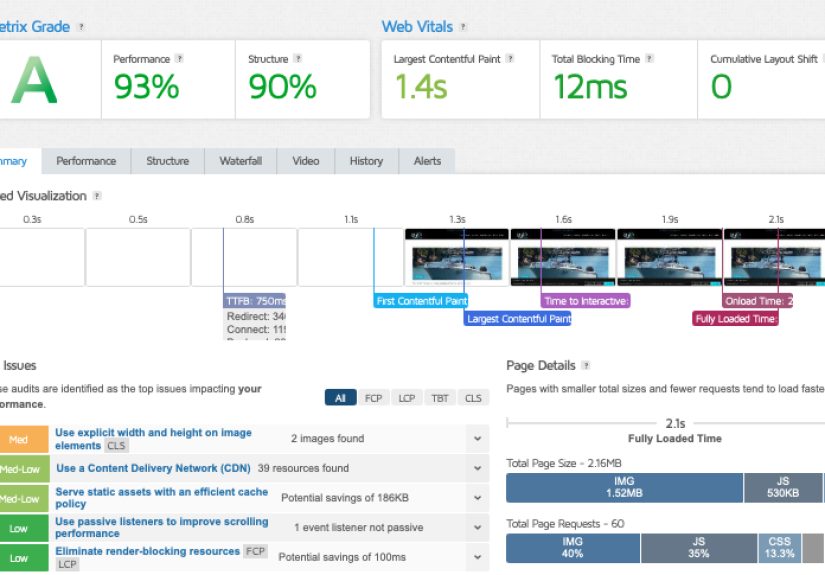
UX optimization should focus on both actual speed and perceived speed. Actual speed includes loading performance, interactivity, and layout stability. Perceived speed is how fast the experience feels to the user. A page that shows useful content quickly feels better than one that displays a blank screen while invisible scripts throw a tiny party in the background.
How to Apply This Trick
Compress images, use modern formats, reduce unnecessary scripts, lazy-load non-critical elements, and prioritize above-the-fold content. Avoid layout shifts that move buttons or text after the page loads. Few things are more annoying than trying to tap “Checkout” and accidentally hitting “Subscribe to Our Newsletter” because the layout jumped. That is not a conversion strategy; that is digital slapstick.
For apps, use loading skeletons, progress indicators, and optimistic UI where appropriate. When users see that something is happening, they are more patient. Silence, on the other hand, makes people assume your app has gone to live on a farm.
3. Use Familiar Patterns Before Clever Ones
Originality is wonderful in branding, storytelling, and product positioning. But when it comes to basic interaction patterns, familiarity usually wins. Users already understand shopping carts, profile icons, hamburger menus, search bars, tabs, breadcrumbs, toggle switches, and bottom navigation in mobile apps. These patterns are not boring; they are mental shortcuts.
Good UX design reduces cognitive load. That means users should not have to learn a brand-new interaction system just to filter a product list or update their password. Unless your product is a video game or experimental art project, the interface should not feel like a puzzle designed by a mischievous raccoon.
How to Apply This Trick
Use common design conventions for common tasks. Put navigation where users expect it. Make search easy to find. Use recognizable icons with labels when clarity matters. Keep destructive actions, such as “Delete Account,” visually distinct and protected with confirmation.
This does not mean every site and app should look the same. It means innovation should happen where it creates value, not where it creates confusion. A clever menu that nobody can open is not innovative. It is a locked door with excellent typography.
4. Build Navigation Like a GPS, Not a Maze
Navigation is one of the strongest signals of UX quality. Users need to know where they are, where they can go, and how to get back. If your navigation fails, the rest of your interface has to work twice as hard.
Strong navigation supports orientation. It uses clear labels, logical grouping, predictable placement, and consistent structure. It also avoids dumping every possible destination into one overloaded menu. A navigation bar should not look like someone emptied a filing cabinet into a header.
How to Apply This Trick
Group related pages under simple categories. Use plain language instead of internal jargon. For example, “Pricing” is clearer than “Solutions Investment Framework.” “Contact” is clearer than “Engage With Our Growth Team.” Your users are not attending your company’s quarterly strategy meeting. They just want to find the right page.
For large websites, use breadcrumbs, filters, search, and well-structured category pages. For apps, keep core actions within easy reach and avoid hiding essential tools behind too many taps. If users need a treasure map to find account settings, the interface needs work.
5. Cut Form Friction Ruthlessly
Forms are where conversions often go to celebrate or die. Sign-up forms, checkout forms, lead forms, onboarding forms, booking forms, and support forms all ask users to do work. The more work you require, the more people drop off.
UX optimization for forms is about removing unnecessary fields, clarifying expectations, preventing errors, and making completion feel manageable. Every field should earn its place. If you do not truly need a user’s fax number in 2026, let it retire peacefully.
How to Apply This Trick
Ask only for essential information. Use autofill, input masks, smart defaults, and helpful field labels. Show errors near the relevant field and explain how to fix them. Do not wait until the user submits the form to reveal that their password needed a symbol, a number, an uppercase letter, a moon phase, and the blessing of a medieval wizard.
For longer forms, break the process into steps and show progress. This is especially useful in checkout, onboarding, insurance, finance, healthcare, and travel booking flows. A progress indicator tells users, “You are not trapped here forever.” That is a surprisingly powerful message.
6. Write Microcopy That Removes Doubt
Microcopy is the small text that guides users through an interface: button labels, field hints, error messages, confirmation text, empty states, tooltips, and helper messages. It may be small, but it has a large impact on user confidence.
Great UX writing answers questions before users ask them. Will my card be charged today? Can I cancel later? What happens after I click this button? Why do you need my phone number? Is this error my fault or the system’s fault? Clear microcopy prevents hesitation and reduces support requests.
How to Apply This Trick
Replace vague labels with specific ones. “Submit” is functional, but “Create My Account” is clearer. “Continue” may work, but “Continue to Payment” gives more context. Error messages should be polite, specific, and actionable. Instead of “Invalid input,” say, “Enter a 5-digit ZIP code.”
Microcopy should sound human. That does not mean every message needs a joke. In fact, error messages are usually not the best place to audition for a comedy special. When users are frustrated, clarity beats cleverness.
7. Design for Accessibility From the Start
Accessibility is not a bonus feature. It is a core part of user experience. A product that cannot be used by people with different abilities, devices, environments, or input methods is not truly optimized.
Accessible UX benefits everyone. Captions help users who are deaf or hard of hearing, but they also help someone watching a video in a noisy coffee shop. Strong color contrast helps users with low vision, but it also helps someone checking a phone in bright sunlight. Keyboard navigation helps users with motor disabilities, but it also helps power users who prefer shortcuts.
How to Apply This Trick
Use sufficient color contrast, readable font sizes, semantic HTML, descriptive link text, keyboard-friendly interactions, alt text for meaningful images, visible focus states, and clear error identification. Do not rely on color alone to communicate meaning. A red border with no text explanation may be invisible to some users and mysterious to others.
Accessibility should be considered during research, design, development, testing, and content creation. Adding it at the end is like building a restaurant and then realizing stairs are the only way inside. It is much easier, cheaper, and kinder to plan for inclusion from the beginning.
8. Give Feedback at Every Important Step
Users need feedback. When they click, tap, upload, save, delete, submit, drag, drop, refresh, or complete an action, the interface should respond clearly. Without feedback, users may repeat actions, abandon the process, or assume something broke.
Feedback creates trust. A button state, loading spinner, success message, progress bar, toast notification, vibration, animation, or confirmation screen can tell users the system heard them. This is especially important in high-stakes flows such as payments, medical forms, file uploads, travel bookings, and account changes.
How to Apply This Trick
Show immediate visual response when users interact with controls. Disable duplicate submission buttons after click when needed. Confirm successful actions with clear messages. For destructive actions, add confirmation and recovery options where possible.
One of the best UX optimization tricks is to design for mistakes. People misclick. They mistype. They change their minds. They are human, which is rude of them but unavoidable. Undo options, confirmation dialogs, autosave, and editable review screens make products feel safer and more forgiving.
9. Test Small, Learn Fast, Improve Often
No team gets UX perfect by guessing. Even experienced designers make assumptions that fall apart when real users arrive. The fastest way to improve UX is to watch users interact with your site or app, identify friction, and fix the highest-impact problems first.
UX testing does not always need to be complicated. You can learn a lot from five user interviews, session recordings, heatmaps, support tickets, search logs, form analytics, usability tests, A/B tests, and customer feedback. The key is to look for repeated patterns, not one random complaint from someone who also thinks all buttons should be purple.
How to Apply This Trick
Pick one important flow, such as sign-up, checkout, onboarding, product discovery, or booking. Watch where users hesitate, backtrack, rage-click, abandon, or ask questions. Then prioritize fixes based on impact and effort.
Small UX improvements compound. A clearer button may increase clicks. A shorter form may lift completion. A faster page may reduce bounce rate. Better error messages may reduce support tickets. UX optimization is not one dramatic redesign every three years. It is steady maintenance, like brushing your teeth, except the teeth are buttons and the toothpaste is usability research.
Conclusion: Great UX Feels Simple Because the Hard Work Is Hidden
The best user experiences rarely announce themselves. Users do not usually say, “Wow, what a beautifully optimized interaction architecture.” They say, “That was easy.” That is the goal.
These nine UX optimization tricks work across websites and apps because they focus on universal human needs: clarity, speed, control, confidence, accessibility, and trust. Make the next action obvious. Improve performance. Use familiar patterns. Simplify navigation. Reduce form friction. Write helpful microcopy. Design inclusively. Provide feedback. Test continuously.
When these principles work together, your product becomes easier to understand, easier to use, and easier to love. And in a digital world overflowing with confusing menus, slow pages, and forms that ask for your childhood dentist’s middle name, “easy to use” is a serious competitive advantage.
Practical Experience: What These UX Optimization Tricks Look Like in Real Projects
In real UX work, the biggest improvements often come from surprisingly ordinary changes. A team may expect the winning idea to be a bold redesign, a dramatic animation, or a brand-new feature. Then the data points to something humble, like changing a button label from “Next” to “Continue to Checkout.” UX has a funny way of reminding everyone that users do not care how long the design meeting lasted. They care whether the thing works.
One common experience happens during form optimization. A business wants more leads, but the contact form asks for name, email, phone number, company size, job title, budget, location, project timeline, favorite sandwich, and possibly blood type. After reviewing the flow, the team removes non-essential fields and changes the form into a shorter, friendlier version. The result is often immediate: more users finish it because the form no longer feels like applying for a mortgage to download a PDF.
Another frequent UX lesson appears in navigation. Companies often name pages based on internal departments rather than user intent. A button called “Enterprise Enablement Suite” might make sense inside a boardroom, but users are more likely searching for “Services,” “Pricing,” or “Support.” Rewriting navigation labels in plain English can make a site feel instantly easier. No new technology required. Just fewer corporate fog machines.
Mobile UX also teaches painful but valuable lessons. A desktop layout may look polished, but when squeezed onto a phone, the tap targets become tiny, the filters disappear, and the hero image pushes the useful content halfway to next Tuesday. Testing on real devices exposes these issues quickly. The fix may include larger buttons, sticky bottom actions, shorter headings, collapsible filters, and content ordered by user priority instead of internal preference.
Performance improvements are another area where users reward simplicity. Replacing oversized images, removing unnecessary scripts, and stabilizing layouts can make a page feel dramatically better. Users may never know what changed. They simply stop leaving so quickly. That is the quiet beauty of good UX optimization: when it works, fewer people complain.
Accessibility work also creates broad benefits. Adding visible focus states helps keyboard users, but it also helps teams test interactions faster. Better contrast helps users with low vision, but it also improves readability for everyone. Clear error messages help users with cognitive disabilities, but they also help tired people filling out forms at 11:47 p.m. after their third cup of questionable coffee.
The most important experience is this: UX optimization is not about proving the designer is clever. It is about making users successful. Every confusing label, slow screen, hidden action, and vague error message is a small tax on user patience. Remove enough of those taxes, and the product starts to feel effortless. That is when UX stops being a department and becomes a business advantage.






 Close
Close