
Table of Contents >> Show >> Hide
- What Is an RTF File, and Why Convert It to Word?
- Before You Convert: Three Smart Things to Do First
- Way 1: Convert an RTF File into a Word Document in Microsoft Word
- Way 2: Convert an RTF File to DOCX with Google Docs
- Which Method Is Better?
- Mistakes to Avoid When Converting RTF to Word
- A Quick Example
- Experience and Lessons from Real RTF-to-Word Conversions
- Final Thoughts
Note: The steps below focus on two practical, real-world methods that work well for most people: Microsoft Word and Google Docs.
You open an old document, see the .rtf extension, and immediately feel like you’ve been emailed from 2004. The good news is that converting an RTF file into an MS Word document is not hard. In most cases, it takes only a minute or two. The better news is that you do not need to perform digital archaeology with a floppy disk and a prayer.
If you are trying to convert RTF to Word for work, school, legal forms, reports, or client files, this guide walks you through the two easiest methods. The first uses Microsoft Word, which is usually the cleanest option. The second uses Google Docs, which is excellent when you do not have Word installed or need a free browser-based workaround.
Along the way, you will also learn what an RTF file really is, why formatting sometimes shifts during conversion, and how to reduce the odds of opening your shiny new DOCX file only to find that your headings, tables, and spacing have started a rebellion.
What Is an RTF File, and Why Convert It to Word?
RTF stands for Rich Text Format. It was designed as a widely compatible format that could preserve basic text styling such as bold, italics, fonts, alignment, and simple images without locking you into one specific app. That made it useful for sharing documents across different operating systems and word processors.
Today, though, DOCX is the modern standard for Microsoft Word documents. It is better suited for current office workflows, easier to share in business environments, and generally more reliable for advanced formatting, comments, collaboration, and modern Word features. In plain English, RTF is the dependable old station wagon, and DOCX is the newer car with better mileage, more features, and fewer mysterious rattles.
So why convert an RTF file into an MS Word document?
- You need a file that opens cleanly in Microsoft Word.
- You want to edit the document using newer Word features.
- You need to send a DOCX file for school, work, or an online submission portal.
- You want better compatibility with modern office apps and cloud services.
- You are tired of explaining to everyone that “Yes, it opens fine on my computer.”
Before You Convert: Three Smart Things to Do First
1. Make a backup of the original RTF file
Always keep the original file untouched. Save a copy before converting. That way, if formatting shifts, fonts disappear, or a table decides to become abstract art, you still have the source file.
2. Check whether the file is simple or complex
Simple RTF files with plain text, headings, and basic lists usually convert very well. More complex files with images, tables, unusual fonts, text boxes, or special page layout elements are more likely to need cleanup afterward.
3. Know that RTF is not the same as DOCX
This sounds obvious, but it matters. RTF supports basic formatting well, yet it is not built for every advanced Word feature. That means a converted DOCX file may still need a quick review before you send it out.
Way 1: Convert an RTF File into a Word Document in Microsoft Word
This is the best method for most users. If you already have Word on your computer, use it. Since the goal is to create an MS Word document, going straight through Word usually gives you the cleanest result.
Step-by-step instructions
- Open Microsoft Word on your Windows PC or Mac.
- Click File, then Open.
- Browse to your .rtf file and open it.
- Let Word load the document fully.
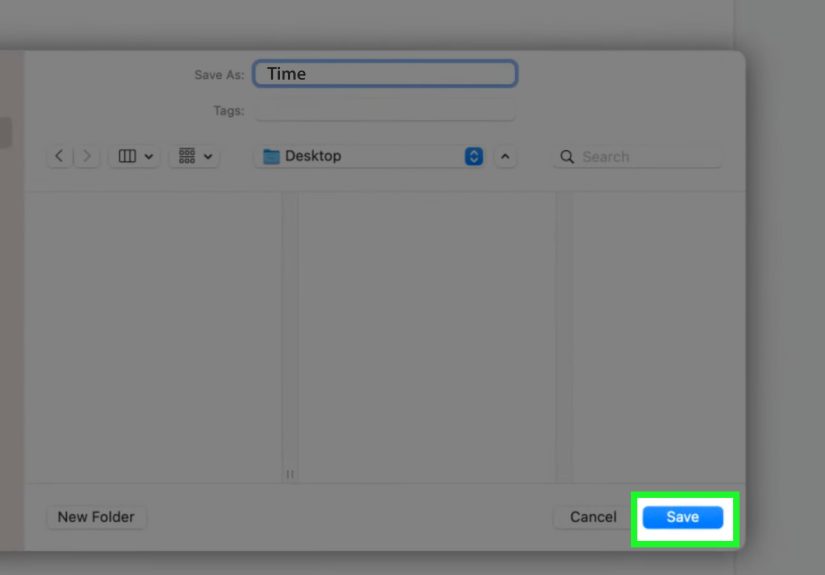
- Click File, then Save As or Save a Copy.
- Choose the folder where you want the new file saved.
- Under the file type or format menu, select Word Document (.docx).
- Rename the file if needed, then click Save.
That is it. Your RTF file is now a Word document.
Why this method works so well
Word understands Word formats better than anything else because, well, it is Word. If your original RTF file contains headings, lists, paragraphs, tables, or inserted images, Word usually does the best job of keeping them organized when saving to DOCX.
This route is especially useful when you are converting documents exported from older systems such as billing software, government databases, school portals, or legacy business tools that still love RTF more than they should.
What to check after saving as DOCX
- Headings and font sizes
- Line spacing and paragraph breaks
- Bullets and numbered lists
- Tables and borders
- Images and their alignment
- Page breaks, headers, and footers
If the document looks correct, save again and move on with your life like the efficient document wizard you are.
Common problems in Word and how to handle them
Problem: The formatting looks slightly different after conversion.
Fix: This is common with older RTF files. Reapply styles in Word, adjust spacing, and confirm the correct font is installed.
Problem: Images move around or appear oddly placed.
Fix: Click the image and review its layout options. In some cases, re-inserting the image or changing the wrap setting helps.
Problem: Special characters do not look right.
Fix: Check the font and encoding. Try opening the original RTF again and saving a fresh DOCX copy.
Problem: You only have Word for the web.
Fix: Use the Google Docs method below or open the file in desktop Word, because browser-based Word does not directly support RTF the same way the desktop app does.
Way 2: Convert an RTF File to DOCX with Google Docs
No desktop Word? No problem. Google Docs can be a very handy backup plan. It is free, browser-based, and surprisingly effective for basic and moderately formatted RTF files.
Step-by-step instructions
- Go to Google Drive and sign in.
- Upload your .rtf file.
- Open the uploaded file with Google Docs.
- Review the document to make sure the content appears correctly.
- Click File, then Download.
- Choose Microsoft Word (.docx).
- Save the downloaded DOCX file to your computer.
Congratulations: your RTF file is now wearing a DOCX outfit.
When Google Docs is the smarter choice
This method is excellent when:
- You do not have Microsoft Word installed.
- You are using a Chromebook.
- You need a free way to convert RTF to Word.
- You are working on a shared or cloud-based workflow.
- You need a quick conversion from any computer with a browser.
Where Google Docs may struggle a little
Google Docs usually handles text-based RTF files well, but more complex layouts can shift during import and export. Multi-level lists, unusual page breaks, custom fonts, or detailed tables may need cleanup after download. That does not make Google Docs bad. It just means it is more of a practical all-rounder than a perfectionist.
For a simple report, school assignment, resume draft, or office memo, Google Docs is often more than enough. For legal filings, polished business documents, or anything layout-sensitive, Word is usually the better choice.
Which Method Is Better?
Here is the short version:
- Use Microsoft Word when formatting matters most and you want the cleanest conversion.
- Use Google Docs when you need a free and easy browser-based solution.
If your RTF file is basic, both methods may produce a nearly identical result. If the file is complex, Word usually wins.
Mistakes to Avoid When Converting RTF to Word
Saving over the original file
Keep the original RTF. Always. Future-you will appreciate the backup.
Assuming conversion means perfection
Conversion is often smooth, but not magical. A quick visual check can save you from sending a file with broken spacing or weird bullets.
Using random online converters for sensitive files
Some online tools work, but documents with personal, financial, medical, legal, or client information deserve more caution. Microsoft Word or Google Docs usually feels like the safer everyday route for normal users who care about privacy and control.
Ignoring fonts
If the original file used fonts that are missing on your computer, the converted DOCX may look different. Font substitution is one of the quiet villains of document formatting.
A Quick Example
Imagine you receive a meeting summary exported from an older database as Quarterly_Update.rtf. It opens fine, but your manager wants a Word file for editing, comments, and final sharing.
You open the RTF in Word, choose Save As, select Word Document (.docx), and save it as Quarterly_Update_Final.docx. Then you reopen the DOCX, fix one table border, and send it off. Total time: maybe three minutes, including the moment you paused to judge the file name.
Experience and Lessons from Real RTF-to-Word Conversions
One of the most common experiences people have with RTF files is not confusion about how to convert them, but surprise that they still exist in the first place. A lot of RTF files come from older software systems, export tools, medical platforms, school databases, court forms, or enterprise programs that have not fully embraced modern document formats. So the first lesson is simple: if an RTF file shows up in your workflow, it usually means some older tool is still doing its thing behind the scenes.
In real use, the easiest RTF conversions are plain-text heavy documents. Think letters, reports, draft articles, outlines, and policy notes. Those usually open in Word or Google Docs with very little drama. Headings stay where they belong, paragraphs remain readable, and the document converts to DOCX without making you question your life choices. For these files, the job feels almost boring, which is exactly what you want from a file conversion.
The more memorable experiences happen with documents that look simple at first glance but hide a little formatting chaos under the hood. A file may contain invisible spacing tricks, manually aligned tabs, ancient fonts, pasted tables, or images anchored in odd positions. In RTF, all of that can behave differently depending on the app that opens it. Then you save it as DOCX, open the new file, and suddenly the second page looks like it had an argument with the first page. This is why experienced users almost always review the converted file instead of assuming the save button performed a miracle.
Another very real lesson is that Microsoft Word is usually the safest first stop when the final destination is DOCX. People often try a random converter tool first because it sounds fast. Sometimes that works, but many users end up circling back to Word after the result looks off. Word tends to preserve document structure better because it understands DOCX natively and handles RTF in a more predictable way than many lightweight tools.
Google Docs, on the other hand, often shines when convenience matters more than pixel-perfect formatting. People use it when they are on a borrowed computer, a Chromebook, a locked-down work device, or simply do not have Word installed. The experience is usually smooth for essays, notes, memos, and other text-focused files. It becomes less perfect with layout-heavy documents, but it is still an excellent rescue option. In practical terms, Google Docs is the friend who helps you move a couch with a smile, even if Word is the friend with the actual moving truck.
Many users also discover that conversion is not the finish line. The final step is often a quick cleanup pass: checking paragraph spacing, reapplying a heading style, replacing a font, or correcting one table. That is normal. It does not mean the conversion failed. It means documents are messy little ecosystems, and older formats do not always translate flawlessly into newer ones.
The biggest takeaway from real-world experience is this: conversion is easy, but verification is smart. Open the RTF, save as DOCX, then spend one minute reviewing the result. That minute is often the difference between “Done already” and “Why is the footer in the middle of page three?”
Final Thoughts
If you need to convert an RTF file into an MS Word document, the process is refreshingly straightforward. Microsoft Word is the best method when you want the most reliable formatting and the cleanest path to a proper DOCX file. Google Docs is the easiest free alternative when Word is not available.
The key is not just converting the file, but checking the result. A fast review of fonts, spacing, tables, and page layout can prevent future headaches. In other words: trust the conversion, but verify the document.
And next time an RTF file lands in your inbox, you can nod calmly, convert it in minutes, and act like this kind of document time travel happens to you every day.







 Close
Close