
Table of Contents >> Show >> Hide
- What “Changing Your Apple ID” Actually Means
- Before You Change Anything
- How to Change Your Apple ID Email on iPhone or iPad
- How to Change Your Apple ID on the Web
- How to Switch to a Completely Different Apple ID
- What Happens to Your Data, Purchases, and Subscriptions?
- Common Problems When Changing an Apple ID
- Best Practices for a Smooth Apple ID Change
- Real-World Experiences: What Changing Your Apple ID Actually Feels Like
- Conclusion
Changing your Apple ID sounds simpleuntil you realize Apple uses that one account for iCloud, the App Store, Messages, FaceTime, subscriptions, backups, device syncing, and roughly half your digital life. In other words, this is not a “click one button and ride into the sunset” situation. But don’t worry. If you understand what kind of change you’re making, the whole process becomes a lot less dramatic.
Here’s the first big truth: when people say they want to “change their Apple ID,” they usually mean one of two things. They either want to update the email address or phone number tied to the same Apple account, or they want to stop using one Apple account and sign in with a completely different one. Those are not the same move, and mixing them up is how people end up confused, annoyed, and staring at Settings like it personally betrayed them.
This guide walks through both scenarios, explains what happens to your data, and shows you how to avoid common mistakes. Whether you’re replacing an old email address from your college years, cleaning up a professional account, or switching to an entirely different Apple ID, here’s how to do it without turning your iPhone into a stress machine.
What “Changing Your Apple ID” Actually Means
Before touching anything, decide which situation applies to you:
1. You want to keep the same account, but change the login email or phone number
This is the easier option. Your purchases, backups, subscriptions, photos, and account history stay connected to the same Apple account. You are simply changing the main address or number you use to sign in.
2. You want to switch to a completely different Apple ID
This is a bigger change. You will need to sign out of the current account on your device and sign in with another one. That can affect iCloud syncing, messages, photos, purchases, and any data tied to the original account. Think of this less like changing a shirt and more like moving apartments.
If you only need a new sign-in email, do not create a brand-new Apple account unless you truly want a separate identity. For most people, updating the existing Apple ID is the cleaner move.
Before You Change Anything
A little preparation can save you from a lot of post-change grumbling. Here’s what to check first:
- Make sure you know your current Apple ID password. If you don’t, reset it before making other changes.
- Confirm you still have access to your trusted phone number or trusted device. Apple may require verification.
- Back up your iPhone, iPad, or Mac. This is especially smart if you plan to sign out and switch to a different account.
- Review your subscriptions and purchases. These usually stay tied to the Apple account that originally bought them.
- Check Family Sharing settings. If your household shares purchases, switching accounts can affect what others can access.
Also, don’t confuse your Apple ID with the email accounts inside the Mail app. Changing the default email you send from in Mail is not the same as changing your Apple account login. That’s a different hallway in the Settings maze.
How to Change Your Apple ID Email on iPhone or iPad
If you want to change the email address associated with your current Apple account, your iPhone or iPad is usually the most straightforward place to do it.
- Open Settings.
- Tap your name at the top.
- Tap Sign-In & Security.
- Tap your primary email address.
- Choose the option to remove or change it.
- Add or select the new email address you want to use.
- Verify the new email address if prompted.
If your current Apple ID uses a phone number instead of an email address, you can also change that sign-in method in the same general section. Apple now allows more flexibility here than it used to, which is nice because the old process had the charm of assembling furniture with missing screws.
One important wrinkle: if your account only has an iCloud email address attached, Apple may present a slightly different path for changing it, especially on newer versions of iOS and iPadOS. So if your menu looks a little different from a screenshot you found online from 2021, that’s not you doing something wrong. That’s just technology aging in public.
How to Change Your Apple ID on the Web
If you prefer using a browser, you can manage your sign-in details on Apple’s account website. This is useful if you’re on a computer, your phone is unavailable, or you simply prefer clicking around with a mouse like a civilized adult.
- Go to your Apple account page in a web browser.
- Sign in with your current Apple ID and password.
- Open Sign-In & Security.
- Select Email & Phone Numbers.
- Edit your existing sign-in details.
- Add your new email address or number.
- Complete any verification steps.
This method is especially helpful if you’ve changed email providers and want your Apple ID to match your new address. It’s also a good option if you use multiple Apple devices and want to update the account centrally before signing in again everywhere else.
How to Switch to a Completely Different Apple ID
Sometimes you don’t want to edit the current account. You want out. Maybe the old Apple ID belongs to a previous work life, an ex-shared device setup, or a personal email address you’d rather retire forever. In that case, you need to sign out and sign back in with another Apple ID.
On iPhone or iPad
- Open Settings.
- Tap your name.
- Scroll down and tap Sign Out.
- Enter your password if prompted.
- Choose what data you want to keep on the device.
- Confirm sign-out.
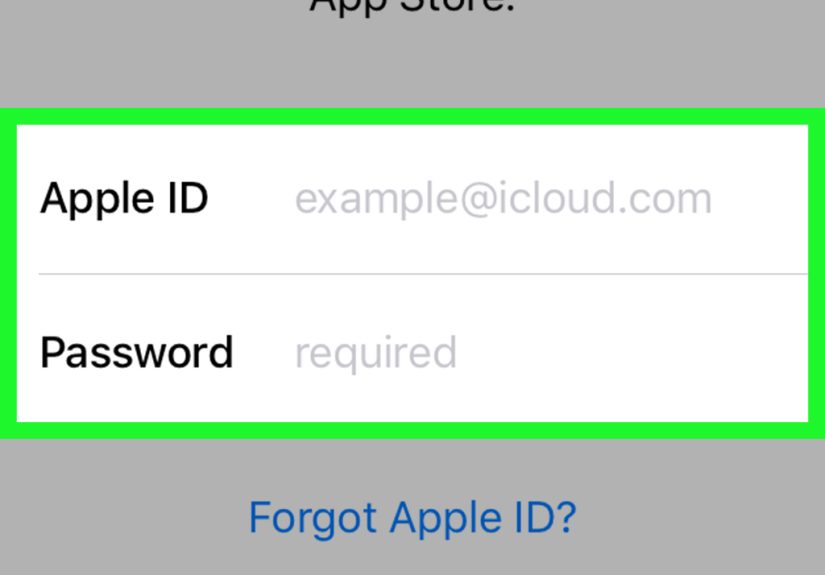
- Go back to Settings and tap Sign in to your iPhone.
- Enter the different Apple ID and password.
On Mac
- Open System Settings.
- Click your name.
- Click Sign Out.
- Choose whether to keep a copy of certain data on the Mac.
- Sign back in with the other Apple ID.
When you switch to a different Apple ID, some local data may remain on the device if you choose to keep a copy, but your iCloud sync, Apple services, and account-linked content will now follow the new account. That’s why it’s smart to think this through before charging ahead like a raccoon with Wi-Fi.
What Happens to Your Data, Purchases, and Subscriptions?
This is the part people really care about, because nobody wants to lose photos, app purchases, or that subscription they forgot they were paying for.
If you change the email or phone number on the same Apple account
Good news: your account remains the same account. That means your purchases, iCloud storage, backups, subscriptions, and settings generally stay connected. You’re changing the label on the front door, not bulldozing the house.
If you switch to a different Apple ID
Now things get more serious. Purchases made under the old Apple ID remain tied to that old account. Some family-shared content may still be accessible through Family Sharing if configured correctly, but you should not assume that all your app history, subscriptions, or media purchases will magically follow you to the new login. Apple accounts are not designed like interchangeable hats.
If you use Family Sharing, note that changing the Apple account used for purchase sharing can affect what your family members can access. Apple also applies timing limits to some purchase-sharing changes, so this is not something you want to do casually during your lunch break with 3% battery.
Common Problems When Changing an Apple ID
You can’t verify the new email address
Check spam and junk folders first. Yes, really. The most high-tech troubleshooting step in the world is still “look in spam.” Also confirm you typed the address correctly and that the inbox is active.
You forgot your password
Reset it from a trusted device if possible. Apple also provides recovery options through the web and the Apple Support app on a borrowed Apple device.
You don’t see the option to change the account
This may happen if you’re on an older software version, using a managed device, or your account setup uses only certain sign-in methods. Updating your device can help. If it’s a work-managed iPhone or Mac, your organization may restrict account changes.
Your apps or media seem missing after switching accounts
This usually happens when you signed into a completely different Apple ID. Content purchased under the original account doesn’t automatically move over. Double-check which account actually owns the apps, subscriptions, or purchases you’re looking for.
You keep getting asked to sign in on other devices
That’s normal after changing your Apple ID email or switching accounts. You may need to update the login across your iPhone, iPad, Mac, Apple TV, iCloud for Windows, and any Apple services still using the old credentials.
Best Practices for a Smooth Apple ID Change
- Use an email address you plan to keep for a long time.
- Update your trusted phone number before you lose access to the old one.
- Turn on two-factor authentication if it isn’t already enabled.
- Review devices linked to your Apple account, especially if you’ve sold or replaced hardware.
- After the change, sign in again on all the Apple devices and services you actively use.
And one more tip: if your current Apple ID is attached to an ancient email address that makes you sound like you created it during the dial-up era, this is your sign. You can move on. You do not need to face the modern world as cooldude_2004.
Real-World Experiences: What Changing Your Apple ID Actually Feels Like
On paper, changing an Apple ID sounds like a tidy account-management task. In real life, it often starts with a tiny moment of embarrassment or inconvenience. Maybe you’re applying for a job and realize your Apple account still uses a goofy old email from high school. Maybe your main inbox is overflowing with spam because it’s been public for years. Maybe you switched phone numbers, changed jobs, got married, got divorced, or simply decided your digital life deserves less chaos and more grown-up energy.
For many people, the first surprise is emotional, not technical. Your Apple ID has probably been with you for years. It’s attached to photos, notes, purchases, messages, backups, and random app downloads you forgot existed. Changing it can feel weirdly personal, like updating an address after living somewhere for a long time. It’s not just a login. It’s part filing cabinet, part memory box, part utility bill.
The smoothest experiences usually happen when someone is only changing the email address tied to the same Apple account. In those cases, the reaction is often, “Oh, that was easier than I expected.” Once the new email is verified, life continues more or less normally. Photos stay put, app purchases remain available, and the biggest annoyance is usually having to sign in again on a few devices.
The messier experiences tend to happen when people confuse editing an existing Apple account with switching to a different Apple account entirely. That’s when panic can set in. Suddenly an app looks uninstalled, a subscription seems missing, or iCloud photos don’t match expectations. Usually, the problem isn’t that Apple deleted anything. It’s that the content belongs to the old account, while the device is now signed into a new one. Once people understand that, the situation becomes less scary and more logistical.
Another common experience is discovering just how many places your Apple ID quietly lives. You update it on your iPhone and then remember your MacBook, iPad, Apple TV, browser sessions, password manager, and maybe iCloud on a Windows computer. It’s like cleaning one room and realizing the whole house somehow got involved. Annoying? Slightly. Manageable? Absolutely.
People who share purchases with family also learn quickly that Apple account changes are not something to do casually five minutes before dinner. A small tweak in Family Sharing can affect who sees which subscriptions or previous purchases. That doesn’t mean the system is broken; it just means shared digital households are about as simple as shared streaming passwords used to bewhich is to say, not very.
The best real-world lesson is this: changing your Apple ID goes well when you slow down, verify what kind of change you’re making, and understand what belongs to the account versus what belongs to the device. Once that clicks, the whole job feels much less intimidating. It becomes a routine digital cleanup task, not a tech disaster movie. And honestly, there’s something satisfying about finishing the process and knowing your Apple account finally matches the life you actually live now.
Conclusion
If you want to change your Apple ID, the safest first step is figuring out whether you need to edit the sign-in details for your current account or switch to an entirely different Apple account. That one distinction makes everything else much easier.
If you’re just changing the email address or phone number tied to the same Apple account, the process is usually straightforward and your data stays intact. If you’re switching to a different Apple ID, take a little more care: review your backups, understand where your purchases live, and expect to sign in again across multiple devices.
Done correctly, changing your Apple ID is not dangerous, mysterious, or reserved for tech wizards in dimly lit basements. It’s just an account update with a few important details. Handle those details well, and you’ll be back to your normal digital life in no timeonly with a cleaner, smarter login and hopefully a little less account-related drama.






 Close
Close