
Table of Contents >> Show >> Hide
- What Is an Extension Number?
- Quick Answer: The Fastest Way to Dial an Extension
- How to Call an Extension Number on iPhone
- How to Call an Extension Number on Android
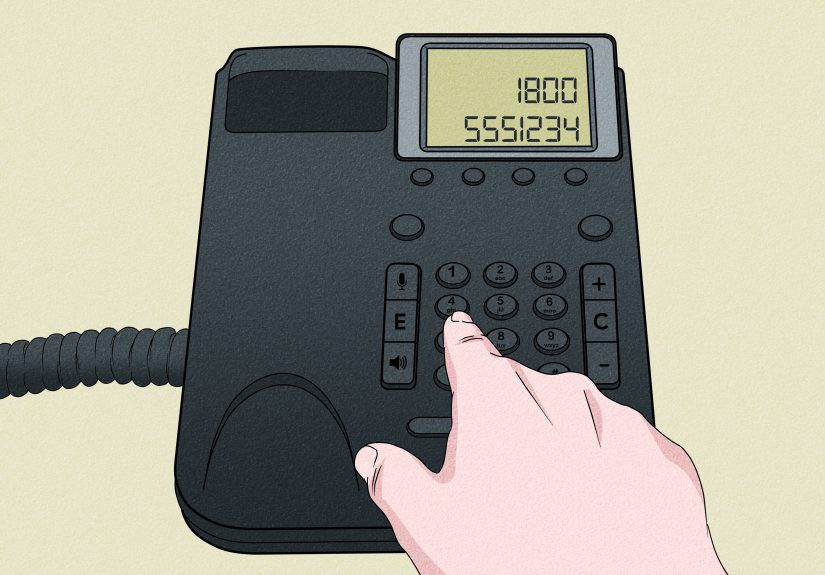
- How to Call an Extension Number from a Landline or Office Phone
- Pause vs. Wait: The One Trick That Fixes Most Extension Problems
- Troubleshooting: Why the Extension Isn’t Working
- Best Practices for Saving Extension Numbers
- Real-World Experiences With Extension Calling (500+ Words)
- Conclusion
Calling an extension number should be simple. In reality, it sometimes feels like you need a secret decoder ring, a lucky guess, and the patience of a saint. You dial the main number, the robot voice starts talking, and suddenly your phone sends the extension too early, too late, or not at all.
The good news: once you understand two little toolspause and waitcalling extensions becomes much easier on Android and iPhone. And if you’re using a landline or office phone, the process is still straightforward when you know what to listen for and when to press the keys.
In this guide, you’ll learn exactly how to call an extension number, how to save extension numbers correctly in your contacts, when to use commas vs. semicolons, and what to do when automated menus seem determined to ruin your afternoon.
What Is an Extension Number?
An extension number is a short internal number used inside a business phone system (often a PBX or VoIP system). Instead of giving every employee a separate public phone number, a company may publish one main number and route callers to departments or individual staff through extensions.
For example, a business might list:
(555) 123-4567 ext. 204
In plain English, that means:
- Call the main number first.
- Wait for the phone system to answer.
- Send 204 as touch-tone digits.
Those keypad beeps are called DTMF tones (the classic “touch tones”), and they’re what automated menus and phone systems use to understand what you pressed.
Quick Answer: The Fastest Way to Dial an Extension
If You’re Dialing Manually
- Dial the main phone number.
- Wait for the prompt (or person) to answer.
- Enter the extension on your keypad.
If You Want to Save It in Contacts
- Use a comma (,) for a short pause (automatic delay).
- Use a semicolon (;) for a wait (you tap to continue).
Example formats:
5551234567,204= call, pause briefly, then dial 2045551234567;204= call, wait for your tap, then dial 204
If a phone system talks forever before accepting input, use wait or add multiple commas. Yes, this is the grown-up version of timing a microwave.
How to Call an Extension Number on iPhone
Method 1: Dial It Manually (Best for One-Time Calls)
- Open the Phone app.
- Dial the business’s main number.
- Tap Call.
- When the automated system answers, tap the extension digits on the keypad.
This method works well when the timing changes or when the menu asks you to choose options first (like “Press 2 for support”) before entering an extension.
Method 2: Save the Extension Using Pause or Wait
If you call the same office often (doctor, school, HR, customer support, apartment management), save the number with the extension built in. Your future self will be impressed.
- Open Contacts and choose the contact (or create a new one).
- Tap Edit.
- Tap the phone number field.
- Use the symbols button (+*#) on the keypad.
- Choose either:
- Pause (inserts a comma
,) - Wait (inserts a semicolon
;)
- Pause (inserts a comma
- Type the extension number after the comma or semicolon.
- Tap Done to save.
Which Should You Use on iPhone?
Use Pause when the phone system consistently accepts the extension after a short delay. Use Wait when the timing is unpredictable and you want to send the extension manually at exactly the right moment.
Example:
(555) 123-4567,,204= two pauses before dialing extension 204(555) 123-4567;204= waits for you to tap before sending 204
Pro tip: If the system talks slowly, add more commas. Each comma adds a short delay, so you can fine-tune the timing without memorizing the menu every time.
How to Call an Extension Number on Android
Method 1: Manual Dialing
- Open the Phone app.
- Dial the main number.
- Tap Call.
- When prompted, enter the extension on the keypad.
This is the most reliable option if the business phone tree changes often or includes multiple menu steps before the extension can be entered.
Method 2: Save an Extension in Android Contacts
Android phones vary by brand (Pixel, Samsung, Motorola, etc.) and by dialer app. The wording may differ slightly, but the idea is the same: insert a pause or wait into the saved number.
- Open Contacts (or the Phone app’s contact editor).
- Edit the contact’s phone number.
- Look for the menu button (often ⋮, More, or an overflow menu).
- Select:
- Add 2-sec pause (comma
,) - Add wait (semicolon
;)
- Add 2-sec pause (comma
- Enter the extension after the symbol.
- Save the contact.
Android Examples
5551234567,204→ automatic short pause, then extension5551234567;204→ waits for confirmation before sending extension5551234567,,1,,204→ useful if the menu requires a department selection first, then an extension
If your Android dialer doesn’t show obvious options, try the contact edit screen instead of the live dial pad. Some Android versions place pause/wait controls in contacts, not on the keypad.
Why Android Can Feel Different
Android isn’t one single phone experiencedifferent manufacturers and carriers customize the dialer. That’s why one phone might say Add 2-sec pause, another says Pause, and another hides it behind a menu. Same feature, different outfit.
How to Call an Extension Number from a Landline or Office Phone
Calling a Business from a Home Landline
Landlines usually don’t have the same “save a pause/wait in contacts” tricks as smartphones, so the standard method is manual:
- Dial the business’s main number.
- Listen to the automated greeting.
- Enter the extension using the keypad when prompted.
If the greeting says something like “You may dial your party’s extension at any time,” go ahead and enter it right away. If not, wait for the right prompt so the system actually accepts your digits.
Calling from an Office Phone (Internal Extension)
If you’re inside the same business phone system, you can often dial the extension directlyno main number required. That’s common on PBX and VoIP office systems.
Example:
- To call extension 204, simply dial 204 and press the call button (if needed).
This only works when your office phone is registered to the same system. If you’re calling from outside the company, you’ll usually need the main number plus extension.
If the System Doesn’t Accept Extensions
Some businesses disable direct extension dialing in their auto attendant, or only allow it during certain menus/hours. If your extension never connects:
- Listen for the exact prompt before entering digits.
- Try pressing 0 or using the receptionist option if listed.
- Ask the company whether direct extension dialing is enabled.
Pause vs. Wait: The One Trick That Fixes Most Extension Problems
If extension dialing fails, it’s usually a timing issuenot a wrong number. The phone is sending the extension before the system is ready, or too late after the menu moves on.
Use Pause When Timing Is Predictable
A pause adds a short delay automatically. On most phones, that’s represented by a comma:
,
Good for:
- Calling the same office every week
- Phone systems with the same greeting every time
- Fast internal IVR menus
Use Wait When Timing Is Unpredictable
A wait pauses the sequence until you manually tap to continue. It’s represented by a semicolon:
;
Good for:
- Long or changing phone menus
- Systems that ask for different options depending on time of day
- Calls where you need to listen before entering the extension
Examples You Can Copy
5551234567,204→ simple pause then extension5551234567,,,204→ longer delay before extension5551234567;204→ manual tap to send extension5551234567,2;204→ press 2 for a department, then wait to send extension
The last example is especially useful for customer service lines that make you choose a department before entering the person’s extension.
Troubleshooting: Why the Extension Isn’t Working
1) The Extension Dials Too Early
This is the most common issue. Fix it by:
- Adding more commas (
,,,) - Switching from Pause to Wait (
;)
2) The System Ignores Your Digits
If the menu doesn’t react to your keypad input:
- Make sure you’re using the keypad after the call connects
- Try sending the extension manually instead of auto-dialing
- If it’s a VoIP or office line, the business system may have DTMF configuration issues on their side
3) The Saved Number Looks Right but Still Fails
Double-check formatting:
- No extra spaces between the main number and the comma/semicolon
- Correct extension digits (easy to mistype when rushing)
- If the company uses a menu first, include that menu digit in the sequence
4) The Company Changed Its Phone Tree
If your saved shortcut suddenly stops working, the office may have changed its automated menu timing or routing. Update the saved contact:
- Add another pause
- Replace pause with wait
- Adjust the sequence (for example, add a department option before the extension)
5) You’re Calling Internationally
International calls can introduce longer connection delays. Include the country code and be generous with pauses, or use a wait so you can send the extension when the prompt starts.
Best Practices for Saving Extension Numbers
- Use labels: Save the contact as “Dr. Lee (Ext 204)” so you can confirm it quickly.
- Test once after saving: Call immediately and verify the timing works.
- Prefer wait for important calls: Great for legal, medical, banking, or school offices where prompts can vary.
- Save backup versions: One contact with pause, one with wait, if you call often.
- Document menu paths: If a system needs “Press 3, then extension,” include that in the contact notes.
Real-World Experiences With Extension Calling (500+ Words)
One of the most common experiences people have with extension numbers is calling a doctor’s office. The main number connects quickly, but the automated greeting can be long: “Press 1 for appointments, press 2 for refills…” If someone saves only the extension and forgets the menu step, the call never reaches the right person. In real-world use, a better setup is often something like main number,2;extension so the caller can let the system finish speaking, then tap to send the extension at the right moment. It feels small, but it can save several minutes every time you call.
Another common situation is school or university offices. Front desks, registrars, financial aid, and department coordinators often share one main line. People frequently say, “I have the extension, but I still keep ending up at the general receptionist.” The reason is usually timing. The office phone system may not accept keypad input until the greeting finishes, or it may route calls differently after hours. In those cases, a wait is usually better than a pause. Instead of guessing the timing, you listen for the right moment and tap once. It’s a tiny change, but it makes the call much more reliable.
Customer support lines create another very relatable experience: the menu changes without warning. A number you saved six months ago might have worked perfectly, then suddenly it starts failing because the company added a new announcement (“This call may be recorded…”) before the menu options. If you used commas for a timed pause, the extension now fires too early. This is why experienced callers often keep two versions of the same contactone with commas and one with a semicolon. The comma version is faster on normal days; the semicolon version is the backup when the automated system starts talking more than usual.
People also run into extension confusion when calling apartment buildings, offices with reception desks, or corporate campuses. Sometimes the business lists a number as “ext. 4102,” but the system actually expects you to press a department key first or it only accepts direct extension dialing during business hours. That can make callers think the extension is wrong when it isn’t. In practice, the best habit is to call once manually, write down the exact keypad path, and then save the full sequence in your phone. After that, future calls become one-tap easy.
On Android, many users have the experience of searching for the pause/wait option and not seeing it immediately. That’s normal. Different phone brands place the feature in different spots: sometimes on the keypad, sometimes in the contact editor, and sometimes behind the three-dot menu. A lot of frustration comes from assuming every Android phone looks the same. Once you know to check the contact edit screen for “Add 2-sec pause” or “Add wait,” the feature is usually there, just hiding like it’s playing hard to get.
iPhone users have a different but equally common experience: they know the phone can dial extensions automatically, but they forget which symbol means what. The quick memory trick is simple: comma = continue automatically, semicolon = stop and wait for me. Once you remember that, building extension shortcuts becomes much easier, especially for work contacts, pharmacies, banks, and service providers you call often.
Finally, one of the most useful real-world habits is testing your saved extension number immediately after you create it. People often save a contact and assume it works, then discover the timing is off right when they’re in a hurry. A 30-second test call helps you adjust the pauses while the details are fresh. It’s the phone equivalent of trying on shoes before leaving the store: a little effort now prevents a lot of regret later.
Conclusion
Learning how to call an extension number is mostly about timing and formatting. On iPhone and Android, use Pause (comma) for predictable systems and Wait (semicolon) when you need control. On landlines and office phones, dial the main number first unless you’re calling an internal extension on the same business system.
Once you save the correct sequence, extension dialing becomes fast, reliable, and much less annoying. Which is greatbecause the only thing worse than a phone tree is having to hear it twice.





 Close
Close