
Table of Contents >> Show >> Hide
- What AirServer Is (and What It Isn’t)
- Why It’s Popular: One Receiver for Mixed-Device Reality
- How AirServer Works (Without the Networking Degree)
- AirServer on Windows: The Smoothest “Big Screen” Shortcut
- AirServer on Mac: AirPlay Receiver Plus Cross-Platform Casting
- Features That Actually Matter (a.k.a. Not Just Marketing Confetti)
- Network Reality: Where Mirroring Succeeds (and Where It Faceplants)
- Troubleshooting: Quick Fixes Before You Blame the Universe
- AirServer vs. Apple TV vs. Chromecast vs. Other Mirroring Apps
- Licensing and Pricing: What You’re Paying For
- Who Should Use AirServer? Real Use Cases That Don’t Feel Like a Demo Reel
- Conclusion + of Real-World “This Is What It Feels Like” Experience
If you’ve ever tried to “quickly” share your screen in a meeting and somehow ended up performing a one-person cable circus… congrats. You’ve experienced the modern workplace ritual known as Where Did the HDMI Go?
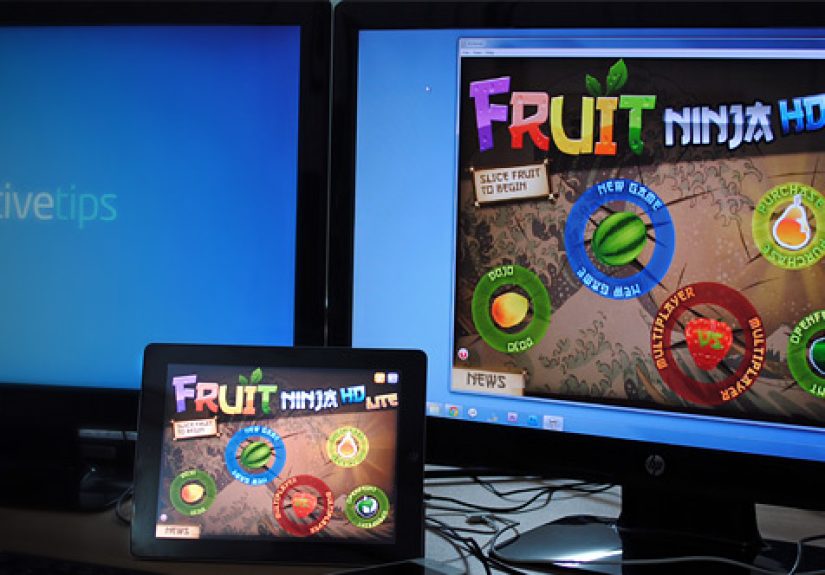
AirServer is the antidote to that chaos. It turns a Mac or Windows PC into a wireless screen mirroring receiverso iPhones, iPads, Macs, Android devices, Chromebooks, and even Windows laptops (depending on the protocol) can beam their screens to your computer. Think: “Apple TV / Chromecast vibes,” but as software running on the machine you already own. The result is a surprisingly tidy setup for demos, classrooms, conference rooms, and home offices where everyone brings a different device and nobody brings the right adapter.
What AirServer Is (and What It Isn’t)
AirServer is a receiver. That word matters. It doesn’t “remote control” your phone or replace a remote desktop tool. Instead, it makes your Mac or PC show up as a destination when you use: AirPlay (Apple), Google Cast (Android/Chrome), or Miracast (many Windows/Android setups).
In plain English: you keep using your device normally, and AirServer displays what you’re doing on a bigger screenyour monitor, a projector, a TV, or a second display connected to your computer.
- AirServer for Mac: focused on AirPlay + Google Cast receiving.
- AirServer for PC / Windows: receives AirPlay + Google Cast + Miracast (edition-dependent).
- AirServer Windows Desktop Edition: the Microsoft Store version designed for Windows.
Why It’s Popular: One Receiver for Mixed-Device Reality
Most teams don’t have a “single ecosystem.” You’ll have someone on an iPhone, someone on a Pixel, someone on a MacBook, and someone on a Windows laptop that’s been “upgraded” so many times it now identifies as a toaster. AirServer helps because it supports multiple mainstream mirroring methods from the same endpoint.
Common problems AirServer solves
- “Can I mirror my iPhone to a Windows PC?” (Yesusing AirPlay to AirServer.)
- “Can we let Android users cast too?” (YesGoogle Cast support helps.)
- “We need Windows-to-screen mirroring for guests.” (Miracast can handle that.)
- “Our classroom needs quick sharing without installing apps on student devices.”
How AirServer Works (Without the Networking Degree)
AirServer speaks the same “wireless display languages” your devices already use. You start screen mirroring from the device, and AirServer receives it.
Protocol cheat sheet
- AirPlay: Apple’s streaming/mirroring method (iPhone, iPad, Mac). Typically prefers devices on the same Wi-Fi network.
- Google Cast: Casting from Android, Chrome, Edge/Chromium browsers, and Chromebooksusually over the local network.
- Miracast: A Wi-Fi Direct style connection often used for Windows “project to this PC” / “cast” workflows. In many cases, it doesn’t need the same network the way AirPlay/Cast do.
Translation: AirPlay and Google Cast generally want a friendly network (same Wi-Fi, discoverable devices), while Miracast is often the “no Wi-Fi? still fine” option for compatible Windows hardware.
AirServer on Windows: The Smoothest “Big Screen” Shortcut
Windows is a common target because (1) it’s everywhere, and (2) it doesn’t natively behave like an AirPlay receiver. AirServer fills that gap so your PC can show up in the AirPlay list on iPhones and iPads, while also supporting Miracast and Google Cast.
Typical setup steps
- Install AirServer (often via the Microsoft Store for Windows Desktop Edition).
- Launch it and confirm your receiver name (this is what people will select when casting).
- Pick your display behavior (full screen, windowed, multi-monitor targeting, etc.).
- Test with a phone before the “real” meetingbecause Murphy’s Law loves live demos.
How to mirror from iPhone/iPad to a Windows PC running AirServer
- Put the iPhone/iPad and PC on the same network when possible.
- Open Control Center on iPhone/iPad.
- Tap Screen Mirroring, then choose the AirServer receiver name.
- If prompted, enter the on-screen code/passcode.
How to mirror from a Windows laptop to AirServer (Miracast)
On many Windows systems, Miracast-style projecting is triggered via the familiar “connect/cast” flow. In some environments, that’s the fastest path for guests: no Apple IDs, no extra apps, just “connect and show your screen.”
A quick performance note
Wireless screen mirroring is basically live video. It’s sensitive to weak Wi-Fi, crowded conference-room networks, and devices that are running on fumes. If you want smoother results:
- Prefer a strong 5 GHz (or better) network when using AirPlay or Google Cast.
- Keep the receiving PC on Ethernet if you can (it stabilizes the receiver end).
- Close “background chaos” apps before mirroring (yes, even the 43 Chrome tabs).
AirServer on Mac: AirPlay Receiver Plus Cross-Platform Casting
On macOS, AirServer lives comfortably as a menu-bar style utility and turns your Mac into an AirPlay receiver (plus Google Cast receiving). That’s handy when you want to:
- Demo an iOS app on your Mac during a screen share
- Show iPad notes or sketches on a large monitor
- Let Android/Chromebook users cast to a Mac in a mixed environment
A key nuance: modern macOS versions can support AirPlay receiving on compatible hardware, which is great for Apple-only setups. AirServer still matters when you want a single workflow that covers Apple + Google Cast, or when you prefer AirServer’s receiver controls, display options, and classroom-friendly behaviors.
Features That Actually Matter (a.k.a. Not Just Marketing Confetti)
1) Multi-device mirroring (yes, more than one screen at once)
In real rooms, “one person at a time” is an idealistic fantasy. AirServer supports connecting multiple devices simultaneously, which is useful for:
- Comparing student work side-by-side
- Showing an “old vs new” design in a product review
- Running a quick QA check across multiple phones
2) Strong image quality for demos and text
Mirroring isn’t only for videos. It’s for slides, spreadsheets, code, diagrams, and the tiny UI text you suddenly need everyone to read from the back row. AirServer is often used specifically because it aims for crisp output when mirroring modern phones and tablets.
3) Recording and content capture workflows
One underrated mirroring use case: creating clean screen recordings. Teachers, trainers, and product teams often want to record “what happened on the device” without juggling extra capture hardware. (Tip: recording needs permissions on macOS for things like microphone access if you want voiceover.)
4) Receiver controls (names, passcodes, “don’t let strangers hijack my projector”)
In shared spaces, a receiver needs guardrails. AirServer deployments commonly use:
- On-screen codes/passcodes to prevent random drive-by mirroring
- Receiver naming conventions (Room-203, Conf-A, “PleaseStopCastingToMe”)
- Discovery helpers when networks are segmented (more on that below)
5) Hardware-accelerated performance and store-certified updates
On Windows, AirServer’s Desktop Edition is distributed through the Microsoft Store, which can simplify updates and validation in managed environments. For IT teams, that’s less “download random installer from the internet” and more “approved app pipeline.”
Network Reality: Where Mirroring Succeeds (and Where It Faceplants)
Most “AirServer doesn’t work” stories are really “my network doesn’t allow discovery” stories. In many schools and enterprises, devices sit on separate VLANs, guest Wi-Fi blocks peer discovery, or multicast traffic is limited. AirPlay and Google Cast rely heavily on devices being able to find each other.
How to make discovery less painful
- Start with the obvious: confirm the sender device and receiver are on the same Wi-Fi (especially for AirPlay/Cast).
- Check campus/enterprise Wi-Fi rules: some networks explicitly block peer-to-peer mirroring.
- Use discovery helpers when available: AirServer has a companion “Connect” approach used in some environments to help discovery on complex networks (often via QR workflows).
If you’re in a university classroom or corporate office, you may even see printed instructions like “Press Windows + K” or “Choose Screen Mirroring” because the workflow is designed to be repeatable for guests who have never heard the word “protocol” and would like to keep it that way.
Troubleshooting: Quick Fixes Before You Blame the Universe
Problem: AirServer doesn’t show up in the list
- Confirm the receiver app is running and not blocked by firewall prompts.
- Confirm you’re on the same Wi-Fi network (AirPlay/Cast).
- Restart Wi-Fi on the sender device and relaunch AirServer.
- If you’re on guest Wi-Fi, try the internal network (many guest networks block discovery).
Problem: Connection works, but it’s laggy
- Move closer to the Wi-Fi access point or switch to a less congested network.
- Reduce resolution demands: don’t mirror a 4K video while also downloading a game update.
- Hardwire the receiver computer to Ethernet when possible.
Problem: Miracast won’t connect from Windows
- Confirm the sending PC supports Miracast and has compatible Wi-Fi/graphics drivers.
- Update drivers and Windows optional features related to wireless display if required.
- Try Windows + K again after reboot (seriouslyit’s boring, but it works a lot).
AirServer vs. Apple TV vs. Chromecast vs. Other Mirroring Apps
Choosing a mirroring approach is less about “best” and more about “best for your room.” Here’s a practical comparison:
AirServer vs. Apple TV
- Apple TV is great for Apple-centric spaces and TV setups, but it’s dedicated hardware.
- AirServer is software that runs on your Mac/PC, which can be cheaper and easier if you already have a connected computer or want mirroring in a laptop-first setup.
- If you need Google Cast + Miracast + AirPlay in one place, AirServer is built for that mixed-device reality.
AirServer vs. Chromecast
- Chromecast is fantastic for Google Cast, but it’s not designed to be an AirPlay receiver.
- AirServer aims to unify casting methods at the receiver, especially useful in shared environments.
AirServer vs. Reflector (and similar software receivers)
Reflector and AirServer are both popular “turn your computer into a receiver” tools. Comparisons often come down to licensing preferences, classroom features, and personal preference for receiver controls and recording workflows. In other words: both can workpick based on your environment, not just a feature checklist.
Licensing and Pricing: What You’re Paying For
AirServer is commonly sold as a one-time license (with different tiers such as consumer and education). That appeals to schools and small teams who’d rather not add “yet another monthly subscription” to the budget.
If you’re piloting it, look for trial options (Windows Store listings commonly provide a trial window) so you can validate your network and devices before you buy.
Who Should Use AirServer? Real Use Cases That Don’t Feel Like a Demo Reel
Teachers and trainers
AirServer is widely used in classrooms because it lets instructors and students share from iPads, phones, and laptops without everyone installing the same app. The workflow is simple: open mirroring on the device, pick the room receiver, enter the code, done.
Product teams and app developers
If you demo mobile builds, mirroring saves time. You can show a phone UI on a large monitor, screen share it in a meeting, and record it for release notes. It’s also useful for support teams who need to “see what the user sees” during troubleshooting.
Hybrid meetings and conference rooms
The less time you spend swapping cables and switching inputs, the more time you spend actually meeting. AirServer works best when a room already has a dedicated PC connected to the displaythen the PC becomes the receiver hub.
Home offices (yes, even for normal humans)
Want your iPhone screen on your desktop while you follow a recipe, test an app, or show family photos on a big display? AirServer makes that easywithout buying a separate streaming box for every screen in your house.
Conclusion + of Real-World “This Is What It Feels Like” Experience
The best way to understand AirServer is to picture the moment it’s needed most: five minutes before a presentation, your deck is on your phone, the room projector is hungry, and your laptop is missing the one adapter that could save you. AirServer’s value shows up in that moment because it turns a familiar actiontapping Screen Mirroring or Castinto a reliable way to get content on the big screen.
In day-to-day use, the “experience” is less about flashy features and more about removing friction. In a classroom, instructors often describe it as finally being able to move freely: instead of standing tethered to the lectern, they can walk around with an iPad, annotate a slide, and still have the content displayed clearly. Students benefit toowhen sharing is quick, more people participate. The difference between “open an app, sign in, join a session” and “tap, select the room, enter the code” is the difference between a smooth lesson and an accidental lesson on troubleshooting Wi-Fi.
In meetings, AirServer tends to shine when the room is mixed-device. One person casts a Chrome tab from a Chromebook, another mirrors an iPhone to show a customer workflow, and someone else projects from Windows using the built-in casting shortcut. Instead of debating which dongle works with which laptop, the room starts to develop a simple social contract: “If you can mirror it, you can share it.” That’s a surprisingly powerful cultural upgrade for teams that present often.
For product demos, the experience is all about clarity. Mirroring a phone UI onto a large monitor makes tiny interface details visiblefont sizes, button states, micro-animations, and those crucial error messages that always appear in 9-point text at exactly the wrong time. When the whole team can see what’s happening, feedback becomes more specific: “That button label is confusing,” not “Something feels off.” Add recording into the mix, and you can capture repeatable walkthroughs for stakeholders without the awkward “Can you do that again, but slower?” loop.
The honest caveat: your network can make or break the experience. On a strong internal Wi-Fi network, AirPlay and Google Cast feel almost magical. On a congested guest network that blocks device discovery, it can feel like the receiver is invisible. That’s not unique to AirServerit’s the nature of wireless discovery protocols. In practice, teams who get the best results treat mirroring like any other shared-room tool: they standardize the receiver name, document the basic steps, and (when needed) coordinate with IT to ensure discovery and security settings make sense for the space.
Bottom line: if you want a comprehensive AirPlay suite with screen mirroring that also plays nicely with Google Cast and Miracast, AirServer is built for exactly that messy, real-world mix of devices. It’s not a “nice-to-have” when you’re presenting dailyit’s the small piece of infrastructure that keeps the room focused on the message, not the cables.






 Close
Close