
Table of Contents >> Show >> Hide
- What Is Find My iPhone, and Why Is It So Hard to Turn Off?
- Easy Fix #1: Make Sure You’re Entering the Right Apple Account Password
- Easy Fix #2: Check for Stolen Device Protection and Security Delay
- Easy Fix #3: Turn Off Screen Time Restrictions
- Easy Fix #4: Make Sure Your iPhone Is Online and Updated
- Easy Fix #5: Check Whether the iPhone Is Managed by Work or School
- Easy Fix #6: Remove the Device Another Way if You No Longer Have It
- What If the Toggle Is Grayed Out or Nothing Happens?
- When You Should Not Turn Off Find My
- Quick Answer: Why Can’t I Turn Off Find My iPhone?
- Common Mistakes to Avoid
- Final Thoughts
- Real-World Experiences People Commonly Have With This Problem
If your iPhone refuses to let you turn off Find My, welcome to one of Apple’s least charming little security adventures. You tap the switch, expect a quick goodbye, and instead get a password prompt, a delay message, or a giant helping of “Nope.” It can feel like your phone suddenly joined a witness protection program.
The good news is that this usually happens for a reason, not because your iPhone woke up dramatic. In most cases, Find My stays on because Apple is trying to protect your device from theft, unauthorized changes, or accidental removal from your account. That means the problem is usually fixable once you know what is blocking the process.
In this guide, we’ll break down why you can’t turn off Find My iPhone, what each error or roadblock usually means, and the easy fixes that actually work. Whether you’re preparing your iPhone for a trade-in, selling it, sending it for repair, or just trying to stop the setting from fighting back, this walkthrough will help you do it without turning your living room into a tiny Apple support center.
What Is Find My iPhone, and Why Is It So Hard to Turn Off?
Find My iPhone is part of Apple’s broader Find My system. It helps you locate a lost device, play a sound, mark it as lost, or erase it remotely. More importantly, it is tied to Activation Lock, which makes it harder for someone else to wipe your iPhone and use it as their own.
That security is exactly why Apple does not let people casually flip the setting off. If a thief could disable Find My in two taps, the feature would be about as useful as an umbrella made of crackers.
So if Find My won’t turn off, it usually means one of these things is happening:
- You need to enter the correct Apple Account password.
- Stolen Device Protection is creating a security delay.
- Screen Time restrictions are blocking account changes.
- Your iPhone has a connection or software issue.
- Your iPhone is managed by a school or employer.
- You are trying to remove a device you no longer physically have.
Let’s go through each cause and fix it step by step.
Easy Fix #1: Make Sure You’re Entering the Right Apple Account Password
The most common reason you can’t turn off Find My is simple: Apple wants the password for the Apple Account connected to that iPhone. Not the passcode you use to unlock the screen. Not the password you use for some old email account. Not your best guess from 2019. The actual Apple Account password.
What to do
- Open Settings.
- Tap your name.
- Tap Find My.
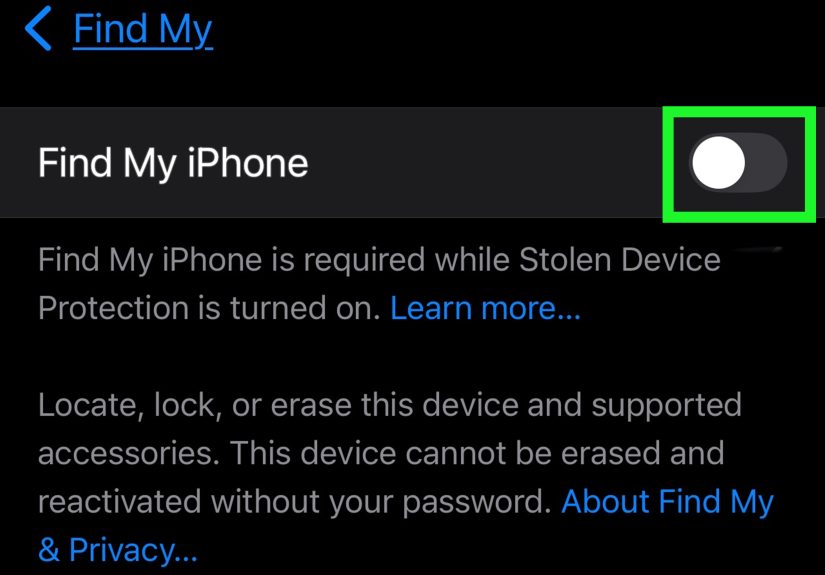
- Tap Find My iPhone.
- Toggle it off.
- Enter the correct Apple Account password.
If the password is rejected, stop trying random combinations like a game show contestant. Too many failed attempts can slow you down and create more frustration.
If you forgot your Apple Account password
Reset it first. Then come back and try again. This is often the fastest fix when Find My iPhone won’t turn off because the password prompt keeps failing. If your account is locked, in recovery, or protected by two-factor authentication, you may need to complete that process before you can disable Find My.
Tip: If you changed your Apple Account password recently, make sure the iPhone has had a moment to sync that update. Signing in again to Apple services may help if the phone is using outdated account info.
Easy Fix #2: Check for Stolen Device Protection and Security Delay
If your iPhone says you need to wait before changing security settings, you may be running into Stolen Device Protection. This feature is designed to make it harder for someone to disable important protections, especially when the iPhone is away from familiar locations like home or work.
In other words, Apple sees your attempt to turn off Find My and says, “Nice try. Prove you’re really you.” Fair enough.
Signs this is your problem
- You see a message about a Security Delay.
- You are away from a familiar location.
- You recently updated iOS and now the setting behaves differently.
How to fix it
- Go back to a familiar location, such as home or work, if possible.
- Open Settings > Face ID & Passcode.
- Check whether Stolen Device Protection is turned on.
- If needed, start the security delay and complete the process when Apple allows it.
- After that, try turning off Find My again.
If you are preparing the phone for sale, repair, or trade-in, do this in advance. Waiting until the last possible minute is how people end up standing at a service counter looking betrayed by their own phone.
Easy Fix #3: Turn Off Screen Time Restrictions
Another sneaky reason you can’t disable Find My is Screen Time. Specifically, Content & Privacy Restrictions can block account changes. This is common on a child’s device, a shared family device, or even a phone you set up months ago and promptly forgot you locked down.
How to check
- Open Settings.
- Tap Screen Time.
- Tap Content & Privacy Restrictions.
- Scroll to Allow Changes To.
- Tap Accounts.
- Set it to Allow.
If you do not know the Screen Time passcode, you will need to reset or remove it first. Once account changes are allowed, go back and try turning off Find My again.
This fix is easy to miss because the Find My setting itself may look normal. It just refuses to cooperate. Very passive-aggressive. Very iPhone.
Easy Fix #4: Make Sure Your iPhone Is Online and Updated
Sometimes the issue is not security. It is just the phone being fussy because the connection is weak or the software is behind. Some support references note that turning off Find My can require a valid Wi-Fi or cellular connection, especially when Apple needs to verify your account or device status.
Try this quick checklist
- Connect to a stable Wi-Fi network.
- Make sure cellular data is working if Wi-Fi is unavailable.
- Restart your iPhone.
- Update to the latest iOS version your device supports.
- Sign out and back into Apple services only if necessary and you know your credentials.
If your iPhone is frozen, laggy, or acting like it just drank three espressos and forgot how menus work, a restart can clear temporary glitches. It is not glamorous, but it often works.
Easy Fix #5: Check Whether the iPhone Is Managed by Work or School
If this is a company phone, school phone, or a device enrolled in mobile device management, certain settings may be restricted by an administrator. In that case, you may not be able to turn off Find My yourself, even if you know the password and have the device in hand.
Signs the iPhone is managed
- You see a profile under VPN & Device Management.
- The iPhone belongs to an employer or school.
- Some settings are grayed out or unavailable.
What to do
- Go to Settings > General > VPN & Device Management.
- See whether a management profile is installed.
- If it is a work or school device, contact the administrator.
- Ask whether Find My or account changes are restricted.
Do not try to outsmart device management on a phone that is not fully yours to control. That is how a quick settings change becomes a long email thread.
Easy Fix #6: Remove the Device Another Way if You No Longer Have It
If you sold, traded in, gave away, or sent the iPhone off already, you may not be able to turn off Find My directly on the device because, well, it is no longer in your possession. In that case, you can remove it from your account using another Apple device, the Find My app, or iCloud on the web.
When this fix applies
- You forgot to disable Find My before selling the iPhone.
- The phone is already with a repair center or trade-in service.
- The device is dead, unavailable, or not with you.
What to do
- Open the Find My app on another Apple device or sign in to the web version of Find Devices.
- Select the iPhone.
- If needed, erase the device first.
- Choose Remove This Device or Remove from Account.
This is especially helpful if you are stuck because Find My is still attached to a phone you no longer physically own. Once the device is removed, Activation Lock is removed too, which lets the next person activate it. That is great for legitimate resale, but not something you want to do for a phone that is merely misplaced. If the phone is lost or stolen, keep Find My on until you are absolutely sure you want to erase or remove it.
What If the Toggle Is Grayed Out or Nothing Happens?
If the switch is grayed out, the menu is unresponsive, or nothing happens when you tap Turn Off, here are the most likely explanations:
- Screen Time restrictions are blocking account changes.
- Device management is enforcing restrictions.
- iOS bugs or temporary glitches are interfering.
- Account verification has not completed.
Work through the fixes in this order:
- Confirm the Apple Account password is correct.
- Check for Stolen Device Protection or a security delay.
- Check Screen Time restrictions.
- Restart the phone and update iOS.
- Look for management profiles.
- Use Find My or the web to remove the device if you no longer have it.
When You Should Not Turn Off Find My
There are situations where disabling Find My is the wrong move. If your iPhone is missing, stolen, or just hiding in a suspiciously comfortable couch cushion, turning off Find My removes an important layer of protection. It can also make it easier for someone else to reactivate and use the device.
Keep Find My on if:
- Your iPhone is lost or stolen.
- You still need to track, lock, or erase it remotely.
- You are waiting to hear from Apple, your carrier, or law enforcement.
Turn it off only when you are intentionally transferring ownership, sending the phone for approved service, or removing an old device from your own account.
Quick Answer: Why Can’t I Turn Off Find My iPhone?
If you want the short version, here it is: you usually can’t turn off Find My iPhone because Apple is protecting the device with account verification, Activation Lock, Stolen Device Protection, Screen Time restrictions, or management controls. Once you remove the blocking issue, the setting usually turns off normally.
Common Mistakes to Avoid
- Using your screen passcode instead of your Apple Account password.
- Trying to disable Find My while Stolen Device Protection is active away from a familiar location.
- Forgetting that Screen Time restrictions can block account changes.
- Removing a lost device from your account too early.
- Sending a phone for repair or trade-in without checking Find My first.
That last one deserves a gold star in avoidable stress. If you know your iPhone is headed to a buyer, trade-in box, or repair center, disable Find My ahead of time instead of five minutes before the deadline.
Final Thoughts
If your first thought was, “Why is Apple making this so difficult?” the answer is simple: because the same protection annoying you today could save your iPhone tomorrow. Find My is closely tied to theft protection, Activation Lock, and account security, so Apple treats turning it off like a serious action.
Still, serious does not have to mean impossible. In most cases, you can solve the problem by using the correct Apple Account password, waiting out a security delay, changing Screen Time settings, checking for management restrictions, or removing the device through Find My on another device or the web.
So yes, your iPhone may be stubborn. But it is usually stubborn for a good reason. Once you find the reason, the fix is often a lot easier than it first looks.
Real-World Experiences People Commonly Have With This Problem
One of the most common experiences happens right before a trade-in. Someone upgrades to a new iPhone, wipes the old one mentally, drives to the store, and then discovers Find My is still on. Suddenly a five-minute handoff becomes a mini quest involving passwords, verification prompts, and a stare-down with the settings menu. In many cases, the real issue is not that the phone is broken. It is that the user forgot Find My is tied to the Apple Account and Activation Lock, so Apple asks for one more layer of confirmation before letting go.
Another classic situation involves a family device. A parent tries to turn off Find My on a child’s iPhone before selling it, only to discover Screen Time restrictions are blocking account changes. Nobody remembers the Screen Time passcode. The room gets quiet. Suspiciously quiet. Then begins the ritual of guessing birthdays, anniversaries, lucky numbers, and every four-digit code ever typed into that household. What looked like a Find My problem turns out to be a parental controls problem wearing a clever disguise.
Then there is the traveler’s version of the story. Someone tries to disable Find My while away from home and gets hit with a security delay because Stolen Device Protection is doing its job. This can feel incredibly random if you do not know the feature exists. But once people realize Apple treats certain security changes differently outside familiar locations, the whole situation makes more sense. It is not personal. Your iPhone is not mad at you. It is just following a stricter playbook.
Work devices bring their own flavor of confusion. An employee assumes they can manage the phone like any personal iPhone, then finds settings grayed out or restricted by a company profile. That can lead to a lot of unnecessary troubleshooting until someone checks device management and realizes the administrator controls part of the setup. At that point, the solution is less “tap harder” and more “email the IT department.”
And finally, there is the post-sale panic. Someone gives away or sells an iPhone, only to get a message later saying the device is still linked to their account. That is when Find My on another Apple device or the web becomes the hero of the story. Removing the old phone remotely usually solves it, provided the user follows the right sequence. These experiences all feel different on the surface, but they point to the same truth: when Find My refuses to turn off, it is almost always because another security setting, account step, or ownership control is still in play.






 Close
Close