
Table of Contents >> Show >> Hide
- Why Is My PS5 Controller Not Charging When Plugged In?
- 1. Use the Right USB-C Cable
- 2. Try a Different USB Port on the PS5
- 3. Check Rest Mode USB Power Settings
- 4. Clean the USB-C Port and Check for Damage
- 5. Update the PS5 System Software and Controller Firmware
- 6. Reset the DualSense Controller
- What If the PS5 Controller Still Will Not Charge?
- How Long Should a PS5 Controller Take to Charge?
- Can You Charge a PS5 Controller With a Phone Charger?
- Can You Overcharge a PS5 Controller?
- Best Charging Habits for DualSense Controllers
- Personal Experience: What Usually Fixes a PS5 Controller That Will Not Charge
- Conclusion
Your PS5 controller is plugged in. The cable is connected. The console is sitting there looking expensive. And yet your DualSense controller is not charging. Fantastic. Nothing says “next-gen gaming” like troubleshooting a USB cable like it owes you money.
The good news? A PS5 controller not charging when plugged in is often caused by something simple: the wrong USB-C cable, a powerless USB port, Rest Mode settings, dust in the charging port, outdated software, or a controller that needs a reset. Before you declare your DualSense dead and start pricing replacements, try these six quick fixes first.
This guide walks through practical, beginner-friendly steps to help you fix a DualSense controller that will not charge, whether you are plugging it into the PS5 console, a wall charger, a PC, or a charging dock.
Why Is My PS5 Controller Not Charging When Plugged In?
A DualSense controller charges through its USB-C port or through the contact pins used by an official charging station. When everything works, the controller light bar slowly pulses orange while charging. Once fully charged, the light turns off. If nothing happens, the issue usually falls into one of these categories:
- The USB cable only supports power or is damaged.
- The USB port is not supplying power.
- The PS5 Rest Mode setting is not configured to power USB ports.
- The charging port is dirty, loose, or damaged.
- The controller firmware or console software needs an update.
- The controller needs a reset.
- The internal battery may be worn out.
Let’s start with the easiest fixes and work toward the more serious possibilities. No screwdriver required, no dramatic background music necessary.
1. Use the Right USB-C Cable
The most common reason a PS5 controller will not charge is also the most boring: the cable. Not every USB-C cable is created equal. Some cables only provide charging power. Others support both charging and data transfer. For a DualSense controller, a reliable charge-and-sync USB cable is the safest choice.
If your controller is not charging, first try the USB cable that came with your PS5 console. If you no longer have it, use a high-quality USB-C cable that clearly supports data transfer, not just charging. Cheap cables, old phone cables, frayed cables, and mystery cables from the bottom of a drawer can all cause charging problems.
How to Test the Cable
- Plug the controller into the PS5 using a different USB-C cable.
- Wait 10 to 15 seconds and check for the pulsing orange light.
- Press the PS button and check the battery icon from the Control Center.
- Try the same cable with another device to confirm it works.
If the controller charges with another cable, congratulations: your old cable was the villain. Replace it with a durable USB-C charge-and-sync cable and move on with your life like a person who has defeated a tiny electronic goblin.
2. Try a Different USB Port on the PS5
If your cable is fine, the next suspect is the USB port. PS5 consoles include multiple USB ports, and they do not all behave exactly the same depending on the model, connected accessories, and power state of the console.
Try plugging the DualSense controller into another USB port on the PS5. If you usually use the front port, try one of the rear USB ports. If you usually use the rear ports, try the front USB-C port. Sometimes a port may be occupied, underpowered, dusty, or simply not making a solid connection.
Quick Port-Switching Test
- Turn on the PS5 completely instead of using Rest Mode.
- Connect the controller with a known working USB-C cable.
- Try each available USB port one at a time.
- Leave the controller connected for at least a minute on each port.
- Look for the orange charging light or battery animation on screen.
If one port works and another does not, the controller itself may be fine. You can keep using the working port or use a dedicated charging dock to free up your console’s USB ports.
3. Check Rest Mode USB Power Settings
Many players plug in the controller, put the PS5 into Rest Mode, and expect the DualSense to charge while the console sleeps. That should work, but only if the PS5 is set to supply power to USB ports during Rest Mode.
If your PS5 controller charges while the console is fully on but not while it is in Rest Mode, this setting is probably the issue.
How to Enable USB Charging in Rest Mode
- Go to the PS5 home screen.
- Select Settings.
- Choose System.
- Select Power Saving.
- Open Features Available in Rest Mode.
- Select Supply Power to USB Ports.
- Choose Always or 3 Hours.
On newer PS5 model groups, you may also see an Adaptive option. This setting can optimize charging based on the controller’s remaining battery level. It is useful for saving power, but if you are troubleshooting, try Always temporarily to remove guesswork.
After changing the setting, plug in your controller, put the PS5 into Rest Mode, and check whether the orange light pulses. If it does, your controller was not broken. It was just waiting for permission to sip electricity.
4. Clean the USB-C Port and Check for Damage
Dust, lint, pet hair, and snack crumbs are not official PlayStation accessories, but they somehow end up near gaming gear anyway. If debris gets inside the controller’s USB-C port, the cable may not connect properly. The result: your PS5 controller is plugged in but not charging.
Unplug the controller and inspect the USB-C port under good lighting. Look for lint, bent pins, corrosion, or looseness. The cable should fit snugly. If it wiggles too much, only charges at a certain angle, or disconnects when you move it, the port may be damaged.
Safe Cleaning Tips
- Turn off the controller before cleaning.
- Use a flashlight to inspect the port.
- Use compressed air in short bursts to remove dust.
- Use a clean, dry, soft brush if needed.
- Do not use water or liquid cleaners.
- Do not jam metal tools into the port.
After cleaning, reconnect the cable and check for the charging light. If the controller only charges when the cable is held at an angle, the USB-C port may need professional repair. Forcing the cable can make the problem worse, which is a fancy way of saying: do not wrestle your controller like it stole your lunch.
5. Update the PS5 System Software and Controller Firmware
Software can also affect controller behavior. The PS5 receives system updates, and the DualSense controller can receive firmware updates as well. These updates may improve stability, connectivity, battery behavior, and charging-related performance.
If your controller still has some battery left, connect it to the PS5 with a working USB cable and check for updates. If the controller is completely dead, charge it for a while using another cable, another port, or a compatible USB charger before attempting the update.
How to Check for PS5 Updates
- Go to Settings.
- Select System.
- Choose System Software.
- Select System Software Update and Settings.
- Install any available update.
How to Update the DualSense Controller
When a DualSense firmware update is available, the PS5 usually prompts you after connecting the controller. Follow the on-screen instructions and keep the controller connected until the update finishes.
You can also connect the controller to a Windows PC and use Sony’s official controller firmware updater if needed. This can be helpful if your console is not recognizing the controller correctly.
After updating, restart the PS5 and test charging again. It is not the most exciting fix, but “turn it off, update it, and try again” has saved more electronics than most of us care to admit.
6. Reset the DualSense Controller
If the cable, port, Rest Mode setting, and software all seem fine, reset the controller. A reset can clear temporary glitches that prevent the controller from charging, pairing, or behaving normally.
How to Reset a PS5 Controller
- Turn off your PS5 console.
- Disconnect the DualSense controller from the USB cable.
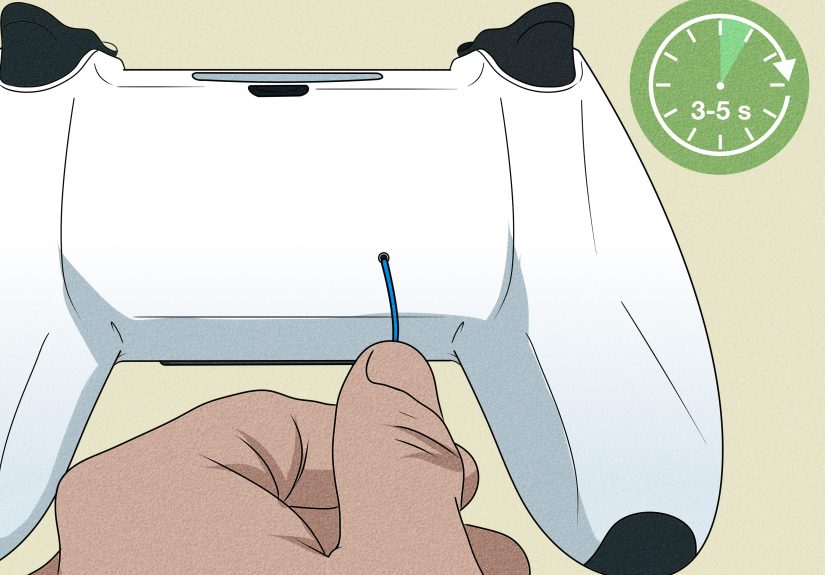
- Find the small reset hole on the back of the controller near the Sony logo.
- Use a pin, SIM tool, or straightened paper clip.
- Press and hold the reset button for at least five seconds.
- Reconnect the controller to the PS5 with a USB cable.
- Press the PS button to pair it again.
Once paired, leave the controller plugged in and check whether it begins charging. If the orange light appears, the reset likely solved a software or connection glitch.
What If the PS5 Controller Still Will Not Charge?
If none of the six fixes work, the controller may have a hardware problem. The two most likely culprits are a worn-out battery or a damaged USB-C charging port.
Rechargeable batteries degrade over time. If your controller is several years old, drains unusually fast, or refuses to hold a charge even after appearing to charge, the internal battery may be failing. If the cable feels loose or the controller charges only when tilted, the USB-C port may be damaged.
At that point, you have a few options:
- Try an official DualSense charging station.
- Contact PlayStation support for repair options.
- Check whether the controller is still under warranty.
- Use a professional electronics repair service.
- Replace the controller if repair costs are too high.
An official DualSense charging station can be useful because it charges through the bottom contact points instead of the USB-C port. If the USB-C port is damaged but the battery still works, a charging dock may keep the controller usable.
How Long Should a PS5 Controller Take to Charge?
A DualSense controller usually takes about three hours to fully charge when the battery is empty, depending on the charging method and whether you are using it while charging. If you are playing a game while charging, expect it to take longer.
The controller light bar should slowly blink orange during charging. When charging is complete, the light turns off. You can also check the battery level from the PS5 Control Center by selecting the accessories area.
If your controller has been plugged in for hours and still shows a low battery, test another cable and port. If the battery indicator behaves strangely across multiple charging methods, the battery itself may be the problem.
Can You Charge a PS5 Controller With a Phone Charger?
Yes, you can often charge a PS5 controller with a USB-compliant charger, but not every phone charger works well. Some chargers may not provide the right power negotiation, and some USB-C cables included with phone chargers may not work properly with the DualSense controller.
For the safest troubleshooting process, use the PS5 console and a known working USB-C data cable first. Once you know the controller is healthy, you can test other charging options.
Can You Overcharge a PS5 Controller?
Modern controllers are designed with charging management, so normal charging through the PS5 or an official charging station should not require constant babysitting. Still, good habits help battery longevity. Avoid leaving the controller in hot areas, do not cover it while charging, and unplug it once it is fully charged if you are storing it for a long time.
Heat is the sneaky enemy of rechargeable batteries. A controller baking next to a sunny window or trapped under a blanket while charging is not living its best life.
Best Charging Habits for DualSense Controllers
Once your controller is charging again, a few simple habits can prevent future problems:
- Use a reliable USB-C charge-and-sync cable.
- Keep the USB-C port clean and dry.
- Do not yank the cable out at an angle.
- Enable Rest Mode USB power if you charge overnight.
- Update your PS5 and controller firmware regularly.
- Use a charging dock if you own multiple controllers.
- Avoid extreme heat while charging.
If you have two controllers, rotate them. Keep one charging while using the other. This is not just convenient; it also prevents panic when your controller dies during a boss fight, online match, or that one cutscene you absolutely cannot pause.
Personal Experience: What Usually Fixes a PS5 Controller That Will Not Charge
In real-world troubleshooting, the cable is almost always the first thing worth blaming. It is not glamorous, but it is true. Many players plug in a DualSense controller with a random USB-C cable and assume that because the cable fits, it should work. Unfortunately, USB-C is a shape, not a promise. A cable can look perfect and still be useless for the job.
One common situation goes like this: the controller works wirelessly, the battery gets low, the player plugs it into the console, and nothing happens. No orange light. No battery animation. No comforting sign that the controller is drinking power. The player then tries another cable from a tablet, headset, or old phone, and suddenly the controller charges normally. The “broken controller” was actually a bad cable wearing a tiny plastic disguise.
The second most common issue is Rest Mode confusion. A lot of people assume the PS5 always powers USB ports while resting. It does not always do that unless the correct setting is enabled. This is especially frustrating because the setup looks right: the cable is connected, the console is in Rest Mode, and the controller is sitting there like it should be charging. Then the next day, the controller is still dead. That is the kind of betrayal usually reserved for movie villains and printers.
Another pattern involves charging ports that slowly become loose. This often happens when players use the controller while it is plugged in and accidentally bend the cable downward, sideways, or across the couch. Over time, that pressure can wear out the port. The first warning sign is usually angle-based charging. If the controller only charges when the cable is pushed upward or held in a specific position, stop forcing it. A charging dock may help because it uses the bottom contact pins instead of the USB-C port.
Dust is also more powerful than it has any right to be. A tiny piece of lint inside the USB-C port can prevent a solid connection. This happens often if the controller is stored in a backpack, drawer, entertainment cabinet, or anywhere dust gathers. A quick inspection with a flashlight can reveal the problem. Cleaning the port gently with compressed air may restore charging immediately.
Software glitches are less common, but they do happen. If the controller charges sometimes, refuses other times, or behaves oddly after an update, a reset is worth trying. The reset button on the back of the DualSense controller is small, but it can clear temporary issues. After resetting, reconnect the controller to the PS5 using a reliable USB cable and pair it again.
The biggest lesson is to troubleshoot in order. Do not start by assuming the battery is dead. Start with the cable. Then test another USB port. Then check Rest Mode settings. Then clean the port. Then update and reset. This order saves time, money, and emotional energy. It also reduces the chance that you buy a new controller when all you needed was a better cable.
If the controller is older and no longer holds a charge, replacement may eventually be the practical answer. But many “dead” PS5 controllers are not dead at all. They are just dealing with a bad cable, a sleepy USB port, a dirty connector, or a setting that quietly turned charging into a guessing game.
Conclusion
If your PS5 controller is not charging when plugged in, start with the simple fixes: change the USB-C cable, try another PS5 USB port, enable Rest Mode USB power, clean the charging port, update the controller, and reset the DualSense. Most charging issues are solved before you ever need repair or replacement.
The key is to test one variable at a time. A working cable, a powered USB port, and the correct PS5 settings solve a surprising number of charging problems. If none of the quick fixes work, the controller may have a worn battery or damaged USB-C port, and it may be time to contact PlayStation support or consider a charging station or replacement.






 Close
Close