
Table of Contents >> Show >> Hide
- What “Instagram-style” really means (and why it looks so good)
- Step 1: Choose your collage format (before you choose your 84 photos)
- Step 2: Curate photos like you’re styling a feed (not dumping a camera roll)
- Step 3: Edit for print (because printers are honest, and screens are liars)
- Step 4: Build your collage file (Canva and Adobe Express make this delightfully painless)
- Step 5: Print at home like a semi-mystical wizard (printer settings that actually matter)
- Step 6: Cut, mount, and hang your collage (without inventing new swear words)
- Rainbow collage troubleshooting (because printers love drama)
- Level-up ideas (small upgrades, big “wow”)
- Real-life experiences making a print-at-home rainbow collage (500-ish words of reality)
- Conclusion
Some people collect stamps. Some people collect houseplants they swear they’ll stop buying. And then there’s the modern collector’s item: the perfect, color-coordinated Instagram gridonly you want it on your wall, not trapped inside your phone like a digital hamster wheel.
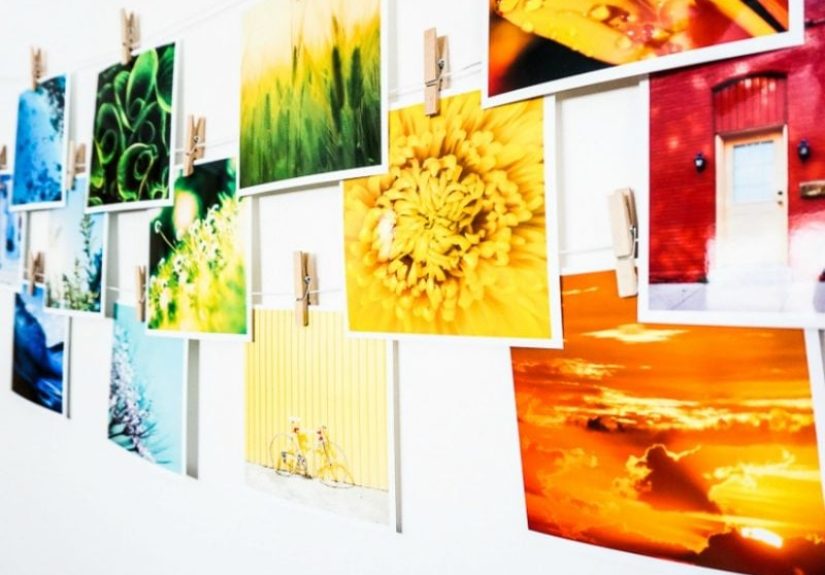
Enter the print-at-home Instagram-style rainbow collage: a set of photos (usually square, usually in a clean grid) arranged in a satisfying color flow from red to violet. It’s part wall art, part memory lane, and part “yes, I totally have my life together” interior design illusion. The best part: you can make it yourself with tools you already use, a printer you already own, and a level of patience you can temporarily borrow from your future self.
What “Instagram-style” really means (and why it looks so good)
An Instagram-style collage usually borrows from the visual language of a feed: consistent sizing, tight cropping, repeatable spacing, and an overall cohesive aesthetic. When you translate that to print, it typically becomes:
- Square or near-square prints (4×4, 5×5, 6×6 are common)
- A neat grid (3×3, 3×4, 4x4choose your level of commitment)
- A single unifying “rule” (here: a rainbow color progression)
Why does it work? Because your brain loves order. And your wall loves not looking like a random hostage note made of vacation photos.
Step 1: Choose your collage format (before you choose your 84 photos)
Start by deciding what you’re actually making. This prevents you from selecting 84 images and then realizing you only need 12. (Ask me how I know.) Here are popular formats for a printable photo collage wall:
Option A: The classic grid (most “Instagram”)
Best for: clean, modern spaces; maximum visual satisfaction; people who alphabetize spices.
- 3×3 (9 prints): easy, iconic, quick win
- 3×4 (12 prints): slightly bigger statement, still manageable
- 4×4 (16 prints): bold, dramatic, and a mild test of character
Option B: A rainbow “strip” (less grid, more gradient)
Best for: narrow hallways, above desks, or anyone who wants “rainbow energy” without committing to a full mosaic.
Option C: One-page collage poster (print once, hang once)
Best for: minimal cutting; maximum convenience; anyone who hates trimming paper like it’s an Olympic sport.
Pro tip: If you want that true Instagram-square vibe without buying special paper sizes, a sneaky approach is to design multiple squares on a standard sheet (like Letter or 8×10) and cut them out.
Step 2: Curate photos like you’re styling a feed (not dumping a camera roll)
A rainbow collage succeeds or fails on selection. You’re not choosing “my favorite photos ever.” You’re choosing “photos that behave nicely together in a color story.” Here’s how to curate without spiraling:
Pick a theme that makes the rainbow feel intentional
- Travel (blue oceans → green forests → golden sunsets)
- Family & friends (outfits, backgrounds, balloons, party decor)
- Food (yes, it’s possible; yes, it will make you hungry)
- Nature (flowers and skies basically come pre-rainbowed)
- “One object” series (same mug, different colored drinksdon’t laugh, it looks amazing)
Sort by dominant color (the cheat code)
Instead of obsessing over every pixel, sort photos by their dominant colorthe color that takes up the most visual space. Most phones and design tools make it easy to spot a “mostly blue” vs “mostly yellow” image. Then arrange them like a gradient:
Red → Orange → Yellow → Green → Blue → Indigo → Violet
Use “buffer” images to smooth awkward transitions
Sometimes you jump from neon lime to deep ocean blue and the vibe gets… chaotic. Fix it with bridge photos:
- Yellow-green between yellow and green
- Teal between green and blue
- Magenta-pink between red and purple
Example: A 3×4 (12-print) rainbow grid can use 2 images per color family (red/orange/yellow/green/blue/purple) with 1–2 “bridge” prints swapped in where needed to keep the gradient smooth.
Step 3: Edit for print (because printers are honest, and screens are liars)
Your phone screen is basically a tiny, flattering ring light for your photos. Print is not. Print will lovingly expose that your favorite image is actually a little dark. Or a little soft. Or both. To get professional-looking home photo printing, focus on these fundamentals:
Resolution: aim for sharp at the size you’re printing
A common guideline for crisp prints is around 300 DPI at the final print size. In practical terms, that means you want enough pixels so your squares don’t look like they were photographed through a tortilla.
Crop to the final shape before printing
If you’re printing square photos, crop square first. Don’t let the print dialog do “helpful” auto-cropping that decapitates your friends like a medieval portrait editor.
Color space: keep it simple
Most everyday print workflows behave best with sRGB files, especially if you’re designing in common web-based tools and printing through standard driver settings. Save fancy color spaces for the day you also start calling your printer “my studio.”
Brightness and contrast: give your prints a tiny boost
Many images need a slight brightness lift for print, because paper doesn’t emit light. A subtle bump often helps your collage stay vibrantespecially in darker indoor lighting.
Step 4: Build your collage file (Canva and Adobe Express make this delightfully painless)
You can design your printable rainbow collage in lots of tools, but two of the friendliest options are Canva and Adobe Express. Both offer photo grid/collage workflows that work great for an Instagram-style layout.
Canva workflow (great for grids)
- Create a new design sized to your paper (Letter) or final poster size (8×10, 11×14, etc.).
- Choose a photo grid or collage layout (3×3, 3×4, 4×4).
- Drop in your images, then reorder them into your rainbow gradient.
- Keep spacing consistent (tiny gutters look modern; no gutters looks bold).
- Export as PDF Print for the cleanest home printing results.
Adobe Express workflow (fast and flexible)
- Open the collage maker and upload your chosen photos.
- Select a grid layout that matches your plan.
- Adjust cropping inside each cell so subjects aren’t awkwardly sliced.
- Download in a print-friendly format (PDF is usually the safest bet).
Design detail that matters: If you’re printing individual squares, consider adding a thin white border around each image in your design. It makes cutting easier, hides tiny trim errors, and gives the final collage a clean “gallery” feel.
Step 5: Print at home like a semi-mystical wizard (printer settings that actually matter)
This is where many DIY photo collage dreams go to cry. But you can avoid most issues by focusing on the settings that genuinely impact photo quality.
Choose the right paper (it changes everything)
Printing photos on plain copy paper is like serving sushi on a napkin. Use photo paper. The finish you choose affects the look:
- Glossy: high vibrance, crisp detail, more glare
- Matte: lower glare, great for framing, slightly softer contrast
- Luster/Satin/Pearl: the popular “best of both worlds” lookrich blacks with less shine
Match the printer’s “media type” to your actual paper
Your printer uses the media setting to decide ink amount, drying time, and sometimes the color handling. If you tell it “plain paper” while feeding it glossy photo paper, expect sadness. Pick the closest match (glossy, matte, premium photo, etc.).
Crank print quality up for the final run
For your finished collage, select a high-quality modeoften labeled Best or Maximum DPI. Yes, it’s slower. No, you can’t bully ink into drying faster by staring at it.
Borderless printing: great in theory, picky in practice
If you’re printing edge-to-edge, use borderless settings and make sure your file size matches the paper size. Borderless modes can expand slightly to avoid white edges, so expect small cropping unless you account for it. For many people, a tiny intentional border is easier and cleaner.
Color management: avoid the “double correction” trap
If your design app is managing color and your printer driver is also “enhancing” color, you can get oversaturated or weirdly tinted prints. In general, pick one system to manage color (software or printer driver) and keep the other neutral. If you want extra accuracy, ICC profiles can helpespecially when you’re pairing specific papers with specific printers.
Do a small test print (save ink, save sanity)
Before printing 16 full-size squares, test one row or a smaller version. Check skin tones, blacks, and the transitions in your rainbow gradient. Then adjust brightness or saturation lightly if needed.
Step 6: Cut, mount, and hang your collage (without inventing new swear words)
Once printed, you have two goals: clean edges and clean alignment.
Cutting tips for neat squares
- Use a paper trimmer if you can. Scissors are brave but chaotic.
- Cut in batches: all left edges, then all right edges, etc.
- Keep a “reference square” as your golden standard.
Mounting options (choose your commitment level)
- Low-commitment: removable adhesive strips for lightweight prints
- Medium: frames (uniform frames look ultra “grid”)
- High-commitment: mounting board or foam core for a polished look
Hanging like a designer (aka: planning before holes)
For a grid, consistent spacing is the whole vibe. Many decorators plan layouts on the floor first, then transfer to the wall. A common guideline is to hang the center of an arrangement around eye level, and keep spacing even so it reads cohesive.
Easy method: Use painter’s tape to outline your grid on the wall first. Step back. Adjust. Step back again. Repeat until your brain stops whispering “crooked.”
Rainbow collage troubleshooting (because printers love drama)
Problem: Prints look too dark
- Increase brightness slightly in your file and re-test.
- Confirm you’re using photo paper settings (plain paper can dull output).
- Try matte or luster paper if glare makes everything feel darker on the wall.
Problem: Colors look “off” (too warm/too green/too neon)
- Turn off “auto enhance” features in the printer driver.
- Ensure you’re not applying color corrections in two places.
- Stick to a consistent export format (PDF Print is a solid default).
Problem: Banding or lines
- Run the printer’s maintenance tools (nozzle check / head cleaning).
- Use a higher quality mode for smoother gradients.
- Make sure the paper type is correct so ink lays down properly.
Problem: Borderless prints get cropped weirdly
- Expect slight expansion in borderless modes; add safe margins if needed.
- Consider printing with a thin border and trimming instead.
Level-up ideas (small upgrades, big “wow”)
- Make it seasonal: a spring rainbow (pastels) vs a summer rainbow (saturated brights).
- Try texture: mix matte prints with one glossy “highlight” print per row.
- Add micro-captions: tiny date/location text under each square for a travel collage.
- Use color theory on purpose: keep each row analogous (neighboring hues) for smoother flow.
- Create a focal anchor: put one “hero” image (your strongest photo) in the center of the grid.
Real-life experiences making a print-at-home rainbow collage (500-ish words of reality)
The first time I made a print-at-home Instagram-style rainbow collage, I confidently announced (to nobody, because this was a solo project) that it would take “maybe an hour.” That optimism lasted exactly until I opened my photo library and realized I had 7,000 images, half of them screenshots of things I swore I’d read later, and a shocking number of accidental pocket photos featuring the inside of my bag.
I started strong: I picked a 3×4 grid because 12 feels ambitious but not “I own a label maker” ambitious. Then I tried to sort by color. At first I went purely by vibe“this feels red-ish.” That was cute. But when I put the prints together, my “red-ish” section looked like a ketchup commercial interrupted by a random brick wall and a suspiciously orange dog. So I regrouped and sorted by dominant color, which is fancy talk for “what color takes up the most space when you squint.” Immediately, the gradient started behaving.
Next came editing. On my screen, everything looked vibrant and perfectclassic. On paper, my beautiful sunset turned into a moody sepia whisper. That’s when I learned the ancient truth: prints don’t glow. I nudged brightness up a little, added a touch of contrast, and suddenly the photos looked like themselves again instead of a dramatic indie film poster.
The printing phase was a mini-journey. I loaded glossy photo paper because I wanted that punchy color pop. Then I forgot to change the printer media setting from “Plain Paper.” The result was… educational. Colors looked flat, and the paper seemed mildly offended. Once I matched the media type properly and switched print quality to a high setting, the output snapped into focusricher blacks, cleaner gradients, less “why does blue look like tired teal?” energy.
Cutting was its own sport. The first square I trimmed with scissors was shaped like a square that had been described over the phone. I bought a basic paper trimmer and instantly felt like an adult who owns at least one useful tool. I also added thin white borders in my design file for the second round, which did two magical things: it gave me a cutting guide and made tiny alignment imperfections invisible once hung. Highly recommend.
Hanging the collage was the final boss. I used painter’s tape to map the grid first, stepped back, adjusted, stepped back again, adjusted again, and thenjust when I thought it was perfectnoticed the entire grid was about half an inch too far to the left. The good news: removable adhesive strips exist for exactly this reason. The better news: once it was up, the rainbow gradient made the whole room feel brighter, like the wall itself was in a good mood.
Now, whenever someone compliments it, I smile like it was effortless. And I do not mention the failed “Plain Paper” test print that still lives in a drawer as a reminder that printers demand respect.
Conclusion
A print-at-home Instagram-style rainbow collage is one of those rare DIY projects that feels equal parts creative and practical. You get a personalized piece of wall art, you use photos you actually love, and you turn a digital aesthetic into something you can see every daywithout needing a custom print shop.
Keep your workflow simple: pick a grid, curate by dominant color, edit gently for print, export in a print-friendly format, and pay attention to paper and printer settings. Do a test print, trust the process, and remember: the rainbow doesn’t have to be perfectit just has to feel intentional. (Unlike that one orange dog photo. No shade to the dog. Just… not here.)






 Close
Close