
Table of Contents >> Show >> Hide
- What “turn off blue light” really means
- Why people use blue light filters
- How to turn off blue light on iPhone and iPad
- How to turn off blue light on Mac
- How to turn off blue light on Android
- How to turn off blue light on Windows PC
- How to reduce blue light even more
- Common mistakes people make
- Best blue light settings for each device
- Experiences related to turning off blue light on iPhone, iPad, Mac, Android, and PC
- Final thoughts
- SEO Tags
If your screen starts looking like it drank a mug of chamomile tea, congratulations: your blue-light filter is working. If it still looks bright, icy, and ready to host a productivity seminar at 11:47 p.m., this guide is for you.
Knowing how to turn off blue light on iPhone, iPad, Mac, Android, and PC is one of those small tech skills that makes a surprisingly big difference. You may not suddenly become a serene woodland creature who falls asleep at 9:15 every night, but you can make your screen feel less harsh, especially after dark.
Most modern devices already have a built-in blue light filter. Apple calls it Night Shift. Windows uses Night light. Android phones often use Night Light, while Samsung Galaxy devices call it Eye comfort shield. Different names, same basic mission: reduce the cooler blue tones on your screen and shift the display toward warmer colors.
This article explains what blue light settings actually do, why people use them, how to turn them on across major devices, and how to make the settings work better in real life. No gimmicks, no tech-snob lecture, and no need to wear sunglasses indoors like a movie villain.
What “turn off blue light” really means
First, a tiny reality check: you usually are not literally turning blue light off. You are reducing blue-heavy light on the screen by warming up the display’s color temperature. Whites become creamier, blacks may look softer, and everything gets a sunset-ish tint.
That is why these tools are often called a blue light filter, night mode, eye comfort mode, or warm display mode. They do not transform your device into a candle. They just make the screen less cool-toned and usually more comfortable in dim environments.
It also helps to know that blue light settings are not exactly the same as Dark Mode. Dark Mode changes the interface from light backgrounds to darker ones. That can reduce glare and make apps more comfortable at night, but the feature that specifically warms the display is Night Shift, Night Light, or Eye comfort shield.
Why people use blue light filters
People usually turn on blue light filters for two main reasons: comfort and sleep habits. A warmer display can feel easier to look at in a dark room, and many users prefer it for late-night reading, scrolling, replying to messages, or pretending to answer email while actually shopping for things they do not need.
There is also an important distinction worth remembering. Screen-related discomfort is not just about blue light. Long hours of staring, reduced blinking, glare, brightness, and poor viewing habits all play a role in digital eye strain. So while a blue light filter may help you feel more comfortable, it is not a magic shield against every screen habit known to humankind.
Where these filters may matter most is nighttime use. A warmer screen is often used to reduce the impact of bright, cool light before bed. That is why many devices let you schedule the feature for sunset to sunrise or for custom evening hours.
How to turn off blue light on iPhone and iPad
On iPhone and iPad, the feature you want is Night Shift. It is built right into iOS and iPadOS, and it is easy to control once you know where Apple tucked it away.
Method 1: Use Night Shift in Settings
- Open Settings.
- Tap Display & Brightness.
- Tap Night Shift.
- Turn on Scheduled if you want it to start automatically each evening.
- Choose a schedule such as sunset to sunrise or set custom times.
- Use the Color Temperature slider to make the screen warmer or cooler.
- If you want it immediately, enable the manual option for the current night.
This is the best option if you want a reliable routine. Set it once, and your iPhone or iPad can quietly handle the rest while you focus on more important things, like not opening one more video before bed.
Method 2: Turn Night Shift on from Control Center
- Open Control Center.
- Touch and hold the Brightness control.
- Tap Night Shift to turn it on or off.
This shortcut is perfect when you want a fast fix. Maybe you are lying in bed, the room is dark, and your screen suddenly looks bright enough to land aircraft. Two taps later, much better.
Helpful iPhone and iPad tips
- Pair Night Shift with Dark Mode for a softer nighttime setup.
- If the screen still feels intense, lower Brightness too.
- If Night Shift does not seem available, certain accessibility or display settings can interfere with it.
- True Tone is a separate display feature. It adjusts the screen based on ambient light, while Night Shift specifically warms the display.
How to turn off blue light on Mac
On a Mac, the equivalent feature is also called Night Shift. Apple keeps the name consistent here, which is a refreshing plot twist.
Use Night Shift on Mac
- Click the Apple menu.
- Open System Settings.
- Click Displays.
- Click Night Shift.
- Choose a schedule, such as Sunset to Sunrise or a custom schedule.
- Adjust the warmth of the display with the color temperature control.
- Turn it on manually if you want it active right away.
Mac users who work late often find Night Shift especially useful for writing, reading, email, spreadsheets, and casual browsing. It takes the edge off that cold display tone that can feel harsh in a dim room.
When to leave Night Shift off on Mac
If you do color-sensitive work such as photo editing, video editing, or design review, do not forget that Night Shift changes the look of colors. In other words, it is great for your late-night writing session, but not ideal when you are trying to decide whether a brand color is warm beige, cool beige, or “the client will definitely email about this tomorrow” beige.
Mac also supports Dark Mode and True Tone. Dark Mode changes the appearance of apps and menus, while True Tone adjusts the display to ambient light. These are helpful companions, but Night Shift is still the main blue-light-reduction setting.
How to turn off blue light on Android
Android is slightly trickier because different manufacturers rename things for fun, chaos, and brand identity. On many Android phones, the feature is called Night Light. On Samsung Galaxy phones and tablets, it is commonly called Eye comfort shield.
On Pixel and many Android phones: Night Light
- Open Settings.
- Tap Display or Display & touch.
- Tap Night Light.
- Turn it on.
- Set a schedule if your phone offers one.
- Adjust the intensity if there is a warmth slider.
Depending on your Android version and brand, the exact wording may vary. If you do not see Night Light right away, use the Settings search bar and type night, blue light, or eye comfort.
On Samsung Galaxy devices: Eye comfort shield
- Open Settings.
- Tap Display.
- Tap Eye comfort shield.
- Turn it on.
- Choose Adaptive or a Custom schedule if available.
- Adjust the color temperature for a warmer or cooler look.
Samsung also lets you toggle the feature from Quick Settings on many devices. That is handy when your display suddenly turns warm and you wonder whether your phone changed teams overnight.
Useful Android add-ons
- Dark theme can make nighttime use more comfortable, but it is not the same as a blue light filter.
- Bedtime mode on some phones can combine grayscale, wallpaper dimming, and other nighttime settings.
- If the screen still feels too strong, combine Night Light or Eye comfort shield with lower brightness.
How to turn off blue light on Windows PC
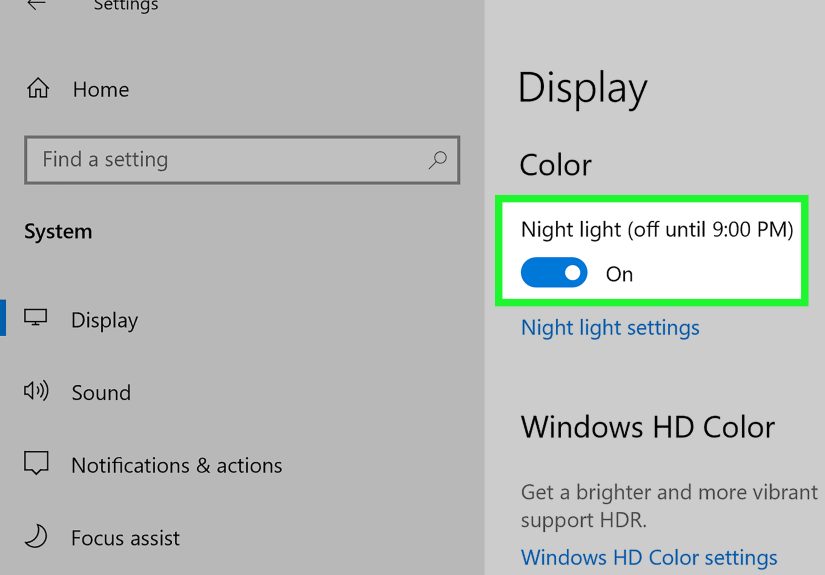
On a Windows PC, the built-in feature is called Night light. It is simple to use, works well for late-evening screen time, and saves you from having to install third-party apps unless you want extra control.
Use Night light in Windows
- Open Settings.
- Go to System.
- Click Display.
- Select Night light.
- Turn it on.
- Enable Schedule night light if you want it automated.
- Choose Sunset to sunrise or set custom hours.
- Adjust the strength to make the screen warmer or lighter.
For many people, this is the easiest way to reduce blue light on a laptop or desktop. It works especially well if your job involves reading documents, writing, browsing, or email late into the evening.
If Night light is grayed out or not working
Sometimes the Night light toggle is unavailable. When that happens, Windows support points to display driver issues as a common cause. Updating the display driver may fix it.
It is also smart to check whether your monitor or graphics software has its own low-blue-light mode. Some PCs and monitors include extra eye-care settings from the manufacturer, which can overlap with Windows Night light. Dell, for example, offers ComfortView-related display features, and other brands may have similar options.
How to reduce blue light even more
Turning on the filter is a good start, but the best results usually come from combining a few habits.
1. Schedule it every evening
The most useful setup is the one you do not have to remember. Schedule Night Shift or Night light to turn on automatically around sunset or an hour or two before bed.
2. Lower brightness too
A warm screen that is still blindingly bright is like ordering decaf and then running a marathon in your kitchen. Helpful, but not quite the full plan. Lowering brightness often makes a bigger difference than people expect.
3. Use Dark Mode as a sidekick
Dark Mode can reduce glare and make reading in dark rooms more comfortable. It does not replace a blue light filter, but the combination often feels better than using either one alone.
4. Keep color accuracy in mind
If you edit photos, review branding, shop for paint colors, or do visual design work, remember that warm display filters alter color appearance. Turn them off temporarily when precision matters.
5. Give your eyes actual breaks
Blue light settings help, but they do not cancel out marathon screen sessions. Looking away regularly, blinking more often, and stepping back from the screen still matter. Your eyeballs are not asking for a revolution. They are asking for a short vacation.
6. Do not forget external displays
If you use a desktop monitor, check both the computer settings and the monitor’s on-screen menu. Some monitors include their own low blue light, reading, or comfort modes.
Common mistakes people make
- Using only Dark Mode: It can help, but it does not always warm the screen enough on its own.
- Leaving brightness too high: Warm and blinding is still blinding.
- Forgetting schedules: Manual toggles are easy to ignore until your retinas file a complaint.
- Using max warmth all day: Some people like it, but many find it odd for daytime use.
- Editing photos with the filter on: Great for comfort, not great for color judgment.
- Ignoring brand-specific Android names: If “Night Light” is missing, check for Eye comfort shield, Reading mode, or similar labels.
Best blue light settings for each device
If you want the shortest possible version, here it is:
- iPhone and iPad: Turn on Night Shift, set it to sunset to sunrise, and pair it with Dark Mode.
- Mac: Use Night Shift in Displays settings, but turn it off during color-sensitive work.
- Android: Use Night Light or your brand’s equivalent, then add Dark theme at night.
- Samsung Galaxy: Eye comfort shield plus Dark mode is a solid bedtime combo.
- Windows PC: Enable Night light, schedule it, and check your monitor software if colors still look too cool.
Experiences related to turning off blue light on iPhone, iPad, Mac, Android, and PC
In real life, the experience of using a blue light filter is usually subtle at first and more noticeable after a few evenings. Most people do not turn on Night Shift or Night Light and instantly whisper, “I have reached enlightenment.” The change is more practical than dramatic. Your screen simply feels less sharp, less icy, and less aggressive when the room is dark.
On an iPhone, many users notice the difference most when checking messages in bed. Without a warm filter, the display can feel startlingly bright, even at lower brightness. Once Night Shift is on, reading becomes more comfortable, especially for late-night articles, ebooks, and social feeds. The phone feels less like a flashlight and more like a polite little screen that understands basic bedtime manners.
On an iPad, the effect can be even more noticeable because the screen is larger and often used for longer sessions. People who read, stream, or browse on a tablet at night often find that Night Shift plus Dark Mode makes the device feel easier to use for an hour or two before sleep. The screen still emits light, of course, but it can feel less harsh in a dim bedroom or living room.
Mac users often describe a different kind of benefit. During daytime work, a warm display may seem unnecessary or even slightly off. But when the sun goes down and a laptop screen is still open for writing, studying, budgeting, or catching up on email, Night Shift can take the sterile edge off the display. It does not make work exciting, sadly, but it can make the screen feel more humane. The main complaint from Mac users is color accuracy. If you are editing photos or reviewing brand assets, the warm tint can make everything look slightly wrong. So the common experience is to leave it on for general work and turn it off for visual tasks.
Android users often report that the biggest challenge is not whether the feature helps, but whether they can find it. Because manufacturers rename settings, some people spend five minutes hunting for Night Light only to discover it is called Eye comfort shield, Reading mode, or something equally mysterious. Once enabled, though, the experience is similar across brands: the screen looks warmer, nighttime reading feels softer, and the display can seem less jarring in a dark room.
On Windows PCs, the experience tends to depend on the type of work. People who read documents or browse the web late at night often appreciate Night light right away. Spreadsheet users, writers, students, and office workers usually adapt quickly. Gamers and visual creators are more mixed. Some like the softer look for casual play or browsing, while others turn it off because they want cooler whites and more color neutrality.
One consistent experience across all devices is that blue light filters work best when paired with lower brightness and better timing. Users who schedule the feature every night tend to stick with it. Users who only toggle it randomly usually forget it exists. In other words, the smartest setup is the one your device handles automatically, because your future sleepy self is not always excellent at making decisions.
Final thoughts
If you want to turn off blue light on iPhone, iPad, Mac, Android, or PC, the good news is that you probably do not need any extra app. The built-in tools are already there, and they are easy to schedule once you know the right menu path.
The best setup is usually simple: turn on Night Shift or Night Light, lower brightness, use Dark Mode if you like it, and remember that warmer screens are great for comfort but not always ideal for color-accurate work. That is the sweet spot.
Think of blue light filters as part of a smarter nighttime screen routine, not a miracle cure. They can make your device more pleasant after dark, help support better evening habits, and stop your screen from looking like a tiny frozen sun. Honestly, that is already a pretty solid upgrade.






 Close
Close