
Table of Contents >> Show >> Hide
- Why Switch Your PC to Linux in the First Place?
- Pick Your Migration Style: Try, Dual Boot, or Full Switch
- Choose a Beginner-Friendly Linux Distribution
- Before You Install Linux: Do These 7 Things First
- How to Switch Your PC to Linux: Step-by-Step (Safe, Modern Method)
- Step 1: Download your Linux ISO
- Step 2: Verify the download (optional, but smart)
- Step 3: Create a bootable USB installer
- Step 4: Boot from the USB drive
- Step 5: Try Linux first (recommended)
- Step 6: Choose your install type
- Step 7: Partitioning basics (for humans, not robots)
- Step 8: Install, reboot, and select your OS
- Step 9: Update the system immediately
- After Installing Linux: Make It Feel Like Home
- Common Gotchas (and How to Avoid Them)
- Why Linux Is Worth It Long-Term
- Conclusion
- Experience-Based Add-On: What Switching to Linux Really Feels Like (500+ Words)
Your PC is powerful. Your operating system should act like it. If Windows has started to feel like a loud roommate who keeps rearranging the furniture, installing apps you didn’t ask for, and “just needs one quick restart” at the worst possible moment… Linux is your chance to reclaim the lease.
Switching to Linux used to be a hobby for people who enjoy compiling kernels “for fun” (which is either a personality trait or a cry for help). Today, it’s genuinely practical: modern Linux desktops are polished, fast, and surprisingly friendlyespecially if you pick the right distribution. This guide shows you exactly how to migrate, the safest ways to try Linux first, and what to expect once you’ve moved in.
Why Switch Your PC to Linux in the First Place?
1) You want more control (and fewer surprise “features”)
Linux generally doesn’t force major updates on your schedule, doesn’t nag you into account logins you don’t want, and doesn’t treat your desktop like premium advertising real estate. You decide what runs, what updates, and what stays installed.
2) You want your computer to feel fast again
A well-chosen Linux distribution can breathe new life into older hardware. Even on newer machines, Linux often feels snappier because you’re running less background bloat and you can choose lighter desktop environments. It’s like taking your PC to a spa dayexcept the cucumber slices are open-source.
3) You care about privacy and transparency
Linux is built around open-source software. That doesn’t magically make everything perfect, but it does mean a lot of the core components are publicly inspectable and widely audited by communities and companies. You get more visibility, more choice, and fewer “trust me bro” black boxes.
4) You want better developer and power-user workflows
If you write code, manage servers, use containers, or tinker with automation, Linux is the home field advantage. Package managers, scripting, SSH, and dev tooling are deeply integrated. It’s not that you can’t do these things on Windowsyou can. It’s that on Linux, they feel… native.
5) Gaming on Linux is no longer a punchline
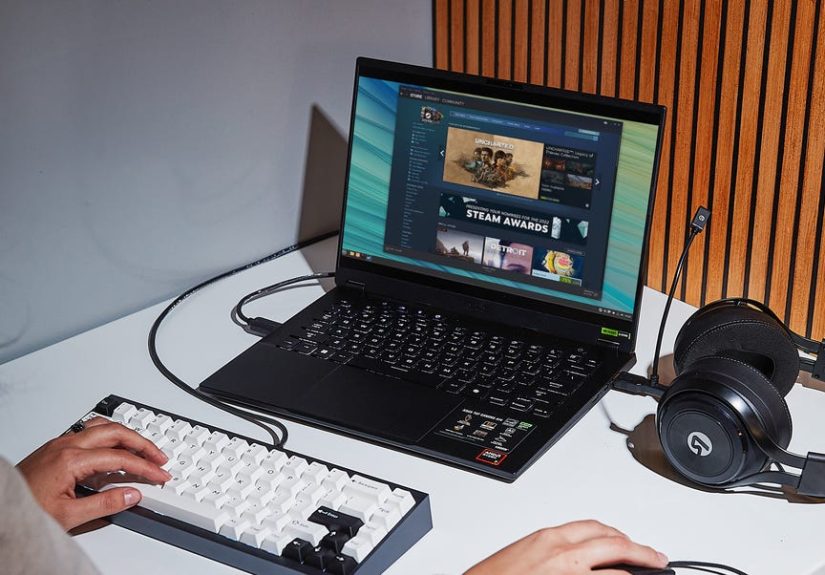
Thanks to Steam Play and Proton, many Windows-only games can run on Linux with minimal effort. Not everything works, and anti-cheat can be a hurdle in some titles, but the progress is real. Linux isn’t “the gaming OS” for everyonebut it’s also not “good luck with Solitaire” anymore.
Pick Your Migration Style: Try, Dual Boot, or Full Switch
Option A: Try Linux without installing (Live USB)
A Live USB lets you boot into Linux from a flash drive without changing your internal drive. It’s the safest way to test Wi-Fi, graphics, audio, Bluetooth, and general “does this feel nice?” vibes. If your laptop’s trackpad works and your display isn’t doing interpretive dance, you’re off to a good start.
Option B: Dual boot (Linux + Windows on the same PC)
Dual booting lets you keep Windows for specific apps or games while using Linux for everything else. At startup, you choose which OS to run. It’s perfect for cautious switchers, students, and people who need one Windows-only tool for work.
Option C: Replace Windows (clean install)
This is the “move out, change the locks, start fresh” route. You wipe the drive (or use an installer option that replaces Windows) and run Linux as your only OS. It’s simpler long-term, but it requires confidence andnon-negotiablebackups.
Option D: Virtual machine (Linux inside Windows)
Running Linux in a VM is a good training wheels option: you learn the basics, practice installing software, and explore the desktop without touching your partitions. Performance is usually fine for learning and light use, but it won’t feel as fast as Linux running directly on your hardware.
Choose a Beginner-Friendly Linux Distribution
“Linux” isn’t one single productit’s a family of operating systems called distributions (distros). The good news: you don’t have to pick “the perfect” distro. You just need a good first one.
Great starter picks
- Linux Mint: Familiar layout for Windows users, easy to use, and very “just works.”
- Ubuntu: Huge community, lots of guides, broad hardware support, and a mature ecosystem.
- Fedora Workstation: Clean, modern, and up-to-dateexcellent if you want newer software without chaos.
- Pop!_OS: Friendly for creators and gamers, with strong hardware focus (especially on System76 guidance).
If you’re switching your PC to Linux for productivity and general home use, Mint or Ubuntu are the safest bets. If you want newer packages and a more “current” feel, Fedora is a strong choice. If you want a Linux desktop built with “work gets done here” energy, Pop!_OS is worth a look.
Before You Install Linux: Do These 7 Things First
1) Back up your data (yes, really)
Copy your important files to an external drive and/or a trusted cloud service. Also export anything that lives in apps: browser bookmarks, password manager vaults, game saves, and email archives. If you think “I’ll remember later,” you won’t. Future you will be too busy Googling “why is my Wi-Fi called wlp2s0.”
2) Check your must-have apps
Make a list: Office tools, Adobe apps, specific accounting software, niche hardware utilities. Many popular apps have Linux versions (or great alternatives), but some don’t. If one Windows-only app is mission-critical, plan for dual boot or a VM.
3) Confirm your hardware basics
Most hardware works fine today, but it’s smart to test using a Live USB. Pay special attention to Wi-Fi adapters, Bluetooth, and GPUsespecially if you have a newer NVIDIA card.
4) Know your firmware world: UEFI matters
Modern PCs typically use UEFI instead of old-school BIOS. Installers handle this well, but it affects Secure Boot and boot entries. If you see terms like UEFI, GPT, and EFI System Partition, don’t panic. You don’t need a PhDjust a calm checklist.
5) Understand Secure Boot (don’t fear it, but respect it)
Some distros support Secure Boot smoothly; others may require disabling it. OEM guidance varies, and some installations recommend turning it off to reduce friction. If your installation USB won’t boot, Secure Boot settings are one of the first things to check.
6) If you use BitLocker, save your recovery key
Disk encryption can complicate partition changes and boot changes. If you’re dual booting or resizing partitions, treat your BitLocker recovery key like a passport: keep it somewhere safe, because you really don’t want to be locked out of your own drive.
7) Decide: dual boot or full replace
This decision changes everything: partitioning, risk, and how easy it is to back out. If you’re unsure, dual boot is usually the smartest middle ground.
How to Switch Your PC to Linux: Step-by-Step (Safe, Modern Method)
Step 1: Download your Linux ISO
Go to your chosen distro’s official site and download the ISO file (the installer image). Stick to official downloadsrandom mirrors are how you end up installing “DefinitelyNotMalwareOS.”
Step 2: Verify the download (optional, but smart)
Many official guides recommend verifying checksums for your ISO. This helps confirm the file wasn’t corrupted or tampered with. If you’re new, don’t get stuck herejust know it’s a best practice, not a requirement for everyone.
Step 3: Create a bootable USB installer
Use a reputable tool to write the ISO to a USB drive (8GB+ is usually comfortable). Some distros provide their own USB writing tools (for example, Fedora Media Writer). Other popular options include Rufus (Windows) or Etcher (cross-platform).
- Tip: This process erases the USB drive. Backup anything on it first.
- Tip: Prefer UEFI boot entries when your boot menu shows multiple options.
Step 4: Boot from the USB drive
Restart your PC and open the boot menu (often a key like F12, F10, Esc, or Delvaries by manufacturer). Select the USB drive to boot into the Linux installer environment.
Step 5: Try Linux first (recommended)
Most installers let you “Try” Linux without installing. Do it. Check Wi-Fi, sound, display scaling, sleep/wake, and Bluetooth. If everything works, you’re ready to install.
Step 6: Choose your install type
- Install alongside Windows (dual boot): The installer may offer a guided option. This is the easiest path.
- Erase disk and install Linux: Clean install. Fastest long-term simplicity. Biggest immediate commitment.
- Manual partitioning: More control, more chances to click the wrong thing at 1:00 a.m. Use only if you’re confident.
Step 7: Partitioning basics (for humans, not robots)
If you choose a guided dual-boot setup, the installer typically shrinks Windows and creates Linux partitions automatically. If you go manual, a common setup looks like:
- EFI System Partition (ESP): Usually already exists on UEFI Windows installs. Don’t delete it.
- Root (/): Where Linux lives (often ext4).
- Swap: Optional on many modern systems, useful for hibernation or memory-heavy workloads.
- Home (/home): Optional separate partition for personal files and settings.
Step 8: Install, reboot, and select your OS
Once installed, reboot and remove the USB when prompted. If you dual booted, you’ll see a boot menu where you can select Linux or Windows. If Windows boots automatically, you can often adjust boot order in UEFI settings later.
Step 9: Update the system immediately
After your first boot, run updates. This pulls in security patches, driver improvements, and software updates. It’s the Linux equivalent of washing your hands when you get home: simple, effective, and you’ll be glad you did.
After Installing Linux: Make It Feel Like Home
Install everyday essentials
Most distros include a software center or app store. Use it. Install your browser (Firefox is commonly available), a password manager, and your communication tools. Many apps are one click awayno hunting random installer EXEs from shady download sites.
Learn the package manager concept (it’s your new superpower)
Linux uses package managers (and newer universal formats like Flatpak) to install and update software cleanly. Instead of downloading installers from everywhere, you pull apps from trusted repositories. It’s like having a grocery store instead of scavenging berries in the woods.
Set up backups early
Get a backup routine in place immediatelyexternal drive, NAS, cloud, or a combination. If you’re dual booting, backups are even more important because you’re managing multiple systems and partitions.
Dial in quality-of-life tweaks
- Enable automatic security updates if your distro supports it.
- Adjust display scaling for high-DPI screens.
- Set up printers and Bluetooth devices early so you don’t have to do it right before a deadline.
- Customize the desktop layout to match your habits (taskbar position, hot corners, shortcuts).
Common Gotchas (and How to Avoid Them)
Secure Boot confusion
If the installer USB won’t boot, check Secure Boot settings in UEFI. Some distros handle Secure Boot smoothly; others recommend disabling it during installation. Don’t change ten settings at onceadjust one thing, retest, and keep notes.
Wi-Fi adapters that act suspiciously quiet
If Wi-Fi doesn’t show up, first test another distro via Live USB (Mint vs Ubuntu vs Fedora). Sometimes one distro’s kernel and firmware bundle supports your adapter better than another. USB Wi-Fi dongles can also be a temporary lifesaver while you troubleshoot.
NVIDIA graphics driver drama
NVIDIA works well for many users, but you may need proprietary drivers for the best performance. If you see screen tearing, weird resolutions, or sluggish performance, look for your distro’s recommended driver tool or guide.
Windows-only apps
If a specific Windows app is non-negotiable, use one of these strategies:
- Dual boot for full native performance when needed.
- Virtual machine for convenience (especially for office apps or internal tools).
- Web versions of services when available.
- Compatibility tools like Wine (useful sometimes, not magic).
Gaming expectations
Steam Play / Proton runs many games well, but not allespecially some competitive titles with strict anti-cheat. If your gaming library is your #1 concern, test your top 10 games before committing to a full switch.
Why Linux Is Worth It Long-Term
The biggest benefit of switching isn’t just that Linux is free, fast, or flexible. It’s that you stop negotiating with your operating system. Your computer becomes a tool you shapenot a platform that shapes you.
The learning curve is real, but it’s not a cliff. It’s more like a hiking trail with a great view: you’ll sweat a little, you’ll learn a lot, and you’ll wonder why you didn’t do it sooner.
Conclusion
Switching your PC to Linux is one of the highest-impact upgrades you can make without buying a single new part. Start safely with a Live USB, graduate to dual boot if you need a safety net, and go full Linux when you’re ready. Pick a beginner-friendly distro, back up like a responsible adult, and treat the installation like a checklistnot an adventure sport.
Once you’re running Linux, the payoff is daily: smoother performance, more control, and a system that feels like yours again. And if you ever miss Windows… you can still visit. Just don’t move back in without a very good reason.
SEO Tags (JSON)
Experience-Based Add-On: What Switching to Linux Really Feels Like (500+ Words)
Let’s talk about the part most guides skip: the human experience of switching to Linux. Not the “click Next” partthe “why does my file manager look different and where did my screenshot go?” part. Here’s what people commonly experience during the first few weeks, and how to make it smoother.
Week 1: The “Everything Is Fine… Wait, What’s That Called?” phase
The first surprise is vocabulary. You don’t “install a .exe.” You install a package. You don’t “open Control Panel.” You open Settingsor a distro-specific tool. You don’t “update drivers” in the same way; updates often flow through the same system updater that handles everything else. None of this is hard, but it’s unfamiliar, and unfamiliar feels like wrong even when it isn’t.
The best coping strategy? Pick one beginner-friendly distro and commit to learning its way of doing things for a month. Distro-hopping in week one is like changing gyms every workout because your legs are sore. The soreness is normal. Stick with it.
Week 2: The “Oh… this is actually nicer” phase
Around week two, people often notice a calmer computing experience. Updates feel less disruptive. The system feels lighter. The desktop becomes customizable in practical wayslike keyboard shortcuts that actually fit your workflow, or a dock/taskbar that stays where you put it.
This is also when you discover the joy of software centers and repositories. Instead of hunting for installers, you search for an app, click install, and you’re done. No toolbars. No “optional offers.” No mystery browser extensions. It’s not glamorousbut it’s deeply satisfying.
Week 3: The “One app is ruining my life” phase
Almost everyone hits the wall with one stubborn requirement: a specific work VPN client, a proprietary printer utility, an Adobe workflow, a certain CAD tool, or a Windows-only line-of-business app. This is the moment Linux adoption succeeds or failsnot because Linux can’t do the job, but because you need a realistic strategy.
The practical approach is boring (which is good): keep Windows around via dual boot for that one app, or run it in a VM if performance allows. If the app is optional, replace it with a Linux-native alternative. The goal isn’t ideological purity. The goal is getting your work done without wanting to throw your laptop into the sea.
Month 1: The “I’m not going back” phase
By the end of the first month, many new Linux users report a shift: they stop thinking about Linux as “the alternative OS” and start treating it as “my OS.” They’ve mapped their keyboard shortcuts, found their preferred apps, and built a reliable update-and-backup rhythm. Even basic thingslike how fast the system boots or how smoothly it runs on older hardwarestart to feel normal.
The most common long-term pattern is a hybrid lifestyle: Linux for daily computing, Windows only when needed. Over time, “needed” often shrinks. The special Windows apps get replaced, the gaming library gets tested, and the fear of breaking something fades because you learn how to recover (and because you finally started backing up like an adult).
A practical “success checklist” from real-world switchers
- Start with a Live USB and test hardware before installing.
- Keep a fallback plan: dual boot or a second machine for the first month.
- Write down your must-have apps and decide your strategy (native, web, VM, or Windows).
- Don’t skip updates in the early daysmany hardware fixes arrive through updates.
- Learn one terminal command per week (just one). Small progress compounds fast.
- Backups aren’t optional. They’re the difference between “minor inconvenience” and “tragic saga.”
Switching your PC to Linux isn’t about becoming a different kind of person. You don’t need to wear sandals, grow a beard, or start saying “GNU/Linux” at parties (unless you want to, in which case… enjoy). It’s about making your computer work for you again. And once you taste that level of control, it’s hard to go back to an OS that treats you like a guest in your own house.






 Close
Close