

Table of Contents >> Show >> Hide
- What “show picture in Zoom meeting” usually means
- Method 1: Show your profile picture when your camera is off
- Method 2: Share a picture on Zoom using screen share
- Method 3: Show a photo as your Zoom virtual background
- Method 4: Show your picture while presenting slides
- Method 5: Show a picture on Zoom from your phone or tablet
- Common reasons your picture is not showing in Zoom
- How to choose the best method for your situation
- Pro tips for looking polished in any Zoom meeting
- Experiences and real-world lessons from showing pictures in Zoom meetings
- Conclusion
If you have ever joined a Zoom call and thought, “Cool, but how do I actually show a picture without turning this meeting into a live tech-support documentary?” you are not alone. The phrase show picture in Zoom meeting can mean a few different things. Maybe you want your Zoom profile picture to appear when your camera is off. Maybe you want to share an image on Zoom during a presentation. Or maybe you want to slap a polished photo behind you as a Zoom virtual background and pretend your home office is not one coffee mug away from chaos.
The good news: Zoom gives you several ways to show a picture, and each one works best in a different situation. In this guide, you will learn the easiest methods, when to use them, and how to avoid the classic mistakes that make your audience stare at the wrong thing. We will also cover practical examples, troubleshooting tips, and real-world experiences so you can look prepared instead of mildly haunted by your own settings menu.
What “show picture in Zoom meeting” usually means
Before clicking random buttons like a game-show contestant, it helps to know which kind of picture you want to show. In most Zoom meetings, this usually falls into one of four categories:
- Your profile picture appears when your camera is turned off.
- A shared image appears when you use screen sharing to show a photo, graphic, chart, or slide.
- A virtual background image appears behind you while your camera stays on.
- A presentation image with your video layered on top appears when you present slides in a more polished way.
If your goal is simply to let people see your face without being on camera, use a profile photo in Zoom. If your goal is to teach, pitch, explain, or impress, use screen sharing or a presentation-friendly background. If your goal is to hide a messy room that looks like laundry recently won custody of the furniture, use a virtual background image.
Method 1: Show your profile picture when your camera is off
This is the simplest and most underrated method. When your video is off, Zoom can show your profile picture instead of your blank initials. That way, people see an actual image rather than a mysterious circle with a letter floating in it like a corporate Ouija board.
How to add your Zoom profile picture
- Sign in to your Zoom account.
- Open your profile settings.
- Upload a clear headshot or personal photo.
- Crop it so your face is centered.
- Save the image and make sure it syncs to the account you use for meetings.
Once that image is saved, it should appear across devices where you are signed in. If you are already in a meeting on the desktop app, you can often add or edit the picture directly from your video tile. One tiny but important detail: your video must be turned off for the profile picture to display. If your camera is on, Zoom shows your live video instead. Fair enough. It would be unsettling if both appeared at once.
When this option works best
- Job interviews when you need your camera off briefly
- Large meetings where you do not need to be on video the whole time
- Classes, webinars, and community calls
- Any moment when you want to appear present without looking freshly ambushed by your webcam
For best results, use a bright, simple, professional-looking image. Your profile picture does not need to look like a movie poster, but it should not look like it was taken during a sprint either.
Method 2: Share a picture on Zoom using screen share
If you want everyone in the meeting to see a specific image, screen sharing is usually the best option. This method works well for photos, infographics, charts, mockups, flyers, memes with educational value, and anything else you need people to view clearly.
How to screen share a photo in Zoom
- Open the image on your computer before the meeting starts.
- Join or start the Zoom meeting.
- Click Share Screen.
- Select the specific window that contains your image, or choose the screen where the picture is open.
- Click Share.
If possible, share just the image window instead of your entire desktop. That keeps notifications, tabs, and accidental chaos from making a surprise guest appearance. It also looks more professional and helps your audience focus on the picture instead of your taskbar, 37 browser tabs, and that one file labeled “final_v2_real_final.”
Best practices for sharing an image on Zoom
- Use a high-resolution image so it looks sharp.
- Close unrelated apps to reduce distractions and improve performance.
- Zoom in on the part of the picture you want people to notice.
- Use annotation tools only if they help, not because drawing random arrows feels powerful.
- Stop sharing when you are done so the meeting can move on cleanly.
If you are presenting to a larger group, rehearse once in a test meeting. That small step catches a shocking number of problems, including the classic “I am sharing, but nobody can see anything” moment.
Method 3: Show a photo as your Zoom virtual background
If your goal is not to present an image to the group but to place an image behind you, use a Zoom virtual background. This replaces your real background with a photo or image while your camera stays on.
How to use a picture as a Zoom background
- Open Zoom settings.
- Go to Backgrounds & Effects or the virtual background section.
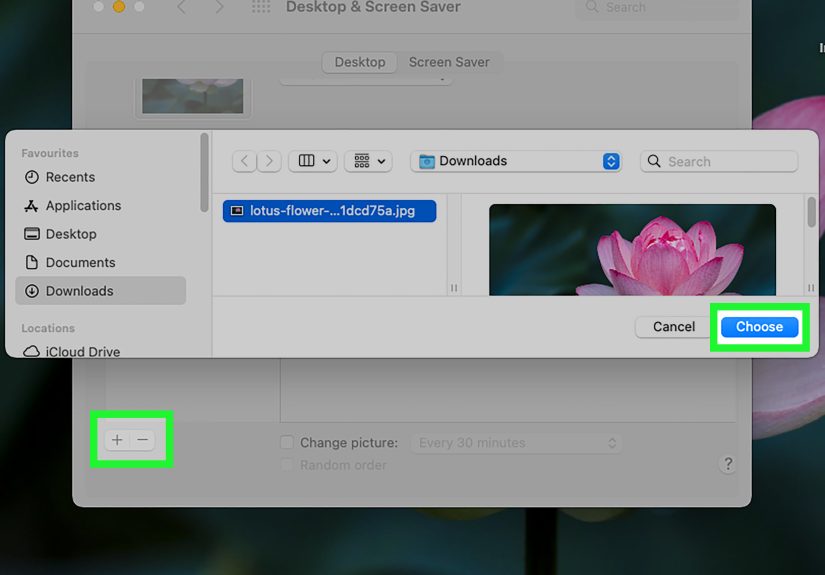
- Choose one of Zoom’s built-in backgrounds or upload your own image.
- Preview the result before joining the meeting.
- Adjust lighting and camera position so Zoom can separate you from the background more cleanly.
This is a great option for professional branding, themed events, classes, virtual booths, or simply making it look like you work somewhere other than the corner of your kitchen. It can also help create a more polished visual identity if you host frequent meetings.
Tips for a better background image
- Pick an image with visual depth but not too much clutter.
- Avoid backgrounds that are brighter than your face.
- Wear colors that do not blend into the picture.
- Use even lighting so Zoom does not chop off parts of your hair, shoulders, or soul.
A virtual background is fun, but it should still fit the meeting. Tropical beach for a Friday team social? Sure. Tropical beach for a quarterly budget review? Bold. Not impossible. Just bold.
Method 4: Show your picture while presenting slides
If you are giving a presentation, there is a better option than awkwardly switching between your face and your slides. Zoom supports presentation workflows that let your audience see the content clearly while still seeing you. This is especially useful for classes, training, sales demos, and webinars.
Option A: Share your PowerPoint or slide window
This is the standard approach. Open your slides, then use Share Screen to present the slide deck or slideshow window. If you have two monitors, you can keep your notes on one screen and share the presentation on the other. If you have one monitor, running the slideshow in a window often makes the process easier.
Option B: Share slides as a virtual background
This is the more polished option. Zoom can place your video over the slides so you look like part of the presentation instead of a small postage stamp in the corner. This works especially well for webinars, teaching, and keynote-style sessions where presenter visibility matters.
To make this look good, keep your slides simple, leave space for your camera image, and avoid packing important text into the area where your face will appear. Nobody wants the conclusion of a sales chart hidden behind your forehead.
Option C: Improve accessibility while presenting
If you are presenting from PowerPoint, built-in live captions or subtitles can make your content easier to follow. This can help viewers who are hard of hearing, non-native English speakers, or simply trying to survive a long afternoon meeting with dignity intact.
Method 5: Show a picture on Zoom from your phone or tablet
You are not stuck if you are joining from mobile. The Zoom mobile app lets you share content too, although the steps and options may differ slightly from desktop.
How to show a picture from mobile
- Open the image on your phone, or make sure it is saved where you can access it.
- Join the meeting in the Zoom mobile app.
- Tap the share option.
- Select the type of content you want to share, such as screen, photo, or a cloud file.
- Confirm the share and switch to the image you want others to see.
Mobile sharing is convenient, but it is usually less smooth than desktop for formal presentations. For quick image sharing, it works well. For training sessions, pitches, or anything high stakes, desktop still wins by a mile and a half.
Common reasons your picture is not showing in Zoom
If your image refuses to appear, welcome to the club. The good news is that the fix is often simple.
1. Your video is on
If you want your Zoom profile picture to show, your camera must be off. Zoom will not display the profile photo while live video is active.
2. You uploaded the picture to the wrong account
Many people have both work and personal Zoom accounts. If the image is not appearing, confirm that you are signed into the same account where the picture was uploaded.
3. The host or admin limited profile pictures
Some organizations disable or hide participant profile images for privacy or moderation reasons. In that case, your picture may be fine, but the meeting settings override it.
4. Your Zoom app needs an update
Older clients can behave strangely or miss newer features. If a setting seems missing, updating Zoom is one of the easiest fixes.
5. Your shared image is low quality or hidden behind windows
If you are screen sharing and the image looks blurry or people cannot see it, check that you are sharing the correct window and that the image is large enough on your screen.
6. Your virtual background looks weird
Poor lighting, low camera quality, weak hardware, or a busy background image can all make the effect look rough. Better lighting and a simpler image usually help immediately.
How to choose the best method for your situation
Still not sure which route to take? Here is the easiest way to decide:
- Use profile picture if you want a static photo of yourself while the camera is off.
- Use screen share if you want everyone to look at a specific image, chart, or graphic.
- Use virtual background if you want a picture behind you during live video.
- Use slides as virtual background if you are presenting and want your video blended with your content.
In short, the right answer depends on whether the picture is supposed to represent you, support your content, or improve your background. Once you sort that out, Zoom suddenly feels far less mysterious.
Pro tips for looking polished in any Zoom meeting
- Test your setup in a private meeting before the real one.
- Keep your desktop clean if you plan to screen share.
- Choose images that match the tone of the meeting.
- Use clear file names so you can find the right image fast.
- Turn off notifications before sharing your screen.
- Check lighting, framing, and background contrast if using virtual backgrounds.
- Keep a backup plan, such as sending the image in chat if sharing misbehaves.
The most successful Zoom presenters are not magical. They just test things first and panic later, ideally in private.
Experiences and real-world lessons from showing pictures in Zoom meetings
One of the most common experiences people have with Zoom is assuming that “show a picture” means only one thing. Then the meeting begins, the pressure kicks in, and suddenly they realize Zoom has several picture-related features that are not interchangeable. That confusion is normal. A teacher may want to show a historical image to the whole class, while a recruiter may simply want a clean profile photo when joining with video off. A sales presenter might want branded slides with their face on screen, while a remote employee just wants to hide a cluttered room behind a tasteful office background. Same phrase, totally different goal.
In practice, the most effective users learn to match the tool to the moment. For example, many professionals discover that a profile picture works best when they are joining audio-only meetings from a noisy location. It keeps them visually present without forcing them to appear on camera. People in client-facing roles often say this tiny detail makes them seem more prepared and more human than a blank circle with initials. It is a small upgrade, but in virtual meetings, small upgrades matter.
Another common experience happens during presentations. Someone wants to show a product photo, opens it at the last second, shares the wrong screen, and accidentally gives the audience a tour of their email inbox, open tabs, and existential browser habits. After that happens once, most people become firm believers in rehearsing. Even a two-minute test run can make a major difference. It helps you confirm which window to share, whether the picture is large enough, and whether text on the image is readable.
Virtual backgrounds create their own set of memorable stories. When they work, they look polished and intentional. When they fail, they can turn your shoulders into fog and your hair into abstract art. Users who have good results usually keep the formula simple: better lighting, a cleaner camera angle, and a background image that is not too busy. People who use neon galaxies, crowded city scenes, or wildly high-contrast photos often learn the hard way that dramatic does not always mean effective.
There is also a growing group of presenters who use picture-based Zoom features more strategically. Trainers use images to break up dense information. Team leaders use branded backgrounds for consistency. Coaches and educators use slides as a virtual background so they can stay visually connected while teaching. These experiences all point to the same lesson: pictures in Zoom are not just decorative. They shape attention, clarity, tone, and trust.
The best experience usually comes from thinking one step ahead. Ask yourself what you want viewers to notice, what should stay hidden, and what kind of impression you want to leave. Once you answer those three questions, Zoom becomes much easier to manage. And that is when the meeting starts feeling less like a tech gamble and more like something you actually control.
Conclusion
If you want to know how to show picture in Zoom meeting, the answer depends on what you are trying to do. For a static personal image, upload a Zoom profile picture and turn your camera off. To show a photo, chart, or graphic to everyone, use screen sharing. To place an image behind you, use a virtual background. And if you want the most polished presentation, combine slides with your on-screen presence in a presentation-friendly layout.
Once you understand those options, Zoom stops feeling like a maze of almost-right buttons. You can choose the method that fits the moment, keep your meeting organized, and avoid the classic mistakes that turn simple picture sharing into a comedy special. Which, to be fair, is fun for the audience but less fun for the presenter.






 Close
Close