
Table of Contents >> Show >> Hide
- The Quickest Way to Share a YouTube Video
- Choose the Best Sending Method (Fast Decision Guide)
- How to Send a YouTube Video by Text Message
- How to Send a YouTube Video by Email (The Reliable Way)
- How to Send a YouTube Video on Social Media
- How to Send a YouTube Video That Starts at a Specific Time (Timestamp Links)
- How to Share a YouTube Video on a Website or Blog (Embed It)
- Sharing Privately: Public vs. Unlisted vs. Private (And When to Use Each)
- How to Send a YouTube Channel or Playlist (Not Just One Video)
- Troubleshooting: When Sharing Goes Weird
- Best Practices That Make You Look Like You Have Your Life Together
- Conclusion
- Experience-Based Tips: What Usually Happens in the Real World (And How to Win Anyway)
Sending a YouTube video should be as simple as: “Here, watch this.” And most of the time… it is.
But then life happens. You want the video to start at exactly 2:17. You’re sending it to a group chat that
turns links into chaos. Your email client treats embedded video like it’s contraband. And your aunt replies,
“It says ‘sign in’is this a scam?”
Don’t worry. This guide covers the easiest, most reliable ways to send a YouTube video by text, email, social media,
and even to your websiteplus pro-level tricks like timestamp links, privacy settings, and “why did the link open
in the wrong app?” troubleshooting.
The Quickest Way to Share a YouTube Video
If you only remember one thing, remember this: the simplest way to send a YouTube video is to copy the link and paste it
wherever you’re talking to humans (text message, email, DMs, Slack, carrier pigeon… okay, maybe not the last one).
- Open the video in the YouTube app or on YouTube.com.
- Tap/click Share.
- Select Copy link (or choose an app like Messages, Mail, WhatsApp, etc.).
- Paste the link and add a short note so the recipient knows why they should click.
That’s it. Everything else in this article is basically “that, but smarter” depending on where you’re sending it and what
you want the viewer to do.
Choose the Best Sending Method (Fast Decision Guide)
Different situations call for different sharing moves. Here’s the cheat sheet.
| Where You’re Sending | Best Method | Why It Works |
|---|---|---|
| Text / Group chat | Copy link + short message | Fast, universal, previews usually appear |
| Clickable thumbnail or plain link | True embeds are unreliable; links are safest | |
| Social media post/story | Use Share to app (or paste link) | Preserves metadata, better previews, fewer broken links |
| Website / blog | Embed code (iframe) | Plays on-page, looks clean, keeps readers on your site |
| “Watch this part only” | Timestamp link (Start at) | Drops viewers at the exact moment you mean |
How to Send a YouTube Video by Text Message
Text is the undefeated champion of “I need you to see this right now.” The trick is to keep it simple and avoid anything
that looks spammy.
On iPhone (Messages) or Android (Messages)
- Open the YouTube video.
- Tap Share.
- Tap Copy link or choose Messages from the share list.
- Paste it into your text thread.
- Add context (one sentence is enough).
Text message examples that actually get clicks
- Funny: “This is the video I was trying to describe. The dog at 0:42 is basically you.”
- Useful: “Here’s the tutorial I mentionedwatch from 3:10 for the exact fix.”
- Group chat friendly: “Two-minute summary of what we’re doing tomorrow. Please watch so we don’t freestyle it.”
Pro tip: Use a timestamp link for long videos
If you’re sharing a 47-minute video, don’t make your friend hunt for “the part you meant.” Send it starting at the right moment.
(We’ll cover the step-by-step timestamp options below.)
How to Send a YouTube Video by Email (The Reliable Way)
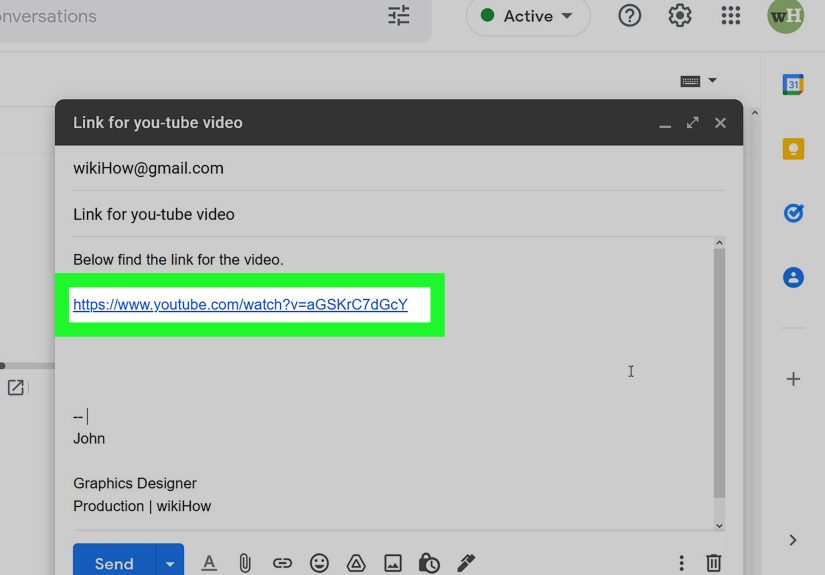
Let’s clear up the biggest misconception: most email platforms don’t truly embed a playable YouTube video inside the email for every recipient.
Some recipients may see a preview, some see a thumbnail, and some see… nothing but a link. The most dependable approach is to
send a clean, clickable linkideally with a thumbnail image that looks like a video.
Option A: The simple link (fastest and safest)
- Copy the YouTube link using Share → Copy link.
- Paste it into your email.
- Add one short line telling the reader what they’ll get.
Option B: Clickable thumbnail (more professional, more clicks)
This works great for newsletters, client emails, or anything where you want a “play button” look without fighting email security rules.
- Grab a thumbnail image (a screenshot works, or use the video’s official thumbnail if you have access).
- Insert the image into your email.
- Add a play-button overlay if you want (optional but effective).
- Hyperlink the image to the YouTube URL (most email editors support “link the image”).
- Under the image, add a plain-text link too (backup for picky email clients).
Keep emails deliverable (aka, don’t look like spam)
- Avoid URL shorteners if your audience is corporate or cautioussome filters treat short links as suspicious.
- Include a normal sentence or two, not just a floating link in an empty email.
- Send a test email to yourself first (especially for newsletters).
How to Send a YouTube Video on Social Media
Social platforms love native content, but most will still accept a YouTube link. Your goal is to get a good preview and make it easy
for people to tap once and watch.
Option A: Use YouTube’s Share to an app
- Open the video in YouTube.
- Tap Share.
- Select the social app (Facebook, X, WhatsApp, etc.) if it’s shown.
- Add your caption and post.
Option B: Copy link and paste into the platform
If the app isn’t listedor you’re posting from desktopcopy the link and paste it into your post, story tool, or bio link area.
Some apps convert YouTube links into richer stickers or previews (for example, certain story formats can turn a link into a tappable card).
Platform reality check
- Previews vary. Some platforms show a big thumbnail; others show just a small card.
- Links get buried. In fast feeds, add context (“Watch for the tip at 1:05”).
- Short-form sharing: Some apps can share YouTube content as a sticker-style link, which is great for Stories.
How to Send a YouTube Video That Starts at a Specific Time (Timestamp Links)
Timestamp links are the difference between “watch this” and “watch this exact moment so we can move on with our lives.”
Perfect for tutorials, interviews, sports highlights, and “the part where everything goes off the rails.”
Method 1: Desktop “Start at” checkbox
- On a computer, open the YouTube video.
- Click Share.
- Check Start at and enter the time (or let YouTube fill it if you paused at that moment).
- Copy the updated link and send it.
Method 2: Desktop right-click shortcut
- Pause the video at the exact second you want.
- Right-click on the video.
- Select something like Copy video URL at current time.
- Paste and send.
Method 3: Manually add the timestamp (when the app won’t)
If you only have the normal link, you can often add a time parameter at the end. A common format is adding something like
&t=90s (for 1 minute 30 seconds) or &t=1m30s. The key is: no spaces, and keep it attached to the URL.
Example timestamp messages
- “Start at 2:30this is the exact part about the settings menu.”
- “Watch from 0:42. I am begging you. Don’t start at the intro.”
How to Share a YouTube Video on a Website or Blog (Embed It)
If you’re publishing content onlineblog posts, knowledge bases, landing pagesembedding is cleaner than dumping a naked link in the middle of your page.
It also keeps visitors on your site while still using YouTube’s player.
Get the official embed code from YouTube
- On a computer, open the video you want to embed.
- Click Share.
- Select Embed.
- Copy the iframe HTML code.
- Paste it into your website editor (HTML block, custom code area, or CMS embed field).
Embedding on popular site builders
- WordPress: Many editors let you paste the YouTube URL directly, or use a dedicated YouTube block.
- Other CMS tools: Look for an “HTML,” “Custom code,” or “Embed” module.
Embed best practices (so it looks good everywhere)
- Place the video near the relevant text (don’t make people scroll like it’s a treasure hunt).
- Add a short caption explaining what the viewer will learn.
- Use responsive layouts if possible so the video scales nicely on mobile.
Sharing Privately: Public vs. Unlisted vs. Private (And When to Use Each)
Sometimes you don’t want the whole internet to find your video. YouTube gives you privacy settings that change how a video can be discovered and who can watch.
Here’s the practical breakdown:
Public
Anyone can find it via search, your channel, recommendations, and links. Use this when you’re intentionally publishing for an audience.
Unlisted
The video won’t show up in search or on your channel’s public listings, but anyone with the link can watch and re-share it.
Use this for “send-only” videos like drafts, class assignments, internal demos, or family clips you don’t need discoverable.
Private
Only people you explicitly invite can watch (often via email/account-based access). This is best for sensitive content.
One catch: private videos may disable certain social features (like comments) and can create extra steps for viewers.
Extra note for teens and families
If you’re a younger creator, your default upload privacy may be set more restrictively. Always double-check the visibility before sending links to teachers,
teammates, or anyone who doesn’t share your account.
How to Send a YouTube Channel or Playlist (Not Just One Video)
Sometimes the best “video” is actually a set of videos: a playlist for a class, a workout plan, a music queue, or a “watch these before the meeting”
collection.
- Open the playlist or channel page.
- Use Share (or copy the URL from the address bar on desktop).
- Paste and send like any other link.
Tip: When sending a playlist, tell people whether you expect them to watch everything or just a specific itemotherwise they’ll pick the shortest video and call it a day.
Troubleshooting: When Sharing Goes Weird
If sharing were perfect, this section wouldn’t exist. But here we are.
Problem: The link opens the wrong app (or won’t open at all)
- Try opening the link in a browser instead of inside the messaging app’s preview.
- If you’re on mobile, press and hold the link and choose “Open in browser” (wording varies).
- If the recipient is signed out, they may need to sign inespecially for age-restricted or private videos.
Problem: The timestamp didn’t work
- Make sure there are no spaces between the URL and the time parameter.
- If you pasted the link into a platform that re-formats it, try the “Start at” method again and resend.
- If your recipient taps the link but then replays from the beginning, ask them to open the link fresh (not from a cached preview).
Problem: “Video unavailable” or “This content isn’t available”
- Check the privacy setting (Public/Unlisted/Private).
- For Private videos, confirm the recipient is actually invited (and using the right account).
- Some videos are blocked in certain regions or restricted by age settings.
Problem: Email recipients can’t “play it in the email”
- That’s normal. Many email clients block video embeds for security and performance reasons.
- Use a clickable thumbnail + link, and include a plain link as backup.
Best Practices That Make You Look Like You Have Your Life Together
- Always add context. A link with zero explanation looks suspiciouseven when it’s harmless.
- Use timestamps for long videos. Respect people’s time and they’ll respect your messages.
- Match the platform. Text for urgency, email for detail, social for reach, embed for polish.
- Think about privacy. “Unlisted” is not the same as “only my friend can see it.” If the link leaks, it’s shareable.
- Test once. Before sending to 50 people, test the link from another device/account if privacy is involved.
: Experience section (added at the end to lengthen the article)
Experience-Based Tips: What Usually Happens in the Real World (And How to Win Anyway)
In real life, “sending a YouTube video” is rarely just sending a YouTube video. It’s navigating people’s devices, habits, attention spans, and the mysterious laws
of group chats. Here are the most common scenarios people run intoand the small moves that make sharing smoother.
1) The “I sent it, but nobody watched it” problem
Most of the time, people don’t ignore your video because they hate you (probably). They ignore it because they don’t know why they should watch it.
The fix is tiny: add a one-line promise. “This explains the exact setting,” “This is the funniest 20 seconds I’ve seen all week,” or “This is the example our teacher meant.”
A clear reason increases clicks more than any fancy trick.
2) The long-video curse
If your link leads to a 38-minute video with a five-minute intro, you’re basically asking the recipient to do homework. Timestamp links solve this instantly.
Even better: tell them what they’re looking for. “Start at 7:12this is the fix. Stop at 9:05 once you see the menu.” That level of specificity feels helpful, not demanding.
3) Cross-platform chaos (iPhone-to-Android, Android-to-iPhone, desktop-to-phone)
Links generally work everywhere, but previews can differ. Sometimes a link preview doesn’t show, and people hesitate to click. If you’re sending to a cautious audience
(family members, clients, anyone who has ever texted “Is this safe?”), include the video title in your message and a plain explanation:
“YouTube link to: ‘How to Fix the Sink Handle (2-minute tutorial)’.” The more transparent you are, the less it feels like a trap.
4) Email “embedding” expectations
People love the idea of a video playing inside the email, but email is picky. The most reliable experience is:
a thumbnail image that looks like a video, linked to YouTube, plus a normal text link underneath. In practice, this gets the best of both worlds:
it looks like a video (so people click), but it behaves like a link (so it works across different inboxes).
5) Private sharing that’s actually private
Many people assume “Unlisted” means “only the person I sent it to can see it.” Not quite. Unlisted means “anyone with the link can watch,” which is fine for a lot of cases,
but not for sensitive content. If it’s truly private, use Private visibility and invite specific people (and then tell them which account email to use).
The most common real-world failure here is sending a private link to someone who’s signed into a different accountand then everyone gets frustrated. A quick “Make sure you’re signed into the email I invited”
saves a surprising amount of back-and-forth.
6) The “one link, many places” strategy
If you’re sharing the same video in multiple spotstexting a friend, emailing a group, posting to socialcreate one “best” version of the link first.
That usually means: correct privacy setting, correct timestamp (if needed), and a short description you can reuse.
When you treat your share like a mini-publish step (even for casual stuff), you reduce mistakes and make the video easier to consume everywhere.
Bottom line: the best sharing experience isn’t about fancy featuresit’s about clarity. Tell people what they’re about to watch, make it start where it matters, and choose
the right level of privacy. Do that, and your YouTube links stop feeling like chores and start feeling like gifts.
SEO tags at the end in JSON format






 Close
Close