
Table of Contents >> Show >> Hide
- Why Post Multiple Photos Instead of Just One?
- How to Post Multiple Photos to Facebook on Mobile
- How to Post Multiple Photos to Facebook on Desktop
- How to Add More Photos to an Existing Facebook Post
- When to Use a Facebook Album Instead
- How to Post Multiple Photos to a Facebook Page
- Best Practices for Better Multi-Photo Facebook Posts
- Common Problems and Easy Fixes
- Real-World Experiences With Posting Multiple Photos to Facebook
- Conclusion
- SEO Tags
Posting one photo on Facebook is easy. Posting several photos without turning your update into a chaotic digital yard sale? That takes a little more finesse. The good news is that Facebook still makes it pretty simple to share multiple pictures at once from both desktop and mobile. Whether you are uploading vacation highlights, birthday snapshots, product photos, before-and-after home projects, or a classic “my dog did something ridiculous again” photo dump, the process is straightforward once you know where to tap, click, and not panic.
In this guide, you will learn how to post multiple photos to Facebook on the web and mobile app, when to use a regular post versus an album, how to edit a post after it goes live, and how to make your photo posts look better instead of looking like they were assembled during a power outage. We will also cover common issues, practical tips, and real-world posting experiences that make the whole thing much easier.
Why Post Multiple Photos Instead of Just One?
A single image can grab attention, but multiple photos tell a fuller story. If you are sharing an event, a trip, a renovation, a recipe, or a product line, one image usually feels like a movie trailer. Multiple images feel like the actual movie. Well, maybe not a movie. More like a well-organized highlight reel.
Posting several photos in one Facebook post helps you:
- Show different angles or moments in one update
- Keep your timeline cleaner instead of publishing five separate posts in a row
- Increase the chances that viewers stop and swipe through your content
- Bundle related images for a more polished, less spammy post
- Make event, travel, family, and business updates easier to follow
If you only have two or three strong photos, a regular multi-photo post usually works great. If you have twenty-seven photos from a wedding, holiday, or weekend trip, an album is often the smarter move. Your friends will thank you. Their thumbs will thank you too.
How to Post Multiple Photos to Facebook on Mobile
How to do it in the Facebook app on iPhone or Android
The Facebook mobile app is the easiest place for most people to post multiple pictures because your photos are already on your phone. You do not need special tools, advanced settings, or a degree in social media archaeology.
- Open the Facebook app and go to the top of your Feed.
- Tap Photo or start a new post and choose Photo/Video.
- Select the photos you want from your camera roll or albums.
- Tap Next if Facebook shows a preview screen.
- Arrange or review your images. On some versions of the app, you may see options like Add or Remove Photos or Choose Layout when uploading multiple photos.
- Add your caption, tag people, include a location, or add a feeling or activity if you want.
- Check your audience setting before posting.
- Tap Post.
That is the core process. Simple, fast, and far less dramatic than the average family group chat.
Tips for posting multiple photos on mobile
When you are choosing images on your phone, be picky. Facebook may technically let you upload several photos, but your audience does not owe you patience. Pick the best shots first, lead with the strongest image, and skip duplicates unless there is a very good reason to post six nearly identical sunset photos. One sunset is art. Six sunsets is a hostage situation.
It also helps to keep your photos visually consistent. If one image is bright and sharp while the next looks like it was taken through a potato, the post feels messy. Before you upload, do a quick cleanup in your phone’s Photos app. Crop, brighten, straighten, and remove accidental screenshots. Nobody needs to see your battery warning next to your brunch photos.
How to Post Multiple Photos to Facebook on Desktop
How to upload multiple images from a web browser
If your photos are stored on your computer, posting from Facebook on the web is often easier than sending everything to your phone first. Desktop posting is especially handy for travel photographers, small business owners, sellers, bloggers, and anyone who already organized their photos into folders.
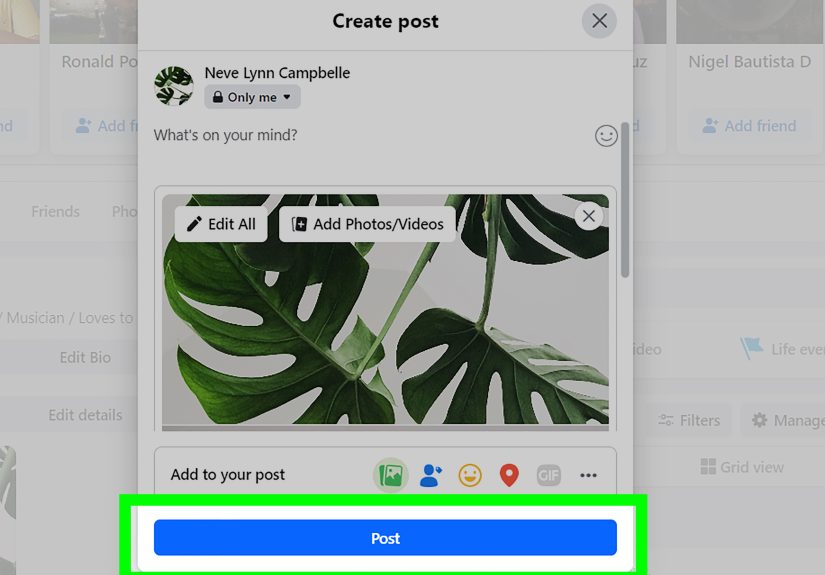
- Go to Facebook in your web browser and sign in.
- At the top of your Feed or on your profile, click the post box that says something like What’s on your mind?
- Click Photo/video.
- Select multiple photos from your computer. On Windows, you can usually hold Ctrl while clicking. On a Mac, hold Command.
- Click Open.
- Add your caption, audience setting, tags, or location if needed.
- Click Post.
That is it. No ceremony. No confetti cannon. Just a regular multi-photo post from your desktop browser.
Why desktop can be better for larger uploads
The web version of Facebook is often more comfortable when you are working with lots of images because your file manager is easier to navigate than a phone camera roll packed with memes, receipts, and accidental screenshots of weather forecasts. Desktop is also useful when you want to upload edited files, renamed product photos, or event images stored in folders.
If you are posting ten polished images from a DSLR or a design project, the desktop workflow usually feels calmer and more organized. Mobile wins for speed. Desktop wins for control.
How to Add More Photos to an Existing Facebook Post
Posted too soon? Realized you forgot the best photo? Welcome to the club. Facebook lets you edit your own post and add more photos later.
On mobile
- Go to your post.
- Tap the three-dot menu or Options in the corner.
- Tap Edit Post.
- Add media or adjust the photos already included.
- Save your changes.
On desktop
- Find the post you want to change.
- Click the three dots in the top-right corner.
- Choose Edit Post.
- Hover over the photo area and click Add Photos/Videos if Facebook shows that option.
- Upload the extra images and save.
This feature is helpful when you want to update a live post instead of publishing a second one. It is especially useful for event updates, project timelines, and family posts where you want everything bundled together in one place.
When to Use a Facebook Album Instead
A regular multi-photo post is perfect for a quick visual update. A Facebook album is better when your pictures belong together as a collection. Think weddings, road trips, graduations, birthdays, product launches, portfolio samples, holiday meals, and renovation progress.
How to create a Facebook album on mobile
- Open Facebook.
- Tap Menu, then tap your profile.
- Scroll to Photos.
- Tap Create Album.
- Add an album title, description, and photos.
- Publish the album.
Why albums are useful
Albums are better for organization, browsing, and long-term storage. They let people explore a set of related images without cluttering the main feed with a huge dump of photos all at once. If your update is more “here is a full event collection” than “here is a quick visual post,” choose an album.
An easy rule of thumb is this: use a regular multi-photo post when you want quick engagement now, and use an album when you want a cleaner archive people can revisit later.
How to Post Multiple Photos to a Facebook Page
If you manage a Facebook Page for a business, creator brand, nonprofit, or community project, the process is similar, but you may also use Meta Business Suite on desktop. That can be useful if you want a more work-focused posting flow.
- Open your Page or Meta Business Suite on desktop.
- Click Create post.
- Add your text.
- Under the media section, upload your photos.
- Preview the post.
- Publish it.
For Page posts, think a little more strategically about the first image. The opening photo acts like a movie poster for the rest of the set. If the first image is weak, people may never bother to view the rest.
Best Practices for Better Multi-Photo Facebook Posts
1. Lead with your strongest photo
The first image matters most. It is your hook. Put your sharpest, brightest, most interesting image first.
2. Keep image sizes consistent
For better-looking uploads, square images at around 1080 by 1080 pixels or portrait images around 1080 by 1350 pixels are safe, common choices for social posting. Mixing wildly different crops can make the set feel uneven.
3. Do not overload the post
More photos are not always better. Five strong images usually beat fifteen random ones. Edit with mercy.
4. Write a caption that gives context
Even a short caption helps. Tell people what they are looking at, why it matters, or what happened. Context turns a photo set into a story.
5. Check privacy before posting
Before you hit Post, look at who can see the update. Public, Friends, Only Me, or a custom audience all create very different outcomes. Accidentally posting vacation photos to the wrong audience is a modern classic, but not in a good way.
6. Consider an album for big moments
If you are sharing a full event or large batch, an album usually looks more intentional and is easier to browse later.
Common Problems and Easy Fixes
I can only upload one photo
Double-check that you are selecting more than one image before confirming. On desktop, use Ctrl or Command while clicking. On mobile, make sure the app has permission to access your full photo library.
My photos uploaded in a weird order
Preview your post before publishing. If Facebook gives you an option to adjust order or layout, use it. If the order really matters, an album may give you a cleaner result.
The images look blurry
Start with high-quality originals. Tiny screenshots, heavily compressed downloads, and old forwarded images usually look worse after upload. Clean files in consistent sizes tend to perform better.
I forgot to include a picture
Edit the post and add more media instead of creating a second post. Your timeline will look cleaner, and your original comments and reactions stay attached.
I posted too many photos and regret everything
That is what editing and albums are for. Facebook is many things, but thankfully it is not a tattoo.
Real-World Experiences With Posting Multiple Photos to Facebook
In real life, the experience of posting multiple photos to Facebook usually depends on what kind of user you are. Casual users want speed. Business users want control. Parents want everyone to admire the birthday cake. Travelers want to share the beach, the dinner, the hotel, the beach again, and somehow also the airport coffee. Facebook has to serve all of them, which is why the process feels simple on the surface but gives you a few extra options once you start poking around.
For everyday users, mobile is usually the winner. You take photos, open the app, tap Photo, choose a few favorites, add a caption, and publish. It feels natural because the content is already on your phone. This is why family updates, pet photos, quick event recaps, and spontaneous “look what happened today” posts usually happen from mobile. The downside is that your camera roll can be chaos. A simple post can turn into a scavenger hunt through screenshots, blurry duplicates, and one random photo of your foot. The process is fast, but the curation part is where most people lose time.
Desktop feels different. It is less impulsive and more deliberate. People who post from the web often already know what they want to share. They have edited images, organized folders, or marketing assets ready to go. That makes desktop posting feel more professional. Sellers, creators, bloggers, and small business owners often prefer it because they can move through files faster, write better captions with a full keyboard, and keep a cleaner workflow. The tradeoff is convenience. Desktop is not the tool you reach for when your dog is doing something hilarious right now.
Albums also come up a lot in real-world use. Many people start by making a regular multi-photo post, then realize halfway through selecting images that they have way too many. That is usually the moment when Facebook albums save the day. Albums are great for weddings, holidays, school events, remodels, travel diaries, and product collections because they help the post feel intentional instead of overwhelming. They also make it easier for viewers to browse later without digging through your entire timeline like internet archaeologists.
Another common experience is the post-after-the-post problem. You publish, then immediately notice you forgot the best image. Or you see a typo. Or you realize the privacy setting is wrong. That is where editing becomes incredibly useful. Instead of reposting and splitting the conversation, you fix the original. It keeps reactions, comments, and the story itself in one place.
Most people also learn one universal lesson very quickly: the first photo matters. If the opening image is boring, dark, repetitive, or confusing, many viewers will never swipe through the rest. Multi-photo posts work best when they are arranged like a tiny visual story. Lead with the strongest image, follow with supporting images, and end before people get tired. That approach works for vacation photos, home projects, products, event recaps, and just about everything else. In other words, the best Facebook multi-photo post is not the one with the most pictures. It is the one with the smartest choices.
Conclusion
Learning how to post multiple photos to Facebook on web and mobile is not hard, but doing it well makes a noticeable difference. On mobile, the process is quick and perfect for day-to-day sharing. On desktop, it is easier to manage larger batches and polished images. If you are sharing a short visual update, a regular multi-photo post works beautifully. If you are uploading a full event or bigger collection, a Facebook album is usually the cleaner option.
The secret is not just knowing where the buttons are. It is knowing how to choose the right format, arrange your images thoughtfully, write a useful caption, and keep the whole post from looking like your camera roll exploded in public. Do that, and your Facebook photo posts will look more organized, more engaging, and much easier to enjoy on any device.







 Close
Close