
Table of Contents >> Show >> Hide
- Quick Diagnosis: What This Error Usually Means
- Tip 1: Confirm the Invite Link Is Real, Current, and Complete
- Tip 2: Check the Server Cap (Yes, You Can “Run Out” of Discord)
- Tip 3: Rule Out a Ban, Kick Loop, or Server-Level Restriction
- Tip 4: Verify Your Account (Email/Phone) to Satisfy Server Requirements
- Tip 5: Check Discord’s Service Status (And Save Yourself an Hour of Blaming Your Router)
- Tip 6: Clear Cache/Cookies and Restart Discord (The Boring Fix That Works a Lot)
- Tip 7: Fix Network Interference (VPNs, Proxies, Firewalls, and DNS Weirdness)
- Tip 8: Try a Different Join Method (and Make Sure You’re Logged Into the Right Account)
- Bonus Safety Note: Don’t Trust Random “Verification” Steps from Old Invites
- Conclusion: Get In, Stay In, and Keep Your Sanity
- Real-World Experiences: What Usually Works (and What Doesn’t)
You click a Discord invite like a normal person, expecting to land in a shiny new server with memes, game nights, or exactly one overly enthusiastic rules channel.
Instead, Discord hits you with: “Unable to Accept Invite”. Rude.
The good news: this error is usually not mysterious. It’s Discord doing one of three things:
protecting a server, enforcing an account limit, or reacting to a link that’s no longer valid.
The even better news: most fixes take less time than explaining to your friends why you’re “totally coming, it’s just Discord being Discord.”
Below are eight practical, low-drama troubleshooting tips that work on desktop, mobile, and webplus a final “real-world experiences” section so you can recognize the pattern you’re stuck in and break it fast.
Quick Diagnosis: What This Error Usually Means
“Unable to Accept Invite” is a catch-all message. Depending on platform and the invite, Discord may also show variations like “Invalid Invite” or “Invite Expired.”
Before you start reinstalling everything in sight, think in categories:
- The invite link is bad (expired, revoked, typed wrong, or copied incorrectly).
- Your account can’t join (server limit reached, phone/email verification requirements, restrictions).
- The server won’t allow you (ban, kick, or server settings like screening/applications).
- Discord or your connection is acting up (outage, cache corruption, VPN/firewall/network issues).
Now let’s fix itstarting with the most common culprit: the invite itself.
Tip 1: Confirm the Invite Link Is Real, Current, and Complete
Discord invites can be configured to expire quickly (yes, as quickly as 30 minutes), limit the number of uses, or be revoked by server mods.
A link can also fail if it’s missing characters, got split across lines, or was copied with extra punctuation.
What to do
- Ask for a fresh invite from a server admin or moderator (new link, new code).
- Copy/paste carefullyno extra spaces, quotes, or trailing characters.
- Mind case sensitivity: if someone manually typed the code, a single wrong character can break it.
- Try “Join a Server” manually: in Discord, use the “Join a Server” option and paste the invite there (sometimes cleaner than browser handoffs).
If a brand-new invite still fails, that’s a clue the problem isn’t the linkit’s your account state or Discord’s rules for joining.
Tip 2: Check the Server Cap (Yes, You Can “Run Out” of Discord)
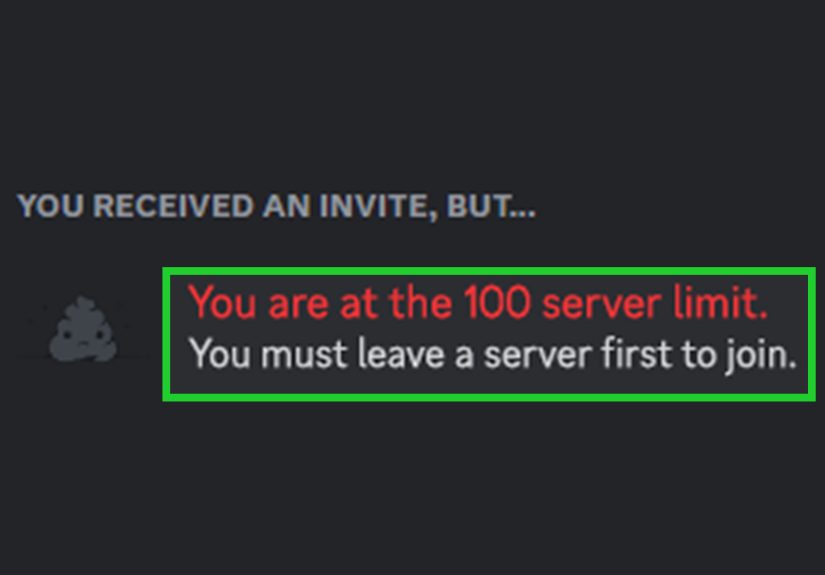
Discord limits how many servers you can join. If you’re at the cap, invites can fail even if the link is perfect.
Most accounts can join up to 100 servers; Discord Nitro can increase that to 200.
What to do
- Count your servers (left sidebar on desktop; server list on mobile).
- Leave a few unused servers (right-click a server icon → Leave Server; on mobile, long-press the server icon).
- Try the invite again after you drop below the limit.
Pro tip: if you joined a bunch of “temporary event servers” and forgot them, they might be blocking you from the one you actually want.
That’s not a personality flawDiscord just doesn’t do spring cleaning for you.
Tip 3: Rule Out a Ban, Kick Loop, or Server-Level Restriction
Sometimes the invite is fine, but the server is saying “nope.” This can happen if you were banned (even accidentally),
the server has anti-raid restrictions, or Discord thinks your account shouldn’t rejoin yet.
What to do
- Ask a moderator to check the server ban list for your user ID (not just your display name).
- Try joining from Discord web (or a different device). Some users see a clearer message there.
- Look for server onboarding gates, like “Apply to Join” or rules screening, that may block full entry until completed.
If the server uses membership screening or applications, you might “join” but still be blocked from content until you accept rules or get approved.
In some cases, that messy in-between state looks like invite trouble.
Tip 4: Verify Your Account (Email/Phone) to Satisfy Server Requirements
Many community servers increase verification requirements to reduce spam and raids. That can mean requiring a verified email,
account age requirements, or a verified phone number. If your account doesn’t meet the server’s verification level, invite acceptance can fail.
What to do
- Verify your email in Discord account settings if you haven’t.
- Add/verify a phone number if the server requires it or Discord prompts you.
- Retry the invite after verification (log out/in if needed so your session refreshes).
Important nuance: a verified phone number can satisfy (or bypass) several server verification requirements.
If you’re bouncing off larger servers with strict settings, phone verification is often the “key that actually turns.”
Tip 5: Check Discord’s Service Status (And Save Yourself an Hour of Blaming Your Router)
If Discord is having an incidentAPI issues, invite processing problems, login disruptionsyou can do everything “right” and still fail.
Before you go full IT-department mode, check whether Discord is currently degraded.
What to do
- Check Discord Status for ongoing incidents.
- Try again after the incident resolves if invites or authentication are affected.
- Update Discord if you’re on an older build (desktop/mobile updates can quietly fix join-related bugs).
If your friends can’t join invites either, that’s a strong hint this isn’t “your account being cursed,” it’s a platform hiccup.
Tip 6: Clear Cache/Cookies and Restart Discord (The Boring Fix That Works a Lot)
Corrupted cache, stale cookies (web), or a stuck client session can make Discord behave like it forgot how invitations work.
Clearing the right data forces Discord to rebuild the “join flow” cleanly.
If you’re using Discord in a browser
- Clear site data (cookies + cache) for Discord, then sign back in.
- Try an Incognito/Private window to eliminate extensions and cached sessions.
- Try another browser (Chrome, Edge, Firefox) for a quick isolation test.
If you’re using the desktop or mobile app
- Fully quit Discord (Windows: also check Task Manager; macOS: Force Quit if needed).
- Clear Discord cache (desktop cache folders; mobile: clear cache/storage where supported).
- Reinstall if cache clearing doesn’t helpespecially on iOS where cache management is limited.
This sounds like “turn it off and on again” because… it is. But it’s also legitimately effective because it resets the client state and removes corrupted local data.
Tip 7: Fix Network Interference (VPNs, Proxies, Firewalls, and DNS Weirdness)
Discord is sensitive to network interference. A VPN/proxy, restrictive firewall, or odd DNS state can interrupt the invite acceptance step.
Even if Discord loads fine, the join request can fail behind the scenes.
What to do
- Disable VPN/Proxy temporarily and retry the invite.
- Switch networks: move from Wi-Fi to mobile data (or vice versa) to isolate the issue.
- Restart your router (annoying, but fast).
- Flush DNS on Windows (common fix when links resolve oddly or routing is stale).
- Check firewall/security software if Discord is being filtered or sandboxed.
If the invite works on your phone’s cellular connection but not your home Wi-Fi, you’ve basically proven the culprit is network-side.
That’s a wineven if it doesn’t feel like one.
Tip 8: Try a Different Join Method (and Make Sure You’re Logged Into the Right Account)
This is the sneaky one: you click an invite, Discord opens in the browser, but you’re logged into an old alt accountor Discord web is stuck in a weird session.
Or your desktop app tries to handle the invite, but the “handoff” fails.
What to do
- Copy the invite link and paste it directly into Discord’s “Join a Server” prompt.
- Log out of Discord web, then log back into the correct account and retry.
- Open the invite on another device (mobile vs desktop) to bypass client handoff issues.
- Try Discord web if the desktop app failsor try the app if the browser fails.
If you manage multiple accounts, this step alone fixes an embarrassing number of “Discord is broken” moments.
(It’s not broken. It’s just holding the wrong identity badge.)
Bonus Safety Note: Don’t Trust Random “Verification” Steps from Old Invites
In 2025, security researchers reported campaigns where old or expired Discord invite links were abused to redirect people to malicious servers,
often followed by a fake “verification bot” asking users to run scripts or complete suspicious steps.
Real Discord servers may have rules screening or built-in onboarding, but they should not require you to run PowerShell commands or download “verification tools.”
- Only accept invites from trusted sources (official site, known admin, verified community post).
- Never run commands as part of “server verification.” That’s not normal onboardingthat’s a trap.
- If something feels off, leave immediately and ask for an updated invite from an official channel.
Conclusion: Get In, Stay In, and Keep Your Sanity
The “Unable to Accept Invite” error is frustrating, but it’s rarely permanent.
Start with the basics (new invite, correct account, server cap), then move through account verification, cache cleanup, and network checks.
If Discord is having an outage, give yourself permission to stop troubleshooting and let the platform catch up to your click.
And once you’re in? Bookmark the official server invite source (or ask for a non-expiring option when appropriate) so you don’t have to repeat this adventure next week.
Your future self deserves fewer pop-up errors and more actual community time.
Real-World Experiences: What Usually Works (and What Doesn’t)
Here are a few common “this keeps happening to me” scenarios people run into, plus what tends to solve them without turning your evening into a troubleshooting documentary.
Experience #1: “My friend swears the link is fine, but it keeps failing.”
This is almost always an expired or revoked link, especially if it was shared in a group chat days ago. Many invites are created with short lifespans
(sometimes because mods want tighter control during raids or big events). The fastest fix is simple: ask the friend (or a mod) to generate a fresh link
and send it again. If you’re the one creating invites, double-check the settingsexpiration and max uses are easy to set and easy to forget.
Experience #2: “Every invite is failingdifferent servers, different links.”
When everything fails, it’s usually not the servers. It’s your client session, your network path, or an account restriction.
A quick reality check: try a different method (Discord web in an incognito window, or mobile on cellular data). If that works,
you’ve learned two valuable things: (1) your account is probably okay, and (2) the problem is localcache, cookies, VPN, firewall, or DNS.
Clearing cache/cookies and restarting Discord often fixes the “everything is broken” feeling in one swoop.
Experience #3: “I can see the server name, but it still won’t let me in.”
This one often points to server-level gates like verification level rules, membership screening, or “Apply to Join.”
People sometimes interpret that friction as an invite failure, especially if Discord’s message isn’t super clear.
Verifying your email (and sometimes your phone) resolves a lot of these, because phone verification can satisfy stricter server requirements.
If the server uses applications, you may need to submit and waitno amount of reinstalling will speed up human approval.
Experience #4: “It says I’m banned, but the mods say I’m not banned.”
This is rarer, but it happenssometimes due to moderation tooling, account mix-ups, or edge-case behavior where you look banned from the outside.
The practical approach is: try joining via Discord web to see if the message changes, confirm you’re on the correct account,
and have mods check bans using your user ID. If it’s genuinely inconsistent, it may require Discord Support, but the quick wins are still
the same basics: correct account, fresh invite, and a clean client session.
Experience #5: “It worked on my phone but not my PC.”
That’s a classic network/desktop-client clue. If mobile on data works, your router, ISP routing, VPN/proxy, or desktop firewall is suspect.
Disabling VPNs, rebooting the router, and flushing DNS on Windows are common fixes. Sometimes the desktop app itself is stuck;
quitting it fully (not just closing the window) and reopening can fix invite handling immediately.
The takeaway: don’t guess randomly. Use a simple isolation strategy:
change one variable (new invite, different device, different network, incognito window). Once you identify the category of problem,
the fix becomes straightforwardand you can stop reinstalling things “just in case.”







 Close
Close