
Table of Contents >> Show >> Hide
- First, What Are “Facebook Shortcuts” (and Why Do They Keep Changing)?
- Quick Reality Check: “Shortcuts” vs “Keyboard Shortcuts”
- Edit Facebook Shortcuts on Mobile (iPhone & Android)
- Edit Facebook Shortcuts on the Web (Desktop Browser)
- Common Questions (Because Facebook Never Makes This Boring)
- Conclusion: The Cleanest Shortcut Setup Is the One You’ll Actually Use
- of Real-World Experience: Shortcut Tweaks That Actually Changed My Day-to-Day
Facebook is like that friend who “just reorganized the kitchen” and now the forks live in a drawer labeled memories.
One day your Groups tab is right there. The next day it’s gonereplaced by something you didn’t ask for (hello, random video tab).
The good news: you can usually take control of your Facebook shortcuts bar on mobile, and you can clean up your “Your Shortcuts”
section on the desktop web version too.
This guide walks you through editing Facebook shortcuts on iPhone, Android, and the webplus how to troubleshoot when Facebook
decides your preferences are merely “a suggestion.”
First, What Are “Facebook Shortcuts” (and Why Do They Keep Changing)?
In Facebook-speak, “shortcuts” are the quick-access buttons that jump you to popular areas like Groups,
Marketplace, Watch/Video, Events, or your Profile.
Depending on where you’re using Facebook, shortcuts show up in different places:
-
Mobile app (iPhone/Android): A “tab bar” or “shortcut bar” with icons across the screen
(often bottom on iOS, top on many Android layouts). -
Desktop web: A left-side menu that includes a section commonly labeled Your Shortcuts
(often showing groups/pages/games you visit a lot).
Facebook also personalizes what it shows you. Over the years, Meta has tested and rolled out navigation that prioritizes the
features you use mostmeaning your shortcut icons can shift based on your activity and product changes. Translation:
Facebook thinks it’s helping. Your muscle memory disagrees.
The trick is knowing where Facebook still gives you actual controland where it doesn’t.
Quick Reality Check: “Shortcuts” vs “Keyboard Shortcuts”
Before we dive in: this article is about navigation shortcuts (tabs/icons/menu shortcuts),
not computer keyboard shortcuts like J, K, or ? type features.
If you came here to remap your keyboarddifferent party, different snacks.
Edit Facebook Shortcuts on Mobile (iPhone & Android)
On mobile, you typically have the most power. Depending on your app version and region, Facebook lets you
Pin tabs you always want, keep others on Auto, or Hide the ones you never use.
You may also be able to reduce or disable those attention-grabbing notification dots on certain tabs.
Method 1: The Fastest WayPress and Hold a Tab
If you can see the shortcut/tab you want to change, try this first. It’s the “I have 12 seconds before a meeting” method.
- Open the Facebook app.
- Find the shortcuts/tab bar (icons across the screen). On many iPhones it’s along the bottom; on many Android layouts it’s along the top.
- Press and hold the tab you want to adjust (example: Watch, Marketplace, Groups).
-
Choose the option that appearscommonly something like:
- Remove/Hide the tab, or
- Manage shortcut bar settings / customize, and/or
- Adjust notification dots for that tab (if available).
- Confirm your choice and return to the home screen to see the updated bar.
Example: If you never use Watch but live inside Groups, you can hide Watch and pin Groups.
That way your thumb stops doing the daily scavenger hunt.
Method 2: The Reliable WayUse Settings (Tab Bar / Shortcuts)
Facebook changes labels like it’s trying to win an award for “Most Creative Use of the Word Menu.”
So you might see Tab bar in one version and Shortcuts in another.
The destination is the same: a screen where each shortcut has a dropdown that usually includes Pin, Auto, or Hide.
Step-by-step (works for most iPhone & Android setups)
- Open Facebook.
- Tap Menu (the three-line icon).
- Go to Settings (sometimes under Settings & privacy first).
-
Look for one of these paths:
- Tab bar → Customize the bar
- Shortcuts → Shortcut bar
-
For each shortcut, choose one:
- Pin (always show it)
- Auto (Facebook decides based on your activity)
- Hide (remove it from the bar)
- Back out to the home screen. If changes don’t show immediately, fully close and reopen the app.
What “Pin,” “Auto,” and “Hide” actually mean (in human language)
-
Pin: “I want this here even if I stop using it for a while.”
Great for Groups, Marketplace (if you actually use it), or your Profile. -
Auto: “Sure, Facebook. You pick.” The tab might appear or disappear based on how often you use it.
Useful if you’re fine with a little chaos. - Hide: “Please remove this from my line of sight.” Perfect for features you never touch.
A practical setup (that most people end up loving)
If you want Facebook to feel calmer (and less like a carnival barker), try:
- Pin: Home, Notifications, Menu (these are often fixed anyway), Groups
- Auto: Marketplace or Friends (only if you use them occasionally)
- Hide: Watch/Video, Dating, Gaming (or whatever you never use)
Mobile Troubleshooting: When the Options Are Missing (or Don’t Stick)
If you don’t see “Tab bar,” “Shortcuts,” or the shortcut you want isn’t listed, you’re not alone. Common fixes:
-
Update the app: Shortcut settings roll out gradually and can differ by version.
Make sure you’re on the latest Facebook app build from the App Store/Google Play. - Force close & reopen: Sounds basic. Works surprisingly often.
- Log out & back in: Especially if your shortcuts recently “reset themselves.”
- Reinstall (last resort): If the settings menu is acting haunted, a clean reinstall can help.
- Know that some tabs are conditional: Facebook may hide or show certain features depending on region, account type, and rollout status.
Also, some devices or versions may limit what can be customized. If Facebook is rolling out changes, you might see “Auto” behavior
even after you set somethingannoying, yes, but it’s a known pattern during UI transitions.
Edit Facebook Shortcuts on the Web (Desktop Browser)
Here’s the honest truth: the desktop web experience is more limited than mobile when it comes to customizing the main navigation.
But you can still edit what shows up in your left-side Your Shortcuts section (when it’s available),
and you can do a little “training” of Facebook’s layout by pinning the items you actually use.
Option 1: Edit “Your Shortcuts” in the Left Menu
If your News Feed page shows a Your Shortcuts section in the left menu, Facebook provides an edit flow that typically works like this:
- Open Facebook in a desktop browser and go to your main feed/homepage.
-
In the left menu, find Your Shortcuts.
(You may need to scroll or click “See more.”) - Hover over Your Shortcuts until you see an Edit option.
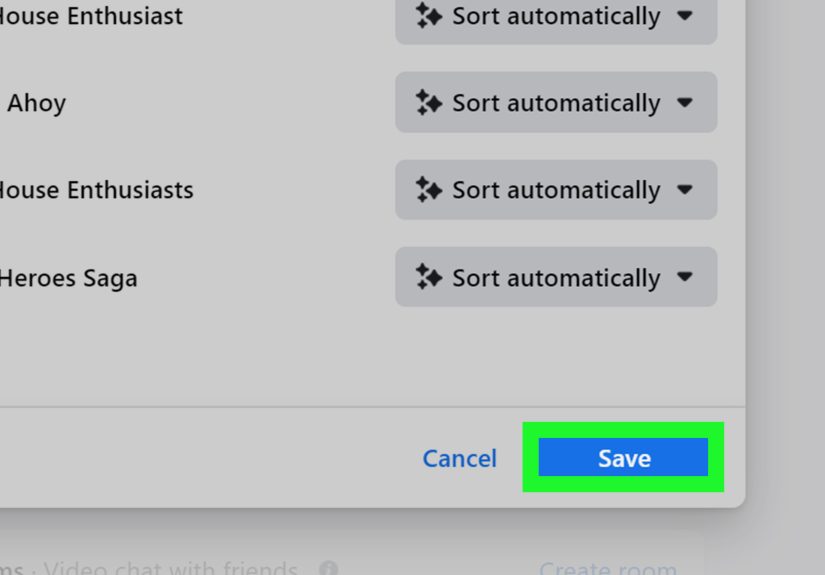
- In the edit panel, select (or search for) a Page you manage, a group, or a game you want to control.
-
Choose the behavior for each item:
- Pin to top (keep it fixed at the top)
- Sort automatically (Facebook orders it based on activity)
- Hide from shortcuts (remove it)
- Save/confirm changes.
Pro tip: Pin your “daily drivers” (like your work group or your local community group).
Leave everything else on Auto. Hide the stuff you haven’t clicked since the Obama administration.
Option 2: Pin a Group (Web Workaround That Actually Helps)
Even if you can’t fully customize every web shortcut, you can often make Groups easier to reach by pinning specific groups
so they surface more predictably.
- On desktop, go to Groups from the left menu.
- Open the group you care about.
- Use the group’s menu (often a three-dot button) to find Pin options (wording can vary).
This won’t magically redesign Facebook, but it can reduce clicks if you live in a handful of groups.
Option 3: Use Favorites to Make Your Feed Feel Less Random
Shortcuts get you places. But if your real goal is “show me the stuff I actually want,” consider cleaning up your feed using Favorites.
Favorites lets you prioritize up to a set number of friends and Pages so their posts show up higher.
It’s not a shortcuts bar setting, but it’s a powerful companion move: fewer unwanted detours, more of what you care about.
Desktop Troubleshooting: If You Don’t See “Your Shortcuts” or “Edit”
- Facebook UI varies: Some accounts see “Your Shortcuts,” others see a different menu layout, especially during redesign rollouts.
- Try a different entry point: Navigate to a group/page first, then return to the home feedFacebook sometimes repopulates shortcuts based on recent activity.
- Check “See more”: The left menu can collapse items behind a “See more” link.
- Browser extensions: If you use aggressive ad/script blockers, they can sometimes interfere with menus. Temporarily disable and test.
Common Questions (Because Facebook Never Makes This Boring)
Why does Facebook keep adding a tab I didn’t choose?
Facebook uses personalization and feature promotions to surface what it thinks you’ll use (or what it wants you to use).
“Auto” settings and active rollouts can reintroduce tabs temporarily.
Can I completely remove some tabs like Watch/Video or Marketplace?
On mobile, often yesyou can set a tab to Hide (if the option appears for your account/version).
On desktop web, you typically have less control over the top navigation, but you can often hide items from the left-side shortcuts list.
Why can’t I find the Tab Bar or Shortcuts settings?
The menu label can vary by version (“Tab bar” vs “Shortcuts”), and Facebook may roll features out gradually.
Updating the app and restarting it usually helps. Sometimes the setting is simply not available to your account yet.
Will editing shortcuts affect my account for other devices?
Often, shortcut preferences are tied to your account, but the exact layout can still differ by device (iOS vs Android vs web).
Think of it like ordering the same coffee at three different caféssame idea, different interpretation.
Conclusion: The Cleanest Shortcut Setup Is the One You’ll Actually Use
Editing your Facebook shortcuts is really about one thing: reducing friction.
Pin the places you go every day. Hide the tabs you never touch. Leave a couple on Auto if you’re okay with Facebook “helping.”
On desktop, use the left menu’s “Your Shortcuts” editing (when available) to pin essentials to the top and hide the rest.
The end goal isn’t perfection. It’s opening Facebook and not immediately thinking, “Who moved my buttons?”
of Real-World Experience: Shortcut Tweaks That Actually Changed My Day-to-Day
The first time I edited my Facebook shortcuts, I expected a tiny quality-of-life improvementlike switching to a slightly better pen.
What I got was closer to discovering I’d been tying my shoes with spaghetti the whole time.
My original shortcut bar was a revolving door of features I didn’t use. One week it was Watch. The next week it was Marketplace.
Then it tried to convince me I was a “Gaming” person. (Respectfully: I am not.)
The result was constant micro-frustration: I’d open Facebook to check a couple of groups, tap the wrong icon out of habit,
and suddenly I was three swipes deep into content I never asked for.
The biggest win was pinning Groups. If you’re in even two active communitiesneighborhood updates, hobby groups,
buy/sell, parenting, sports fan pagesGroups is basically your real home screen. Pinning it meant my thumb stopped “guessing”
where Facebook had hidden it. That alone saved time in the same way putting your keys on an actual hook saves time:
it removes the daily mystery.
The second win was hiding what I call “accidental time sinks.” Watch/Video is the classic one.
It’s not that video content is evilit’s that it’s too good at stealing 20 minutes when you only meant to do one thing.
Once that tab was gone, I found myself logging off sooner. Not because I’m a monk with iron willpower,
but because I removed the easiest on-ramp to distraction.
The third win surprised me: leaving one or two tabs on Auto actually workedwhen I chose them strategically.
I set Marketplace to Auto because I use it seasonally (moving, holidays, random “I need a bookshelf today” moments).
That way Facebook can surface it when I’m in that mode, but it doesn’t permanently squat on prime shortcut real estate.
On desktop, editing “Your Shortcuts” became my cleanup ritual. I pinned the two places I always needed (work group and local community group),
then hid the ancient leftoverspages I followed in 2016, a game I clicked once, and a group I joined for a single event.
The left menu instantly felt calmer and more intentional, like decluttering a junk drawer where you finally stop pretending
you’ll use the mystery charger again.
The overall lesson: Facebook shortcuts aren’t just cosmetic. They shape where your attention goes.
If you want Facebook to feel less chaotic, start with the bar. Make it boringin a good way.







 Close
Close