
Table of Contents >> Show >> Hide
- Delete the Facebook App vs. Delete Your Facebook Account
- How to Delete the Facebook App on iPhone
- Why You Might Not Be Able to Delete Facebook on iPhone
- How to Permanently Delete Your Facebook Account on iPhone
- Should You Delete Facebook, Deactivate It, or Just Remove the App?
- Common Problems and Quick Fixes
- Experiences People Often Have After Deleting Facebook on iPhone
- Final Thoughts
There comes a moment in every iPhone owner’s life when the Facebook app starts feeling less like a tool and more like that chatty neighbor who somehow knows when you opened the fridge. Maybe you want fewer distractions. Maybe you want more storage. Maybe you’re just tired of opening the app “for one second” and resurfacing 47 minutes later with three recipe videos, two political arguments, and no memory of what you originally came for.
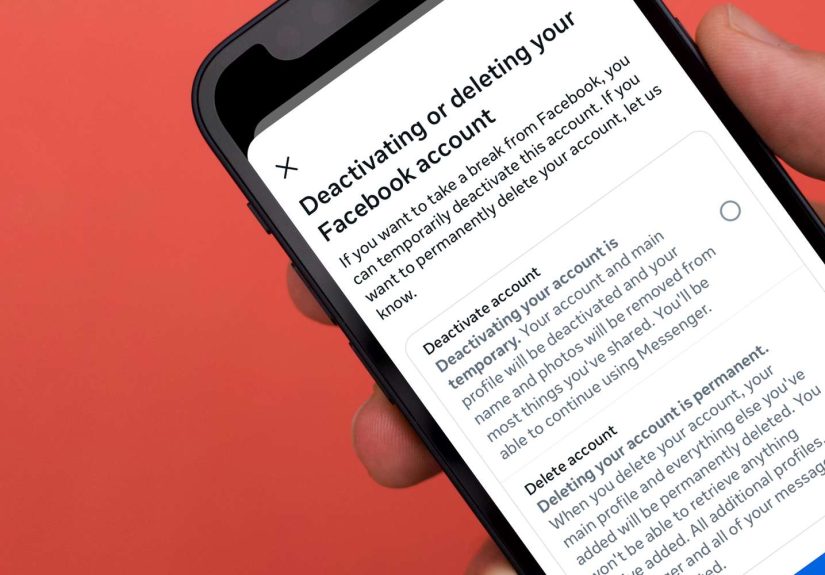
If that sounds familiar, you’re in the right place. This guide explains exactly how to delete Facebook on iPhone, whether you want to remove only the app or permanently delete your Facebook account. Those are not the same thing, and plenty of people discover that the hard way. Deleting the app removes Facebook from your phone. Deleting the account removes your profile from Facebook itself. One is a quick cleanup. The other is a digital breakup.
This article walks you through both options, explains what happens to Messenger, shows you how to avoid common mistakes, and helps you decide whether you should delete, deactivate, or simply kick the app off your Home Screen and enjoy the silence.
Note: If you only delete the Facebook app from your iPhone, your Facebook account still exists. You can still log in later from Safari, another device, or by reinstalling the app.
Delete the Facebook App vs. Delete Your Facebook Account
Before tapping anything dramatic, let’s clear up the biggest confusion around this topic.
Option 1: Delete the Facebook app from your iPhone
This removes the app from your device. It can free up storage, reduce distractions, stop a flood of notifications, and make your Home Screen feel a little more peaceful. But your Facebook account stays active.
Option 2: Delete your Facebook account
This is the full “it’s not me, it’s definitely you” move. Your account enters Facebook’s deletion process, and if you do not cancel it within the allowed window, your profile and account data are permanently removed.
So if your goal is to stop scrolling on your phone, deleting the app may be enough. If your goal is to leave Facebook entirely, you need to delete the account inside Facebook’s settings.
How to Delete the Facebook App on iPhone
Removing the Facebook app from an iPhone is easy, and Apple gives you a few ways to do it. Choose whichever feels least annoying.
Method 1: Delete Facebook from the Home Screen
- Find the Facebook app icon on your Home Screen.
- Touch and hold the icon.
- Tap Remove App.
- Tap Delete App.
- Tap Delete again to confirm.
That’s it. Facebook is gone from your iPhone. No dramatic music required.
Method 2: Delete Facebook from the App Library
If the app is no longer on your Home Screen, do this:
- Swipe left past all Home Screen pages until you reach the App Library.
- Use the search field at the top and type Facebook.
- Touch and hold the Facebook icon.
- Tap Delete App.
- Confirm the deletion.
This is especially useful if you previously removed Facebook from your Home Screen but never actually deleted it from the phone.
Method 3: Delete Facebook through iPhone Storage
This method is handy if you want to check how much space Facebook is taking up before you send it packing.
- Open Settings.
- Tap General.
- Tap iPhone Storage.
- Scroll down and tap Facebook.
- Tap Delete App.
- Confirm your choice.
This route can be especially satisfying if Facebook has been quietly hogging more space than your photos of brunch.
Why You Might Not Be Able to Delete Facebook on iPhone
If you press and hold the app and don’t see the option you expect, your iPhone may be blocking app deletion.
Check Screen Time restrictions
Sometimes the issue is not Facebook at all. It is iPhone settings doing their overprotective-parent routine.
- Open Settings.
- Tap Screen Time.
- Tap Content & Privacy Restrictions.
- Tap iTunes & App Store Purchases.
- Tap Deleting Apps.
- Make sure it is set to Allow.
If app deletion is restricted, iPhone may let you move Facebook around, glare at it, or question your life choices, but not actually remove it.
Know the difference between Offload and Delete
iPhone also has an Offload Unused Apps feature. This is not the same as deleting an app. Offloading removes the app itself but keeps its documents and data so you can reinstall it later and pick up where you left off. Deleting the app is the cleaner break because it removes the app and its related local data from the device.
If your iPhone keeps offloading apps automatically, check the setting in the App Store section of Settings and turn Offload Unused Apps off if that feature is not your cup of tea.
How to Permanently Delete Your Facebook Account on iPhone
If your goal is not just to remove the app but to remove yourself from Facebook, follow these steps inside the Facebook app.
Before you delete your account, do these three smart things first
Yes, you can skip this part. You can also skip reading a recipe and then act surprised when the garlic bread tastes like regret.
- Download your Facebook information. If you want to save photos, videos, posts, messages, or other account data, request a copy before deleting your account.
- Check apps and websites that use Facebook Login. If you signed in to Spotify, Pinterest, games, shopping apps, or random services using Facebook, switch those logins to email or another method first.
- Decide what to do about Messenger. If you delete your Facebook account, you also lose access to Facebook Messenger tied to that account.
Step-by-step: Delete your Facebook account on iPhone
- Open the Facebook app on your iPhone.
- Tap Menu.
- Tap Settings & privacy, then Settings.
- Tap Accounts Center or See more in Accounts Center.
- Tap Personal details.
- Tap Account ownership and control.
- Tap Deactivation or deletion.
- Select the Facebook account you want to remove.
- Choose Delete account.
- Tap Continue and follow the on-screen prompts.
- Enter your password if asked.
- Confirm the deletion request.
Facebook may show a few speed bumps on the way out, such as offers to deactivate instead, download your information, or keep Messenger. That is normal. The app is basically asking, “Are you sure?” in twelve different fonts.
What happens after you delete your Facebook account?
Once you request deletion, Facebook gives you a limited window to change your mind. If you log back in during that period and cancel the request, the deletion stops. If you do nothing, the account continues through the permanent deletion process.
That means this is not the time for muscle-memory tapping. If you decide to delete Facebook, commit to it for a while and do not casually log back in “just to check Marketplace for one chair.” That is how digital breakups become digital situationships.
Should You Delete Facebook, Deactivate It, or Just Remove the App?
Not everyone needs the nuclear option. Here is the practical breakdown.
Delete the app if:
- You want fewer distractions.
- You need to free up iPhone storage.
- You still want to keep your account for groups, events, or Marketplace later.
- You are testing a social media break without fully leaving.
Deactivate your account if:
- You want a break but are not ready to permanently delete everything.
- You may want to come back later.
- You still want the option to use Messenger in some cases.
Delete your account if:
- You are done with Facebook for good.
- You want your profile removed from the platform.
- You do not want to manage Facebook settings, privacy, or notifications anymore.
- You are comfortable disconnecting apps or services that rely on Facebook Login.
For many people, removing the app from iPhone is enough. It cuts off the easiest access point, reduces temptation, and keeps the option open. But if Facebook is a source of stress, privacy concerns, or endless doomscrolling, full account deletion may feel more like a relief than a loss.
Common Problems and Quick Fixes
“I deleted the app, but my account is still active.”
That is normal. App deletion only removes Facebook from the iPhone. It does not close your account.
“I cannot find Facebook on my Home Screen.”
Check the App Library or use Spotlight search. The app may still be installed even if it is hidden from the Home Screen.
“I deleted Facebook, but Messenger still works.”
If you only deleted the Facebook app, Messenger can still work. If you deactivated Facebook in some situations, Messenger may remain active unless you also deactivate Messenger separately. Permanent account deletion is different and affects Messenger access tied to that account.
“I’m worried about losing old photos and posts.”
Request a data download before deleting the account. It is the smartest move for anyone with years of photos, messages, or posts they may want later.
“Facebook keeps coming back into my life.”
That usually means one of three things: the app was only removed from the Home Screen, not deleted; the account was deactivated instead of deleted; or the person in question reinstalled it during a weak moment while waiting in line for coffee. No judgment.
Experiences People Often Have After Deleting Facebook on iPhone
One of the most common experiences people describe after deleting Facebook on iPhone is how strangely quiet their phone feels. At first, that can be a little unsettling. You reach for your iPhone out of habit, tap the spot where the blue icon used to live, and realize there is nothing there. For the first day or two, the reflex is real. Many people do not even notice how often they open Facebook until it is gone.
Another common experience is discovering that removing the app is often more powerful than expected. People who do not feel ready to delete their entire Facebook account sometimes find that simply deleting the app from the iPhone dramatically cuts their screen time. Without the app sitting on the Home Screen like a digital cookie jar, they stop checking it constantly. They still have the option to log in through a browser if they truly need to, but the casual, automatic scrolling drops off fast.
Then there is the storage angle. Some users delete Facebook for emotional reasons and end up pleasantly surprised by the practical bonus: a little more space on the phone and one less app running in the background. It is not always a life-changing amount of storage, but when your iPhone has been nagging you about capacity, every bit helps.
Of course, not every experience is smooth on the first try. A lot of people learn the difference between deleting the app and deleting the account only after they remove Facebook from the phone and then keep getting emails, friend requests, or notifications elsewhere. That usually leads to the classic moment of confusion: “Wait, I deleted Facebook. Why does Facebook still know I exist?” The answer, again, is that the account and the app are separate things. Once people understand that, the next step becomes much easier.
Some users also realize how many services were connected to Facebook Login. That can be annoying for a day or two, but it is also revealing. It shows how deeply one social platform can weave itself into daily digital life. Changing those logins feels tedious in the moment, yet many people say it gives them a stronger sense of control afterward.
And finally, there is the emotional side. Some people miss Facebook groups, local Marketplace deals, or family updates. Others feel immediate relief, like they finally stopped attending a party they did not enjoy but felt weirdly obligated to keep visiting. In many cases, deleting Facebook on iPhone becomes less about one app and more about changing how attention gets spent. That is why this small action can feel surprisingly big. It is not just deleting an icon. It is deciding what deserves space on your screen, your phone, and your brain.
Final Thoughts
If you came here wondering how to delete Facebook on iPhone, the answer depends on what you actually want. If you want the app gone, delete it from the Home Screen, App Library, or iPhone Storage. If you want a complete exit, go into Facebook’s Accounts Center and request account deletion. And if you are somewhere in between, deactivation or simple app removal may be the perfect middle ground.
The key is knowing that deleting the app and deleting the account are two different moves. Once you understand that, the rest is simple. Your iPhone gets cleaner, your attention gets a little less crowded, and the blue icon no longer gets to boss you around.






 Close
Close