
Table of Contents >> Show >> Hide
- Before You Start: What You’ll Need
- Step 1: Pick the Right Coax Outlet (and Avoid Signal Sabotage)
- Step 2: Connect the Coax Cable to the Modem
- Step 3: Power On the Modem and Wait for It to Sync
- Step 4: Connect the Modem to Your Computer with Ethernet
- Step 5: Activate the Modem (If Required) and Test Your Connection
- Troubleshooting: When the Internet Doesn’t Magically Appear
- Bonus: Should You Connect the Modem Directly to a Computer, or Use a Router?
- Conclusion: You’re Now the Cable Modem Whisperer
- Real-World Experiences: What It’s Like to Set Up a Cable Modem (and What You Learn)
So you’ve got a cable modem, a computer, and a strong desire to stop staring at the “No Internet” icon like it owes you money. Good news: connecting a cable modem to your computer is usually quick, painless, and only mildly annoyinglike assembling a chair where the instructions are clearly written but somehow still smug.
This guide walks you through 5 easy steps to get online using a cable modem, with real-world troubleshooting tips, plain-English explanations, and the few “gotchas” that trip people up (like that one loose coax connector that looks tight but absolutely is not).
Before You Start: What You’ll Need
- An active cable internet service (your provider has to have your address turned on)
- A cable modem (DOCSIS modem; could be modem-only or a modem/router combo “gateway”)
- A coaxial cable (the round one with the screw-on ends)
- An Ethernet cable (RJ45looks like a chunky phone plug)
- A power adapter for the modem
- A computer with an Ethernet port (or a USB-to-Ethernet adapter if your laptop is living that “no ports” lifestyle)
Quick reality check: Many cable providers require activation/provisioning for a new modem (even if everything is plugged in correctly). So if the lights look good but you’re still offline, you may simply need to activate the deviceusually via an app, website, or quick call.
Step 1: Pick the Right Coax Outlet (and Avoid Signal Sabotage)
Cable internet runs through the same coax lines that (traditionally) carried cable TV. In many homes, only one coax outlet is reliably connected to the provider’s line, or the signal is strongest at a specific jack.
Do this first
- Find a coax wall outlet near your computer.
- If possible, connect the modem directly to the wall outlet (fewer middlemen = fewer problems).
- If there’s a splitter (one coax line turning into two), try bypassing it temporarily.
- Check the coax cable for kinks, crushed spots, or loose ends.
Why it matters: Cable modems need a clean signal to lock onto downstream/upstream channels. Too many splitters, a damaged coax cable, or a loose connector can keep your modem from ever going “Online.”
Fun fact you didn’t ask for: Coax connectors are excellent at pretending they’re tight. Give the connector a gentle twist until snugtight enough to stay put, not tight enough to audition for a wrench commercial.
Step 2: Connect the Coax Cable to the Modem
This is the part where the internet enters the building (dramatic music optional).
- Screw one end of the coaxial cable into the wall outlet.
- Screw the other end into the modem’s port labeled Coax, Cable, or sometimes just a little circle that says, “Trust me.”
Common mistakes (aka “the classics”)
- Using a coax cable that’s too old, bent, or missing the center pin.
- Connecting coax to a TV-only line that isn’t actually active for internet.
- Leaving the connector slightly loose and hoping vibes will fix it.
Step 3: Power On the Modem and Wait for It to Sync
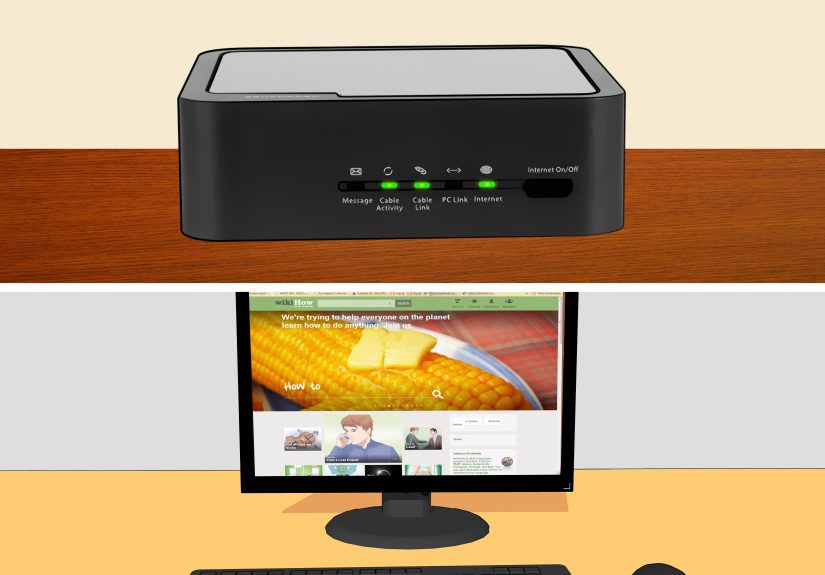
Plug the modem’s power adapter into the modem and then into a wall outlet (or a power strip you trust). The modem will boot up and start negotiating with your provider’s network.
What the lights usually mean (in human terms)
- Power: “I am awake.”
- Downstream (DS / Receive): “I found the provider’s signal coming into the house.”
- Upstream (US / Send): “I can send data back out to the provider.”
- Online / Internet: “I’m registered on the network and ready to party.”
- Ethernet: “I see something connected via Ethernet.”
How long should this take? Often a few minutes, but it can take longer in some setups. If the “Online” light never becomes solid (or never stabilizes), don’t panic yetthere’s a troubleshooting section below that covers the usual suspects.
Pro tip: If you’re replacing an old modem
Turn off and unplug the old modem first. Some providers don’t love having two modems competing for attention on the same coax line. Also, if you’re switching equipment, activation may be required.
Step 4: Connect the Modem to Your Computer with Ethernet
Once the modem is powered and working on its lights, connect it to your computer:
- Plug one end of the Ethernet cable into the modem’s LAN or Ethernet port.
- Plug the other end into your computer’s Ethernet port (or your USB-to-Ethernet adapter).
Make sure your computer is set to get an IP address automatically
Most home internet setups use DHCP, which is a fancy way of saying “your modem/router hands your computer an address automatically.” If your computer is set to a manual/static IP from some long-forgotten office network, it may refuse to cooperate.
- Windows: Settings → Network & Internet → Ethernet → IP assignment should be Automatic (DHCP).
- macOS: System Settings → Network → Ethernet → Details → TCP/IP → Configure IPv4 should be Using DHCP.
One-device warning: If you connect a modem directly to a computer (no router), many cable providers will effectively “pair” the modem’s current internet session to the first device it sees. If you later swap in a different computer or a router, you may need to power-cycle the modem (unplug for 30 seconds, plug back in) so it issues a fresh connection.
Step 5: Activate the Modem (If Required) and Test Your Connection
Here’s the sneaky truth: you can plug everything in perfectly and still have no internet until your cable provider activates (provisions) the modem on your account. This is especially common when you:
- installed a brand-new modem
- replaced a provider modem with your own
- moved to a new address
- changed service tiers
How activation usually works
- Provider app: Many ISPs guide activation through their mobile app.
- Activation page: You may be redirected when you open a browser.
- Phone/chat support: Sometimes you provide the modem’s MAC address or serial number.
Test checklist (2 minutes, max)
- Open a browser and visit a couple of sites you know exist (not that one personal blog from 2009).
- If nothing loads, restart your computer and power-cycle the modem.
- Check that the modem’s “Online/Internet” light is stable.
- Try renewing your network lease:
- Windows: Disable/Enable the Ethernet adapter (or use command-line tools if you’re comfortable).
- macOS: Ethernet → TCP/IP → Renew DHCP Lease.
If your modem is online but you still can’t browse, it can be a device IP issue, a temporary account/activation mismatch, or a signal problem upstream. The good news: most of these have quick fixes.
Troubleshooting: When the Internet Doesn’t Magically Appear
Scenario A: The modem never goes “Online”
- Re-check coax connections (wall and modem). Snug, not savage.
- Try a different coax wall outlet if available.
- Remove splitters temporarily and connect directly to the wall.
- Power-cycle the modem: unplug power, wait 30 seconds, plug back in.
- If you recently switched providers or accounts, activation may still be pending.
Scenario B: Online light is solid, but your computer says “No Internet”
- Confirm Ethernet is connected firmly on both ends (and try a different Ethernet cable).
- Restart the computer (yes, reallythis refreshes the network lease in many cases).
- Make sure the computer is set to DHCP/automatic addressing, not a static IP.
- Renew the IP/DHCP lease (Windows/macOS steps above).
Scenario C: It worked… then stopped after you connected a router
This is extremely common. Many cable modems will only hand out one “public” internet connection at a time, and they remember the first device they talked to. Fix: unplug the modem for 30 seconds, plug it back in, then connect the modem to the router’s WAN/Internet port and let it boot fully.
Scenario D: The lights blink forever like a tiny lighthouse of disappointment
Persistent blinking can indicate the modem is still searching for a signal or can’t complete registration. If it’s been a long time, suspect coax signal quality, a bad splitter, a damaged cable, or an outage. Checking the provider’s outage page (or app) can save you from doing interpretive dance with cables.
Bonus: Should You Connect the Modem Directly to a Computer, or Use a Router?
You can do either, but here’s the simple rule:
- Direct-to-computer is fine for one device and quick testing.
- Modem → Router → Devices is best for Wi-Fi, multiple devices, better security, and fewer headaches.
If your modem is a combo unit (modem + router), it may offer both Ethernet and Wi-Fi out of the box. If it’s modem-only, you’ll need a separate router for Wi-Fi and multiple devices.
Security note: A router adds a layer of protection (NAT/firewall features). Plugging a computer directly into a modem can expose it more directly to the internet. It can still be safe if your system firewall is on and updatedbut for everyday use, most people are happier behind a router.
Conclusion: You’re Now the Cable Modem Whisperer
Connecting a cable modem to your computer isn’t complicatedit’s just a sequence that must happen in the right order: coax for signal, power for life, time for syncing, Ethernet for data, and activation for permission to join the internet party.
If you run into trouble, focus on the basics: tight coax, fewer splitters, stable “Online” light, DHCP settings, and activation status. And remember: when swapping devices (computer vs. router), power-cycling the modem is not superstitionit’s networking reality.
Real-World Experiences: What It’s Like to Set Up a Cable Modem (and What You Learn)
Let’s talk about the part the quick-start cards never mention: the “in-between” moments where you’re sure you followed the steps, but the internet still isn’t happeningso you start bargaining with the modem like it’s a sentient creature. Real setups tend to fall into a few familiar stories, and knowing them makes the whole process feel way less mysterious.
Experience #1: The “Everything Is Plugged In” illusion
This is the classic. You screwed in the coax, connected Ethernet, powered up the modem… and the Online light just keeps blinking. The surprising lesson? A coax connector can be attached and still not truly connected. People often stop tightening the connector the moment it “catches,” but coax needs to be snug enough that it won’t wiggle. Once you tighten both ends properly, the modem suddenly locks downstream channels like it was waiting for you to take it seriously.
Experience #2: The splitter that quietly ruins your day
Splitters are useful when you want cable TV and internet on the same linebut they also weaken the signal. In older homes, you may find multiple splitters chained together behind furniture like a secret coax labyrinth. The practical move is to temporarily bypass splitters and connect directly to the wall outlet. When the modem finally goes online, you’ve learned a key truth: if the internet works without the splitter, the splitter (or the extra coax run) is part of the problem.
Experience #3: The activation facepalm
Sometimes all the lights look perfect. Power? Solid. Downstream and upstream? Solid. Online? Solid. But your browser won’t load anything except maybe a provider pageor nothing at all. That’s often an activation issue. Many people assume “plug-and-play” means “no account setup,” but cable networks typically require provisioning so the modem’s MAC address is authorized. The lesson here is simple: the modem can be physically connected and technically synchronized, yet still not allowed to pass traffic until the provider flips the right switch on your account.
Experience #4: The “Why did adding a router break it?” moment
A lot of folks test the modem by connecting it to a laptop first (smart), then they swap in a router (also smart), and suddenly the router can’t get online (not smartannoying). This is where you learn about device “pairing” and DHCP leases in the most hands-on way possible. Many modems won’t automatically forget the first device they saw. Power-cycling the modem forces it to start fresh and issue a new connection to the router. The experience teaches you a valuable rule: when you change what’s plugged into the modem, rebooting the modem is often required.
Experience #5: The “It worked yesterday” mystery
Intermittent issues tend to be coax-relatedloose fittings, moisture in a line, or a damaged cable somewhere in the path. The takeaway isn’t that you did something wrong; it’s that cable internet depends on clean signal levels. If your service drops frequently, you can do a lot at home (tighten connections, reduce splitters, replace cables), but sometimes the best move is to contact your provider because the issue may be outside the home. The win is knowing what to check first, so you’re not stuck doing random cable gymnastics without a plan.
Bottom line: the steps are easy, but the real-world experience teaches you why each step matters. And once you’ve done it once, you’ll never fear a blinking “Online” light again. You’ll just sigh, grab the coax, and handle business like the internet-grown adult you are.







 Close
Close