
Table of Contents >> Show >> Hide
- What “YouTube History” Actually Means (So You Delete the Right Thing)
- Pick Your Cleanup Style: From “One Video” to “Witness Protection Program”
- How to Clear YouTube Watch History on a Computer (Desktop Web)
- How to Clear YouTube Search History on a Computer
- How to Clear YouTube History on Mobile (iPhone & Android)
- How to Pause YouTube History (So It Stops Rebuilding Itself)
- How to Auto-Delete YouTube History (The Low-Drama Option)
- Troubleshooting: If You Can’t Find the Buttons
- What Changes After You Clear Your YouTube History (And What Doesn’t)
- Experience Section: What It Feels Like After You Clear YouTube History (500-Word Reality Check)
- Conclusion
- SEO Tags
Your YouTube recommendations have gotten… oddly specific. Maybe your homepage is now 80% “how to fold a fitted sheet”
(a classic) and 20% “video essays about the fall of the Roman Empire” (also a classic). Or maybe you just want a clean slate
before you hand your phone to a friend and pretend you’ve never watched a 47-minute compilation titled “Satisfying Hydraulic Press Moments.”
Whatever the reason, clearing your YouTube history is one of the fastest ways to reclaim your privacy, reset your recommendations,
and stop your account from feeling like it knows you a little too well. This guide walks you step-by-step through clearing
YouTube watch history and search history on computer and mobile (iPhone + Android)plus how to pause
history tracking and set auto-delete so you don’t have to keep doing this forever.
What “YouTube History” Actually Means (So You Delete the Right Thing)
Watch history vs. search history
YouTube tracks two main history buckets:
- Watch history: videos you’ve watched (even partially). This heavily influences your homepage, “Up next,” and suggested videos.
- Search history: what you type into the YouTube search bar. This influences search suggestions and can also affect recommendations.
Where your history lives: YouTube vs. Google
If you’re signed in, YouTube history is tied to your Google account. That’s why you may see options like “Manage all history”,
which typically opens Google’s activity controls for YouTube. The upside: you can delete by date ranges and manage watch/search tracking more precisely.
The downside: the settings can feel like a scavenger hunt if you don’t know where to look (don’t worrythis guide is your map).
Pick Your Cleanup Style: From “One Video” to “Witness Protection Program”
Before you start tapping “Delete all time,” decide what you actually want:
- Remove one video/search: Great when one weird click derails your recommendations for weeks.
- Clear recent activity: Perfect for “I borrowed someone’s account” situations.
- Clear everything: Full resetrecommendations will be less personalized for a while.
- Pause history: Stops YouTube from logging future watch/search activity (useful if you’re researching surprises, gifts, or guilty pleasures).
- Auto-delete: Lets YouTube continuously clean up older activity (a “set it and forget it” option).
How to Clear YouTube Watch History on a Computer (Desktop Web)
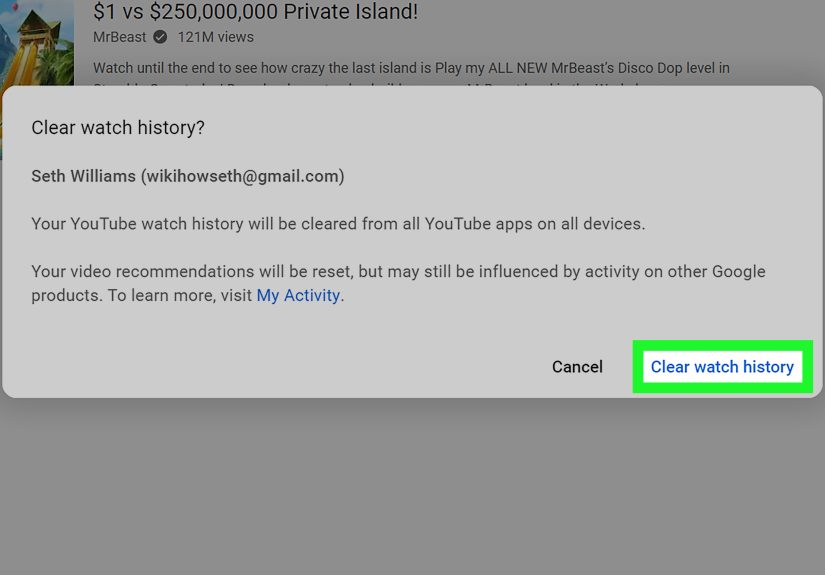
Option A: Clear all watch history from YouTube’s History page
- Open YouTube in your browser and make sure you’re signed in.
- In the left navigation menu, click History.
- On the right side (or in a side panel), find Clear all watch history.
- Confirm when prompted.
This is the fastest “wipe it clean” method. Just remember: wiping watch history can also change recommendations quickly,
because YouTube loses a major signal it uses to personalize your feed.
Option B: Delete one (or a few) videos without nuking everything
- Go to History.
- Find the video you want to remove.
- Hover over it and click the X (or the remove option) next to the video.
Use this when your history has one “algorithm poison pill”that one random video that convinced YouTube you’re now obsessed
with alpaca shearing, home aquariums, or conspiracy-level sourdough starters.
Option C: Use “Manage all history” to delete by date range (more control)
If you want to delete only the last hour, a specific day, or a custom window:
- From YouTube’s History page, click Manage all history.
- Look for a Delete menu (often offers: Delete today, Delete custom range, and Delete all time).
- Select the time range you want, then confirm.
This approach is ideal if you want to keep your long-term viewing habits (so recommendations stay good) while deleting a short burst
of “please don’t train the algorithm on this” viewing.
How to Clear YouTube Search History on a Computer
Clear all searches (quick method)
- Open YouTube and click History in the left menu.
- Switch the history type to Search history (usually in a right-side panel or a history type selector).
- Click Clear all search history.
- Confirm.
Delete only specific searches
If YouTube is constantly suggesting “how to remove red wine from carpet” because you searched it once in 2022 and it refuses to let it go:
- Go to Search history (from the History area).
- Remove individual search entries (often via an X or a menu next to the item).
How to Clear YouTube History on Mobile (iPhone & Android)
The YouTube app moves buttons around like it’s rearranging furniture for fun. The wording is usually consistent, though:
you’re looking for History, History & privacy, or Manage all history.
Method 1: Clear watch and search history from “History & privacy” (simple)
- Open the YouTube app and sign in.
- Tap your profile icon.
- Tap Settings.
- Find History & privacy (or a similar privacy/history section).
- Tap Clear watch history and confirm.
- Tap Clear search history and confirm.
This is the “I just want it gone” approach. It’s quick, and it works for most people.
Method 2: Use “Manage all history” for detailed deleting (best control)
If you want to delete specific videos, remove activity from a custom date range, or pause tracking:
- Open YouTube > tap your profile icon.
- Tap Settings.
- Select Manage all history.
- Use the HISTORY view to browse items, or use Search and Calendar tools to find entries.
- Delete one item (often with an X), or use the DELETE button/menu to remove larger ranges.
Delete a single video from your watch history (mobile)
- In the YouTube app, go to your viewing history list (often under your profile area or a History section).
- Find the video.
- Tap the three-dot menu next to it.
- Select Remove from watch history.
This is the best option when you don’t want to wreck your recommendationsjust gently nudge the algorithm away from that one accidental click.
How to Pause YouTube History (So It Stops Rebuilding Itself)
Clearing history is like taking out the trash. Pausing history is like telling YouTube, “Please stop bringing new trash into my living room.”
Pause watch history
- On mobile: YouTube app > profile icon > Settings > Manage all history.
- Go to the Controls tab.
- Turn off Include the YouTube videos you watch (wording may be slightly different).
- Confirm Pause.
Pause search history
- From Manage all history, go to Controls.
- Turn off Include your searches on YouTube.
- Confirm Pause.
Pro tip: pausing is especially handy for shared devices, family TVs, or when you’re researching something you don’t want influencing
your feed (like planning a surprise party or learning the choreography to a song you swear you only like “ironically”).
How to Auto-Delete YouTube History (The Low-Drama Option)
If you’d rather not manually clear YouTube history every few months, set auto-delete. This keeps your account from collecting a lifelong archive of
every “how to…” rabbit hole you’ve ever fallen into.
- Open Manage all history (desktop or mobile).
- Look for Auto-delete.
- Choose a retention window (commonly 3 months, 18 months, or 36 months).
- Confirm.
Auto-delete is the sweet spot for many users: you still get personalized recommendations, but older activity doesn’t hang around forever.
Troubleshooting: If You Can’t Find the Buttons
You’re signed out (history behaves differently)
When you’re signed out, YouTube can still keep a local viewing trail on the device/app. On mobile, you may see history controls under
Settings > History & privacy. On desktop, go to History from the left menuoptions like
Clear all watch history or Pause watch history can appear even without sign-in, but they affect that browser session/device,
not your Google account across devices.
“Manage all history” opens a Google page and it looks intense
Totally normal. That page exists because YouTube is part of your Google account activity. The payoff is better tools:
delete by time range, search your activity, and separately control whether watch and search history are tracked.
Clearing YouTube history isn’t the same as clearing browser history
Clearing YouTube watch/search history removes activity tied to your YouTube/Google account signals. It does not automatically erase:
- Your browser’s visited-pages history
- Cookies/cache stored by your browser
- Downloads or saved files on your device
If your goal is privacy on a shared computer, consider clearing your browser history tooor use a private browsing mode when you watch.
What Changes After You Clear Your YouTube History (And What Doesn’t)
What changes
- Recommendations reset: Your homepage and “Up next” may become more generic at first.
- Search suggestions shift: Your previous searches won’t keep popping up as suggestions.
- Cross-device impact: If you’re signed in, changes typically apply across devices using the same Google account.
What doesn’t change
- Subscriptions: Channels you subscribe to remain subscribed.
- Likes and playlists: Your saved items and playlists stay (unless you delete them separately).
- Account settings: Clearing history doesn’t cancel YouTube Premium or change your content preferences.
Experience Section: What It Feels Like After You Clear YouTube History (500-Word Reality Check)
The first time most people clear their YouTube history, they expect instant peace and quietlike pressing a magical “reset” button that returns the app
to a calm, neutral state. What actually happens is more like moving into a new apartment: it’s clean, but echo-y, and you suddenly realize how much
furniture your old place had. Your homepage might look strangely generic for a bit: mainstream music videos, broadly popular creators, and trending content
that seems designed for “humans, in general.” It can feel like YouTube forgot who you are. (Don’t worry. It’ll remember. It always remembers… once you let it.)
One common experience: your recommendations improve after a short awkward phase. If your watch history got pollutedsay you binge-watched a dozen
videos to troubleshoot a printer, then YouTube decided you’re now a full-time office equipment influencerdeleting just that cluster can help the algorithm
recover. A lot of users notice that removing a handful of “wrong signal” videos is more effective than wiping everything. Think of it like pulling weeds
instead of setting your whole yard on fire. The yard will thank you.
Another real-world scenario: shared devices. Family TV accounts are notorious for recommendation chaos. Someone watches cartoons, someone watches sports highlights,
someone watches cooking tutorials, and suddenly the homepage looks like it was curated by a committee that never meets. Clearing history helps, but pausing history
can be the bigger win if multiple people use the same account. If you keep history on for a shared login, it’s basically a group projectand you know how those go.
People also underestimate how useful the “delete by date range” option is. Let’s say you were researching engagement rings, surprise trips, or a gift for your partner.
You don’t want YouTube advertising your plan by loudly recommending “BEST PROPOSAL IDEAS (SHE WILL CRY)” the next time they open the app. Deleting the last hour or day,
plus pausing search/watch history during the research period, is a solid strategy. It’s not about hiding something shadyit’s about preventing accidental spoilers.
Finally, there’s the “I cleared everything and now YouTube is boring” moment. That happens. Personalization is a double-edged sword: it can feel invasive,
but it also saves time. If your feed turns bland after a full wipe, rebuild it intentionally. Spend 10 minutes watching videos you actually enjoy, search for a few
creators you trust, and subscribe to channels that match your interests. You’re basically retraining your recommendationson purpose this time. And if you never want
YouTube to build a long memory again, set auto-delete to three or 18 months. You get the convenience of personalization without keeping a forever diary of every
late-night curiosity you’ve ever had.
Conclusion
Clearing your YouTube history on computer and mobile is straightforward once you know where the controls live: the History page for quick wipes,
and Manage all history for more precise cleanup (like deleting a custom range or pausing tracking entirely). If you want the best of both worlds,
consider using auto-delete so your account stays personalized without storing years of watch and search activity.
Whether you’re doing it for privacy, better recommendations, or because your friend borrowed your phone and now your homepage thinks you’re training for a competitive
pigeon-racing league, you’ve got optionsand now you know exactly which buttons do what.







 Close
Close