
Table of Contents >> Show >> Hide
- What Apple Means by “Home Screen Background” on iPad
- How to Change the Home Screen Background on an iPad
- Best Wallpaper Choices for an iPad Home Screen
- How to Make a Photo Fit Better as an iPad Background
- How to Make App Icons Easier to See
- Can You Change the Home Screen Background Without Changing the Lock Screen?
- Troubleshooting Common iPad Wallpaper Problems
- Why Changing Your iPad Home Screen Background Actually Matters
- Real-World Experience: What It Feels Like to Change the Home Screen Background on an iPad
- Conclusion
- SEO Tags
If your iPad’s Home Screen still looks like the default setup Apple handed you on day one, it may be time for a glow-up. Changing the Home Screen background on an iPad is one of the fastest ways to make the device feel personal, polished, and a lot less “fresh out of the box.” Whether you want a clean minimalist color, a favorite family photo, a scenic wallpaper, or something bold enough to make your app icons pop like they’re auditioning for a design award, the process is pretty simple.
The trick is that Apple gives you a few different ways to handle wallpaper, and that can confuse people. Some users want the same image on the Lock Screen and Home Screen. Others want a different Home Screen background so their app icons are easier to see. And then there are the perfectionists among us who spend 20 minutes adjusting one photo by half an inch because the dog’s face is getting covered by the Calendar app. No judgment. That is called commitment.
In this guide, you’ll learn exactly how to change the Home Screen background on an iPad, how to use a photo, how to pick a cleaner background for better visibility, and how to fix common wallpaper frustrations. If you’ve ever asked, “Why does my iPad wallpaper look weird?” or “Why can’t I make this photo fit?” you’re in the right place.
What Apple Means by “Home Screen Background” on iPad
Before jumping into the steps, it helps to know what you’re changing. On an iPad, the Home Screen background is the wallpaper that appears behind your app icons and widgets after you unlock the device. It is different from the Lock Screen wallpaper, which shows before you enter your passcode, use Face ID, or swipe up to start working.
Apple lets you use the same wallpaper for both screens, or you can customize the Home Screen separately. That second option is especially useful if your Lock Screen wallpaper is dramatic and artsy, but your Home Screen needs to be calmer so your icons do not disappear into a visual jungle.
In plain English: your Lock Screen can be the red-carpet look, and your Home Screen can be the comfy but still stylish everyday outfit.
How to Change the Home Screen Background on an iPad
Method 1: Change It Through the Settings App
This is the easiest and most reliable method for most people.
Step 1: Open the Settings app on your iPad.
Step 2: Scroll down and tap Wallpaper.
Step 3: Tap Add New Wallpaper.
Step 4: Choose the wallpaper source you want. You can pick from Apple’s built-in wallpaper collections, a color background, or one of your own photos.
Step 5: After selecting a wallpaper, tap Add.
Step 6: Now choose one of two options:
Set as Wallpaper Pair if you want the same background on both the Lock Screen and Home Screen.
Customize Home Screen if you want the Home Screen to look different.
If you choose Customize Home Screen, you’ll usually see options such as:
Pair to match the Lock Screen wallpaper
Color to use a solid background color
Photo to pick a separate image
Blur to soften the wallpaper so the app icons stand out more
Tap the option you want, make your adjustments, then tap Done. That’s it. Your iPad Home Screen background is officially upgraded.
Method 2: Use a Different Photo for the Home Screen Only
If you love having one artistic image on the Lock Screen and something simpler on the Home Screen, this is where iPad wallpaper customization gets fun.
For example, you might use a dramatic sunset on the Lock Screen and a soft blue gradient or lightly blurred family photo on the Home Screen. That gives you personality without sacrificing readability. Your iPad still looks great, but your apps are not fighting for survival against a bright orange sky.
To do this, follow the same steps above, then tap Customize Home Screen instead of setting the wallpaper pair. Choose Photo and select an image from your photo library. Move and scale it as needed, then tap Done.
Best Wallpaper Choices for an iPad Home Screen
Not every beautiful image makes a great Home Screen background. That sounds unfair, but it is true. Some photos are amazing in the Photos app and terrible as wallpaper because widgets, app labels, and dock icons cover the best parts.
Here are the best types of Home Screen wallpaper for an iPad:
1. Soft, Low-Contrast Photos
Landscapes, clouds, beaches, and lightly textured backgrounds work well because they do not compete too much with app icons.
2. Solid Colors or Gentle Gradients
If you want the cleanest possible look, a simple color or subtle gradient is hard to beat. It looks modern, keeps everything readable, and does not distract you every time you unlock the iPad.
3. Personal Photos with Open Space
Family pictures, pet photos, or travel snapshots can work beautifully if the main subject is not positioned directly behind icons. Images with open sky, water, or background space tend to perform better.
4. Blurred Versions of Favorite Images
If you want something personal but less busy, turn on Blur. This is one of the most underrated wallpaper options on an iPad. It keeps the feeling of the original photo while making the Home Screen more functional.
How to Make a Photo Fit Better as an iPad Background
One of the most common annoyances is choosing a photo and realizing it gets cropped in a weird way. Suddenly the mountain is gone, the dog has no ears, and your vacation picture now looks like a close-up of somebody’s elbow.
Here are a few ways to improve the fit:
Use a Higher-Resolution Image
Low-quality photos may look stretched or soft. A sharper image gives you more room to crop without losing detail.
Choose Photos with Extra Space Around the Subject
Tight portraits often crop badly as wallpaper. Wider shots work better because you can reposition them more easily.
Pinch to Zoom Carefully
When setting the wallpaper, use two fingers to zoom in or out and reposition the image. Small adjustments can make a huge difference.
Use a Screenshot Trick for Awkward Images
If you want the entire image to appear without aggressive cropping, open the photo, fit it on-screen the way you like, and take a screenshot. Then use that screenshot as the wallpaper. It is a simple workaround that often makes oddly shaped images behave better.
How to Make App Icons Easier to See
If your Home Screen wallpaper looks cool but your icons now seem to vanish into it like shy actors in a fog machine, a few changes can help.
Turn On Blur
This is the quickest fix. A blurred background makes icons and labels easier to read while still letting you keep the image.
Pick a Simpler Image
Very detailed photos can clutter the Home Screen. Minimal backgrounds usually look better for day-to-day use.
Use the New Home Screen Appearance Options Wisely
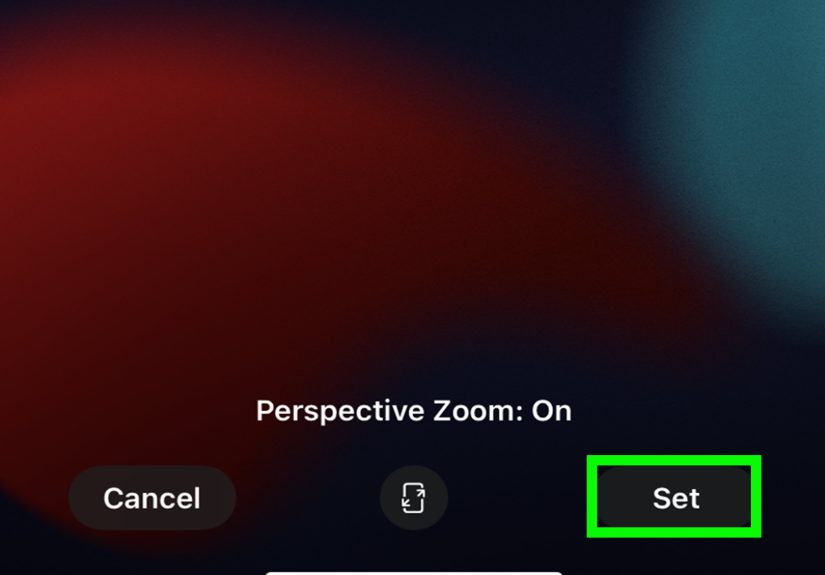
On newer versions of iPadOS, Apple also gives you appearance controls for app icons and widgets. If you touch and hold the Home Screen, tap Edit, then Customize, you may see options like light, dark, clear, or tinted looks for icons and widgets. These settings do not change the wallpaper itself, but they absolutely change how the wallpaper feels because the icons interact with it differently.
A wallpaper that looks perfect with standard icons may look too busy with a more translucent or stylized icon set. So if you change the Home Screen appearance and suddenly hate your wallpaper, the wallpaper may not be the villain. It may just need a better co-star.
Can You Change the Home Screen Background Without Changing the Lock Screen?
Yes, absolutely. This is one of the best features in modern iPad wallpaper settings.
When you add a new wallpaper, do not stop at Set as Wallpaper Pair unless you want matching screens. Instead, tap Customize Home Screen. That lets you keep the Lock Screen wallpaper one way and the Home Screen background another way.
This is especially useful for people who want a stylish Lock Screen but a practical, easy-to-read Home Screen. It is the digital equivalent of wearing a flashy jacket over a very organized planner.
Troubleshooting Common iPad Wallpaper Problems
My wallpaper looks zoomed in
Try choosing a different crop, zooming out during setup, or using a screenshot version of the image. Photos with more empty space usually work better.
My Home Screen background is too busy
Use Blur, switch to a solid color, or pick a photo with softer details and fewer high-contrast areas.
I changed the wallpaper, but I wanted only the Home Screen to change
Go back to Settings > Wallpaper, tap the current wallpaper setup, and customize the Home Screen separately.
I can’t find a wallpaper I like
Start with your own photos, especially nature shots, travel images, pets, or artwork. Apple’s built-in collections are also worth checking if you want something polished without spending half your afternoon scrolling through the internet looking for “calm but not boring iPad wallpaper.”
My icons are hard to read after customizing the Home Screen
Try a less detailed background, enable blur, or switch the icon style so it contrasts better with the wallpaper.
Why Changing Your iPad Home Screen Background Actually Matters
This might sound dramatic, but the wallpaper on your iPad affects more than aesthetics. It changes how the whole device feels. A cluttered background can make the interface feel messy. A calm background can make your iPad feel more organized. A personal image can make the device feel more welcoming. And if you use your iPad every day for work, school, reading, drawing, streaming, or note-taking, those small visual details add up fast.
Think about it this way: you probably would not decorate your desk with random chaos and then act surprised when it feels hard to focus. Your Home Screen is your digital desk. The wallpaper sets the tone.
Real-World Experience: What It Feels Like to Change the Home Screen Background on an iPad
Here is the part nobody tells you in the quick setup guides: changing the Home Screen background on an iPad is rarely just one tap and done. It starts simple. You say, “I’ll just make it look a little nicer.” Five minutes later, you are comparing four versions of the same beach photo and wondering why one shade of blue feels “more productive.” Welcome to the club.
For many people, the first change is practical. They realize the default wallpaper is fine, but it does not feel like their iPad. Maybe the device is used for school, and they want something calmer. Maybe it is used for work, and they want a cleaner background that makes widgets easier to read. Maybe it is a family iPad, and someone wants a photo of the kids, the dog, or a favorite vacation memory. The wallpaper becomes part of the routine. You see it every time you open the device, so even a small change can make the iPad feel newer.
There is also a funny little learning curve. The first time people use a personal photo as a Home Screen background, they often choose something visually dramatic. A city skyline at night. A super detailed forest. A close-up portrait. It looks incredible for about six seconds, and then the app icons land on top of it like uninvited guests at a wedding. Suddenly the wallpaper is gorgeous but not practical. That is usually when people discover blur, solid colors, or simpler photos with more empty space.
Another common experience is realizing that the best Home Screen wallpaper is not always the most exciting image. It is often the one that quietly does its job. A soft gradient. A photo with lots of sky. A lightly blurred image from a favorite trip. Those choices do not scream for attention, but they make the whole iPad easier to use. And that is the difference between wallpaper you admire once and wallpaper you enjoy every day.
Some users go a step further and start coordinating the wallpaper with widgets, app icon appearance, and even Focus modes. That is when the iPad really begins to feel customized instead of merely configured. A work setup might use a muted Home Screen background with clean widgets and a no-nonsense look. A personal setup might use a brighter photo or more playful color choice. The device starts matching your habits, not just Apple’s defaults.
And yes, there is always that moment when you think you are finished, then change it again the next day because the wallpaper looked amazing at night and too bright in daylight. That is normal too. Wallpaper on an iPad is part function, part taste, and part trial and error. The good news is that Apple makes it easy enough to experiment without consequences. So if your first attempt is too busy, too dark, too bright, too blurry, or somehow manages to place a widget directly over your cat’s face, you can fix it in under a minute.
In the end, the best experience is usually the simplest one: you unlock your iPad, glance at the Home Screen, and everything feels right. The icons are readable, the wallpaper looks clean, and the device feels a little more like yours. That is a small win, sure, but it is a satisfying one. Sometimes better tech use starts with something as simple as choosing a background that does not fight you every time you open the screen.
Conclusion
If you want to change the Home Screen background on an iPad, the fastest route is through Settings > Wallpaper > Add New Wallpaper. From there, you can use the same wallpaper for both screens or customize the Home Screen with a separate photo, a color background, or a blurred version for better readability. The best result usually comes from balancing style with function: choose something personal, but keep it simple enough that your icons and widgets remain easy to see.
Once you get the hang of it, changing your iPad wallpaper is quick, fun, and strangely satisfying. It is one of those tiny tweaks that can make your entire device feel fresher, cleaner, and more pleasant to use. And honestly, that is a pretty nice return on investment for a task that takes less time than reheating coffee.






 Close
Close