
Table of Contents >> Show >> Hide
- First, Know This: Hotmail and Outlook Use the Same Microsoft Account Password
- When Should You Change Your Outlook Password?
- Way 1: Change Your Hotmail or Outlook Password When You Know the Current One
- Way 2: Reset Your Outlook Password If You Forgot It
- What If You Use a Passwordless Microsoft Account?
- Common Problems When Changing a Hotmail Password
- How to Make Your New Outlook Password More Secure
- Example Scenarios
- Final Thoughts
- Real-Life Experiences With Changing a Hotmail or Outlook Password
If you still call it Hotmail, you are not alone. The name may have changed, the logo may have changed, and Microsoft has lovingly rearranged a few menus over the years, but the core issue remains the same: sometimes you need to change your Outlook password, and you need to do it without feeling like you are solving a puzzle designed by a mischievous robot.
The good news is that changing a Hotmail or Outlook password is usually straightforward. In fact, there are really two simple ways to do it, depending on your situation. If you know your current password, you can update it from your Microsoft account security settings. If you forgot your password or cannot sign in, you can reset it through Microsoft’s recovery process.
This guide breaks both methods down in plain English, with examples, troubleshooting tips, and security advice that actually makes sense. No jargon salad. No filler. Just a practical, easy-to-follow walkthrough for anyone trying to protect a Hotmail, Outlook, or Microsoft account.
First, Know This: Hotmail and Outlook Use the Same Microsoft Account Password
Before we jump into the steps, here is the important detail many people miss: your Hotmail password and your Outlook password are usually the same thing as your Microsoft account password. That means if your email ends in @hotmail.com, @outlook.com, or even @live.com, you are generally managing that password through your Microsoft account.
So when people search for “how to change Hotmail password,” what they are really doing is changing the password tied to the Microsoft account that runs Outlook.com and other Microsoft services.
This matters because changing that password can also affect how you sign in to services like OneDrive, Skype, Microsoft 365, Xbox, and Windows if they use the same account. In other words, it is not just your inbox. It is your whole Microsoft universe.
When Should You Change Your Outlook Password?
You do not need to change your password every Tuesday just to feel productive, but there are smart times to update it. Here are the most common ones:
1. You think someone else may know it
If you reused an old password, shared a device, clicked a suspicious link, or noticed unusual account activity, changing your password right away is a very good idea.
2. You got a Microsoft security alert
If Microsoft flagged unusual sign-in attempts or suspicious behavior, do not ignore it. That is not the internet being dramatic. That is a real signal to secure your account.
3. You forgot your password
This is the classic reason. One day your brain says, “Of course I remember it,” and five minutes later you are trying every variation of your dog’s name plus your birth year. It happens.
4. You want a stronger password
If your password is short, old, easy to guess, or appears in multiple accounts, upgrading it is a smart move. “Password123” had a good run. It is time to let it retire.
Way 1: Change Your Hotmail or Outlook Password When You Know the Current One
This is the easiest method. Use it when you can still sign in to your account and simply want to update your password for security or peace of mind.
Step 1: Sign in to Your Microsoft Account
Open your browser and go to your Microsoft account settings. Sign in using your current Hotmail or Outlook email address and password.
If you are already signed in somewhere, that helps. If not, enter your current credentials and continue to the account dashboard.
Step 2: Go to the Security Section
Once inside your account, look for the Security area. This is where Microsoft keeps important account protection settings, including password changes, sign-in activity, and verification options.
You may be asked to verify your identity before making changes. That can happen by text message, email, or an authenticator app. This is normal. It is Microsoft making sure a random stranger in another country is not trying to redecorate your account.
Step 3: Select “Change Password”
Find the option labeled Change password. Click it, then enter your current password and your new one.
Microsoft may also give you the option to make it update your password regularly. Most users do not need forced frequent changes unless they have a specific reason, but it is there if you want extra discipline in your digital life.
Step 4: Create a Strong New Password
Your new password should be:
- Long enough to resist guessing
- Different from older passwords
- Hard to predict
- Not based on your name, birthday, or obvious words
A strong password is often a mix of upper- and lowercase letters, numbers, and symbols, but length matters too. A longer phrase can be easier to remember and harder to crack. For example, a random passphrase like BlueCoffee!Lamp42River is stronger than a short, clever-looking password that barely survives contact with modern hacking tools.
Step 5: Save the Change and Sign In Again if Needed
Once you confirm the new password, Microsoft saves the update. You may need to sign in again on some devices or apps, especially in Outlook, Windows, or mobile email apps.
This part surprises people. They change the password successfully, then their phone email app starts demanding attention like a needy raccoon. That is normal. You just need to update the saved password on that device.
Way 2: Reset Your Outlook Password If You Forgot It
If you cannot remember your password or cannot sign in, do not panic. This is the second simple way, and it is designed for exactly that problem.
Step 1: Go to Microsoft’s Password Reset Page
Start the account recovery process by selecting the option that says Forgot password? on the sign-in page or by opening Microsoft’s password reset flow directly.
You will be asked to enter your email address, phone number, or Skype name associated with the Microsoft account.
Step 2: Verify Your Identity
Microsoft needs to make sure you are the actual account owner. Depending on your settings, it may send a code to:
- A backup email address
- Your phone number
- An authentication app
Choose the option you can access, enter the code, and continue.
If you no longer have access to your recovery email or phone, the process gets harder, but not impossible. Microsoft may ask additional questions to verify ownership. This is why keeping your recovery info updated is one of the least glamorous but most useful digital chores on earth.
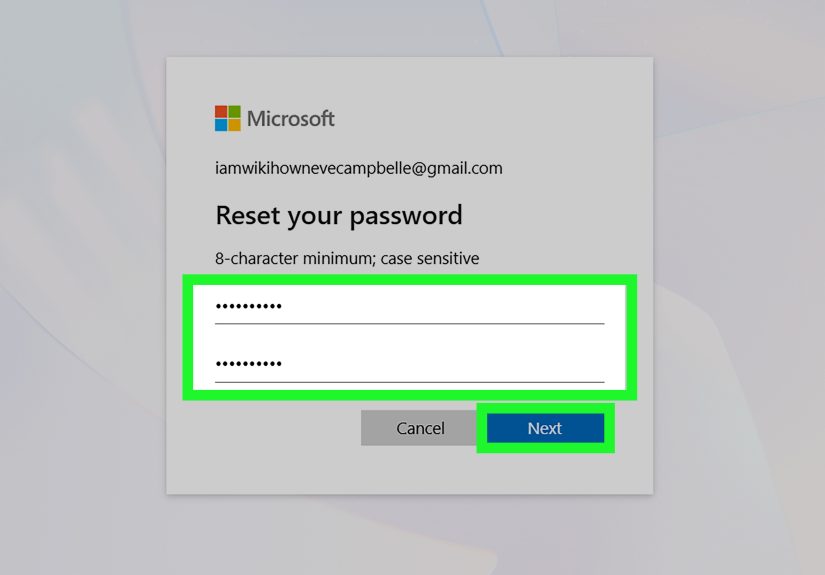
Step 3: Create a New Password
After verification, Microsoft will let you choose a new password. Pick one that is strong, unique, and not recycled from another site.
Once saved, use the new password to sign in to Outlook, Hotmail, and other Microsoft services connected to the account.
Step 4: Update Passwords on Your Devices
If you use Outlook on a laptop, the Mail app on a phone, or Windows sign-in linked to the same Microsoft account, those devices may ask for the new password.
That is expected. Think of it as your devices politely asking, “Hey, what is the new secret handshake?”
What If You Use a Passwordless Microsoft Account?
This is where things get a little modern. Some Microsoft users choose a passwordless account, meaning they sign in with the Microsoft Authenticator app, biometrics, or another secure method instead of a traditional password.
If your account is passwordless, the normal “change password” flow may not work the same way because, technically, there is no active password to change. In that case, you may need to turn passwordless sign-in off first if you want to set a traditional password again.
For many users, passwordless sign-in is actually more secure and more convenient. But if you specifically need a standard password for compatibility reasons, check your Microsoft security settings carefully before assuming something is broken.
Common Problems When Changing a Hotmail Password
You changed the password, but Outlook still will not sign in
This usually means one of your apps or devices still has the old password saved. Remove the old saved credentials and enter the new one manually.
You never receive the verification code
Check spam folders, blocked messages, and whether your recovery phone number or email is still current. If your recovery details are outdated, account recovery may take longer.
You are trying to change a work or school account password
That is a different situation. A personal Hotmail or Outlook.com account uses Microsoft account settings, but a work or school email may be managed by an organization. In that case, the password reset process may happen through your employer or school’s IT system.
You changed the password on the website but not in the app
Web changes do not always instantly update every app. Open the app settings and update the sign-in information there if prompted.
How to Make Your New Outlook Password More Secure
Changing your password is a great start, but real account protection goes a little further.
Use a unique password
Do not reuse the same password across email, shopping sites, social media, and banking. If one site gets breached, attackers often try the same password elsewhere.
Turn on two-step verification
This adds a second layer of protection, usually through a code or app approval. Even if someone gets your password, they still have another barrier to cross.
Review account activity
Microsoft lets you review recent sign-ins and suspicious activity. If something looks unfamiliar, investigate it and secure the account quickly.
Keep recovery info updated
Your backup email and phone number are lifesavers when you forget a password. If those details are outdated, recovery becomes much more stressful.
Consider a password manager
A good password manager can generate and store strong passwords, so you do not have to pretend your memory is a secure vault. Because it is not. Nobody’s is.
Example Scenarios
Example 1: You know your password and want better security
Let’s say you still sign in just fine, but you used the same password for years and recently heard about a data breach on another site. In this case, go to your Microsoft account, open the Security section, choose Change password, and create a strong new one. Fast, simple, done.
Example 2: You forgot your Hotmail password on vacation
You are traveling, trying to check a hotel confirmation in Outlook, and your mind goes completely blank. Classic. Choose Forgot password, verify your identity with your backup phone number, set a new password, and update your phone mail app. Not ideal vacation entertainment, but better than losing access completely.
Example 3: Your Outlook account keeps asking for the password after you changed it
This is often just a saved-credential issue. Update the password in Outlook desktop, your phone app, or Windows mail settings. The account itself may already be fixed.
Final Thoughts
If you are wondering how to change a Hotmail password or update an Outlook password, the process really comes down to two simple paths: change it when you know it, or reset it when you do not. That is it. No secret handshake. No hidden cave door. Just a matter of choosing the right route based on whether you can still sign in.
The smartest move is not just changing the password, but also making your whole account more secure afterward. A strong password, updated recovery options, and two-step verification can save you from a lot of future headaches.
Email accounts hold a surprising amount of your digital life. Password resets, receipts, cloud files, private messages, login alerts, and app access often run through that one inbox. So yes, changing your Outlook password might feel like a small task, but it protects a very big doorway.
And that, dear reader, is worth ten minutes and one less flimsy password in your life.
Real-Life Experiences With Changing a Hotmail or Outlook Password
One thing that makes this topic more relatable is how often people do not think about their email password until something forces the issue. Nobody wakes up on a sunny Saturday, stretches, and says, “Today feels like a wonderful day to refresh my account security.” Usually, there is a trigger. Maybe Outlook suddenly says the password is wrong. Maybe a sign-in alert appears from a place you have never visited. Maybe you just bought a new phone and realize you have no idea what your Hotmail password actually is.
A very common experience is the “everything was saved until it wasn’t” problem. Many people stay signed in to Outlook for months or years across devices. Their laptop remembers the password. Their phone remembers it. The browser remembers it. Life is easy. Then they log out, get a new device, clear saved data, or reinstall an app, and suddenly they are standing outside their own digital house with no key.
Another familiar situation happens after changing the password successfully on the Microsoft website. At first, it feels like victory. Then the ripple effect begins. The desktop app asks for a password. The phone app asks for a password. Maybe OneDrive throws a small tantrum. Maybe Windows itself wants the updated credentials. People sometimes think the password change failed, when in reality the old password is simply still stored in different places. Once those apps are updated, everything usually settles down.
There is also the emotional difference between a routine password update and an urgent one. A routine change feels calm and controlled. You log in, make the update, and move on with your day. An urgent reset, on the other hand, feels much more dramatic. If you suspect someone else tried to access your account, every minute suddenly feels important. In that situation, changing the password is only step one. People often feel more confident after checking recent sign-in activity, removing unknown devices, and turning on two-step verification.
Some users discover during this process that their recovery information is outdated. That can be frustrating. Maybe the backup phone number is from three phones ago. Maybe the recovery email is an address they no longer use. This is one of those boring account details that seems unimportant right up until it becomes extremely important. For many users, the biggest lesson after a password reset is not just “I need a stronger password,” but also “I need better recovery options.”
There is also a surprisingly human side to password habits. People often choose passwords they think they will remember, which usually means something personal, familiar, or repeated across accounts. Then one day they realize that convenience and security are not always best friends. That is why many users who go through one stressful Outlook password reset end up adopting a password manager afterward. It turns a chaotic memory game into a system.
In practical terms, the experience of changing a Hotmail or Outlook password is usually simple once you know which method fits your situation. The stress mostly comes from confusion, not complexity. Once users understand that Outlook.com runs on a Microsoft account, that known passwords are changed in Security settings, and that forgotten ones are reset through verification, the whole process becomes much less intimidating.
And maybe that is the biggest takeaway of all: changing your password is not just a technical chore. It is one of those small maintenance tasks that can quietly save you from a very large mess later.







 Close
Close