
Table of Contents >> Show >> Hide
- What Is Desktop Window Manager, Anyway?
- When High DWM Memory Usage Is Actually a Problem
- Start with the Quick Wins
- The Fixes That Solve It Most Often
- Update or roll back your graphics driver
- Install Windows updates
- Reduce visual effects and transparency
- Test HDR and advanced display settings
- Check startup apps and background apps
- Run SFC and DISM
- Scan for malware
- Try a clean boot
- Check app-by-app GPU preferences on hybrid graphics systems
- Use Windows Memory Diagnostic if system RAM might be part of the problem
- What Not to Do
- A Smart Troubleshooting Order
- Real-World Experiences Fixing Desktop Window Manager High Memory Usage
- Conclusion
If your PC suddenly feels like it is hauling a piano up the stairs, and Task Manager says Desktop Window Manager is throwing a memory party nobody approved, you are not imagining things. The process behind the pretty parts of Windows, usually listed as dwm.exe, can occasionally use far more memory than it should. When that happens, your system may feel sluggish, animations may stutter, windows may flicker, and your patience may leave the building.
The good news is that this problem is usually fixable. In many cases, the cause is not some mysterious Windows curse. It is more often tied to graphics drivers, display settings, buggy startup software, corrupted system files, or conflicts on systems with multiple monitors, docks, integrated graphics, and discrete GPUs all trying to share the steering wheel. The trick is to stop guessing and work through the issue in the right order.
This guide explains what Desktop Window Manager actually does, why it sometimes chews through RAM, and how to fix high memory usage without making your PC feel worse. You will also get real-world troubleshooting examples, practical tips, and a few warnings about “fixes” that are more chaos than cure.
What Is Desktop Window Manager, Anyway?
Desktop Window Manager is the Windows component that handles desktop composition. In plain English, it is responsible for drawing windows on the screen and managing visual elements like transparency, thumbnails, animations, scaling, and other modern interface effects. When you drag a window, snap it, open the Start menu, or switch between apps, DWM is one of the backstage crew members making the performance look smooth.
Because it manages graphics and desktop effects, DWM will always use some memory. That part is normal. What is not normal is when usage keeps climbing over time, spikes into the gigabytes, stays bloated after you close apps, or causes obvious slowdowns, black flickers, random freezes, or display glitches. That usually points to a driver issue, a memory leak, or a conflict with something else running on the system.
When High DWM Memory Usage Is Actually a Problem
Not every scary number in Task Manager means disaster. On a modern Windows 11 machine with multiple monitors, high resolution, HDR, or lots of open windows, DWM can use more memory than it would on an older single-monitor system. The real warning signs are patterns, not just one snapshot.
Red flags to watch for
- Memory usage keeps rising during the day and never drops back down.
- Closing apps does not reduce DWM memory use.
- Your screen flickers, goes black for a second, or reconnects to displays.
- The issue started right after a graphics driver or Windows update.
- The problem appears mostly on laptops with hybrid graphics or on docked multi-monitor setups.
- The PC becomes noticeably slower even when you are not doing much.
If you are seeing two or more of those symptoms, you are not dealing with harmless background noise. You are troubleshooting a real performance issue.
Start with the Quick Wins
Before diving into deep repairs, take the fast route first. Sometimes DWM memory spikes are temporary and disappear after a simple reset.
1) Restart the PC
Yes, the old classic. It is not glamorous, but it works more often than people want to admit. A restart clears temporary UI glitches, resets desktop composition, and can flush out a stuck graphics process. If memory usage returns to normal after reboot but climbs again later, that is a clue that you may be dealing with a leak or background software conflict.
2) Check Task Manager like a detective, not a tourist
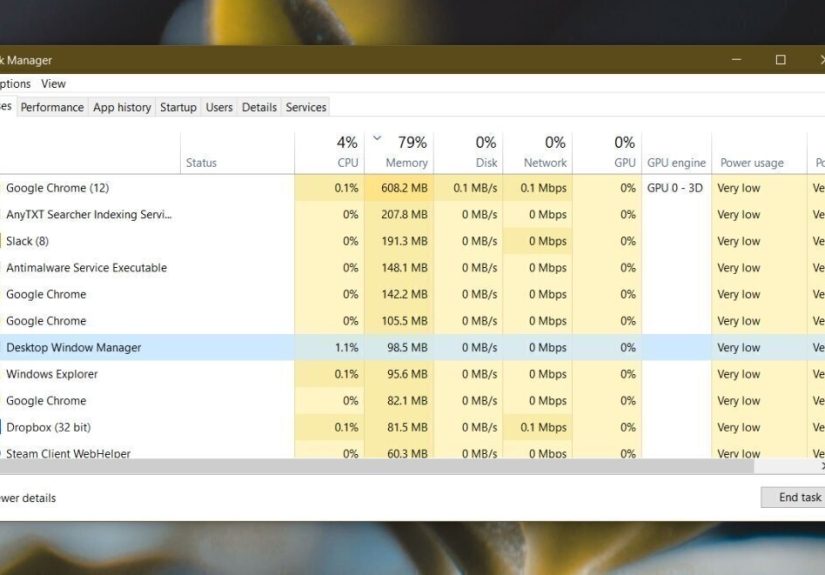
Open Task Manager and sort by memory usage. Make sure DWM is the real hog and not just the most suspicious-looking name in the room. Browsers, overlay tools, RGB software, streaming apps, launchers, and wallpaper utilities can trigger or amplify the problem while making DWM look guilty by association.
3) Restart Windows Explorer
If the desktop feels weird but you do not want to restart the entire computer, restarting Windows Explorer can help refresh the shell and visual environment. In Task Manager, find Windows Explorer, right-click it, and choose Restart. It is a gentler move than randomly ending system processes and hoping Windows sorts out the mess afterward.
The Fixes That Solve It Most Often
Update or roll back your graphics driver
This is the big one. DWM sits right next to the graphics stack, so bad display drivers are a common cause of high memory usage. If the problem began after a driver update, roll back the driver. If your driver is old, update it. If you have both integrated and discrete graphics, update both.
Use your GPU maker’s official driver tools or the driver options in Device Manager and Windows Update. Also check Optional Updates in Windows, because monitor, firmware, and display-related drivers often hide there like introverts at a party. On systems with Intel graphics, especially older generations, there have been documented cases where certain driver versions caused dwm.exe memory leaks. That makes driver testing more than a random suggestion. It is often the fix.
Install Windows updates
If you are behind on updates, catch up. Windows fixes for graphics behavior, display compatibility, and system stability can help with DWM issues. On the flip side, if the problem started immediately after a specific Windows update, note that timing. In that case, your best move may be to update again, because a follow-up patch often fixes what the first one broke. Windows can be a little dramatic like that.
Reduce visual effects and transparency
DWM exists to power visual effects, so reducing those effects can lower the load. Search for Adjust the appearance and performance of Windows and try Adjust for best performance, or at least switch off unnecessary effects. You can also turn off Transparency effects in Windows settings.
This will not magically solve every memory leak, but it can make a meaningful difference on older hardware, systems with limited RAM, and PCs already struggling under heavy display load. If your computer is ten years old and still expecting cinematic animations, it may be time for a reality check.
Test HDR and advanced display settings
If you use HDR, multiple displays, a docking station, or mixed refresh rates, test the setup with HDR turned off and, if possible, with one monitor disconnected. DWM has to coordinate everything happening across the display chain. More screens, more scaling, more refresh-rate mismatches, and more color processing can create more chances for something to misbehave.
This does not mean multi-monitor setups are bad. It means they are more complicated. Complicated is where bugs like to rent an apartment.
Check startup apps and background apps
Too many startup apps can make DWM look worse than it is. Disable anything nonessential from Task Manager > Startup apps or Settings > Apps > Startup. Then review heavy background apps, especially those that hook into visuals, overlays, capture, screen enhancement, or desktop customization.
Common troublemakers include:
- Game overlays
- Screen recorders
- RGB control suites
- Third-party window managers
- Live wallpaper tools
- Dock utilities and monitor software
- Browser hardware acceleration conflicts
You do not have to uninstall everything in a panic. Just stop them from starting automatically, reboot, and see whether DWM settles down.
Run SFC and DISM
If Windows system files are corrupted, weird behavior can spread into display services and UI processes. Open Command Prompt as administrator and run:
DISM repairs the Windows image, and SFC checks protected system files for corruption. It is not flashy, but it is one of the best built-in repair combos Windows has.
Scan for malware
If dwm.exe is acting bizarrely, verify that you are dealing with the real process and not a fake file pretending to be one. A legitimate DWM file belongs in the Windows system area, and anything impersonating it deserves suspicion. Run a full scan in Windows Security, and use an offline scan if the system feels especially sketchy.
Malware does not always announce itself with sirens and a skull icon. Sometimes it just quietly chews resources and lets you blame Windows for everything. Sneaky little goblin.
Try a clean boot
If you cannot identify the culprit, perform a clean boot. This starts Windows with Microsoft services and essential components while disabling non-Microsoft services and startup items. If DWM memory usage is normal in a clean boot, you have confirmed a software conflict. Then you can re-enable items gradually until the culprit reveals itself.
This is especially useful when the issue shows up only after a few minutes, only during gaming, only when docked, or only when a certain app launches. Clean boot is not glamorous, but it is excellent at turning vague frustration into actual evidence.
Check app-by-app GPU preferences on hybrid graphics systems
On laptops with both integrated and dedicated graphics, some apps bounce awkwardly between GPUs. If a specific app seems to trigger DWM spikes, go to Settings > System > Display > Graphics and test whether assigning that app to Power saving or High performance changes the behavior. This can help on machines where one GPU driver plays nicely and the other behaves like it missed its coffee.
Use Windows Memory Diagnostic if system RAM might be part of the problem
Sometimes DWM is only the messenger. If your system has broader instability, random app crashes, or widespread memory weirdness, run Windows Memory Diagnostic. Faulty RAM can create symptoms that look like software bugs. Replacing a bad memory stick is not exciting, but it beats spending three nights blaming the Start menu.
What Not to Do
When Windows gets weird, the internet often gets weirder. Avoid these common mistakes:
- Do not download shady “RAM cleaner” apps. They usually add clutter, not clarity.
- Do not delete or permanently disable system components like DWM. That is how you turn a nuisance into a support nightmare.
- Do not make five major changes at once. Change one thing, test it, then move on.
- Do not assume more RAM is the first fix. Extra memory can help overall performance, but it will not cure a driver leak by itself.
- Do not ignore the timeline. If the problem started after one update, one new monitor, one dock, or one app install, that timing matters.
A Smart Troubleshooting Order
If you want the shortest path to a solution, use this order:
- Restart the PC and confirm DWM is truly the process climbing.
- Update Windows and check Optional Updates.
- Update or roll back graphics drivers for all GPUs.
- Disable startup apps, overlays, and background desktop tools.
- Turn off transparency and test with reduced visual effects.
- Test without HDR, docks, or extra monitors if applicable.
- Run DISM and SFC.
- Run a full malware scan.
- Perform a clean boot.
- Run memory diagnostics if the whole system seems unstable.
That order saves time because it starts with the most common causes and moves toward deeper repairs only when needed.
Real-World Experiences Fixing Desktop Window Manager High Memory Usage
What makes this issue so annoying is that it rarely looks the same on every computer. On one machine, DWM high memory usage shows up as a slow climb during the day. On another, it appears only when a laptop is connected to a dock and two external 4K monitors. On yet another, the problem waits politely until you launch a browser, a streaming app, and one game overlay, then decides to eat a chunk of RAM like it paid for it.
One of the most common real-world patterns happens on hybrid graphics laptops. Everything seems normal right after boot. Then the user plugs into an external monitor, opens a few browser tabs, maybe launches Teams, Discord, Photoshop, or a game, and suddenly DWM memory usage starts creeping higher. Restarting fixes it for a while, which makes the whole problem feel random. In practice, that pattern often points to a display driver issue, a docking conflict, or a multi-monitor graphics bug rather than a failing PC.
Another common experience shows up on older desktops with limited RAM. The user is not doing anything wild. Maybe a browser with too many tabs, Spotify, a chat app, and a few background utilities. But because the system already has tight memory headroom, DWM becomes the process people notice first. In those cases, disabling transparency effects, trimming startup apps, and shutting down background clutter can make the machine feel dramatically better. It is less of a “one broken thing” story and more of a “death by fifteen tiny apps” story.
Then there is the software conflict scenario, which is honestly the most annoying because it feels personal. You install a tool that customizes the taskbar, adds a visual overlay, manages RGB lighting, records your gameplay, or rotates wallpapers. Everything looks cool for a week. Then suddenly Task Manager starts showing DWM memory use climbing like it is training for a marathon. A clean boot usually exposes this kind of problem fast. Once the offending utility is disabled, the memory graph calms down and your computer stops acting haunted.
There are also cases where the issue begins right after a driver or Windows update. That timing matters more than people think. If DWM was fine on Monday and ridiculous on Tuesday, do not shrug and assume your hardware is dying. The update itself may have introduced the problem. In real troubleshooting, some of the fastest wins come from rolling back a display driver, installing a newer fixed version, or picking up an optional monitor or firmware update that Windows did not install automatically.
The most useful lesson from all these experiences is simple: high Desktop Window Manager memory usage is usually not solved by one dramatic trick. It is solved by careful observation. Watch when it happens. Notice what changed before it started. Test one adjustment at a time. The people who fix it fastest are usually the ones who stop throwing random “optimizer” apps at the problem and start following the clues. That approach is less exciting than smashing buttons, sure, but it works a lot better.
Conclusion
If you need to fix Desktop Window Manager high memory usage, the smartest approach is to treat DWM like a symptom first and a villain second. In many cases, the underlying cause is a buggy graphics driver, a Windows update conflict, aggressive visual effects, background software, or a display configuration that needs a little tuning. Once you work through updates, drivers, startup clutter, system file repairs, and clean-boot testing, the problem usually becomes much easier to pin down.
The biggest win is not just lowering one memory number in Task Manager. It is getting your PC back to feeling smooth, stable, and predictable again. And that, frankly, is a much better vibe than watching dwm.exe inhale RAM like it is at an all-you-can-eat buffet.






 Close
Close