
Table of Contents >> Show >> Hide
- Why Spaces Break Commands in Command Prompt
- The Golden Rule: Use Double Quotes Around the Full Path
- Common Command Prompt Commands That Need Careful Quoting
- The Sneaky start Command Problem
- How to Handle Spaces in Batch Files
- Using for Loops with File Paths That Contain Spaces
- Should You Escape Spaces with a Caret?
- What About Short 8.3 File Names?
- Spaces vs. Long Paths: Not the Same Problem
- Best Practices for Handling File Paths with Spaces in CMD
- Troubleshooting: Why Your Quoted Path Still Fails
- Real-World Experiences with File Paths That Contain Spaces
- Conclusion
- SEO Tags
Nothing humbles a perfectly confident Windows user faster than Command Prompt staring back with a digital shrug because a folder name contains a space. You type a command. It looks right. It feels right. And then CMD behaves like it has never met a spacebar in its life. Welcome to one of the oldest, weirdest, and most fixable issues in Windows command-line work: file paths with spaces.
If you have ever tried to run a program from Program Files, copy a document from My Projects, or script a batch file that touches folders with everyday human names, you have already met this problem. The good news is that handling file paths with spaces in Command Prompt is not complicated once you understand the rule. The even better news is that you do not need a wizard hat, a secret registry ritual, or a support ticket written in tears.
In this guide, you will learn exactly why spaces break commands, how to fix them with the right syntax, which commands need special attention, and how to avoid common batch file mistakes that make otherwise normal paths behave like tiny saboteurs.
Why Spaces Break Commands in Command Prompt
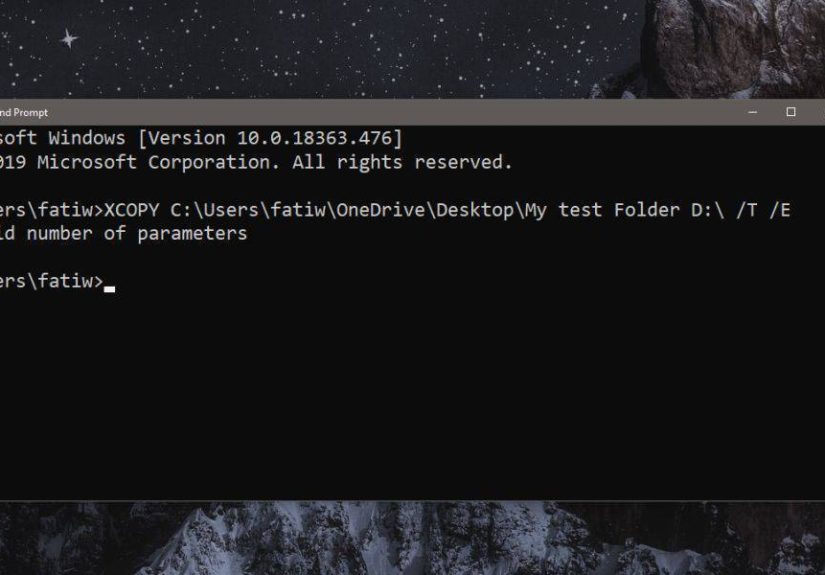
Command Prompt reads a command line by splitting text into pieces, often called tokens or arguments. A plain space is usually treated as a separator. So when you type a path like C:Program FilesMy Appapp.exe, CMD may interpret it as multiple separate pieces instead of one complete path.
That is why this command often fails:
Command Prompt may read C:Program as the program name and then treat the rest as extra arguments. That is not a clever interpretation. It is the command-line equivalent of hearing “ice cream sandwich” and delivering only “ice.”
The standard fix is simple: wrap the entire path in double quotes so CMD treats it as one item.
Those double quotes are the main key to handling spaces in Windows command-line paths. In most cases, if a file path or folder path contains a space, quote it. Better yet, make quoting a habit even when you think a path might be safe.
The Golden Rule: Use Double Quotes Around the Full Path
If you remember only one thing from this article, make it this:
When a path contains spaces in Command Prompt, enclose the full path in double quotation marks.
Here are a few quick examples:
Open an executable
Change directories
Copy a file
Create a folder with spaces in the name
In all of these examples, the quotes tell CMD to keep the full path together. No slicing. No guessing. No “The system cannot find the file specified” drama.
Common Command Prompt Commands That Need Careful Quoting
Some commands are especially likely to trip over spaces. Here are the usual suspects.
1. Running programs from Program Files
This is the classic case because Windows loves storing apps in folders with spaces. For example:
If you need to pass arguments, keep the program path quoted and then add the arguments after it:
2. Using cd to move into a folder
When switching directories, quote the destination path and use /d if you are also changing drives:
The /d switch matters because cd alone may change the directory but not the drive. That is a fun little trap if you enjoy debugging invisible assumptions.
3. File operations like copy, move, del, and robocopy
If either the source or destination contains spaces, quote it:
For copy-heavy workflows, consistent quoting is one of the easiest ways to prevent broken scripts and bad path parsing.
The Sneaky start Command Problem
The start command deserves its own section because it has a famous gotcha. In CMD, the first quoted string after start is treated as the new window title, not automatically as the program path.
So this can go wrong:
CMD may interpret that quoted string as a title. That means your command can misfire, and now you are angry at a window title you did not even ask for.
The reliable pattern is this:
The empty quotes provide a blank title, and the second quoted string is treated as the actual program path. If you are launching an app from a path with spaces, this is the safe way to do it.
You can also include an argument afterward:
How to Handle Spaces in Batch Files
Things get more interesting in batch scripts because now variables join the party. If you store a path in a variable, the safest pattern is to assign it without embedding extra quotes in the value, then quote it when using it.
A clean variable pattern
This style is popular for a reason. The quotes protect the assignment syntax, but they do not become part of the variable name. Then, when you run the variable, you wrap the expansion in quotes.
Here is another example with a folder:
That is much safer than writing unquoted expansions and hoping the folder names behave themselves.
Passing arguments with spaces to a batch file
If you call a batch file and one argument contains spaces, quote the argument when you pass it:
Then inside the script, use the parameter normally:
If you need to preserve the full quoted argument, be careful not to strip away useful quotation marks too early.
Using for Loops with File Paths That Contain Spaces
The for command is another area where spaces can cause confusion, especially in batch files. When you need quoted file names inside a set, the usebackq option becomes important.
Example:
Without the right syntax, long file names and quoted items can be parsed incorrectly. If you work with text files, directory listings, or batch automation, this is one of those small details that can save a very large headache.
Should You Escape Spaces with a Caret?
Some users try to escape spaces with a caret character like this:
Yes, you may see examples like that around the web. And yes, sometimes it appears to work in limited contexts. But in ordinary Command Prompt usage, it is not the best or most dependable solution for file paths. Double quotes are clearer, more readable, and more consistent across common commands.
If your goal is reliable Windows scripting, quotes should be your default answer to spaces. Save clever character acrobatics for trivia night.
What About Short 8.3 File Names?
You may hear about replacing long paths with old-style short names, such as turning C:Program Files into something like C:PROGRA~1. This can still exist on some systems because Windows supports 8.3 short-name compatibility in certain cases.
However, this is not the best modern solution. Short-name creation can be disabled on a system or volume, and relying on it makes scripts harder to read and maintain. It is usually better to use the full path in double quotes than to depend on a shortened alias that may not exist.
In plain English: "C:Program Files" is easier to understand than C:PROGRA~1, and it is generally the safer long-term choice.
Spaces vs. Long Paths: Not the Same Problem
It is worth separating two issues that people often blend together: spaces in paths and very long paths. A path can fail because it contains spaces, because it is too long for the command or app involved, or because it is both long and space-filled, which is basically the command-line version of a double espresso for troubleshooting.
If your command still fails after quoting the path correctly, check whether you are also dealing with path length limits, permissions, or an incorrect working directory. Quoting fixes spacing problems. It does not magically repair every other command-line mistake you have made since breakfast.
Best Practices for Handling File Paths with Spaces in CMD
Quote full paths consistently
Do not quote only the folder that contains the space. Quote the whole path you are passing as one argument.
Use variables carefully in batch files
Prefer patterns like set "Var=Value" and then use "%Var%" when referencing the path.
Remember the start "" pattern
If you forget the empty title, start may misread your quoted path.
Use cd /d when changing drives and folders
This avoids confusion when moving from one drive to another in a single command.
Do not rely on 8.3 short names
They are less readable and may not be available everywhere.
Test scripts with realistic folder names
A script that works in C:Test may break in C:Quarterly Reports 2026. Real-world names matter.
Troubleshooting: Why Your Quoted Path Still Fails
If you already added quotes and the command still fails, check these possibilities:
- You quoted only part of the path instead of the whole argument.
- You used the
startcommand without the empty title string. - The path is wrong, even though the quoting is right.
- You are mixing slashes, switches, and path text in a way the command does not expect.
- A batch variable contains unexpected characters or trailing spaces.
- The problem is actually permissions, path length, or the current working directory.
In other words, quotes fix a lot, but they do not fix typos. Sadly, Windows still expects us to spell things correctly.
Real-World Experiences with File Paths That Contain Spaces
Anyone who works in IT support, web development, QA, content production, or office automation eventually runs into the same oddly specific disaster: the script works beautifully in a test folder called C:Demo, then explodes in production because the real folder is named C:Marketing Team Assets. That experience is so common it might as well be a rite of passage.
A classic example happens when someone downloads an app installer, opens Command Prompt, and pastes a full path from File Explorer. Everything looks correct, but the app refuses to launch because the executable lives under Program Files. The user assumes the file is broken. The file assumes the user is broken. The real problem is just missing quotes.
Another common scenario shows up in shared office folders. A team stores reports in directories with names such as Annual Budget Drafts or Client Review Notes. Someone writes a quick batch script to copy files every evening, tests it with a path that has no spaces, and calls it done. A day later, the job fails silently, and everyone wonders why the backup folder looks suspiciously empty. Once the paths are wrapped in quotes, the script behaves like it had good manners all along.
Developers also run into this issue when building or deploying software. One machine stores a project in C:BuildsApp1. Another stores it in C:UsersJordan LeeSource CodeApp1. Same code, same script, very different outcome. That kind of inconsistency teaches an important lesson fast: script for real paths, not idealized ones.
Students and beginners hit the same wall when following tutorials. They create folders named things like My Python Projects or Homework Files, which is perfectly normal human behavior. Then they meet a command example written for a neat little folder without spaces and wonder why their screen suddenly looks argumentative. The solution is almost always the same: quote the path, rerun the command, and enjoy the immediate return of peace.
Even experienced admins get tripped up by start. Plenty of people know to quote a path, but forget that start treats the first quoted string as a title. That leads to one of the most annoying command-line moments: you are technically quoting the path correctly, but the command still fails because the parser had other plans. Once you learn the start "" "path" pattern, it tends to stick forever.
The bigger lesson behind all these experiences is simple. Spaces in file paths are not unusual, rare, or wrong. They are normal. Humans name folders like humans. Your scripts should expect that. When you build commands with that reality in mind, your automation becomes more reliable, your troubleshooting gets shorter, and your future self has fewer reasons to mutter at a black terminal window.
Conclusion
Handling file paths with spaces in Command Prompt is mostly about discipline, not difficulty. Windows CMD splits unquoted text on spaces, so the safest approach is to wrap any path containing spaces in double quotes. That rule applies when launching programs, changing folders, copying files, deleting files, and writing batch scripts.
For everyday use, the formula is straightforward: quote full paths, use cd /d when needed, remember start "" for launching apps, and treat batch variables with care. Once those habits become automatic, spaces in folder names stop being a problem and start being what they always were: regular characters in perfectly normal file names.
Command Prompt may never become warm and cuddly, but with the right quoting, it can at least become predictable. In the world of scripting, that is basically romance.





 Close
Close