
Table of Contents >> Show >> Hide
- Why Snapchat Chat History Works Differently
- Easy Ways to View Chat History on Snapchat: 10 Steps
- Open Snapchat and Go Straight to the Chat Screen
- Look for Saved Messages in the Conversation
- Check for Saved Photos, Videos, and Chat Media
- Review the Chat’s Auto-Delete Setting
- Search for a Cleared Conversation and Reopen It
- Check Memories for Saved Snaps Related to the Conversation
- Request Your Snapchat Data Through “My Data”
- Open the Downloaded ZIP File and Review the HTML Files
- Check Notification Previews on Your Own Device
- Troubleshoot Before Assuming the History Is Gone Forever
- What Usually Works Best
- What to Avoid
- Best Habits for Keeping Important Snapchat Conversations
- Common Experiences People Have When Trying to View Snapchat Chat History
- Final Thoughts
- SEO Tags
Trying to view chat history on Snapchat can feel a bit like chasing smoke with a butterfly net. One second your messages are there, the next second they have evaporated like they had dinner plans elsewhere. That is not a bug. It is basically Snapchat’s whole personality. The app was designed around temporary communication, which is fun when you are sending goofy selfies, but much less fun when you are trying to remember who said what, when they said it, and whether that “meet me at 6” message was real or just a mirage.
The good news is that there are easy, legitimate ways to view your Snapchat message history. The less-good news is that those methods work best when you act quickly, save important messages, and understand the difference between visible chat history and account metadata. In plain English: if a message was saved, you have a great shot at finding it. If it vanished and nobody saved it, Snapchat may not be able to bring it back with a magic wand.
This guide breaks the process into 10 clear steps. It also explains what works, what does not, and why random “recover deleted Snapchat messages instantly!!!” tools should be treated like a raccoon holding a credit card: with caution and from a safe distance.
Why Snapchat Chat History Works Differently
Before you go digging, it helps to understand the rules of the game. Snapchat does not behave like a traditional texting app. In many conversations, chats disappear after they are viewed. Some conversations can be set to delete after viewing, 24 hours after viewing, 7 days after viewing, or never. Saved messages stay visible in the chat, while unsaved ones may disappear depending on the conversation settings.
That means “viewing chat history on Snapchat” usually falls into one of four buckets:
- Seeing messages that were saved in chat
- Reviewing media or text you intentionally saved to Memories or your device
- Downloading your Snapchat data to inspect account records and chat-related metadata
- Checking recent message previews or notification history on your own device
Once you know which bucket you are dealing with, the process gets a lot easier.
Easy Ways to View Chat History on Snapchat: 10 Steps
-
Open Snapchat and Go Straight to the Chat Screen
Start with the obvious move that people sometimes skip when they are in panic mode: open Snapchat and swipe to the Chat screen. Tap the conversation you want to review. If the chat is still active and messages were saved, this is the fastest path to your Snapchat message history.
Do not overcomplicate step one. If the thread is still there, open it first before trying more advanced recovery methods. A lot of users jump straight to “data export” mode when the answer is already sitting in plain sight.
-
Look for Saved Messages in the Conversation
Saved messages are your best friend here. On Snapchat, saved chat messages usually stand out visually, so they are easier to spot than regular messages. If you or the other person tapped to save a message, it can remain in the thread instead of disappearing on schedule.
This is the simplest and most reliable way to view older Snapchat chats. If a message matters, save it the moment it appears. Think of it as giving your favorite message a tiny survival helmet.
-
Check for Saved Photos, Videos, and Chat Media
Text is not the only thing that can survive. If a Snap or image was saved in chat, it may still be visible in the conversation. Open the thread and scroll carefully. Tap any saved media to review it in full size.
This is especially useful when someone shared an address, a screenshot, a photo of homework, travel details, or a meme so good it deserved a museum plaque. If it was saved, it may still be available even when ordinary unsaved messages are gone.
-
Review the Chat’s Auto-Delete Setting
Sometimes the issue is not that the messages are missing. It is that the conversation is set to vanish too quickly. Press and hold the conversation, open the chat settings, and check the delete timer. Depending on the conversation, messages may be set to disappear after viewing, after 24 hours, after 7 days, or not automatically at all.
This step will not resurrect already vanished messages, but it can prevent future frustration. If you regularly need to refer back to conversations, a longer retention setting makes life a whole lot easier. Your future self will be grateful and slightly less dramatic.
-
Search for a Cleared Conversation and Reopen It
If a thread seems to have disappeared from the Chat feed, do not assume the history is gone forever. Sometimes the conversation was simply cleared from the list. That can hide the thread from your main feed without deleting all saved or sent content.
Try searching for the friend’s name and reopening the conversation. If saved messages still exist, they may show up again when the chat is reopened. This is one of those quietly useful Snapchat tricks that feels less like hacking and more like remembering where you left your keys.
-
Check Memories for Saved Snaps Related to the Conversation
Not every important exchange lives in the chat thread itself. Sometimes the useful part of a conversation is the photo, video, or screenshot you saved to Memories. Open your Memories and look through saved content that matches the timing or topic of the chat.
If you saved a Snap with instructions, a confirmation, a location, or a receipt-style image, Memories may hold the missing piece even when the chat text itself is gone. It is not a full chat transcript, but it can absolutely help reconstruct what happened.
-
Request Your Snapchat Data Through “My Data”
If the in-app conversation is incomplete, your next move is the official “My Data” tool. You can access it through Snapchat settings or the account portal in a browser. Request your account data and wait for Snapchat to prepare the export file.
This method is often the best option for users who want a broader view of their Snapchat history. It can include account details, activity records, and chat-related information. Just keep your expectations realistic: the export may show metadata, timestamps, and records rather than a perfect diary of every vanished message.
-
Open the Downloaded ZIP File and Review the HTML Files
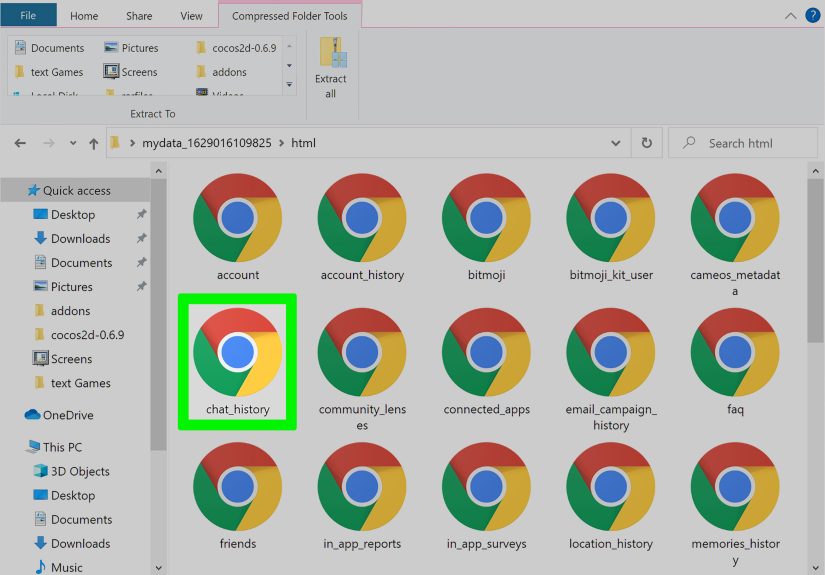
Once Snapchat emails you that your export is ready, download the ZIP file, extract it, and open the HTML index file. From there, review the available sections. This is where many users finally see the difference between “message history” and “message content.”
In some cases, you will find useful records such as dates, contacts, login history, and other account information. In other cases, you may not see the full text of unsaved chats because Snapchat mainly keeps metadata for limited periods. That can still be valuable. A timestamp, sender, or contact record can answer a surprising number of questions.
-
Check Notification Previews on Your Own Device
If you only need to confirm a recent message, your device notifications may help. On some Android phones, notification history can keep a record of recently dismissed alerts. On iPhone, notification previews and Notification Center can sometimes show recent Snapchat alerts if previews were enabled.
This is not a full Snapchat archive, and it is definitely not a substitute for saved chats. But for recent messages, it can help you confirm that a message arrived, who it came from, and sometimes a preview of what it said. Think of it as the digital version of catching a sentence as it runs out the door.
-
Troubleshoot Before Assuming the History Is Gone Forever
Sometimes a chat is not missing. It is just not loading correctly. If a conversation appears blank, stuck, or glitchy, update the app, confirm your internet connection, close and reopen Snapchat, and clear the app cache. Clearing the cache usually does not delete your chats, Memories, or saved data, but it can fix loading issues.
And here is the final reality check: if a message was never saved, already expired, and no copy exists in chat, Memories, exports, or notifications, it may truly be gone. That is why the safest strategy is not “recover everything later.” It is “save what matters now.”
What Usually Works Best
If you want the shortest answer possible, here it is: saved messages are the most dependable way to view chat history on Snapchat. The My Data export is the next best official option. Memories can help with saved media. Notifications can sometimes fill in recent gaps. Everything else ranges from unreliable to flat-out sketchy.
In other words, the best method depends on what you are trying to recover:
- Want full visible chat lines? Check saved messages in the conversation.
- Want proof that a conversation happened? Use the My Data export for records and metadata.
- Want saved photos or videos from chat? Check chat media and Memories.
- Want to prevent future vanishing acts? Change the delete setting and save important messages immediately.
What to Avoid
Let us save you time, money, and a possible malware headache: avoid unofficial “Snapchat recovery” apps, browser extensions, spy tools, and miracle-download websites that promise to restore deleted chats in five seconds. Most of them are unreliable, invasive, or trying to collect your login details. None of that is worth it.
You should also avoid expecting Snapchat to function like email. It does not. The platform was built for temporary communication, and that design choice is the reason some chats are easy to view while others are impossible to retrieve later.
Best Habits for Keeping Important Snapchat Conversations
If you frequently use Snapchat for real plans, study details, work coordination, or anything you might need later, build a better habit system:
- Save important messages as soon as they arrive
- Use longer delete settings in conversations that matter
- Save key Snaps to Memories
- Export your account data occasionally if you want a broader record
- Do not clear conversations unless you are sure you no longer need quick access
Those simple habits beat emergency recovery attempts every single time.
Common Experiences People Have When Trying to View Snapchat Chat History
One of the most common experiences is pure confusion. People open Snapchat expecting it to behave like every other messaging app they have used, only to discover that yesterday’s conversation has disappeared like it joined a witness protection program. The first reaction is usually, “Wait, where did it go?” The second reaction is usually some variation of, “This app is playing games with me.” In truth, the app is not being sneaky. It is simply doing exactly what its disappearing-message design tells it to do.
Another very common experience is the relief of finding saved messages still sitting in the thread. Users often assume the entire conversation is gone, then scroll a little farther and discover a few crucial lines still preserved. It might be an address, a class note, a pickup time, or a joke they were not emotionally prepared to lose. That moment feels weirdly heroic for such a tiny action. One saved message can turn a digital scavenger hunt into a solved mystery.
Then there is the “My Data” surprise. Many people request their export expecting a neat transcript of every Snapchat conversation they have ever had. What they often find instead is a mix of account records, timestamps, and metadata that is useful but not always cinematic. It can feel underwhelming at first. But after a closer look, users often realize the export still helps answer practical questions such as when they contacted someone, how often they interacted, or whether a conversation happened around a certain time.
People also get tripped up by cleared conversations. A chat disappears from the feed, and they assume they permanently erased everything. Later, they learn that clearing a conversation is not the same as deleting all content. That realization usually comes with a very human response: a deep sigh, followed by “Well, that would have been nice to know sooner.”
Recent-message hunting brings its own experience too. Some users check their phone notifications and piece together what was said from previews alone. It is not glamorous, and it definitely is not a perfect archive, but it can save the day when all you need is a name, a time, or the first line of a message. It is the digital equivalent of remembering the chorus even when you forgot the whole song.
Most importantly, people who learn how Snapchat chat history really works tend to change their habits. They start saving key messages, adjusting chat settings, and using Memories more intentionally. Once that happens, Snapchat becomes much less stressful and a lot more useful. The platform still loves disappearing content, of course. That part is not changing. But with the right steps, you do not have to lose important conversations every time Snapchat decides to be delightfully temporary.
Final Thoughts
Viewing chat history on Snapchat is absolutely possible, but only when you work with the platform instead of fighting it. Start with saved messages in the chat. Move on to saved media and Memories. Use the official My Data export when you need account-level records. Check notifications for recent clues. And above all, remember that Snapchat rewards proactive saving more than retroactive recovery.
If the message matters, save it now. That is the whole secret. It is not flashy, but neither is losing important plans because your chat vanished into the digital void wearing sunglasses.






 Close
Close