
Table of Contents >> Show >> Hide
- Why Is Apple Maps Not Working?
- 1. Check Your Internet Connection First
- 2. Make Sure Location Services Are Turned On
- 3. Close and Reopen Apple Maps
- 4. Restart Your iPhone or iPad
- 5. Check Date, Time, and Time Zone Settings
- 6. Update iOS or iPadOS
- 7. Check Apple Maps Sound and Spoken Directions
- 8. Download or Refresh Offline Maps
- 9. Reset Network Settings
- Extra Fixes for Specific Apple Maps Problems
- When Should You Contact Apple Support?
- My Real-World Experience With Apple Maps Not Working
- Conclusion
Note: This article is written in original wording and synthesized from current Apple support guidance, iOS/iPadOS troubleshooting best practices, and reputable U.S.-based technology support resources.
Apple Maps is one of those apps you do not think about muchuntil it decides your current location is “somewhere near the moon,” refuses to load directions, or stays silent right when you need to make a turn. Whether you are trying to get to work, find a restaurant, avoid traffic, or prove to your passenger that you absolutely did not miss the exit, Apple Maps not working can turn a simple trip into a tiny technology soap opera.
The good news: most Apple Maps problems on iPhone and iPad are caused by settings, weak internet, disabled Location Services, outdated software, or temporary app glitches. In other words, your device probably is not haunted. You just need a practical checklist.
Below are nine quick fixes for Apple Maps issues, including problems like Apple Maps not loading, GPS showing the wrong location, directions not working, voice navigation going quiet, traffic not updating, or the app crashing on iPhone or iPad.
Why Is Apple Maps Not Working?
Before jumping into fixes, it helps to know what Apple Maps needs in order to work properly. The app depends on several things at once: an internet connection, Location Services, GPS, Wi-Fi positioning, cellular towers, Bluetooth signals, correct date and time settings, and updated map data. If one piece of that puzzle breaks, Maps can act confused.
Common symptoms include:
- Apple Maps cannot find your current location.
- The app shows a wrong or outdated location.
- Directions will not load.
- Turn-by-turn navigation freezes or reroutes constantly.
- Traffic, transit, or business details do not appear.
- Voice directions are muted.
- Apple Maps crashes or refuses to open.
- Offline maps do not update or download.
Now let’s fix itpreferably before you start asking a paper map for emotional support.
1. Check Your Internet Connection First
Apple Maps needs an active Wi-Fi or cellular connection for many features, including live traffic, route calculation, business information, transit updates, and search results. If Apple Maps is not loading or directions are stuck, start with the obvious-but-often-forgotten step: make sure your internet works.
How to check on iPhone or iPad
- Open Safari and try loading a website.
- Switch between Wi-Fi and Cellular Data.
- Turn Airplane Mode on for 10 seconds, then turn it off.
- Move closer to your Wi-Fi router if you are indoors.
- If using cellular data, move to an area with a stronger signal.
If you are on a weak hotel Wi-Fi network, inside a parking garage, in an elevator, or driving through a rural dead zone, Apple Maps may struggle. The app is smart, but it is not magic. It cannot download fresh route data through concrete, mountains, or suspicious coffee shop Wi-Fi that requires a login page you never accepted.
2. Make Sure Location Services Are Turned On
If Apple Maps cannot find your location, Location Services should be your next stop. This setting allows Maps to use GPS, nearby Wi-Fi networks, Bluetooth, and cellular towers to estimate where your device is. Without it, Apple Maps may load the map but fail to show where you are.
How to turn on Location Services
- Open Settings.
- Tap Privacy & Security.
- Tap Location Services.
- Make sure Location Services is turned on.
- Scroll down and tap Maps.
- Select While Using the App or While Using the App or Widgets.
- Turn on Precise Location.
Precise Location is important. If it is off, Apple Maps may only get an approximate location, which can make navigation look hilariously wrong. Approximate location is fine for checking the weather. It is not ideal when you are trying to figure out which side of the highway you are on.
3. Close and Reopen Apple Maps
Sometimes Apple Maps is not broken; it is just having a moment. Apps can freeze, fail to refresh, or get stuck on old route data. Closing and reopening Maps forces it to reload.
How to force close Apple Maps
- Swipe up from the bottom of the screen and pause in the middle. On devices with a Home button, double-click the Home button.
- Find Maps in the app switcher.
- Swipe up on the Maps preview to close it.
- Return to the Home Screen and open Maps again.
This is one of the fastest fixes for Apple Maps not responding, Apple Maps freezing, or the app showing stale directions. It takes only a few seconds and does not delete your data.
4. Restart Your iPhone or iPad
If reopening the app does not work, restart your device. A restart clears temporary system glitches, refreshes background processes, and gives iOS or iPadOS a clean start. It is the digital version of taking a deep breath.
How to restart most newer iPhones and iPads
- Press and hold the Side button and either Volume button until the power slider appears.
- Drag the slider to turn off your device.
- Wait about 30 seconds.
- Press and hold the Side button again until the Apple logo appears.
After restarting, open Apple Maps and test your location again. If your iPhone or iPad was struggling with GPS, networking, or background app behavior, this simple step may solve the issue.
5. Check Date, Time, and Time Zone Settings
Apple Maps relies on accurate time and location data to communicate with Apple servers, calculate routes, and sync location-based services. If your iPhone or iPad has the wrong date, time, or time zone, Maps may behave strangely.
How to set date and time automatically
- Open Settings.
- Tap General.
- Tap Date & Time.
- Turn on Set Automatically.
This fix is especially useful if Apple Maps stopped working after travel, a time zone change, restoring from backup, or manually adjusting the clock. Your iPhone may be many things, but a time traveler should not be one of them.
6. Update iOS or iPadOS
Software updates often include bug fixes, security patches, performance improvements, and app compatibility updates. If Apple Maps keeps crashing, voice navigation fails, offline maps act weird, or GPS accuracy seems poor after a system update, check whether another update is available.
How to update your iPhone or iPad
- Back up your device using iCloud or a computer.
- Open Settings.
- Tap General.
- Tap Software Update.
- If an update appears, tap Download and Install.
Keeping your device updated is particularly important for Maps because location, privacy, offline map features, CarPlay behavior, and routing tools can change across iOS and iPadOS versions. If your iPhone is running old software, Apple Maps may not perform as smoothly as it should.
7. Check Apple Maps Sound and Spoken Directions
Sometimes Apple Maps is working perfectlyexcept you cannot hear it. If navigation starts but voice directions are missing, the issue may be sound settings rather than location or GPS.
Try these sound fixes
- Turn up the volume while Apple Maps is actively speaking directions.
- Check the speaker icon inside the navigation screen.
- Make sure your iPhone is not connected to a Bluetooth device you are not using.
- Check whether audio is playing through CarPlay, earbuds, or your vehicle speakers.
- Go to Settings > Apps > Maps > Spoken Directions and review the options.
If directions only disappear in the car, your iPhone may be sending audio to your vehicle system, or your car may be set to a different input. This is the classic “my phone is talking, but to the wrong speaker” problem. Very dramatic, very fixable.
8. Download or Refresh Offline Maps
If Apple Maps stops working when you lose service, offline maps can save the day. With newer versions of iOS, you can download maps for selected areas and use them when your internet connection is weak or unavailable. This is helpful for road trips, hiking areas, rural towns, international travel, and places where cellular coverage plays hide-and-seek.
How to download offline maps on iPhone
- Open Apple Maps.
- Tap your profile picture or initials next to the search field.
- Tap Offline Maps.
- Tap Download New Map or search for a location.
- Adjust the selected area.
- Tap Download.
If you already downloaded a map but it is not working, check whether it needs an update. In the Offline Maps section, review your saved maps and enable automatic updates if available. Also check your storage space. A full iPhone is like a suitcase packed by a toddlersomething important is going to get squeezed out.
Offline maps are not a perfect replacement for live data. Some real-time features, such as current traffic, incidents, and changing business details, may require internet access. Still, they are excellent backup tools when Apple Maps struggles in low-signal areas.
9. Reset Network Settings
If Apple Maps still is not working after you have checked Location Services, internet, updates, and app settings, resetting network settings may help. This can fix corrupted Wi-Fi, cellular, VPN, or Bluetooth-related settings that interfere with Maps.
How to reset network settings
- Open Settings.
- Tap General.
- Tap Transfer or Reset iPhone or Transfer or Reset iPad.
- Tap Reset.
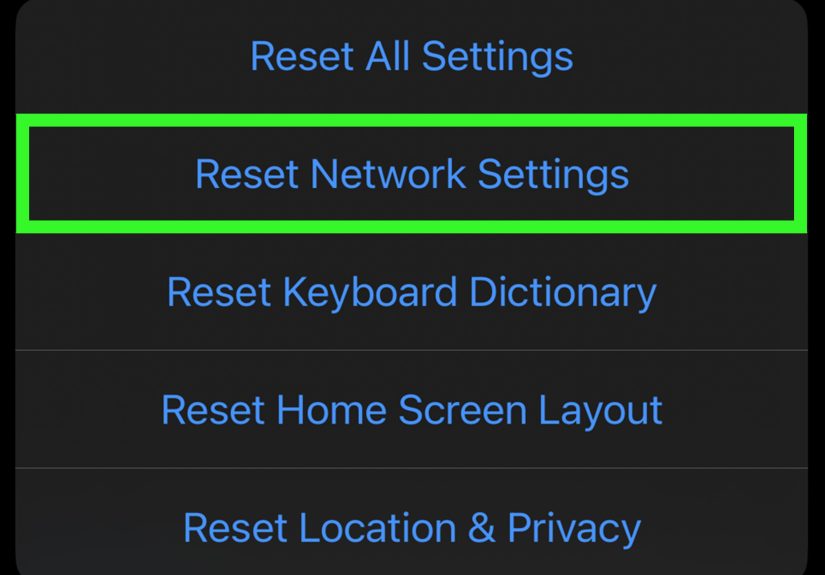
- Tap Reset Network Settings.
This does not delete your photos, apps, messages, or personal files. However, it does remove saved Wi-Fi networks, Wi-Fi passwords, VPN settings, and some cellular preferences. After the reset, reconnect to Wi-Fi and test Apple Maps again.
Use this step after easier fixes. It is powerful, but nobody enjoys retyping Wi-Fi passwordsespecially the one printed on the router in tiny letters that look like they were designed by ants.
Extra Fixes for Specific Apple Maps Problems
If Apple Maps Shows the Wrong Location
Move outdoors or near a window to improve GPS reception. Tall buildings, tunnels, parking garages, thick walls, and mountains can block or weaken GPS signals. Also make sure Precise Location is enabled for Maps.
If Apple Maps Gives Bad Directions
Check your route options. You may have settings enabled to avoid tolls or highways. Also compare the destination address, especially if you selected a business with multiple locations. If the map data itself is wrong, use the Report an Issue option inside Apple Maps.
If Apple Maps Traffic Is Not Showing
Confirm you have internet access and that the Apple Maps service is not experiencing a temporary outage. Traffic data usually requires live network access, so it may not appear correctly when your connection is weak.
If Apple Maps Crashes Repeatedly
Restart your device, update iOS or iPadOS, check storage space, and reinstall the Maps app if needed. If the entire device feels slow, freeing storage and updating software may improve overall performance.
If Apple Maps Does Not Work With CarPlay
Check your cable or wireless CarPlay connection, make sure Siri is enabled, restart both your iPhone and car display system, and confirm your vehicle is not blocking navigation audio. For wired CarPlay, try a different cable. Cheap cables are sometimes brave little rectangles of disappointment.
When Should You Contact Apple Support?
Most Apple Maps problems can be fixed at home, but not all. Contact Apple Support or visit an Apple Store if:
- GPS does not work in any app, including Weather, Find My, or third-party navigation apps.
- Your location is wrong even outdoors with strong signal.
- Apple Maps crashes after every restart and update.
- Your device was recently dropped or water-damaged.
- Cellular data does not work in other apps either.
- Resetting network settings does not improve anything.
If GPS fails across multiple apps, the problem may involve hardware, carrier settings, device sensors, or a deeper iOS/iPadOS issue. In that case, professional support is the smarter route.
My Real-World Experience With Apple Maps Not Working
Apple Maps issues usually appear at the least convenient time. Nobody opens Maps while relaxing on the couch and says, “Ah yes, what a pleasant moment for a navigation error.” It happens when you are late, when the road splits into four confusing lanes, when your passenger is silently judging your route choices, or when you are trying to find a building with the personality of a hidden treasure chest.
One of the most common experiences is the frozen blue dot. You are moving, the car is moving, your coffee is moving dangerously close to your shirt, but the blue dot is still sitting two blocks behind you like it gave up on life. In many cases, this comes down to weak GPS or a temporary app glitch. Closing Maps and reopening it often helps. When that does not work, toggling Airplane Mode or restarting the iPhone can refresh the connection quickly.
Another frustrating situation is when Apple Maps loads the destination but refuses to start directions. This often happens on weak cellular data or public Wi-Fi. The map may appear, but route calculation needs a better connection. A simple test is to open Safari. If websites load slowly, Maps is probably not the villain; your internet connection is. Switching from Wi-Fi to cellular data can solve it in seconds.
Voice navigation problems can be sneakier. The route looks correct, the map follows your movement, but the voice is missing. Before assuming Maps is broken, check the volume while navigation is active. iPhone can use different volume levels depending on what is playing. Also check Bluetooth. More than once, navigation audio has secretly routed to earbuds in a bag or a car system set to the wrong input. Technology loves a plot twist.
For people who travel often, offline maps are worth setting up before the trip. Downloading a city or region ahead of time can prevent panic when cellular service drops. This is especially useful for national parks, rural highways, beach towns, mountain roads, and international travel where roaming data is limited. The trick is to download the map while you still have strong Wi-Fi and enough storage.
Another lesson from real use: check Location Services before blaming the app. Many users turn off location access to save battery or increase privacy, then forget about it. Apple Maps needs permission to locate you accurately. Setting Maps to “While Using the App” with Precise Location enabled gives the app what it needs without granting unlimited background access.
Bad directions are a different category. Sometimes Apple Maps works correctly, but the destination pin, business address, or road information is wrong. In that case, the best fix is not restarting your iPhone 14 times while whispering threats at it. Instead, report the issue inside Apple Maps. Apple uses reports to improve map accuracy, and detailed reports help more than angry dashboard monologuesalthough the monologues may be emotionally satisfying.
The best habit is to troubleshoot from easiest to deepest: check internet, check Location Services, reopen Maps, restart the device, update software, then reset network settings only if needed. This order saves time and avoids unnecessary resets. Most Apple Maps problems are small settings conflicts or temporary connection issues, not major device failures.
In short, Apple Maps is usually reliable, but it depends on several moving parts. When those parts stop cooperating, a calm checklist beats random tapping every time. And yes, it is perfectly acceptable to keep a backup navigation app installedbecause even the best digital copilots occasionally need a coffee break.
Conclusion
If Apple Maps is not working on your iPhone or iPad, start with the basics: internet connection, Location Services, Precise Location, and a quick app restart. Then move on to device restart, date and time settings, software updates, sound settings, offline maps, and network reset if necessary.
The key is not to panic. Apple Maps depends on GPS, Wi-Fi, cellular data, Apple services, and device permissions. When one of those pieces gets out of sync, the app may freeze, misplace you, or refuse to load directions. With the nine quick fixes above, you can solve most Apple Maps problems in minutes and get back to more important thingslike arguing with your car about whether “turn right soon” means now or after the next donut shop.






 Close
Close