
Table of Contents >> Show >> Hide
- What Is an Admin Role on Facebook?
- Why You Might Need to Add an Admin to Your Facebook Page
- Steps to Add Someone as an Admin on Your Facebook Page
- Managing Admin Roles on Your Facebook Page
- Best Practices for Adding Admins to Your Facebook Page
- Common Issues and Troubleshooting
- Experiences Related to Giving Someone an Admin Role
- Conclusion
Managing a Facebook page can be an exciting yet demanding task, especially as your page grows. Sometimes, you need a little help to manage all aspects of the pagefrom posting content to responding to messages. This is where admin roles come into play. Giving someone an admin role on your Facebook page allows them to help manage the page’s operations while ensuring that you retain overall control. But how do you give someone this powerful role on your Facebook page? Let’s break it down in a simple, easy-to-follow guide.
What Is an Admin Role on Facebook?
Before diving into the process, it’s important to understand what an admin role entails. An admin is the highest level of access on a Facebook page. Admins can manage all aspects of the page, including:
- Editing the page’s content and settings
- Creating posts and events
- Responding to comments and messages
- Managing page roles
- Running ads
- Viewing insights and analytics
Essentially, giving someone an admin role means they can help run your page as you would, but with a few limitations based on the permissions you choose to give them.
Why You Might Need to Add an Admin to Your Facebook Page
As your Facebook page grows, it can become overwhelming to manage everything yourself. Here are a few reasons why you might want to assign an admin role:
- Multiple team members: If you have a team, assigning admin roles ensures that different team members can handle specific tasks like managing content, responding to messages, or running ad campaigns.
- Specialized tasks: You might need someone with expertise in analytics or advertising to handle those areas while you focus on content creation or community engagement.
- More time: Having help can free up your time for other business tasks, ensuring your page runs smoothly while you juggle other responsibilities.
Steps to Add Someone as an Admin on Your Facebook Page
Now that you know why you might want to give someone an admin role, let’s get into the step-by-step process of how to do it. Don’t worry, it’s quick and simple!
1. Go to Your Facebook Page
First, you need to navigate to your Facebook page. Log in to your Facebook account and go to the page you want to manage. Make sure you are logged in as an admin, because only admins can add or modify roles.
2. Open Page Settings
Once on your page, look for the “Settings” option, which can be found in the top right corner of your page. Click on “Settings” to access the page settings menu.
3. Click on “Page Roles”
In the left sidebar of the settings menu, you will see an option labeled “Page Roles.” Click on this to view and manage the roles for your page. This is where you can assign or modify roles for other people on your page.
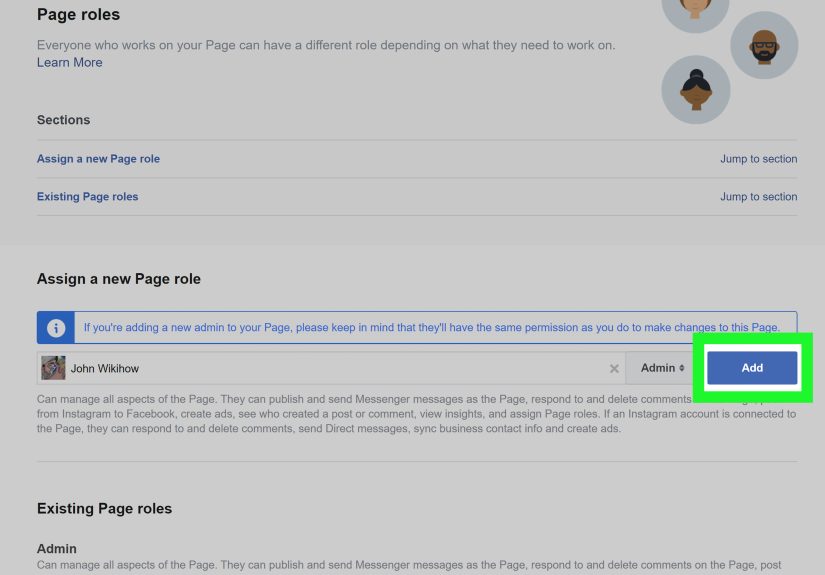
4. Assign a New Admin
Under the “Assign a New Page Role” section, you’ll see a field where you can type the name or email address of the person you want to make an admin. You can either type their name if they are already your Facebook friend or enter their email address associated with their Facebook account.
Next, click on the dropdown menu that says “Editor” and select “Admin.” Make sure to double-check that the person you’re adding is trustworthy, as admins have full control over the page.
5. Send the Invitation
Once you’ve selected the appropriate role, click the “Add” button. The person you’re adding will receive a notification inviting them to become an admin of your page. They must accept the invitation to gain access to the page. After they accept, they will have full administrative rights on your page.
6. Review and Confirm
After adding the new admin, you’ll see their name and role listed under the “Existing Page Roles” section. If everything looks good, you’re all set! You’ve successfully added someone as an admin to your Facebook page.
Managing Admin Roles on Your Facebook Page
Now that you’ve added an admin, it’s crucial to know how to manage these roles over time. Here’s a quick guide:
- Removing an Admin: If you need to remove someone’s admin access, you can do so by going back to the “Page Roles” section in settings. Simply click “Edit” next to their name and choose “Remove.”
- Changing Roles: If you want to change someone’s role from an admin to another position (e.g., editor), you can also do this by editing their role in the same menu.
- Monitoring Activity: Facebook provides an activity log so you can track what admins are doing on the page. This can be especially helpful for larger teams.
Best Practices for Adding Admins to Your Facebook Page
While adding an admin is relatively easy, there are some best practices to keep in mind:
- Trust is key: Only add trusted individuals as admins since they will have full control over your page. Admins can make changes that could affect your brand’s reputation.
- Limit the number of admins: While it’s tempting to add multiple people to help with page management, having too many admins can lead to confusion and conflicts. Limit the number to a manageable amount.
- Use other roles: If you don’t need someone to have full access, consider using roles like “Editor,” “Moderator,” or “Analyst” instead of making them an admin. These roles have limited permissions while still allowing your team to help manage the page.
Common Issues and Troubleshooting
While adding someone as an admin on your Facebook page is usually straightforward, there are some issues that you may encounter:
- Issue 1: Invitation Not Received: Sometimes, the person you invite might not receive the admin invitation. Ask them to check their spam folder, or try re-sending the invitation.
- Issue 2: Error Message When Adding Admin: If you’re receiving an error message when trying to add someone as an admin, double-check that you are indeed an admin of the page yourself. If you’re not, you won’t be able to add others.
- Issue 3: Admin Does Not Have Full Access: If the new admin cannot access certain features, ensure they have accepted the invitation and are logged into the correct Facebook account.
Experiences Related to Giving Someone an Admin Role
Assigning an admin role to someone can be a smooth process, but it’s important to carefully consider your experience with this role. A personal example could be managing a business Facebook page where we had a growing team. At first, the process of assigning roles seemed intimidatingafter all, this person would have full control over the page’s content and settings. But with clear communication about what responsibilities come with the role, everything went smoothly.
However, one key learning experience came when we added a team member without setting clear boundaries. They were given the full admin role and immediately began making changes to the content style, which led to some confusion among the team. In retrospect, it would have been better to provide them with more guidance on their specific responsibilities. To avoid issues like this, it’s always a good idea to have a discussion about expectations before handing over admin privileges.
Another lesson learned was the importance of regularly reviewing who has access to the admin role. In a large organization, there were instances where former employees still had admin access, which posed a security risk. We now conduct quarterly reviews to ensure only active team members retain admin roles, improving the security of our Facebook page.
Conclusion
Giving someone an admin role on your Facebook page is a great way to share responsibilities and manage your page effectively. By following the simple steps outlined above, you can easily grant admin access to trusted team members. Just remember to manage these roles carefully and use best practices to ensure the security and smooth operation of your page.






 Close
Close