
Table of Contents >> Show >> Hide
- 1. Start With Wallpaper and Material You Colors
- 2. Rearrange Your Home Screen Like a Productivity Pro
- 3. Use Widgets That Actually Earn Their Rent
- 4. Try a Custom Launcher for a Total Makeover
- 5. Change Icons, Themes, and Fonts
- 6. Customize the Lock Screen and Always-On Display
- 7. Tune Notifications and Quick Settings
- 8. Personalize Your Keyboard, Sounds, and Gestures
- 9. Set Default Apps, Privacy Controls, and Digital Wellbeing
- Best Practices for Android Customization
- Real-Life Experience: What Actually Makes an Android Feel Personal
- Conclusion
Your Android phone should not feel like it just walked out of a factory wearing the same outfit as every other phone in the room. Android is famous for flexibility, and with a few smart tweaks, you can turn a plain device into something that feels faster, cleaner, more personal, and a little more “you.” Think of it as redecorating your digital apartmentexcept you do not have to move a couch up three flights of stairs.
Whether you use a Google Pixel, Samsung Galaxy, Motorola, OnePlus, or another Android device, the customization options are deeper than many people realize. You can change your wallpaper, theme colors, launcher, icons, widgets, keyboard, notification behavior, lock screen, shortcuts, default apps, and even the way your phone helps you focus. The key is not to customize everything just because you can. The goal is to create an Android setup that looks great, saves time, reduces clutter, and makes daily use smoother.
Below are nine practical ways to customize your Android device, with examples, tips, and a few friendly warnings so your home screen does not end up looking like a yard sale hosted by a robot.
1. Start With Wallpaper and Material You Colors
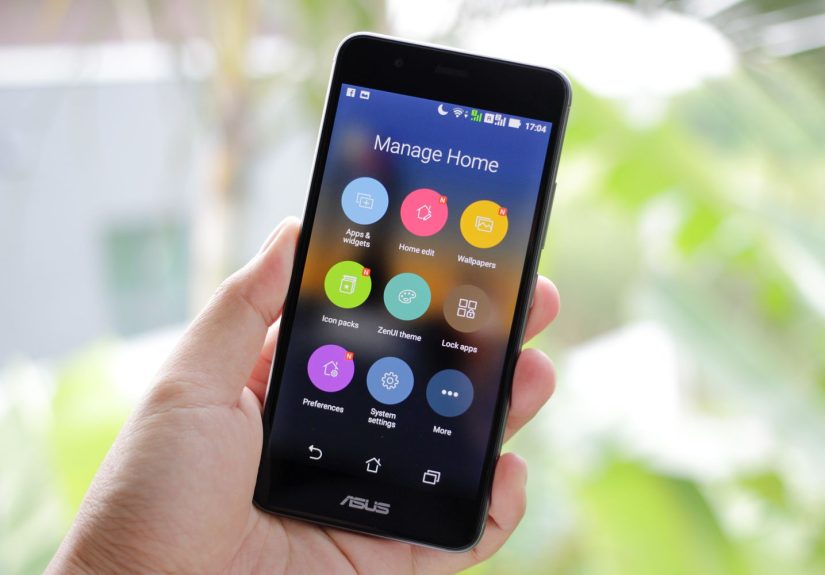
The easiest way to customize your Android phone is to change the wallpaper. It sounds basic, but on modern Android versions, wallpaper is more powerful than ever. Since Android 12, many devices use Material You dynamic color, which can pull colors from your wallpaper and apply them across system menus, buttons, widgets, and supported apps.
To begin, press and hold an empty area on your home screen, then choose Wallpaper & style or a similar option depending on your phone. You can set a wallpaper for the home screen, lock screen, or both. If your device supports dynamic color, try a few different images and watch how the color palette changes. A soft blue landscape might create calm blue accents, while a sunset photo can bring warm orange or purple tones.
Quick tip for better results
Choose wallpapers with clear dominant colors. A photo with ten competing colors may confuse the system palette and make your phone look like it joined a carnival without asking you first. Minimal wallpapers, abstract gradients, nature photos, and simple illustrations usually work best.
2. Rearrange Your Home Screen Like a Productivity Pro
Your home screen is the front door of your Android device. If it is packed with random apps, duplicate icons, and forgotten folders, every unlock becomes a tiny treasure hunt. A cleaner layout makes your phone feel faster even before you change any performance settings.
Start by removing apps you do not use daily from the home screen. This does not uninstall them; it simply keeps them in the app drawer. Next, place your most-used apps within easy thumb reach. For many people, that means putting phone, messages, camera, browser, notes, maps, and music apps in the dock or lower half of the screen.
Folders can help, but only if they are organized clearly. Try folders like Work, Social, Money, School, Travel, or Photo. Avoid making one giant folder called “Stuff.” That is not organization; that is a junk drawer with a password.
Adjust the grid and app labels
Many Android phones let you change the home screen grid size, such as 4×5, 5×5, or 5×6. A larger grid fits more icons, while a smaller grid creates a cleaner, more relaxed look. Some launchers also let you hide app labels, resize icons, or remove the search bar. If your screen feels crowded, reducing the number of icons can make a bigger difference than downloading another theme.
3. Use Widgets That Actually Earn Their Rent
Widgets are one of Android’s best customization features because they show useful information without forcing you to open an app. A good widget can display your calendar, weather, tasks, battery level, notes, music controls, fitness stats, or smart home controls right on the home screen.
To add widgets, press and hold an empty area on your home screen and tap Widgets. Browse the list, choose one, then drag it into place. Most widgets can be resized by long-pressing them and dragging the edges.
The secret is restraint. A calendar widget? Helpful. A weather widget? Great. A giant clock widget next to another giant clock? Your phone already knows what time it is, and frankly, now it is showing off.
Useful widget ideas
Try a monthly calendar widget if you manage appointments, a task widget if you live by checklists, a notes widget for quick ideas, and a music widget if you switch playlists often. Google Keep, Google Calendar, Spotify, YouTube Music, Todoist, Microsoft To Do, and many weather apps offer useful widgets. Samsung Galaxy phones also have strong native widget options, while Pixel phones work especially well with Google widgets and Material You styling.
4. Try a Custom Launcher for a Total Makeover
If wallpaper and widgets are a fresh haircut, a custom launcher is a full wardrobe change. A launcher controls your home screen, app drawer, icons, gestures, animations, folders, and sometimes search behavior. Popular Android launchers can make your phone minimalist, productivity-focused, colorful, or almost unrecognizable in a good way.
Nova Launcher, Niagara Launcher, Microsoft Launcher, Smart Launcher, and Lawnchair are popular choices for different styles. Some focus on deep customization, while others aim for simplicity. For example, Niagara Launcher is known for a clean vertical app list, while Nova Launcher offers detailed control over grids, icons, gestures, and folders.
After installing a launcher from a trusted source such as the Google Play Store, your phone will usually ask whether you want to set it as the default home app. You can also change this later in Settings > Apps > Default apps > Home app, though the exact path may vary by device.
Safety tip before installing launchers
Stick with reputable launchers and read permissions carefully. A launcher naturally needs access to home screen behavior, but be cautious with unknown apps that ask for unrelated permissions. Your home screen should look stylish, not suspicious.
5. Change Icons, Themes, and Fonts
Icons have a huge effect on how your Android device feels. A matching icon pack can make your home screen look polished, while mismatched icons can make it look like every app got dressed in the dark.
Some Android phones support themed icons through the system’s wallpaper and style settings. On supported devices, themed icons can match your Material You color palette, creating a consistent look across your home screen. Samsung Galaxy users can explore themes through the Galaxy Store and use Samsung’s Good Lock tools for deeper customization, including Theme Park, Home Up, LockStar, and QuickStar on compatible devices.
Custom launchers often support icon packs from the Play Store. After installing an icon pack, open your launcher settings and choose it under appearance or icon style. You may also be able to change icon shape, icon size, label font, and folder design.
Do not chase perfection too hard
Not every app supports themed icons, and some icon packs do not cover every app. That is normal. The goal is visual harmony, not a museum exhibit titled “One Hundred Percent Icon Compliance.” If a few icons refuse to match, place them in a folder or choose a launcher that lets you edit icons manually.
6. Customize the Lock Screen and Always-On Display
The lock screen is not just a wall between you and your apps. It can show useful information, protect private content, and set the tone every time you pick up your phone. Depending on your device, you may be able to customize the clock style, wallpaper, notification display, shortcuts, widgets, and always-on display.
On many Android phones, start with Settings > Wallpaper & style or Settings > Lock screen. Samsung Galaxy devices typically offer especially deep lock screen options, including clock styles, contact information, app shortcuts, widgets, and Good Lock modules for more control.
Consider placing only your most useful shortcuts on the lock screen, such as camera, flashlight, wallet, or smart home controls. Also review notification privacy. If your phone often sits on a desk, you may want to hide sensitive notification content until the device is unlocked. That way, your messages do not become a tiny public billboard.
Always-on display advice
Always-on display can be convenient for checking time, battery, and notifications at a glance. However, if battery life matters more than style, use a schedule or tap-to-show setting instead of keeping it visible all day.
7. Tune Notifications and Quick Settings
Notifications can be helpful, but without customization, they become digital mosquitoes. Android gives you strong controls for app notifications, notification categories, lock screen alerts, Do Not Disturb, notification history, and quick toggles.
Go to Settings > Notifications to review which apps can interrupt you. On many devices, you can choose whether an app may show all notifications, silent notifications, lock screen notifications, badges, or specific notification categories. For example, a shopping app might need delivery alerts but not “surprise sale” alerts every time someone at headquarters gets excited about socks.
Quick Settings are the tiles you see when you swipe down from the top of the screen. You can usually edit them by swiping down twice and tapping the pencil or edit button. Move your most-used tiles to the first page, such as Wi-Fi, Bluetooth, flashlight, hotspot, screen record, battery saver, Do Not Disturb, QR scanner, or dark mode.
Make your phone quieter and smarter
Turn on notification history if your phone supports it. This helps when you accidentally swipe away something important. Use Do Not Disturb schedules for school, work, sleep, or study time. If your device supports Focus Mode or similar features, pause distracting apps during certain hours. Your future self will thank you, possibly with fewer eye twitches.
8. Personalize Your Keyboard, Sounds, and Gestures
Customization is not only visual. The way your phone sounds, vibrates, and responds to gestures can make it feel more natural. Start with your keyboard. Gboard, Samsung Keyboard, Microsoft SwiftKey, and other popular keyboards let you adjust themes, height, language, autocorrect, glide typing, haptic feedback, and emoji suggestions.
If you type in more than one language, add those languages in your keyboard settings. Many keyboards let you switch languages by tapping a globe icon or holding the space bar. You can also adjust keyboard height if typing feels cramped, or turn off aggressive autocorrect if your phone keeps “fixing” your words like an overconfident English teacher.
Next, customize sounds and vibration. Set different ringtones, notification sounds, alarm tones, and vibration patterns if your device supports them. Samsung and some other Android brands also let you create modes or routines that change sound, display, and connectivity settings automatically.
Gesture shortcuts worth trying
Check your system gestures under settings. Depending on your phone, you may find double-tap to wake, flip to silence, lift to check phone, three-finger screenshot, back tap, one-handed mode, or quick camera launch. These small controls often save more time than flashy themes.
9. Set Default Apps, Privacy Controls, and Digital Wellbeing
A truly customized Android device does not just look different; it behaves the way you want. That starts with default apps. You can choose your preferred browser, phone app, messaging app, digital assistant, home launcher, caller ID app, and sometimes payment app. Look under Settings > Apps > Default apps.
Privacy settings are another form of customization. Review app permissions for camera, microphone, location, contacts, notifications, and files. Remove permissions from apps that do not need them. Many Android versions can pause permissions for unused apps, which is useful if you download apps, forget them, and let them live rent-free in your phone like tiny digital raccoons.
Digital Wellbeing tools also help customize your relationship with your device. You can set app timers, use Focus Mode, schedule Bedtime Mode, reduce interruptions, and view screen time patterns. This is not about making your phone less fun. It is about making sure your phone serves you instead of training you like a snack-seeking lab mouse.
Best Practices for Android Customization
Before you customize everything at once, make small changes and test them for a day or two. A setup that looks amazing in a screenshot may feel annoying in real life. For example, a tiny icon grid can look elegant but become frustrating if you tap the wrong app constantly. A live wallpaper can look beautiful but may use more battery than a static one. A packed widget screen may feel productive at first, then slowly become a dashboard of guilt.
Keep performance in mind. Most modern Android phones handle customization well, but too many heavy widgets, live wallpapers, background apps, and animated launchers can slow older devices. If your phone starts lagging, simplify your setup. Remove unnecessary widgets, uninstall apps you no longer use, and restart the device occasionally.
Also back up important settings when possible. Some launchers let you export your layout. Samsung Good Lock tools may offer ways to preserve certain customization settings, but major software updates can still change layouts or reset some options. Before a big Android update, take screenshots of your home screen and note which launcher, icon pack, and widgets you use.
Real-Life Experience: What Actually Makes an Android Feel Personal
The best Android customization experience usually starts with one simple question: “What do I want to reach faster?” That question is more useful than “How can I make this look cool?” A cool setup is nice, but a useful setup is the one you keep. In practice, most people benefit from a clean home screen, a strong wallpaper, two or three helpful widgets, and quick access to daily apps. That combination creates a phone that feels personal without becoming a full-time interior design project.
One of the biggest lessons from customizing Android devices is that minimal changes often have the biggest impact. A fresh wallpaper and matching Material You palette can make the whole phone feel new in five minutes. Rearranging apps by actual daily use can save dozens of tiny moments every week. Moving the flashlight and screen recorder tiles to the front of Quick Settings can prevent frantic swiping when you need them. These are not dramatic changes, but they make the device feel smoother immediately.
Widgets are another area where real-world use matters more than screenshots. A giant aesthetic widget may look beautiful, but if it does not help you do anything, it becomes decoration. That is fine if decoration is the goal, but the best widgets earn their space. A calendar widget can prevent missed deadlines. A notes widget can catch ideas before they disappear. A weather widget can stop you from leaving home dressed for sunshine and returning as a damp sandwich.
Custom launchers can be exciting, but they are also where people sometimes overdo it. It is tempting to change every animation, icon, folder, swipe gesture, and app drawer setting in one evening. Then the next morning, you cannot find your calculator. A better approach is to install a launcher, adjust the grid and icons first, then add gestures slowly. One swipe gesture for search and another for notifications may be enough. If every finger movement triggers a secret command, your phone starts feeling like a magic trick you forgot how to perform.
Notification customization may be the most underrated upgrade. Many users change wallpapers regularly but never clean up notifications. Once you silence low-value alerts and keep only important ones, the phone feels calmer. Delivery updates, messages, calendar reminders, and banking alerts might stay active. Random promotions, game reminders, and “we miss you” app notifications can quietly leave the party. This single change can make your Android device feel less stressful, and honestly, your lock screen deserves peace.
Privacy customization also becomes more important over time. A good Android setup is not only stylish; it is sensible. Reviewing app permissions, hiding sensitive lock screen content, choosing trusted apps, and avoiding sketchy APK files are all part of making the phone truly yours. A beautiful home screen is great, but not if it comes with apps that treat your data like an all-you-can-eat buffet.
In the end, the best customized Android device is not the one with the most effects. It is the one that fits your habits. It opens the apps you need quickly, shows the information you care about, stays quiet when you need focus, and looks good enough that you enjoy unlocking it. Android gives you the toolbox. Your job is to build a setup that feels less like default software and more like a personal command centerpreferably one that does not require a manual thicker than a sandwich.
Conclusion
Customizing your Android device is one of the easiest ways to make your phone feel fresh, useful, and genuinely personal. Start with wallpaper and Material You colors, then refine your home screen, widgets, launcher, icons, lock screen, notifications, keyboard, gestures, default apps, privacy settings, and Digital Wellbeing tools. You do not need to change everything in one day. The smartest approach is to customize in layers, test what works, and keep the features that make your phone easier and more enjoyable to use.
The beauty of Android customization is choice. Your phone can be minimal, colorful, productivity-focused, entertainment-ready, or somewhere in between. Just remember: a great setup should make life simpler, not turn your home screen into a puzzle game. Customize with purpose, keep it clean, and let your Android device finally dress like it belongs to you.




 Close
Close