
Table of Contents >> Show >> Hide
- Before You Edit Anything: What Facebook Lets You Control
- Way 1: Change Gender on Facebook (Desktop Website)
- Way 2: Change Gender on Facebook (iPhone & Android App)
- Way 3: Change Gender on Facebook Lite or Mobile Browser (No Full App Required)
- Troubleshooting: If You Can’t Find the Gender Setting
- Privacy & Safety Tips (Because “Public” Can Be a Jump Scare)
- FAQ: Quick Answers People Actually Want
- Extra: of Real-World Experience (What It’s Like to Actually Do This)
- Conclusion
Facebook knows a lot about you. Like… a suspicious amount. It remembers your birthday, your high school mascot, and that one time you liked a page called “I Put Hot Sauce on Everything.” But if your profile’s gender is outdated (or just plain wrong), you can absolutely update itwithout needing a tech support séance.
In this guide, you’ll learn three practical ways to change gender on Facebook (desktop, mobile app, and Facebook Lite/mobile browser), how the custom gender field works, how to set Facebook pronouns, and how to control privacy so you’re not accidentally broadcasting personal info to your third cousin’s bowling league.
Before You Edit Anything: What Facebook Lets You Control
1) Your gender field (Male/Female/Custom)
Facebook’s gender setting typically includes Male, Female, and Custom. Choosing Custom can open a space to type/select a gender identity and pick the pronoun Facebook uses to refer to you across the platform (more on that in a second).
2) Your pronouns (the “Facebook refers to you as…” part)
When you set pronouns, you’re deciding how Facebook’s system language refers to you (think “Wish them a happy birthday” style). This is separate from who can see your gender field.
3) Visibility (who can see it)
Facebook also gives you visibility controlsso you can often show your gender to Public, Friends, or Only me. Translation: you can update your profile to be accurate while keeping it private if that’s what you want.
Way 1: Change Gender on Facebook (Desktop Website)
If you’re on a computer, this is the most straightforward route. You’ll be editing your Facebook profile gender settings from the “About” area.
Step-by-step (Desktop)
- Log into Facebook on a browser (Chrome, Safari, Edgewhatever gets you through the day).
- Go to your profile.
- Click the About tab.
- Select Contact and Basic Info.
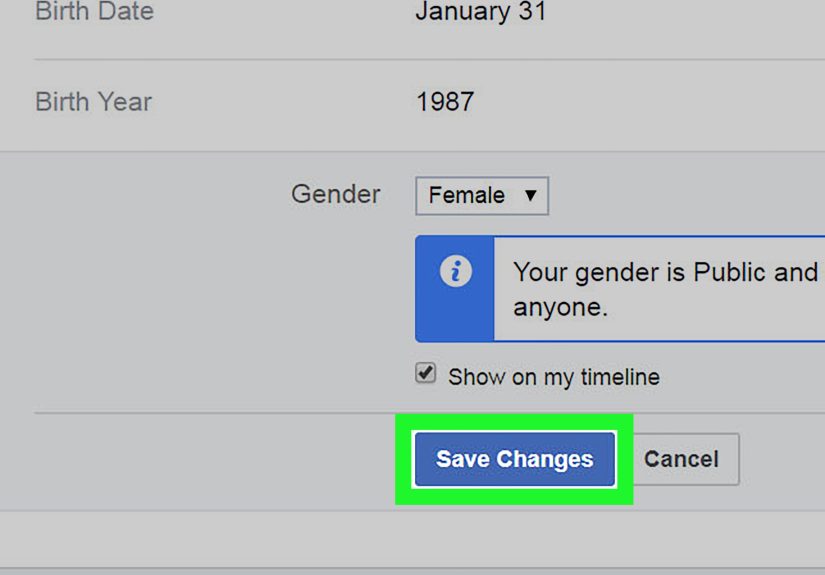
- Find Gender and click Edit.
- Choose Male, Female, or Custom.
- If you choose Custom, you can type/select the gender identity that fits you (for example: “nonbinary,” “transgender,” “genderqueer,” etc.).
- Choose your pronouns (commonly displayed as options like he/him, she/her, or they/them).
- Adjust visibility (for example, decide whether to show gender on your timeline/profile). If you don’t want it displayed publicly, set the audience to something like Only me or remove timeline visibility where available.
- Click Save or Save Changes.
Pro tip (Desktop)
Want to keep things low-key? Turn off anything that posts the update to your timeline (when that option appears). You can still update gender on Facebook without making it a “Breaking News” alert for your friend list.
Way 2: Change Gender on Facebook (iPhone & Android App)
The Facebook app is basically a shape-shiftermenus move, buttons rename themselves, and the interface sometimes changes right when you finally memorize it. But the path usually boils down to: Profile → About/Details → Basic Info → Gender.
Step-by-step (Mobile App)
- Open the Facebook app and make sure you’re logged in.
- Tap Menu (often the three lines) and tap your name to open your profile.
- Look for something like Edit profile, Edit public details, or See more about yourself.
- Tap Edit or the pencil icon near your personal details.
- Scroll to Basic info and tap Gender.
- Choose Male, Female, or Custom.
- If you pick Custom, select/type the gender identity that matches you.
- Choose the pronouns you want Facebook to use for you.
- Adjust visibility if Facebook offers an audience selector for gender.
- Tap Save.
Quick example (Mobile)
Say your profile currently shows “Male,” but you’d like it to reflect your identity more accurately: choose Custom, type/select “nonbinary,” then pick they/them pronouns. Finally, set the gender visibility to Friends or Only me depending on your comfort level.
Way 3: Change Gender on Facebook Lite or Mobile Browser (No Full App Required)
If your phone storage is hanging on by a threador you just prefer not to install the full appyou can often edit your profile using Facebook Lite or a mobile browser. The steps are similar to desktop, just more… compact.
Step-by-step (Facebook Lite / Mobile Browser)
- Open Facebook Lite or go to Facebook in your mobile browser and log in.
- Tap your profile (usually your name or profile picture).
- Find About or See your About info.
- Tap Edit or the pencil icon next to your details.
- Scroll to Gender under Basic info and tap to edit.
- Select Male, Female, or Custom, then set pronouns if prompted.
- Set visibility (if available), then tap Save.
Why this method is underrated
When Facebook’s main app gets moody (slow loads, glitchy saves, menus hiding like they owe you money), the Lite/browser route can be a surprisingly effective workaround for updating Facebook gender settings.
Troubleshooting: If You Can’t Find the Gender Setting
If the option is missing, don’t panic. It usually means one of these things is happeningnot that Facebook has decided you must remain “Undefined Forever” like a forgotten JavaScript variable.
Common fixes
- Update the app: An outdated version can hide profile fields or load an older layout.
- Try desktop: If the app is being stubborn, use a computer browser to edit your About info.
- Use Facebook Lite/mobile browser: Great fallback when the main app misbehaves.
- Log out and back in: Classic advice because it works more often than we’d like to admit.
- Check you’re editing your personal profile: Pages and professional modes can display different fields.
- Go slower: Rapid-fire edits can trigger temporary blocks. Make one change, save, then wait a moment.
If it won’t save
Try switching networks (Wi-Fi ↔ mobile data), then save again. If it still fails, use the desktop method. In many cases, it’s not your settingsit’s Facebook having one of its “I’m fine” moments.
Privacy & Safety Tips (Because “Public” Can Be a Jump Scare)
Control who sees your gender identity
Facebook commonly offers audience controls for profile fields, including gender identity. If you’re not ready for everyone to see it, set the visibility to Friends or Only me.
Know the pronouns trade-off
Important nuance: Facebook may let you hide the gender field while still using your selected pronouns across the platform. If you’re trying to keep your update private, review both the gender visibility and how pronouns display in system prompts.
Expect ads to behave differently
Historically, Facebook has used gender signals for ad targeting and personalization. That doesn’t mean you’ll instantly get a new personality injected into your feedbut it does mean profile fields can influence what you’re shown. If you care about this, review your ad preferences and privacy settings.
FAQ: Quick Answers People Actually Want
Can I remove my gender on Facebook completely?
In many cases, the most practical “remove” option is to either leave the field blank (where possible) or set the visibility to Only me. That way your profile can still be accurate for you, without being visible to others.
Will Facebook notify my friends when I change it?
Not automatically as a “life event” in the traditional sensebut visibility settings matter. If you allow it to appear on your timeline (or share updates publicly), people may notice. If you want discretion, keep timeline visibility off (when offered) and lock down the audience.
How often can I change my gender on Facebook?
Facebook generally allows changes whenever you need them. If you edit too frequently in a short time, you might temporarily hit a limit (especially if the platform flags rapid changes), so make updates thoughtfully.
Does “Custom” mean I can type anything?
Often, yes. Facebook may suggest options as you type, but custom gender fields have been designed to allow flexible identity entries. If you don’t see the flexibility on your device, try the desktop method.
Extra: of Real-World Experience (What It’s Like to Actually Do This)
I don’t have personal social media accounts, so I can’t “tell you about the time I changed my gender on Facebook while eating nachos.” But I can share the most common patterns people describe when they update their gender on Facebookwhat surprises them, what they wish they’d known, and what tends to go smoothly (or not).
First: most people expect the change to feel purely technicallike updating a phone number. Then they hit “Custom,” see pronouns, and realize, “Oh. This is… personal.” For some, that’s empowering: the profile finally matches reality. For others, it’s a careful, strategic update because Facebook is connected to family, coworkers, old classmates, and that random neighbor who still posts chain messages like it’s 2009.
One of the biggest “aha” moments is discovering that privacy is a separate decision from accuracy. Plenty of people update their gender so the platform’s language feels rightwithout making it visible to everyone. That’s especially common for folks who are out in some circles and private in others. If that’s you, the audience selector becomes your best friend. The second best friend is a quick review of what your profile shows publicly (because Facebook’s definition of “helpful defaults” can be… adventurous).
Another common experience: people underestimate how many places Facebook uses pronouns and gendered language. It’s not just the About page. It can show up in birthday prompts, memory notifications, and “People You May Know” context. When someone selects pronouns that fit them, it can be a surprisingly validating changesmall, but constant. Like finally fixing a crooked picture frame you’ve been ignoring for years. You stop noticing the frame, and start noticing the peace.
Practical tip people share a lot: do the change on desktop if you want fewer headaches. The mobile app is convenient, but the desktop interface often makes it clearer what you’re changing and what’s visible. When the app layout hides the gender field (or the Save button mysteriously “does nothing”), switching to a browser often solves it in minutes.
And finally: many people treat this update as part of a bigger “profile alignment” moment. They update their name display (where appropriate), tweak profile photos, adjust who can see old posts, clean up public details, and maybe even pin a post that sets expectationsif they’re ready. Not everyone wants or needs a big announcement, and that’s valid. The most consistent takeaway from real users is simple: make the change in a way that supports your comfort and safety. Facebook is a tool. You’re the person.
Conclusion
Changing gender on Facebook doesn’t have to be complicated. Pick the method that matches your device: desktop for clarity, mobile app for convenience, or Facebook Lite/mobile browser when you want a lightweight workaround. Then choose Male/Female/Custom, set your pronouns, and lock down privacy so your profile shares exactly what you intend and nothing you don’t.







 Close
Close