
Table of Contents >> Show >> Hide
- Before You Start: What Does “Lock Screen” Mean on a Mac?
- Way 1: Change the Lock Screen Wallpaper on a Mac
- Way 2: Change the Login Picture on Your Mac Lock Screen
- How to Change Lock Screen Timing and Security Settings
- Troubleshooting: Why Is My Mac Lock Screen Not Changing?
- Practical Examples: Which Method Should You Use?
- Extra Experience: What I Learned While Customizing a Mac Lock Screen
- Conclusion
Your Mac lock screen is the front porch of your digital house. It is the first thing you see when you wake your Mac, return from a coffee break, or proudly open your laptop in public before realizing your desktop wallpaper is still a chaotic screenshot from three projects ago. The good news? You can change the lock screen on a Mac without needing a secret Apple engineer badge, a Terminal command, or a dramatic montage.
In most modern versions of macOS, including recent releases that use System Settings instead of the older System Preferences layout, the lock screen background is closely tied to your desktop wallpaper and screen saver settings. You can also customize the user picture that appears on the login or lock screen. Together, these two simple changes can make your Mac feel cleaner, more personal, and a little less like it came straight out of a display table at the Apple Store.
This guide explains 2 easy ways to change the lock screen on a Mac: changing the lock screen wallpaper and changing your Mac login picture. You will also learn what you can customize, what macOS may not let you change separately, and how to fix common issues when your new image does not appear right away.
Before You Start: What Does “Lock Screen” Mean on a Mac?
Before clicking around like a caffeinated squirrel, it helps to know what part of the Mac screen you are trying to customize. People often use “lock screen,” “login screen,” and “screen saver” as if they mean the same thing, but macOS treats them a little differently.
The Mac Lock Screen
The lock screen is what appears when you lock your Mac while you are already signed in. You can reach it by clicking the Apple menu and choosing Lock Screen, or by pressing Control + Command + Q. On many modern Macs, this screen uses your current wallpaper or a related blurred version of it.
The Login Screen
The login screen appears when your Mac starts up, restarts, or asks you to choose a user account. Depending on your macOS version, FileVault settings, and system security rules, the startup login background may not always match the wallpaper you selected after signing in. That is normal. Your Mac is not being stubborn for fun, although it may feel that way.
The Screen Saver
The screen saver starts after your Mac has been inactive for a set amount of time. In newer macOS versions, screen savers and wallpapers are managed close together in System Settings. Some Apple screen savers can create a beautiful motion effect that later settles into a wallpaper, which is basically your Mac saying, “Yes, I do have main-character energy.”
Way 1: Change the Lock Screen Wallpaper on a Mac
The easiest way to change your Mac lock screen background is to change your wallpaper. This works especially well if you want your lock screen and desktop to share the same visual style. It is the most beginner-friendly method, and it does not require editing system files.
How to Change Your Mac Wallpaper from System Settings
- Click the Apple menu in the top-left corner of the screen.
- Select System Settings.
- Scroll down and click Wallpaper in the sidebar.
- Choose a built-in Apple wallpaper, dynamic wallpaper, color, photo, album, or folder.
- Click the wallpaper you want to use.
- Lock your Mac by pressing Control + Command + Q to preview the result.
If you choose one of Apple’s built-in wallpapers, macOS usually applies it immediately. If you use a personal photo, make sure it is clear, high resolution, and wide enough for your Mac display. A tiny image stretched across a Retina screen can look like it was painted with mashed potatoes.
How to Use Your Own Photo as the Mac Lock Screen Background
To use a personal image, go to System Settings > Wallpaper, scroll to the section for your photos, and choose Add Photo or select an image from your Photos library. You can also use Finder to set an image as your desktop picture.
Here is the Finder method:
- Open Finder.
- Locate the image you want to use.
- Control-click or right-click the image file.
- Choose Set Desktop Picture.
- Lock your screen to check how it appears.
This is handy when you have downloaded a wallpaper from a trusted source or created one yourself. For the cleanest result, use an image that matches your Mac’s screen resolution or is larger than it. For example, a MacBook with a high-resolution display will look much better with a crisp 4K or 5K image than with a small photo copied from an old chat thread.
Best Types of Wallpaper for a Mac Lock Screen
Not every beautiful photo makes a good lock screen. A picture can look stunning on your desktop but become awkward when macOS places the time, user icon, password field, and notifications over it. The best Mac lock screen wallpapers are attractive but not too busy.
Good options include:
- Minimal landscapes with open sky or soft backgrounds
- Abstract gradients that do not compete with text
- Dark wallpapers for better password-field contrast
- Personal photos with the subject away from the center
- Apple dynamic wallpapers that adjust with time of day
Avoid images with important faces, text, or details in the center of the screen. The login box may cover them, creating the kind of accidental design tragedy no one asked for.
Can You Set a Different Lock Screen and Desktop Wallpaper?
This is where expectations need a small seatbelt. On many current macOS versions, the lock screen background is connected to the desktop wallpaper or the selected screen saver/wallpaper combination. Apple does not always provide a simple built-in switch that says, “Use one image for the desktop and another image for the lock screen.”
Older online tutorials may mention replacing files in cache folders or system folders. Those methods can be unreliable on newer Macs because macOS security has changed over time. System files are more protected, and the location or behavior of lock screen images may vary by macOS version. For most users, the safest and easiest option is to change the wallpaper through System Settings rather than forcing a manual file replacement.
Way 2: Change the Login Picture on Your Mac Lock Screen
The second easy way to customize your Mac lock screen is to change your user login picture. This is the circular image that appears with your name when you sign in or unlock the Mac. It may be a Memoji, monogram, emoji, built-in icon, or photo.
Changing this picture does not change the entire background, but it does make the lock screen feel more personal. It is also perfect if your current user icon is still the default silhouette, which gives strong “I just moved in and haven’t unpacked” energy.
How to Change Your Mac Login Picture
- Click the Apple menu.
- Open System Settings.
- Select Users & Groups in the sidebar.
- Click the picture next to your user name.
- Choose a new image, Memoji, emoji, monogram, or photo.
- Adjust the crop or position if macOS gives you editing options.
- Click Save.
After saving the new picture, lock your Mac to check the result. If the old picture still appears, restart your Mac or sign out and sign back in. Sometimes macOS needs a little nudge, like a person pretending not to hear the alarm until the third snooze.
What Image Should You Use for Your Mac Login Picture?
The best login picture is simple, centered, and recognizable at a small size. Since the image appears in a circle, avoid using a photo where your face, logo, or subject sits too close to the edges. Otherwise, the circular crop may remove important details and leave you with half a forehead or a logo that looks like it lost a fight with a cookie cutter.
Good login picture ideas include:
- A clear headshot with good lighting
- A favorite Memoji or emoji
- A simple brand logo for a work Mac
- A pet photo with the face centered
- A monogram if you prefer a clean, professional look
If you use the same Apple Account across devices, your profile image may sync or appear in other Apple-related places, depending on your settings. For that reason, choose something you would not mind seeing on more than one device.
How to Change Lock Screen Timing and Security Settings
Changing the image is fun, but the lock screen is also a security feature. A beautiful wallpaper is nice; keeping curious roommates, coworkers, or coffee shop strangers out of your files is nicer.
To adjust lock screen behavior:
- Open System Settings.
- Click Lock Screen in the sidebar.
- Choose when the display turns off while inactive.
- Choose when the screen saver starts.
- Set how quickly your Mac requires a password after the screen saver begins or the display turns off.
For most people, requiring a password immediately or shortly after the screen turns off is a smart move. If you carry a MacBook, work in public places, or share a home office, this small setting can save you from big privacy headaches.
Troubleshooting: Why Is My Mac Lock Screen Not Changing?
If you changed your wallpaper or login picture and your Mac still looks the same, do not panic. macOS sometimes delays visual updates, especially when switching between wallpapers, screen savers, user accounts, or external displays.
1. Lock the Screen Manually
Press Control + Command + Q to lock your Mac and preview the lock screen. Do not rely only on what you see during startup, because the startup login screen may behave differently from the lock screen you see after signing in.
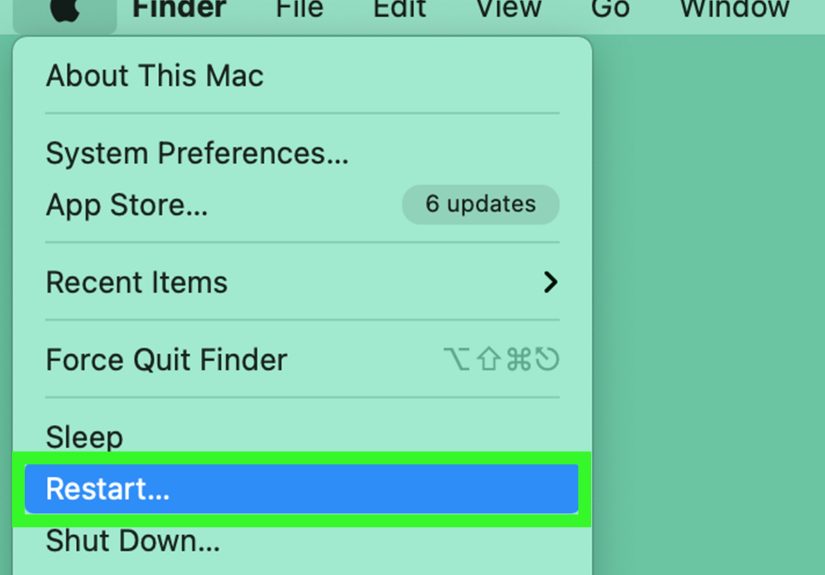
2. Restart Your Mac
A restart can refresh cached images and user settings. This is the classic tech fix because it works often enough to remain legendary.
3. Check the Image Size
If your wallpaper looks blurry, use a larger image. A low-resolution photo may appear fine in a small preview but rough on the full lock screen. Look for images that match or exceed your Mac display resolution.
4. Try a Built-In Apple Wallpaper
If a custom image does not apply correctly, test with a built-in Apple wallpaper. If the built-in wallpaper works, the issue may be related to the custom file type, file location, or image resolution.
5. Update macOS
If wallpaper or lock screen behavior seems buggy, check for macOS updates under System Settings > General > Software Update. Updates often include fixes for visual glitches, system settings, and display behavior.
Practical Examples: Which Method Should You Use?
If your goal is to make the entire lock screen look different, change the wallpaper. This is the best method for people who want a cleaner visual style, a branded work setup, or a calming background for daily use.
If your goal is to personalize the user account area, change the login picture. This is ideal for family Macs, shared computers, office machines, or anyone who wants their user profile to be instantly recognizable.
Here are a few common scenarios:
For a Work Mac
Use a simple dark wallpaper and a professional login picture. Avoid busy designs, distracting vacation photos, or anything that might look awkward during a screen share. Your lock screen should say “organized professional,” not “my downloads folder has 9,000 files and I fear nothing.”
For a Personal MacBook
Choose a favorite landscape, pet photo, abstract design, or dynamic Apple wallpaper. Personal Macs are where you can have fun. Just remember that lock screen text needs to remain readable.
For a Shared Family Mac
Change each user’s login picture so everyone can quickly choose the right account. This is especially helpful for kids, parents, or anyone who does not want to accidentally open the wrong user profile and wonder why all the bookmarks are about dinosaurs, recipes, or fantasy football.
Extra Experience: What I Learned While Customizing a Mac Lock Screen
Changing the lock screen on a Mac sounds like a tiny task, but it can quickly become a mini design project. The first lesson is that simple images usually win. A dramatic mountain photo may look incredible in full screen, but once the login box, clock, and user icon appear, the most beautiful part of the image may be hidden. After testing different wallpapers, clean backgrounds with soft contrast usually look the best.
The second lesson is that dark wallpapers are underrated. They make the lock screen feel elegant, and they often improve readability. A dark blue gradient, a nighttime city photo, or a minimal black-and-gray abstract image can make the password field and user name stand out clearly. Bright wallpapers can look cheerful, but if they are too busy, the lock screen becomes a visual obstacle course.
The third lesson is that personal photos need breathing room. If you want to use a family photo, pet portrait, or travel shot, choose one with empty space around the subject. Centered faces can be covered by the login area, while important details near the edges may be cropped differently on external monitors. A landscape photo with the subject slightly off to one side usually works better than a close-up image.
The fourth lesson is that the login picture matters more than people think. On a shared Mac, custom user pictures reduce confusion immediately. Instead of reading every account name, people recognize their photo or icon. This small change makes the Mac feel more organized, especially in homes where one computer serves multiple users.
The fifth lesson is to avoid over-customizing with risky file replacements. Some older tutorials suggest digging through system folders to force a separate lock screen image. That may have worked on older macOS versions, but newer versions protect more system areas. For everyday users, System Settings is safer, faster, and less likely to create a troubleshooting adventure that ends with you whispering, “Why did I touch this?” at midnight.
Finally, lock screen customization is not just about decoration. It affects mood and workflow. A calm wallpaper can make your Mac feel less cluttered before the workday starts. A professional image can make your laptop look polished in meetings. A funny pet photo can make unlocking your computer slightly more delightful. And honestly, if your Mac can greet you with a picture of your dog looking heroic, why would you deny yourself that joy?
Conclusion
Learning how to change the lock screen on a Mac is simple once you understand how macOS handles wallpapers, screen savers, and user pictures. The fastest method is to change your wallpaper through System Settings > Wallpaper. This usually updates the visual style of your lock screen after you are signed in. The second method is to change your login picture through System Settings > Users & Groups, which personalizes the user account area of the lock screen.
For the best results, use a high-resolution image, keep important details away from the center, and choose a login picture that looks good in a circular crop. If the new lock screen does not appear immediately, lock the screen manually, restart your Mac, or test with a built-in Apple wallpaper. Keep in mind that the startup login screen may not always match your selected wallpaper because macOS security and system behavior can vary by version.
In short, you do not need to hack your Mac to make it look better. A clean wallpaper and a well-chosen login picture can transform your lock screen in minutes. Your Mac gets a fresh outfit, and you get to feel like you accomplished something before even opening your first app. That is productivity with style.
Note: The safest and most reliable customization method is to use macOS System Settings. Avoid editing protected system files unless you fully understand the risks and have a current backup.






 Close
Close