
Table of Contents >> Show >> Hide
- Chromecast vs. Google Cast: The 30-Second Translation
- How Chromecast Works (And Why It’s Not Just Screen Sharing)
- The Different “Chromecast Experiences” You Might Have
- What Can Chromecast Stream? (A Practical, Real-World List)
- What Chromecast Can’t Stream (Or: Where People Get Stuck)
- How to Use Chromecast Like You Actually Want It to Work
- Is Chromecast Still Worth It in 2026?
- Real-Life Chromecast Experiences (500-ish Words of “Yep, Been There”)
- SEO Tags
Chromecast is one of those little tech inventions that feels like a magic trick the first time you use it:
you tap a tiny icon on your phone, and suddenly your TV is playing the exact video you were watching… but
now it’s the “big screen” version, with fewer squints and more snacks.
But Chromecast isn’t just a “tiny HDMI thing” (though it absolutely started that way). Today, it’s also a
streaming technology (Google Cast) that’s built into many TVs, speakers, and streaming boxes. And what it
can stream depends on how you’re using itcasting from apps, mirroring a screen, or sending a Chrome
tab to your TV like you’re presenting quarterly earnings to your cat.
Chromecast vs. Google Cast: The 30-Second Translation
Let’s untangle two terms people mix up all the time:
-
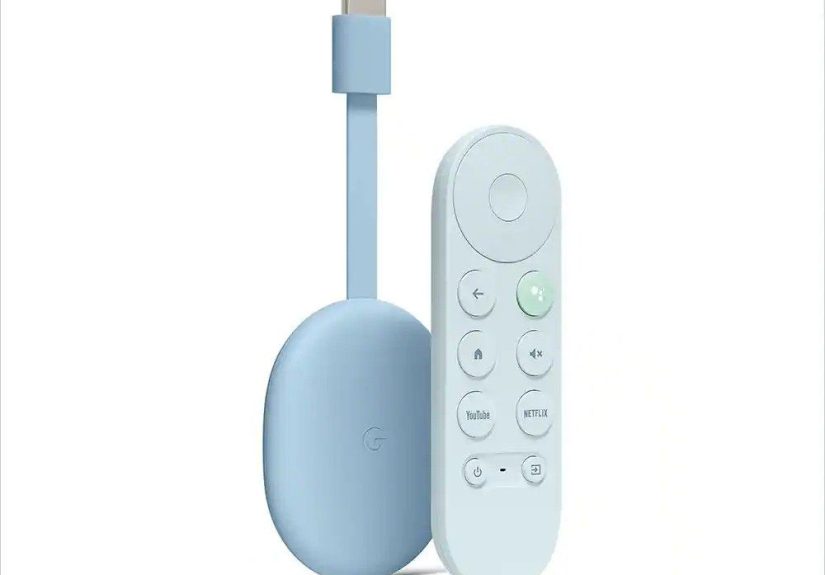
Chromecast = the hardware product (the classic “dongle” that plugs into HDMI), plus some
newer Google TV-style devices that also support casting. -
Google Cast (often just “Cast”) = the underlying technology that lets you send video/audio
from a phone, tablet, or computer to a TV or speaker that can receive it.
Think of it like this: Chromecast is a specific “receiver.” Google Cast is the language your phone and TV
use to talk. That’s why you’ll see “Chromecast built-in” (or “Google Cast built-in”) on some smart TVs and
speakerseven if they aren’t made by Google.
How Chromecast Works (And Why It’s Not Just Screen Sharing)
The most important thing to understand about Chromecast is that casting usually isn’t your
phone “streaming” the video to your TV like a human Wi-Fi hotspot.
When you cast from an app, your phone becomes the remote
In many Cast-enabled apps (like YouTube or Disney+), your phone sends instructions to the Chromecast:
“Play this video, at this timestamp, using this account.” Then the Chromecast pulls the
stream directly from the internetmeaning you can close the app, answer texts, or doomscroll something else
while the TV keeps playing.
This is why Chromecast feels so smooth: your phone controls playback, but it’s not doing the heavy lifting.
It’s also why casting can be more stable than old-school mirroring. You’re not sending every pixel your
phone draws; you’re handing off the job to the TV device.
What Chromecast needs to work well
- Wi-Fi (usually both devices on the same network)
- A Cast receiver (Chromecast device, Google TV device, or a TV/speaker with Cast built-in)
- A Cast-enabled app or a Chrome browser for tab/screen casting
If casting ever “can’t find devices,” nine times out of ten it’s a Wi-Fi mismatch, a router being moody,
or a phone permission setting (especially on iPhone/iPad) that needs a quick nudge.
The Different “Chromecast Experiences” You Might Have
1) The classic Chromecast (the HDMI plug-in streamer)
This is the original idea: a small device that turns a non-smart TV into a smart oneat least smart enough
to play content you send it. Over the years, Google released multiple generations and models (including 4K
variants). The details vary by model, but the core promise stays the same: tap Cast, watch on TV.
A quick reality check for 2026: Google has shifted away from selling Chromecast dongles as a main product
line and pushed newer Google TV hardware instead. That doesn’t mean casting is deadcasting is everywhere.
It just means the “Chromecast” name is less likely to be on the shelf next to the HDMI cables.
2) Chromecast built-in (your TV or speaker is the Chromecast)
Many smart TVs, soundbars, and speakers support Google Cast directly. In everyday life, this is the most
invisible form of Chromecastbecause there’s no dongle. You simply open a Cast-enabled app, tap the Cast icon,
and select the TV/speaker. If you’ve ever cast music to a smart speaker while cleaning the kitchen and
pretending you’re in a montage, you’ve used this.
3) Chromecast with Google TV / Google TV devices (casting + on-screen apps)
Some Google TV devices include a remote and an interface with installed appsso you can stream the “traditional”
way (open Netflix on the TV, click play) or cast from your phone. In real life, people mix both:
casting when guests want to play something from their own accounts, and using TV apps when you don’t feel like
being the household DJ.
What Can Chromecast Stream? (A Practical, Real-World List)
Chromecast can stream a lotbecause it isn’t limited to one service. If an app supports Google Cast, it can
send content to your TV or speaker. Google also lists “thousands of apps” that support Chromecast built-in
across categories like video, music, sports, and more.
Video: movies, shows, and (let’s be honest) endless YouTube
Most major streaming apps have Cast support, including services like YouTube and many popular subscription
platforms. In practice, this means you can:
- Start a show on your phone and “throw it” to the TV in two taps
- Queue up videos from the couch without hunting for the remote
- Use your phone keyboard for searching (a luxury your TV remote will never understand)
Specific example: You’re watching a recipe video on YouTube. You tap Cast, select your living room TV,
and now you can pause with your elbow (phone in hand) while your other hand is covered in flour and regret.
Music & audio: speakers, soundbars, and whole-home vibes
Casting isn’t just for TVs. Many Google Cast-enabled speakers and audio devices let you stream music, podcasts,
and audiobooks. The benefit is similar: your phone becomes the controller, while the receiver plays the audio.
It’s great for parties, workouts, or pretending your shower is a concert venue.
Photos & personal media: “Here are 42 pictures of my dog”
Chromecast works beautifully for photo sharingespecially with services like Google Photos and other Cast-enabled
gallery apps. You can put vacation photos on the TV, run a slideshow during family gatherings, or show friends
the one good picture you took on that trip where everything went wrong.
Live TV, sports, and news
If you use internet-based live TV services, many of them support casting. This is especially handy for sports:
find the game on your phone, cast to the TV, and then use your phone for stats, group chats, or dramatic reactions
typed in all caps.
Web pages and Chrome tabs (aka “I swear this is educational”)
Chromecast also supports casting from the Chrome browser on a computer. You can cast:
- A single Chrome tab (best for most websites and streaming pages)
- Your entire desktop (best for presentations, video calls, and showing grandma how to use email)
This is incredibly useful when you want a bigger screen for something that doesn’t have a Cast buttonlike a
niche website, a web-based class, or a work doc you need to stare at dramatically.
Local files (yes, really)
You can often cast local video files from a computer by opening them in Chrome (or using certain players/extensions)
and then casting the tab. Results vary based on file type and performance, but it’s a surprisingly handy trick
when you have a download you want on the TV without plugging in a laptop like it’s 2009.
What Chromecast Can’t Stream (Or: Where People Get Stuck)
1) Apps and sites without Cast support
If an app doesn’t include the Cast feature, you may need to use Chrome tab casting (from a computer) or screen
mirroring (usually from Android). And even then, some content may not play nicely due to DRM restrictions.
2) iPhone full-device mirroring isn’t native
On iPhone/iPad, you can cast from many iOS apps that support Google Cast. But native full-device
screen mirroring to Chromecast isn’t built into iOS the way AirPlay is. If you need full-screen mirroring from
iPhone, you’re typically looking at third-party apps or alternative solutions (and experiences can vary).
3) “Why doesn’t the Cast icon show up?” moments
Common culprits include:
- Phone and TV/Chromecast on different Wi-Fi networks
- Router isolation settings (guest networks can block discovery)
- Local network permissions disabled on iOS
- Outdated app versions on phone or device
4) A big 2025–2026 gotcha: Netflix changed mobile casting
If you’re thinking, “I used to cast Netflix from my phonewhat happened?” you’re not imagining things.
Multiple reports confirmed Netflix removed (or heavily limited) the ability to cast from its mobile app to many
modern TV and streaming devices starting around mid-November 2025, with a widely cited effective date of
November 10, 2025. In many cases, viewers now have to use the Netflix app directly on the TV/streaming
device with a remote. Some older Chromecast-style setups may still work, but it’s no longer the universal
“Cast it from your phone” experience it once was.
The important takeaway: Chromecast can stream tons of servicesbut each service gets to decide how (and whether)
it supports casting, and those policies can change.
How to Use Chromecast Like You Actually Want It to Work
Set it up the sane way
- Plug the Chromecast/receiver into HDMI and power
- Use the Google Home app to set it up on your Wi-Fi
- Make sure your phone is on the same Wi-Fi network
- Open a Cast-enabled app and tap the Cast icon
Pro tip: If your Wi-Fi is weak near the TV, you’ll feel it most with high-resolution video. Even small changes
(moving the router, using a mesh system, or choosing a device with Ethernet options) can dramatically improve
the “why is it buffering during the best scene?” problem.
Make Chrome casting less annoying
- Cast the tab when you can (it’s usually smoother than casting your whole desktop)
- Mute your laptop notifications if you’re casting your entire screen (ask me how I know)
- Pin the Cast button in Chrome so you’re not hunting through menus
Troubleshooting in one breath
If Chromecast won’t show up: confirm Wi-Fi match, restart the Chromecast and router, update your apps, check iOS
local network permissions, and try again. If it still won’t cooperate, it’s okay to stare at the TV like it
personally betrayed youbut do restart the router first.
Is Chromecast Still Worth It in 2026?
If you already own a Chromecast or a TV with Chromecast built-in, it’s still a genuinely useful way to stream
especially because casting works across so many apps and devices. The bigger shift is product branding:
Google has leaned toward Google TV hardware (and Google Cast built-in across partner devices) rather than continuing
to push the classic Chromecast dongle as the star of the show.
Chromecast still shines when you:
- Prefer controlling TV playback from your phone
- Have guests who want to share content without logging into your TV apps
- Want a simple way to put photos, videos, and audio on the biggest screen/speakers in the room
- Need a flexible “works with lots of services” solution
The main reason to choose a different ecosystem is if you want a specific interface, app store, or device feature
set (or if a service you love decides it hates casting this year). But for the everyday “get this on my TV now”
problem, Chromecast remains a classic.
Real-Life Chromecast Experiences (500-ish Words of “Yep, Been There”)
Using Chromecast in real life is a little like owning a small, helpful genie. Most days it grants your wishes
instantly. Some days it pretends it can’t hear you, even though you’re standing three feet away, waving your phone
like a tiny technological torch.
The first “wow” moment is usually the same: you’re watching something on your phonemaybe a trailer, a TikTok
compilation (no judgment), or a cooking videoand you realize the Cast icon is sitting there like a secret door.
You tap it, your TV wakes up, and suddenly you’re watching on a real screen. That’s when you understand why
Chromecast caught on: it turns your phone into the easiest remote you’ve ever used. Searching a show title with
a phone keyboard feels luxurious compared to the TV remote’s “scroll through the alphabet one letter at a time”
ritual that was clearly invented as a character-building exercise.
Chromecast is also a social superpower. Friends come over, and instead of handing someone your TV remote and hoping
they don’t accidentally change your entire input setup, you say, “Just cast it.” They open their app, tap the icon,
and boommusic, videos, highlights, whatever. It’s weirdly democratic. Everyone gets a turn, and the TV becomes a
shared space instead of a sacred object only one person is allowed to operate.
Then there’s the “I’m traveling” use case, which is both magical and mildly chaotic. In a perfect world, you plug a
Chromecast into the hotel TV, connect to Wi-Fi, and stream like you’re at home. In the real world, hotel Wi-Fi is
often protected by a sign-in page (a captive portal) and the Chromecast just sits there like, “I don’t have a browser,
friend.” That’s when you learn the value of personal hotspots, travel routers, or simply deciding that reading a book
is also an acceptable activity. (Rare, but acceptable.)
The “why is this buffering?” chapter is inevitable, too. Casting can be flawless, until the moment your router
decides to remember it’s a router. Most people eventually learn a few practical habits: keep the streaming device
reasonably close to the router, avoid overcrowded Wi-Fi if possible, and restart things before blaming your entire
family. If you cast a lot of 4K content, stable Wi-Fi matters. A router upgrade can feel like overkillright up until
your stream stops stuttering and you wonder why you didn’t do it sooner.
And yes, sometimes services change the rules. When a streaming app removes or limits casting support, it feels
personal, like someone came into your house and moved your couch two inches to the left. But that’s also why the
Chromecast “toolbox” approach is handy: if an app won’t cast, you can often switch to using the TV’s native app,
cast from Chrome, or mirror from Android. Chromecast isn’t just one trickit’s a set of options, and that flexibility
is what keeps it useful.
In the end, Chromecast is less about a gadget and more about a lifestyle choice: “I would like my phone to be
the remote, please.” Once you get used to that, it’s hard to go back.




 Close
Close