
Table of Contents >> Show >> Hide
- Why Your Smartphone or Tablet Sounds Too Quiet
- Fast Volume Booster Fixes That Actually Work
- Best iPhone and iPad Volume Booster Tips
- Best Android Phone and Tablet Volume Booster Tips
- How to Make Audio Sound Louder Without Just Raising Volume
- Safe Listening Matters More Than Winning a Volume Contest
- What Not to Do When Trying to Boost Volume
- When Low Volume Means a Real Hardware Problem
- Experience-Based Lessons From Everyday Use
- Final Thoughts
If your phone or tablet sounds weak, muffled, or about as powerful as a mosquito giving a TED Talk, the good news is this: you usually do not need a new device. In many cases, low volume comes from simple problems like the wrong audio slider, a clogged speaker grille, a Bluetooth connection that hijacked your sound, or a safety setting quietly doing its job. The trick is knowing which fix actually helps and which “volume booster” gimmick is just digital snake oil wearing sunglasses.
This guide breaks down the smartest volume booster tips for smartphones and tablets, including iPhone, iPad, Android phones, and Android tablets. You will learn how to make your device sound louder, clearer, and more usable without wrecking the speakers or your hearing. Better yet, these are practical fixes you can use right now, whether you are trying to hear calls in a noisy room, stream a movie on a tablet, or stop your favorite playlist from sounding like it is trapped in a sock drawer.
Why Your Smartphone or Tablet Sounds Too Quiet
Before you start smashing the volume-up button like it owes you money, it helps to know why mobile devices often seem quiet even at high settings.
1. You may be adjusting the wrong volume control
Modern devices separate media volume, call volume, ring volume, notification volume, and alarm volume. That means your music can be quiet while your ringtone is obnoxiously confident. If your videos sound faint, check media volume specifically. If phone calls are the issue, adjust call volume during a call.
2. Your audio may be going to the wrong output
A phone can stay connected to earbuds, a car stereo, a speaker, or another Bluetooth accessory even when you forgot about it. When that happens, your device is not “too quiet.” It is simply sending audio somewhere else. This is one of the most common reasons people think their speaker volume dropped overnight.
3. Dirt and lint can muffle speakers
Phones and tablets spend their lives in pockets, bags, beds, couches, kitchens, and occasionally places that should remain unnamed. Speaker openings collect lint, dust, and grime, which can noticeably reduce volume and clarity. If your device sounds more muffled than quiet, debris is a prime suspect.
4. Audio settings can reduce perceived loudness
Features like volume normalization, sound check, EQ presets, headphone safety limits, and audio balance settings can all affect how loud your audio feels. Sometimes they improve clarity. Sometimes they flatten the punch out of your sound. Settings are helpful, but they are not always helping you.
5. Tiny speakers have physical limits
Smartphones and tablets are engineering miracles, but they are still thin slabs, not concert speakers. Built-in speakers can only move so much air. You can often improve loudness and clarity, but there is a ceiling. The goal is to get the best sound your hardware can produce, not force it to impersonate a home theater system.
Fast Volume Booster Fixes That Actually Work
Check the correct volume slider first
Start with the simplest move. Open the full sound menu and verify that the right channel is turned up. On Android, you can usually expand the volume panel and adjust media, calls, alarms, and notifications separately. On iPhone and iPad, make sure you are increasing the sound for the content you are actually using.
Disconnect unused Bluetooth devices
If your device is still paired to earbuds, your car, or a speaker in another room, audio may be routed away from the built-in speakers. Turn Bluetooth off temporarily or manually switch the playback destination back to the phone or tablet. It is a classic fix because it works embarrassingly often.
Remove bulky or poorly fitted cases
Some thick cases partially block speaker openings or change how sound travels out of the device. A case can also trap lint around the speaker grille. If your audio suddenly got worse after changing accessories, the case may be the villain in this story.
Clean speaker grilles gently
Use a clean, dry, soft-bristled brush to loosen debris from speaker openings. A flashlight can help you see what is packed in there. Be gentle. This is delicate hardware, not a barbecue grill. Avoid sharp objects, soaking liquids, compressed air blasts, and random internet “hacks” that seem designed by people who hate electronics.
Restart the device
Yes, the oldest advice in tech still works. Audio glitches, Bluetooth confusion, and app-specific bugs can vanish after a restart. It is not glamorous, but neither is spending 40 minutes hunting through settings when a reboot solves the problem in 40 seconds.
Best iPhone and iPad Volume Booster Tips
Review playback destination
While audio is playing, open Control Center or the Now Playing screen and check where the sound is going. If it is routed to AirPods, a Bluetooth speaker, or an AirPlay target, switch it back to your iPhone or iPad. Many “my iPad is too quiet” complaints are really “my iPad is politely sending sound to something else.”
Check Music EQ and Sound Check
Apple gives you built-in sound tools that can change how loud music feels. EQ presets may make certain content sound fuller or brighter, while Sound Check normalizes volume across tracks. That can be useful for comfort, but if you want more punch, test your music with Sound Check off and try a different EQ option. The difference can be subtle or noticeable depending on the track.
Inspect Headphone Safety settings
If your headphones seem capped, open your sound-related safety settings and check whether a loudness reduction feature is active. These tools exist for a good reason, but if you forgot they were enabled, they can make your device feel weaker than it really is. The smart move is to understand the setting, not blindly disable every safeguard and blast your ears into next Tuesday.
Check audio balance and Mono Audio
If one side sounds weaker than the other, look at Audio & Visual accessibility settings. A shifted balance slider can make the whole experience feel quieter, especially with headphones. Mono Audio can also help if you need both channels combined evenly.
Watch for focus and silent-related settings
If alerts or certain sounds seem missing, make sure Silent mode, Focus modes, or Do Not Disturb are not affecting what you expect to hear. These settings are great when you want peace and terrible when you forgot you enabled peace three days ago.
Best Android Phone and Tablet Volume Booster Tips
Use the full Android volume panel
Android devices typically offer separate controls for media, call, ring, notification, and alarm audio. Open the expanded panel and raise the slider that matches your problem. If YouTube is whispering but incoming calls are loud, media volume is your target. If you cannot hear people during calls, adjust call volume while you are on a call.
Try Sound Amplifier for speech and clearer audio
Some Android devices support Sound Amplifier, an accessibility feature designed to boost important sounds and reduce background noise, especially with headphones. It is not a magic “make everything louder forever” button, but it can help with spoken content, classes, meetings, and videos where voices get buried.
Use Dolby Atmos, Adapt Sound, or built-in EQ when available
On many Samsung phones and tablets, features like Dolby Atmos, Adapt Sound, and Equalizer can make audio feel bigger, clearer, and better tuned to your ears. These settings do not increase raw physical speaker power, but they can improve perceived loudness and clarity. In plain English, the sound may not technically be much louder, but it can feel more alive and easier to hear.
Check app-specific sound behavior
Some apps have their own volume controls, normalization features, or playback settings. A streaming app, game, or video editor can sound quieter than another app on the same device. Always check the in-app controls before blaming the device itself.
Be careful with third-party volume booster apps
Most volume booster apps do not create extra hardware power. They usually raise gain, apply EQ, or compress audio so it seems louder. Sometimes that helps. Sometimes it makes your music sound like it was microwaved. If you use one, keep expectations realistic and watch for distortion, overheating, battery drain, or speaker strain. The best boosters are usually the device’s built-in tools, not mystery apps with 47 pop-ups and a dragon logo.
How to Make Audio Sound Louder Without Just Raising Volume
Improve clarity instead of chasing raw loudness
A clearer sound often feels louder. That is why EQ, speech enhancement, and cleaner speakers matter so much. If voices are hard to understand, boosting mids or using speech-focused audio tools may help more than maxing out the master volume.
Move the device to a better position
Tablet speakers can fire sideways, downward, or out the back. If the speakers are blocked by a blanket, desk, couch cushion, or your own hand, volume drops fast. Propping the device at a slight angle or using a stand can improve projection immediately.
Use better headphones or an external speaker
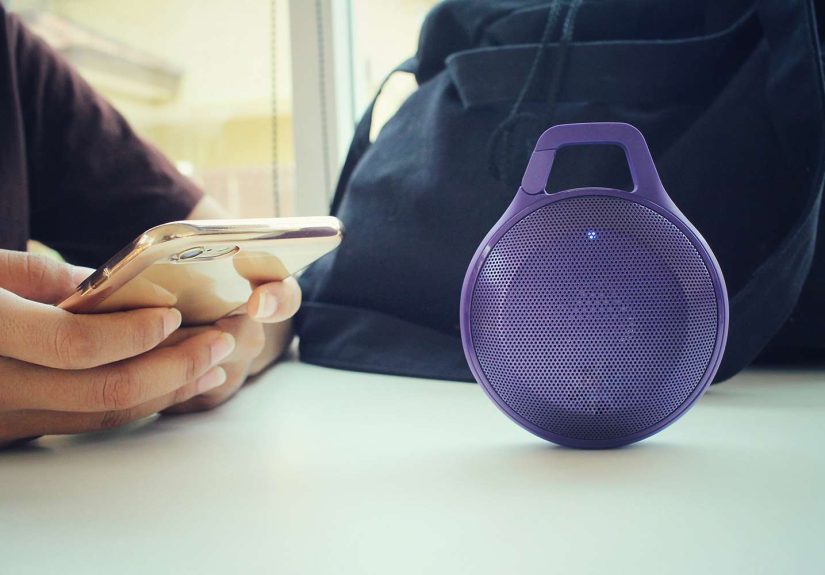
If you regularly need more sound for movies, workouts, or calls, a solid pair of headphones or a compact Bluetooth speaker will outperform built-in speakers every time. This is often the smartest “volume booster” of all because it works with physics instead of arguing with physics.
Choose noise isolation over unsafe loudness
In noisy places, people often crank volume just to overpower background sound. A better solution is using headphones or earbuds with decent passive isolation or noise canceling. That lets you hear more detail at lower, safer levels. Your ears will thank you, even if they are not great at writing thank-you notes.
Safe Listening Matters More Than Winning a Volume Contest
There is a point where “louder” stops being helpful and starts being harmful. Long or repeated exposure to high sound levels can damage hearing. Safe listening habits matter whether you use headphones, earbuds, phone speakers, or a tablet during long study sessions.
A smart rule is to keep volume moderate and take regular breaks. If you listen at high levels for extended periods, your ears can become fatigued even before you notice obvious problems. Ringing in the ears, muffled hearing after listening, or needing more volume than before are all signs to back off and pay attention.
If you have ongoing trouble hearing, persistent ringing, sudden changes in hearing, or constant need for maximum volume, do not assume your device is the issue. Sometimes the problem is hearing-related rather than hardware-related. In that case, a medical check is more useful than another app download.
What Not to Do When Trying to Boost Volume
- Do not jam pins, knives, or toothpicks into speaker holes. That is not maintenance. That is sabotage.
- Do not pour liquid into speaker openings. Moisture and electronics have a famously bad relationship.
- Do not keep audio at maximum all day. Distortion increases, battery drains faster, and hearing risk goes up.
- Do not assume every “booster” app is safe. Some simply overprocess sound and create ugly distortion.
- Do not ignore persistent crackling or heavily distorted audio. That can point to damage or a hardware fault.
When Low Volume Means a Real Hardware Problem
Sometimes the issue is not a setting. If your smartphone or tablet still sounds quiet after checking sliders, Bluetooth routing, cleaning the speaker, restarting the device, and testing multiple apps, you may be dealing with a hardware problem. Warning signs include distortion at low volume, one speaker not working, crackling, muffled call audio across all apps, or no improvement after removing cases and debris.
At that point, test with headphones and built-in speakers separately. If headphones sound normal but the speakers do not, the speaker system may need repair. If everything sounds weak everywhere, the problem could be software, accessibility settings, Bluetooth routing, or even hearing-related. In other words, yes, tech is complicated, and no, your frustration is not irrational.
Experience-Based Lessons From Everyday Use
In real life, the best volume booster tips for smartphones and tablets are usually the boring ones people skip at first. A lot of users assume their device suddenly “lost power,” but daily experience shows something simpler is often happening. Someone connects Bluetooth earbuds in the morning, tosses them in a bag, and forgets the phone is still trying to send audio there. Later, a video seems nearly silent from the device speaker, and the user immediately blames the phone. Once Bluetooth is turned off or the playback destination is switched back, the “broken speaker” magically recovers. Funny how that works.
Another common experience happens with tablets used in bed, on the couch, or at a desk. The speakers are technically fine, but the device is resting on a blanket, soft pillow, or flat surface that blocks or absorbs the sound. The user raises the volume higher and higher, but the sound still feels weak because the audio is being muffled before it even reaches the room. A small change in angle, a stand, or even just holding the tablet differently can make the same speaker seem dramatically louder.
Cleaning also makes a bigger difference than many people expect. A phone carried in a pocket every day can build up lint in the speaker openings little by little, so the drop in loudness feels gradual rather than sudden. Because it happens slowly, users adapt and do not realize how muffled the sound has become. Then they gently clean the grille and suddenly the phone sounds fresher, brighter, and louder. It feels like a software upgrade, but it was really a dust eviction.
People also learn the hard way that louder is not always better. Many try third-party volume booster apps expecting a miracle, only to get harsher sound, distortion, and battery drain. Music may seem louder for a few minutes, but voices become sharp, bass gets muddy, and the whole thing turns into a mess. In actual day-to-day use, built-in options like EQ, Dolby Atmos, Sound Amplifier, or better headphones usually produce a better result than forcing the device to overprocess audio.
There is also the hearing side of the story. Plenty of users discover that when they constantly need maximum volume in busy environments, the real problem is not weak hardware but strong background noise. Switching to better-fitting earbuds or noise-canceling headphones lets them listen at lower levels while hearing more detail. That is one of the smartest lessons from experience: the goal is not just more volume, but more usable sound. When you improve clarity, routing, cleanliness, and setup, your smartphone or tablet often stops sounding underpowered and starts sounding the way it should have all along.
Final Thoughts
If you want louder, clearer sound from your phone or tablet, start with the basics that actually move the needle. Check the correct volume channel, confirm the playback output, clean the speaker grilles carefully, review sound settings, and use built-in tools like EQ, Sound Amplifier, Dolby Atmos, or accessibility audio options when they fit your needs. If that still is not enough, external headphones or speakers are usually the best upgrade.
The smartest volume booster strategy is not to force tiny speakers to do impossible things. It is to remove the bottlenecks, improve clarity, and protect your hearing while getting the most out of the device you already own. In other words, work with your phone or tablet, not against it. Your ears, your battery, and your sanity will all appreciate the teamwork.





 Close
Close