
Table of Contents >> Show >> Hide
- What Copilot in PowerPoint Actually Does (and What It Doesn’t)
- Before You Start: Requirements and Setup
- Where to Find Copilot in PowerPoint
- Your First 10 Minutes with Copilot: Three Beginner Wins
- How to Prompt Copilot Like You’re a Calm, Organized Adult
- Editing and Refining: Turning “AI Draft” into “Actually Good”
- Adding Slides with Copilot (Without Wrecking Your Deck)
- Design and Visuals: Let Copilot Help (But Keep Your Taste Buds Involved)
- Beginner Mistakes (So You Don’t Accidentally Make a “Slide Crime”)
- Practical Copilot Workflows for Real People Who Have Meetings
- FAQ: Beginner Questions About Copilot in PowerPoint
- Beginner Experiences: What It Feels Like to Learn Copilot in PowerPoint
- Conclusion
You know that moment when you open PowerPoint with big “I’m going to be so productive today” energy… and then spend 47 minutes
choosing between two nearly identical shades of blue? Copilot in PowerPoint is here to rescue you from the tyranny of tiny design choices
and help you get to the part that actually matters: telling a clear story with slides that don’t look like they were built in a panic at 11:58 PM.
This beginner’s guide walks you through what Copilot can do, how to find it, how to prompt it like you mean it, and how to turn AI-generated
drafts into a presentation you’d happily put your name on. We’ll keep it practical, slightly funny, and very focused on real steps you can try today.
What Copilot in PowerPoint Actually Does (and What It Doesn’t)
Copilot in PowerPoint is an AI assistant built into the Microsoft 365 ecosystem. Think of it as a super-fast first-draft machine for presentations.
It can generate a deck from a prompt, build slides from documents you attach, rewrite slide text, create speaker notes, and summarize long presentations.
It’s great at getting you unstuck and saving time on structure and wording.
Copilot is amazing at draftsnot mind reading
Copilot won’t magically know your strategy, brand rules, or whether your boss hates pie charts. It needs context. The better your prompt (and the
cleaner your source document), the better your results.
Copilot is not a fact-checker
If you ask Copilot to include statistics or historical details, treat the output like a draft written by a very confident intern.
You’ll still want to verify key facts, numbers, and names before presenting.
Before You Start: Requirements and Setup
Copilot in PowerPoint is tied to Copilot-enabled Microsoft 365 plans and account settings. In many workplaces, it’s provided as an add-on license
and may depend on your organization’s IT policies. If you’re using a personal subscription, availability can vary by plan, platform, and rollout.
Quick setup checklist
- Sign in to PowerPoint with the Microsoft account that has Copilot access (work/school or personal, depending on your plan).
- Update PowerPoint to the latest version available for your device (desktop apps and web get features at different speeds).
- Confirm Copilot is enabled for your account (some organizations turn it on gradually, or restrict it by policy).
If you don’t see Copilot
Don’t panic. “Missing Copilot” usually comes down to one of these:
- You’re signed into the wrong account (the classic “two accounts, one laptop” situation).
- Your PowerPoint version isn’t updated (PowerPoint can’t show new features it doesn’t have).
- Your license doesn’t include Copilot access yet, or your admin hasn’t enabled it.
- You’re using a platform/version where the feature hasn’t rolled out to your channel yet.
Where to Find Copilot in PowerPoint
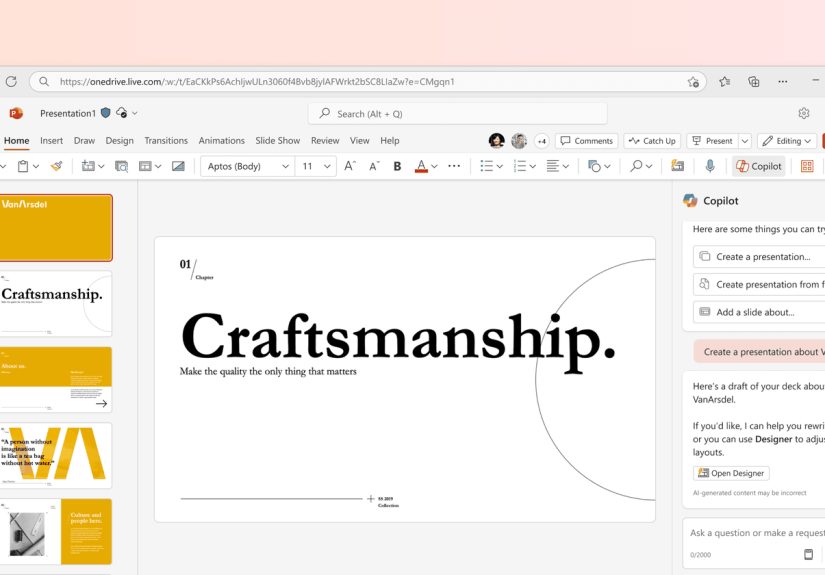
In Copilot-enabled builds, you’ll typically see a Copilot button in the PowerPoint ribbon (often on the Home tab),
and sometimes a Copilot icon near the top of the canvas area. The exact placement can shift as Microsoft updates the interface, but it’s usually
not hiding in the dark like a 2006 toolbar.
If you’re working in PowerPoint for the web, Copilot can also appear in the ribbon when your subscription includes it.
For some users, Copilot features may appear on web before desktop (or vice versa), depending on rollout and update channels.
Your First 10 Minutes with Copilot: Three Beginner Wins
If you’re new, don’t start with a “make me a 40-slide investor deck about everything we’ve done since 2019.” Start with quick wins.
Here are three beginner-friendly moves that teach you how Copilot thinks.
Win #1: Create a brand-new presentation from a prompt
- Open PowerPoint and create a new blank presentation (or start from your company template).
- Select Copilot.
- Choose the option to Create a presentation.
- Type a prompt describing your topic, audience, and tone.
- Optional: attach a file (more on that next).
- Review the draft, then edit slide titles, wording, and structure.
Example prompt:
Win #2: Build a presentation from a document you already have
This is where Copilot shines for beginners because you’re not asking it to invent everythingyou’re asking it to transform what you already know.
In the “Create a presentation” flow, you can attach files for Copilot to reference. In many Copilot experiences, you can include multiple files
(often up to five) such as Word docs, PDFs, text files, spreadsheets, and certain Microsoft 365 pages.
Best tip: if you’re starting from a Word document, use headings (like Heading 1 / Heading 2) to show structure.
Copilot tends to create cleaner slide outlines when the source file has obvious sections.
Document-to-deck prompt idea:
Win #3: Summarize a long presentation
If someone sends you a 32-slide deck named “FINAL_v7_REALLYFINAL,” Copilot can help you quickly pull the key points. Use Copilot’s summarizing
feature to generate a digest of main ideas, then skim the slides with a purpose instead of doom-scrolling slide thumbnails.
How to Prompt Copilot Like You’re a Calm, Organized Adult
Prompts are simply instructions. But good prompts are structured instructions. Microsoft’s general prompt guidance often boils down to:
state the goal, add context, define what “good” looks like, and provide (or attach) the source you want it to use.
The “G-C-E-S” prompt formula (Goal, Context, Expectations, Source)
- Goal: What are you making? (A 10-slide overview? A training deck?)
- Context: Who is the audience and what do they already know?
- Expectations: Format, length, tone, must-include sections, constraints.
- Source: Attach files or describe what information to use.
Prompt examples you can copy
1) Sales pitch deck (short and punchy):
2) Training deck (clear and step-by-step):
3) Executive update (tight and structured):
Editing and Refining: Turning “AI Draft” into “Actually Good”
Copilot’s biggest value isn’t that it finishes the presentation for youit’s that it gets you to a solid draft fast.
The polishing is where you make it yours.
Rewrite slide text (without rewriting your whole personality)
Use Copilot to rewrite for clarity, tone, or brevity. Be specific about what you want.
- Make it shorter: “Rewrite this slide in 3 bullets, each under 10 words.”
- Make it less corporate: “Rewrite this to sound friendly and plain-English.”
- Make it executive-ready: “Rewrite this in a crisp, professional tone with stronger verbs.”
Create or improve speaker notes
Speaker notes are where you keep your “what I’ll say” content without turning slides into a wall of text.
Ask Copilot for speaker notes that match your time limit and audience.
Example prompt:
Ask Copilot to improve flow
Sometimes Copilot generates slides that are individually fine but collectively feel like a group chat with no moderator.
You can prompt for narrative flow:
Adding Slides with Copilot (Without Wrecking Your Deck)
One of the most practical day-to-day uses is asking Copilot to create a single new slide based on a topicespecially when your deck is mostly done,
but you suddenly realize you forgot the “Risks” slide. (It happens. It always happens.)
Tips for better single-slide results
- Reference the audience: “Add a slide explaining this for first-time users.”
- Specify the slide type: comparison, timeline, checklist, pros/cons, diagram explanation.
- Use your existing style: start from your template so Copilot follows the deck’s design language.
- Constrain the content: “Max 5 bullets” prevents the “encyclopedia slide” problem.
Example prompts:
Design and Visuals: Let Copilot Help (But Keep Your Taste Buds Involved)
Beginners often think “AI will design this for me.” What Copilot can do is accelerate layout ideas, suggest visuals, and help you generate content
that fits a clean slide structure. You’re still the creative director.
Use Copilot to suggest visuals, not just text
If your slide is text-heavy, ask Copilot to recommend a visual approach:
Adding images responsibly
Some Copilot experiences can help you generate or insert images or propose image ideas. If you’re working in an organization,
pay attention to brand guidelines and licensing rules. Also note: AI-generated visuals may include labeling or metadata to indicate they’re AI-created,
and different Microsoft experiences can surface that information in different ways.
Beginner Mistakes (So You Don’t Accidentally Make a “Slide Crime”)
Mistake #1: Vague prompts
“Make a presentation about marketing” is how you get 12 slides of extremely generic advice that sounds like it was written by a motivational poster.
Add audience, goal, and a few required sections.
Mistake #2: Trusting the first draft
Copilot drafts are supposed to be edited. Treat the output like a starting point, not a finished product.
Read everything. Yes, even the speaker notes. Especially the speaker notes.
Mistake #3: Overloading slides
AI can produce a lot of text very quickly. Your job is to be the bouncer at the door.
Limit bullets, shorten phrases, and move details into notes or a handout.
Mistake #4: Ignoring your organization’s data rules
Copilot is designed for enterprise use with protections, but governance still matters.
If your organization has rules around confidential data, follow themespecially when attaching documents or referencing internal material.
In many environments, Copilot’s output is grounded in what you’re permitted to access, so permissions and information hygiene matter.
Practical Copilot Workflows for Real People Who Have Meetings
Workflow 1: “I have a Word doc and I need slides by lunch”
- Clean up the Word doc headings (turn section titles into real headings).
- Open PowerPoint using your team template.
- Use Copilot to create a presentation from the document.
- Trim each slide to 3–6 bullets.
- Add a single “So what?” line to the bottom of key slides (or in speaker notes).
Workflow 2: “I only have an idea and I need structure”
- Prompt Copilot for an outline-style deck with titles first.
- Ask Copilot to expand only the top 3–5 slides with content.
- Rewrite the intro and closing in your own voice.
- Ask Copilot for speaker notes with a time limit per slide.
Workflow 3: “I need to simplify this deck for a non-technical audience”
- Ask Copilot to summarize the deck into 5–7 key points.
- Replace jargon-heavy slide titles with plain-English titles.
- Rewrite dense slides into one idea per slide.
- Add a short example to notes for every complex concept.
FAQ: Beginner Questions About Copilot in PowerPoint
Can I control the tone of the presentation?
Often, yes. Many Copilot creation flows include tone or style options, and you can also specify tone directly in your prompt
(for example: “friendly,” “professional,” “persuasive,” or “for middle school students”).
Can I use more than one source file?
In many Copilot “create a presentation” experiences, you can attach multiple files (commonly up to five) for Copilot to reference,
which is useful when you have a main outline plus supporting documents.
Will Copilot match my company template?
Starting from your approved template is the best way to keep design consistent. Copilot generally works better when it can follow existing slide layouts,
fonts, and theme rules instead of guessing your brand from scratch.
Does Copilot replace PowerPoint Designer?
Not exactly. Designer-style suggestions and Copilot-style content generation can complement each other.
Copilot helps draft content and structure; design tools help refine the look. Use both: structure first, polish second.
Beginner Experiences: What It Feels Like to Learn Copilot in PowerPoint
Most beginners go through the same emotional roller coaster with Copilot in PowerPoint, and it usually happens in three phases:
the “wow” phase, the “wait… why did it do that?” phase, and the “okay, I get it now” phase.
If you’re just starting, here’s what that learning curve often looks like in real life.
On day one, the “wow” is immediate. You type a prompt like, “Create a presentation about improving customer onboarding,” and Copilot hands you a draft deck
faster than you can say “template fonts.” That first output can feel like magicespecially if you normally start from a blank slide and stare at it until your soul exits your body.
Beginners often report that the biggest relief is having a structure: a logical sequence of slides, usable titles, and something you can refine.
Even when the wording is generic, you’re no longer starting from zero.
Then comes the “wait… why did it do that?” phase. Copilot may create a slide that’s technically correct but not quite right for your audience,
like explaining basic concepts to experts or using corporate buzzwords when you asked for plain language. Beginners often discover that Copilot is literal:
if you didn’t specify the audience, it chooses one. If you didn’t specify the length, it may produce content that’s too long for a slide.
This is where people learn a key lesson: your prompt is your steering wheel.
The best beginner habit is to revise the prompt instead of fighting the slides one by one.
In the first week, many users also learn the “source file truth”: Copilot is only as organized as the document you feed it.
If a Word doc is one long wall of text, Copilot will do its bestbut the slides may feel messy. When beginners switch to a clean outline with headings,
the output improves dramatically. That experience tends to stick: suddenly, writing an outline becomes the fastest way to get great slides.
Another common experience is realizing Copilot is best as a co-writer, not a replacement. Beginners often keep Copilot open while they work:
asking for alternate slide titles, rewriting a slide in a more confident tone, generating speaker notes, or turning a dense paragraph into three bullets.
The “aha” moment is when you stop trying to make Copilot “finish the whole deck” and start using it to speed up specific taskslike a power tool you pick up
when you need it, not a robot that takes over your workshop.
Finally, most beginners become more comfortable once they build a small personal library of prompts that fit their job.
After a few tries, you’ll likely have your own favorites like: “Make this executive-friendly,” “Reduce this to 5 bullets,” or “Add a checklist slide.”
That’s the moment Copilot stops feeling like a novelty and starts feeling like a routine part of building presentationsless time wrestling with wording,
more time shaping a message that lands.
Conclusion
Copilot in PowerPoint is a beginner’s best friend for one big reason: it gets you moving. It can draft a presentation from a prompt, transform documents
into slides, rewrite content, generate speaker notes, and summarize long decks so you can focus on the storynot the blank slide dread.
The secret to getting great results is simple: give Copilot clear context, treat the output as a draft, and keep your human judgment in the driver’s seat.
When you combine Copilot’s speed with your expertise, you get presentations that are faster to build, easier to understand, and more enjoyable to deliver
(for you and the people who didn’t want a 40-slide surprise).







 Close
Close