
Table of Contents >> Show >> Hide
- The fastest method: use the PS4’s power button
- Where is the power button on each PS4 model?
- If your PS4 is frozen and won’t respond
- Use your phone instead of a controller
- Use your TV remote with HDMI-CEC (HDMI Device Link)
- Voice commands (yes, PS4 can be bossed aroundsometimes)
- What you should NOT do (unless it’s truly the last resort)
- Prevent the next “no controller” moment
- Troubleshooting: common problems and quick fixes
- FAQ
- Real-world experiences: what “no controller” looks like (and how people handle it)
- Conclusion
You know what’s wild? The PlayStation 4 can render worlds, stream movies, and download a 90GB update at the exact moment you sit down…
but if your controller is missing, suddenly you’re negotiating with a black box like it’s a hostage situation.
The good news: you can turn off (or at least safely put into Rest Mode) a PS4 without a controllerusing the console’s power button,
your phone, your TV remote (sometimes), or a few “future you” settings that prevent the next controller-vanishing act from becoming a saga.
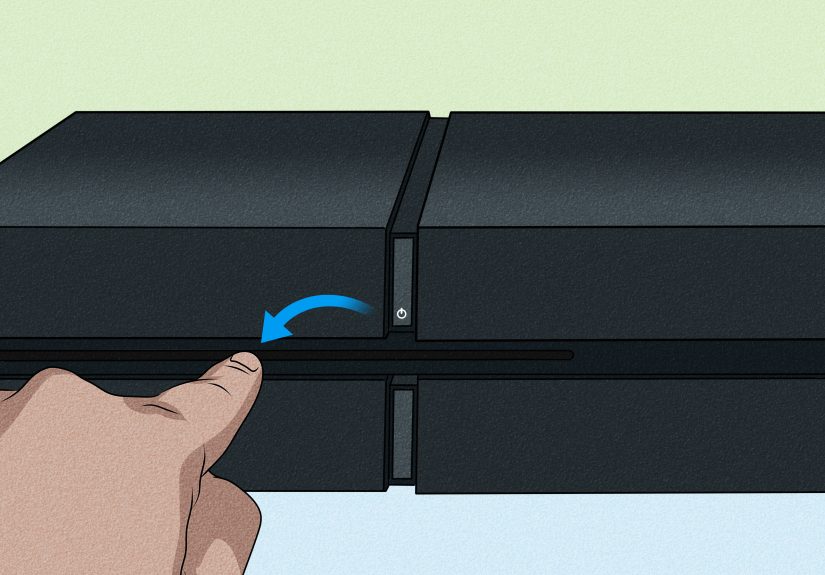
The fastest method: use the PS4’s power button
If your PS4 is working normally and you just don’t have a controller handy, the physical power button is the simplest solution. What you do depends on
whether you want Rest Mode (quick, convenient) or a full shutdown (completely off).
Option A: Put the PS4 into Rest Mode (one beep)
- Locate the power button on your PS4 console (details by model below).
- Press the power button briefly.
- Listen for one beep. The light should change to indicate Rest Mode (often an orange/amber glow).
Rest Mode is basically the PS4 “nap.” It’s not fully off, but it’s low power and lets your console do useful stuff like
download updates (if you enabled those features).
Option B: Fully turn off the PS4 (two beeps)
- Press and hold the power button.
- Keep holding until you hear a second beep (this usually takes several seconds).
- Release the button. The PS4 should fully power down.
Think of the second beep as the PS4’s way of asking, “Are you sure you meant it?” (It’s dramatic like that.)
Where is the power button on each PS4 model?
Sony changed the hardware design over the PS4’s lifetime, so the button placement and feel can vary. Here’s how to find it without performing a ritual dance.
Original PS4 (the “glossy-and-matte” launch style)
- The power button is usually on the front face, near the light bar strip.
- On some early models it’s a touch-sensitive button, not a clicky oneso a light tap works.
PS4 Slim
- The PS4 Slim typically uses a more physical button design.
- It’s still on the console body near the front, but it won’t feel like the older touch sensor.
PS4 Pro
- The Pro also uses a more defined button setup than the earliest PS4.
- Look near the front edge of the console (and yes, it still loves beeps).
If you can’t find it immediately, a simple trick is to look for the power indicator lightthe power button is usually right next to it.
If your PS4 is frozen and won’t respond
Sometimes you’re not just “missing a controller”you’re missing the PS4’s willingness to cooperate. If the system is frozen, the normal shutdown menu
isn’t an option anyway, so you’re back to the power button.
Try a forced shutdown (only when needed)
- Press and hold the PS4 power button.
- Wait for the second beep and/or for the system to power off.
- Once the light is completely off, wait 10–30 seconds before turning it back on.
A forced shutdown isn’t something you want to do every day like it’s a bedtime routine. But when the PS4 is unresponsive, it’s the safest practical move.
Safe Mode: useful, but it usually requires a controller
Safe Mode is great for troubleshooting (like rebuilding the database), and entering it uses the power button beepshowever, navigating Safe Mode typically requires
connecting a DualShock 4 via USB and pressing the PS button. If your goal is strictly “turn it off,” you may not need Safe Mode at all.
Use your phone instead of a controller
If you planned ahead (or you’re lucky), your phone can act as a “remote” pathway to control the PS4especially to put it into Rest Mode. There are two main routes:
PS Remote Play and “second screen” style control.
Method 1: PS Remote Play (best option if already set up)
PS Remote Play lets you connect to your PS4 from a phone, tablet, or computer. If it’s already enabled, you can often control menus well enough to
reach power optionsor at minimum, disconnect Remote Play and choose to place the console in Rest Mode.
- Open the PS Remote Play app on your device.
- Sign in with the same PlayStation Network account tied to your PS4.
- Connect to your PS4 (it may need to be on, or configured to allow network wake from Rest Mode).
- Once connected, use on-screen controls to navigate to power optionsor end Remote Play and select the option that puts the console into Rest Mode.
Important: Remote Play usually works best if you previously enabled Remote Play and allowed network features in Rest Mode. If you never set it up,
you may not be able to use this method in an emergencybecause the PS4 is big on “permissions” and not big on “mind reading.”
Method 2: PlayStation app / “second screen” style control (varies)
Depending on your setup and app versions, you may be able to connect your phone to the PS4 for basic navigation. In many real-world cases, this route is more reliable
for starting sessions or using media controls than for issuing a true “full shutdown.” But it can still save you if your main goal is to park the console in Rest Mode.
Use your TV remote with HDMI-CEC (HDMI Device Link)
Here’s the sneaky trick that feels like a cheat code: some TVs can control the PS4 over HDMI using a feature often called HDMI-CEC.
On PS4, Sony labels its side of the equation as HDMI Device Link.
What this can do
- Let your TV remote perform limited PS4 navigation (varies by TV brand and model).
- Turn the PS4 on when you switch inputs (sometimes).
- In some setups, turning the TV off can trigger the PS4 to go into Rest Mode or power-related behavior (depends on device settings).
How to use it (if it’s already enabled)
- Use your TV remote to open the TV’s device control menu (brand names vary: Anynet+, Bravia Sync, Simplink, VIERA Link, etc.).
- Select the PS4 device and try navigation controls.
- If supported, navigate to the PS4 power menu and choose Rest Mode or Turn Off.
If HDMI Device Link wasn’t enabled earlier, you typically need a controller to turn it on from the PS4 settingsso this method is often a “nice if you already have it” option.
Voice commands (yes, PS4 can be bossed aroundsometimes)
If you own a PlayStation Camera (or compatible voice setup) and have voice commands enabled, you may be able to use a command like “Turn Off PS4.”
This feature isn’t universal and depends on your accessories and settings, but it’s a fun “look ma, no hands” option when it’s available.
What you should NOT do (unless it’s truly the last resort)
Don’t just yank the power cable while the PS4 is on
Unplugging the PS4 while it’s running can risk corrupted data or file system issues. If the system is totally frozen and you’ve tried a forced shutdown,
wait until the console light is fully off before unplugging anything.
Don’t confuse Rest Mode with “off”
Rest Mode is safe and normal, but it’s not the same as fully off. If you’re moving the console, unplugging it, or troubleshooting hardware,
do a full shutdown when possible.
Prevent the next “no controller” moment
The easiest time to solve “How do I turn off my PS4 without a controller?” is… when you still have a controller.
A few quick settings can make life easier later.
Set automatic power-off (sleep) timers
- Configure how long the PS4 waits before turning off (or entering Rest Mode) due to inactivity.
- This is perfect for people who fall asleep during “one more quest” and wake up to a console that’s been running for eight hours, judging them silently.
Enable Remote Play and network wake (if you want phone control later)
- Turn on Remote Play in settings.
- Enable Rest Mode features like staying connected to the internet and allowing the console to be turned on from the network (if desired).
Enable HDMI Device Link (if you like TV-remote control)
- If your TV supports HDMI-CEC, enabling HDMI Device Link can give you “backup controls” without a DualShock.
- Just remember: with great convenience comes great “why did my TV turn on my console at 2 a.m.?” energy.
Troubleshooting: common problems and quick fixes
“I pressed the power button and nothing happened.”
- If you have an original PS4 with touch buttons, try a gentle tap and make sure you’re touching the correct spot.
- Check that the console has power (outlet, power strip, cable seating).
- If the power indicator is flashing, give it timedon’t interrupt a shutdown cycle.
“My PS4 turns off, but then complains next boot.”
- If you forced shutdown frequently, the PS4 may run file checks on startup.
- Try using Rest Mode for normal daily stops, and reserve forced shutdown for true freezes.
“My power button is brokennow what?”
- If Remote Play was set up earlier, use your phone to put the console into Rest Mode.
- If HDMI Device Link was enabled earlier, try the TV remote route.
- If neither is available, your best long-term fix is repairbecause a broken power button turns every shutdown into a strategy game.
FAQ
Can I fully power off a PS4 from my phone?
In many setups, phone-based options are more reliable for putting the PS4 into Rest Mode than for issuing a full “power off.”
Remote Play can help, but how far you can go depends on what you enabled beforehand.
Is Rest Mode bad for the PS4?
Rest Mode is a normal feature designed for convenience. Like any electronics, power events (surges, unplugging during activity) are what you want to avoid.
If you have unstable power in your area, a full shutdown can be a safer daily habit.
How do I know the PS4 is really off?
The power indicator should be completely off. If it’s glowing or pulsing, the console is not fully powered down.
Real-world experiences: what “no controller” looks like (and how people handle it)
Let’s talk about the part no one puts on the box: the PS4 controller has a magical ability to disappear the second you need it. It’s not always “lost,” either.
Sometimes it’s relocatedinto couch cushions, under a blanket, behind the TV stand, or into that alternate dimension where single socks and 10mm sockets live.
One common scenario: you finish a game, set the controller down “right here,” and walk away. Later, you return to a still-running console humming along
like a tiny space heater, and the controller is nowhere in sight. In this moment, most people go through the five stages of gamer grief:
(1) denial (“It’s right there.”), (2) anger (“Who moved it?”), (3) bargaining (“If I find it, I’ll finally label my charging cable.”),
(4) depression (silent couch excavation), and (5) acceptance (walking to the console and pressing the power button).
Another classic: your controller battery dies at the worst timemaybe while streaming a show, maybe while your console is mid-download, maybe while you’re
staring at a pause screen that feels accusatory. A lot of people assume they’re stuck, but the power button method is the “reset to sanity” move:
tap once for Rest Mode if you’re done for now, or hold for the second beep if you want a true shutdown.
Then there’s the “household” experience: kids, roommates, partnerssomeone uses the controller, sets it down, and nobody knows where. In these homes,
the PS4 power button becomes the universal remote of last resort. People learn fast that one beep is the safe, everyday “I’m done”
option (Rest Mode), while the two-beep hold is reserved for times when you genuinely want the console fully offlike before unplugging it,
moving furniture, or attempting to untangle the HDMI cable knot that’s become a modern art piece.
Some folks get a little more “systems engineer” about it. They enable HDMI-CEC (HDMI Device Link) and brag that they can control the console with the TV remote.
It feels like a flexuntil the TV turns on the PS4 unexpectedly, or turning the TV off puts the console into a power state you didn’t plan for. Still,
in a controller-free moment, being able to navigate a menu with a TV remote can feel like finding water in a desert.
Remote Play stories are their own genre. People who set it up ahead of time love it, because it turns a phone into an emergency control panel.
People who didn’t set it up ahead of time discover an important life lesson: the PS4 is very supportive of your dreams, as long as you configured
three settings menus and agreed to everything in advance. If you’re the planning type, enabling Remote Play and network features in Rest Mode is the difference
between “fixed in 30 seconds” and “guess I live here now.”
The most relatable experience, though? The tiny moment of pride when you shut down the console safely without drama. No cord-yanking, no errors on reboot,
no mysterious file checks. Just you, the power button, and the sweet sound of the second beeplike the PS4 whispering, “Fine. I’ll sleep.”
Conclusion
If you need to turn off a PlayStation 4 without a controller, start simple: use the console’s power buttontap for Rest Mode, hold for a full shutdown.
If you’ve set up Remote Play or HDMI Device Link, your phone or TV remote can sometimes act as a backup control method. And if you want to avoid
this situation entirely, a few settings today (auto power-off, Remote Play, HDMI-CEC) can save you a lot of couch-cushion archaeology tomorrow.







 Close
Close