
Table of Contents >> Show >> Hide
Waking up to the sound of a custom alarm can make all the difference in how you start your day. Whether you’re a fan of your favorite song, an iconic movie quote, or just want something different, customizing your alarm sound can be a fun and functional way to personalize your wake-up experience. In this guide, we’ll show you how to make a custom alarm sound on both iPhone and Android devices, so you can wake up in style!
Why Customize Your Alarm Sound?
We all know the feeling of waking up to a jarring alarm that feels more like an assault than a gentle reminder to start the day. Having a custom alarm sound can help ease you into your morning routine. Whether it’s a calming melody or an energetic song that gets you out of bed, a personalized alarm sound can improve your mood and set a positive tone for the rest of your day.
Custom alarm sounds also help avoid the dreaded “alarm fatigue,” where you become immune to the sound and hit the snooze button without even thinking. By mixing things up with something unique, you can make sure your alarm stays effective and fresh!
How to Make a Custom Alarm Sound on iPhone
Step 1: Choose Your Sound
On an iPhone, you can either use songs from your Apple Music library or choose from a variety of built-in tones. If you want to use your own sound, the process is a bit different, but don’t worryit’s still simple!
Step 2: Add Your Custom Sound to iTunes or Apple Music
If you have a specific sound file (like a song or audio clip), you’ll need to import it to your device. Here’s how:
- Open iTunes or Apple Music on your computer.
- Drag and drop your desired sound file into your library.
- Sync your iPhone with iTunes or Apple Music to transfer the file to your device.
Step 3: Set the Custom Sound as Your Alarm
Once the sound is on your iPhone, follow these steps to set it as your alarm:
- Open the Clock app on your iPhone.
- Tap on the “Alarm” tab at the bottom of the screen.
- Tap the “+” icon in the top right corner to set a new alarm or select an existing alarm to edit.
- Tap “Sound” and scroll to find your custom sound.
- Select the sound and tap “Back” to save.
How to Make a Custom Alarm Sound on Android
Step 1: Select Your Sound
Android gives you more flexibility when it comes to custom sounds. You can easily choose any sound file you have stored on your device. The key is making sure the sound is in a format that Android can recognize, like MP3 or WAV.
Step 2: Move the Sound to the Correct Folder
For Android, you need to place the sound file in the right folder for it to show up in your alarm list. Here’s how:
- Move your sound file into the “Notifications” or “Alarms” folder on your phone’s storage.
- If you’re not sure where the folder is, you can use a file manager app to navigate to your device’s internal storage.
Step 3: Set the Custom Sound as Your Alarm
Once the sound is in the correct folder, here’s how you can set it as your alarm:
- Open the Clock app on your Android phone.
- Tap the “Alarm” tab to create a new alarm or select an existing one to modify.
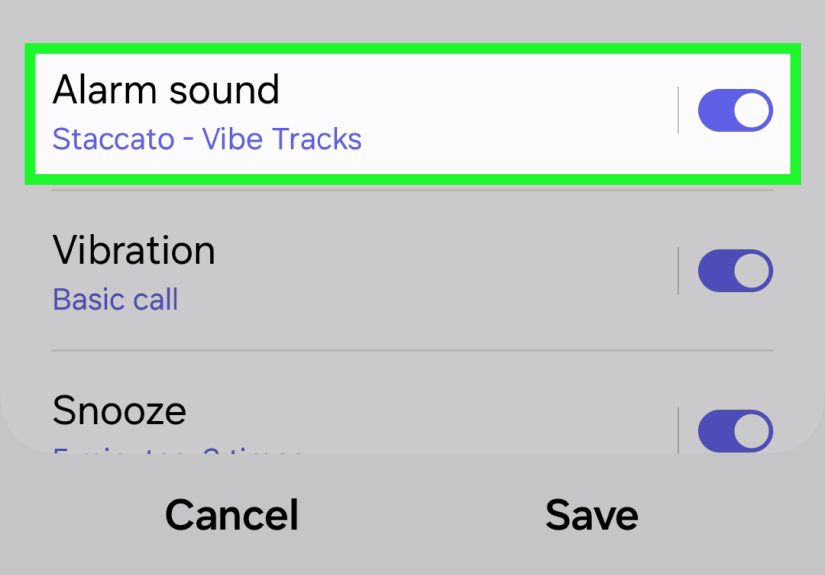
- Tap “Alarm sound” and select “Add new sound” or navigate to your custom sound file.
- Choose the sound you want to set as your alarm.
- Tap “Save” or “OK” to confirm.
Additional Tips for Custom Alarm Sounds
1. Use Music for a Fun Wake-Up
Instead of the traditional “beep beep,” set your favorite upbeat song as your alarm. Whether it’s a feel-good pop tune or an energizing instrumental, waking up to music can make the start of your day much more pleasant. Both iPhone and Android allow you to choose music from streaming services or your device’s music library.
2. Set Different Sounds for Different Alarms
If you have multiple alarms set throughout the day, consider using different sounds for each one. For example, you could use a calming melody for your morning wake-up and a more upbeat sound for your second alarm. This helps keep your alarm system fresh and ensures you don’t get used to one sound.
3. Download Free Sound Apps
If you don’t have a specific sound in mind, consider using free soundboard apps or websites to find unique and quirky sounds. Apps like Zedge offer a variety of alarm sounds, from quirky effects to calming nature sounds. You can easily download these sounds and use them for your alarms.
4. Experiment with Custom Ringtones
On both iPhone and Android, you can use custom ringtones as alarm sounds. If you have a particular ringtone you love, consider setting it as your alarm. You can find tons of free ringtones online, or even create your own using ringtone maker apps.
Common Issues and Troubleshooting
1. Custom Sound Not Showing Up
If your custom sound isn’t showing up in your alarm list, make sure the sound file is in the correct format and location. For iPhone, it needs to be synced through iTunes or Apple Music. For Android, ensure the file is placed in the right folder (Notifications or Alarms).
2. Alarm Sound Not Playing
If your alarm sound doesn’t play at the scheduled time, check your volume settings and ensure the “Do Not Disturb” mode is off. Also, verify that the sound isn’t muted or turned down too low.
3. Syncing Issues Between Devices
If you sync your music across devices (for instance, between your computer and phone), you might experience delays in syncing new sounds. Make sure you manually sync the custom sound file or use a cloud service to ensure it’s available on all your devices.
Conclusion
Customizing your alarm sound is a simple and fun way to personalize your wake-up routine. Whether you’re using an iPhone or Android device, the process is straightforward, and there are plenty of options to choose from. From songs to quirky sound effects, making a custom alarm sound helps keep things interesting and ensures you wake up on the right note. With these easy steps, you can enjoy a more enjoyable and effective way to start your day!
Personal Experiences: How Custom Alarm Sounds Improved My Mornings
Before I started customizing my alarm sound, mornings were a drag. I’d wake up to the same beep every day, and I’d often hit the snooze button multiple times. But once I decided to set a custom alarm, it completely changed the way I feel when I wake up.
For my morning alarm, I chose an upbeat song that always makes me smile“Happy” by Pharrell Williams. The energy it brings to my morning routine gets me out of bed and ready to take on the day. It’s become something I look forward to instead of dreading. The best part is, I’ve never hit snooze since I made the switch!
Additionally, I love how Android gives me the freedom to use any sound file I want, whether it’s a movie quote, a funny voice recording, or a catchy tune. My second alarm is set to a motivational quote, and it helps me stay positive, especially when I’m feeling sluggish. Having these different alarm sounds has kept me engaged and energized, and I’ve noticed a boost in my overall mood in the mornings.
If you haven’t tried customizing your alarm sound yet, I highly recommend it. It’s a small change that can make a huge impact on your day!





 Close
Close