
Table of Contents >> Show >> Hide
- What Does “Unable to Load Video” Mean on iPhone?
- Common Reasons Your iPhone Is Unable to Load Video
- How to Fix “Unable to Load Video” on iPhone
- Step 1: Close Photos and Reopen It
- Step 2: Restart Your iPhone
- Step 3: Check Your Internet Connection
- Step 4: Turn Off Low Power Mode
- Step 5: Turn Off Low Data Mode
- Step 6: Check iCloud Photos Sync Status
- Step 7: Free Up iPhone Storage
- Step 8: Download and Keep Originals
- Step 9: Try Duplicating or Editing the Video
- Step 10: Save the Video to Files
- Step 11: Update iOS
- Step 12: Reset Network Settings
- Step 13: Check the Video on Another Device or iCloud.com
- What If the Video Was Sent from Someone Else?
- How to Prevent the Error from Coming Back
- When to Contact Apple Support
- Real-World Experience Notes: What Usually Works Best
- Conclusion
- SEO Tags
Your iPhone is smart enough to recognize your face, suggest the perfect emoji, and remind you to leave for the airport. Yet, somehow, it can still look at a video you recorded yourself and say, “Unable to Load Video.” Very dramatic, little rectangle.
The full message often appears as: “Unable to Load Video. An error occurred while loading a higher quality version of this video.” It usually shows up in the Photos app when you tap a video thumbnail, try to edit a clip, play a Memory, share a video, or open an older recording that should absolutely still be there. The good news: in most cases, the video is not gone. Your iPhone simply cannot access the full-quality file at that exact moment.
This easy guide explains why the Unable to Load Video iPhone error happens, how to fix it step by step, and how to prevent it from returning like an unwanted sequel.
What Does “Unable to Load Video” Mean on iPhone?
When your iPhone shows this error, it means the Photos app can see the video record in your library, but it cannot load the playable high-resolution version. Think of it like seeing a movie poster but not being able to open the actual movie file.
This is common when iCloud Photos and Optimize iPhone Storage are turned on. With that setup, your iPhone may keep a smaller preview on the device while the full-resolution original video lives in iCloud. When you tap the video, your iPhone needs a stable internet connection, enough local storage, and a healthy iCloud sync status to download the higher-quality version.
If one of those pieces breaksbad Wi-Fi, low storage, paused syncing, outdated iOS, or a glitch in Photosthe video may refuse to load.
Common Reasons Your iPhone Is Unable to Load Video
1. The Original Video Is Stored in iCloud
If you use iCloud Photos with optimized storage, your iPhone may not keep every full-size video locally. Videos are large, especially 4K clips, slow-motion clips, cinematic videos, and HDR recordings. When storage gets tight, iOS may leave only lightweight versions on your device.
2. Your Internet Connection Is Weak
Because iCloud videos need to download before playback, weak Wi-Fi or unstable cellular data can trigger the error. A video may appear in your library but fail when the Photos app tries to pull the full-quality file from iCloud.
3. Your iPhone Storage Is Almost Full
Your iPhone needs breathing room to download, cache, edit, and play large videos. If your storage is packed tighter than a suitcase the night before vacation, Photos may not have enough space to load the clip.
4. Low Power Mode or Low Data Mode Is Pausing Sync
Low Power Mode can pause background iCloud Photos activity. Low Data Mode can also reduce network usage. Both settings are useful, but they may stop your video from downloading when you need it.
5. The Photos App or iOS Has a Temporary Glitch
Sometimes the culprit is less dramatic: the Photos app gets stuck, the iCloud sync queue freezes, or iOS simply needs a restart. Technology occasionally needs a nap.
6. The Video File Is Damaged or Not Fully Synced
Less commonly, the file may be partially uploaded, corrupted, interrupted during transfer, or stuck in iCloud. If the same video fails on multiple devices and at iCloud.com, file damage becomes more likely.
How to Fix “Unable to Load Video” on iPhone
Step 1: Close Photos and Reopen It
Start with the easiest fix. Swipe up from the bottom of the screen and pause in the middle to open the app switcher. On older iPhones with a Home button, double-click the Home button. Swipe up on Photos to close it, then reopen Photos and try the video again.
This can clear a temporary playback or loading glitch. It sounds too simple, but simple fixes are the unsung heroes of iPhone troubleshooting.
Step 2: Restart Your iPhone
If reopening Photos does not help, restart your iPhone. For most modern iPhones, press and hold the side button and either volume button until the power slider appears. Turn the device off, wait about 30 seconds, then power it back on.
A restart refreshes system processes, clears minor app issues, and gives iCloud Photos a fresh chance to sync. After restarting, open Photos, connect to Wi-Fi, and wait a minute before tapping the video again.
Step 3: Check Your Internet Connection
Open Safari and load a few websites. If they crawl like a sleepy turtle, your video may not download properly. Switch from cellular data to Wi-Fi, or from Wi-Fi to cellular, and try again.
For large videos, Wi-Fi is usually better. Stay close to the router, turn off VPN temporarily if it is slowing things down, and avoid public networks that block heavy downloads. If you are using cellular data, make sure Photos is allowed to use it by going to Settings > Cellular and checking that Photos has permission.
Step 4: Turn Off Low Power Mode
Go to Settings > Battery and turn off Low Power Mode. When Low Power Mode is on, your iPhone limits background activity to save battery. That can pause iCloud Photos syncing, which may stop the full video from downloading.
Once Low Power Mode is off, plug your iPhone into a charger, connect to Wi-Fi, and let Photos sit open for a few minutes. This gives iCloud a better chance to fetch the original video.
Step 5: Turn Off Low Data Mode
Low Data Mode is another setting that can interfere with video loading. For Wi-Fi, go to Settings > Wi-Fi, tap the information icon next to your network, and turn off Low Data Mode. For cellular, go to Settings > Cellular > Cellular Data Options and check your data mode settings.
After turning it off, reopen Photos and try loading the video again. Large video files need more data than a quick photo preview, so your iPhone needs permission to use the network freely.
Step 6: Check iCloud Photos Sync Status
Open the Photos app, tap Library, scroll to the bottom, and look for sync messages. You may see notes such as “Syncing Paused,” “Waiting for Wi-Fi,” “Low Power Mode,” or “Not Enough iCloud Storage.”
If syncing is paused, follow the message. Connect to Wi-Fi, charge your iPhone, turn off Low Power Mode, or free up iCloud storage. If your iCloud storage is full, new videos may not upload correctly and older files may have trouble syncing across devices.
Step 7: Free Up iPhone Storage
Go to Settings > General > iPhone Storage. If your iPhone has very little free space, delete unnecessary downloads, old message attachments, duplicate videos, unused apps, and offline media.
As a practical rule, try to keep at least a few gigabytes free, especially if you record 4K video. A 30-second 4K clip can be surprisingly large. Your iPhone needs space not only to store the video but also to process it when opening, editing, or sharing.
Step 8: Download and Keep Originals
If the error keeps happening with many videos, change your Photos storage setting. Go to Settings > Photos and choose Download and Keep Originals instead of Optimize iPhone Storage.
This tells your iPhone to keep full-resolution photos and videos on the device. It may take time, especially if your library is large. Keep your iPhone connected to Wi-Fi and power while it downloads originals. Only use this option if your iPhone has enough storage, because full-quality videos can eat space quickly.
Step 9: Try Duplicating or Editing the Video
Sometimes a video gets stuck in a weird Photos database state. Open the video, tap the share button if available, and choose Duplicate. Then try opening the copy.
If the video opens enough to edit, tap Edit, trim a tiny part from the end, and save it as a new clip. This can force Photos to rebuild the file. Do this only if you are comfortable creating an edited copy, and avoid overwriting important originals unless you have a backup.
Step 10: Save the Video to Files
If Photos is being stubborn, try exporting the video to the Files app. Tap the video, choose the share button, and select Save to Files. Then open the Files app and try playing the video there.
This can help when the Photos app has trouble with playback but the file itself is still accessible. You can also upload the video to iCloud Drive, Google Drive, Dropbox, or another cloud service as a backup.
Step 11: Update iOS
Go to Settings > General > Software Update. Install the latest available iOS update for your device. Updates often include Photos, iCloud, camera, and media playback fixes.
Before updating, back up your iPhone and make sure you have enough battery, storage, and a stable internet connection. After the update, reopen Photos and give your library time to re-index and sync.
Step 12: Reset Network Settings
If the error appears mostly when iCloud videos need to download, and your connection seems unreliable, reset network settings. Go to Settings > General > Transfer or Reset iPhone > Reset > Reset Network Settings.
This does not erase your photos, videos, or apps. However, it does remove saved Wi-Fi passwords, VPN settings, cellular settings, and related network configurations. Use it after simpler network fixes fail.
Step 13: Check the Video on Another Device or iCloud.com
If you use iCloud Photos, open the same video on another Apple device signed in with the same Apple Account. You can also check your library through iCloud.com. If the video plays elsewhere, the issue is probably with your iPhone’s local storage, network, or Photos app.
If the video fails everywhere, the file may not have uploaded completely, or the original may be damaged. In that case, check backups, older devices, Messages attachments, AirDrop copies, external drives, or computer imports.
What If the Video Was Sent from Someone Else?
If the video came from Messages, WhatsApp, email, AirDrop, or a third-party app, the problem may be related to the transfer rather than iCloud Photos. Ask the sender to resend the original file, not a compressed preview. If possible, have them send it through AirDrop, iCloud Drive, Google Drive, or another file-sharing method that preserves the original quality.
Also consider file format. iPhones commonly record in HEVC when High Efficiency format is selected. HEVC is excellent for saving space, but some older devices, apps, or computers may have trouble playing it. If you often share videos with non-Apple devices, go to Settings > Camera > Formats and choose Most Compatible for future recordings. This usually records in a more widely compatible format.
How to Prevent the Error from Coming Back
Once your videos load again, take a few preventive steps. Keep your iPhone and iCloud storage from getting completely full. Let Photos finish syncing before deleting files from old devices. Avoid recording long 4K videos when your storage is already low. Keep iOS updated. When traveling, connect to strong Wi-Fi at the end of the day so iCloud can upload your photos and videos properly.
If you record important videos for work, school, family events, or content creation, do not rely on one copy. Save important clips to a computer, external drive, or cloud folder. Your future self will thank you, probably with less panic and fewer dramatic kitchen-table troubleshooting sessions.
When to Contact Apple Support
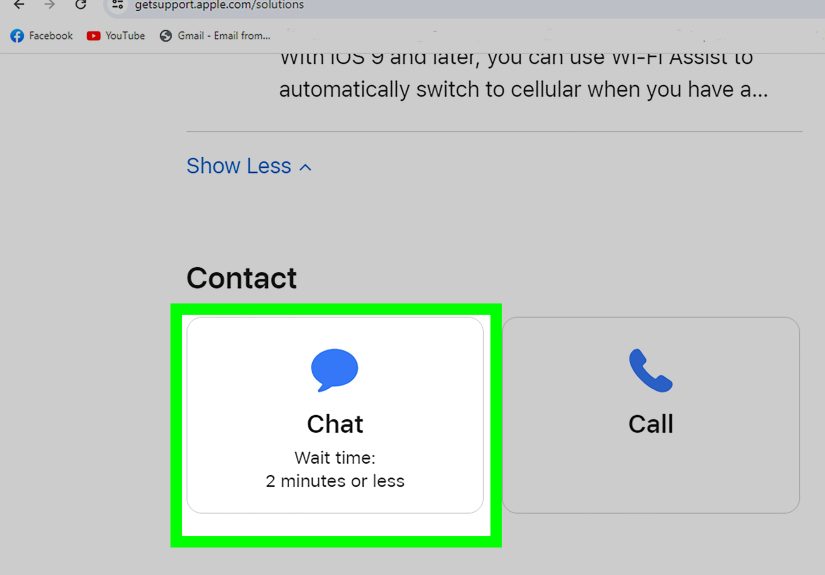
Contact Apple Support if the same video will not open on your iPhone, another Apple device, or iCloud.com; if many videos show the same error after an iOS update; if Photos keeps crashing; or if your iPhone reports storage incorrectly. You should also seek help if the missing videos are legally, professionally, or emotionally important. Baby’s first steps deserve more than “try again later.”
Real-World Experience Notes: What Usually Works Best
In everyday use, the “Unable to Load Video” error usually appears at the worst possible moment. Someone wants to show a vacation clip at dinner, a parent wants to replay a birthday video, or a creator needs one tiny clip for an edit that was supposedly “right there.” The thumbnail appears, confidence rises, and then the iPhone delivers the digital equivalent of a shrug.
The most common pattern is iCloud optimization. Many people turn on iCloud Photos years ago, forget about it, and assume every video is fully stored on the phone. That assumption works until the iPhone quietly optimizes storage. Then an older or larger video may need to download before it plays. If the phone is on weak Wi-Fi, low battery, Low Power Mode, or nearly full storage, the download fails. The fix is often boring but effective: connect to strong Wi-Fi, plug in the phone, turn off Low Power Mode, free up space, and wait.
Another experience many users report is that the problem affects only certain videos. For example, a short clip from yesterday plays fine, but a two-year-old 4K video refuses to open. That makes sense. Newer videos may still be cached locally, while older ones may live mostly in iCloud. Large videos are also more sensitive to connection drops. A photo can load on a weak signal; a 4K video may throw up its hands and quit.
For people who use their iPhone for content creation, the best habit is to export important clips immediately after recording. Save them to Files, AirDrop them to a Mac, upload them to cloud storage, or import them to a computer. This is especially helpful for long videos, cinematic clips, ProRes clips, or anything recorded for a client. The Photos app is convenient, but a serious video deserves a backup plan stronger than “I hope the cloud behaves today.”
For families, the practical approach is different. Most people do not want to manage media like a film studio. They just want videos to play. In that case, keep iCloud storage upgraded enough for the library, leave the phone charging on Wi-Fi overnight, and avoid letting iPhone storage fall to nearly zero. If videos are priceless, download originals to a Mac or PC occasionally. A monthly backup routine can save years of memories.
One surprisingly effective trick is patience. After changing Photos settings or freeing storage, people often tap the video immediately and assume nothing worked. But iCloud Photos may need time to resume syncing, check the file, download the original, and rebuild previews. Leave Photos open, keep the screen awake for a bit, and let the phone do its behind-the-scenes housekeeping. It is not glamorous, but it works more often than you would expect.
The key lesson: the error usually does not mean your video has vanished. It usually means the full-quality file is not reachable yet. Fix the path to the filenetwork, storage, battery mode, iCloud syncand the video often returns like nothing ever happened. Classic iPhone behavior: mild chaos, then pretending it was fine all along.
Conclusion
The “Unable to Load Video” iPhone error is annoying, but it is usually fixable. Start with the basics: reopen Photos, restart your iPhone, connect to strong Wi-Fi, turn off Low Power Mode and Low Data Mode, and check iCloud Photos sync status. Then free up storage, download originals, update iOS, reset network settings, or test the video on another device.
Most of the time, your iPhone is not refusing to play the video because it enjoys drama. It simply cannot access the high-quality version at that moment. Give it enough storage, power, network strength, and sync time, and there is a good chance your video will come back without needing advanced repairs.
SEO Tags
Note: Before trying advanced fixes, back up important videos whenever possible. If a video is irreplaceable and will not open on any device, avoid repeated editing or deleting attempts and contact Apple Support or a trusted data recovery professional.







 Close
Close