
Table of Contents >> Show >> Hide
- What Does a CPU Fan Error Mean?
- Common Causes of a CPU Fan Error
- Before You Start: Safety First
- How to Fix a CPU Fan Error Step by Step
- Step 1: Shut Down and Let the System Cool
- Step 2: Open the Case and Check the CPU Fan
- Step 3: Confirm the Fan Spins When Powered On
- Step 4: Clean Dust from the Fan, Heatsink, and Vents
- Step 5: Check BIOS or UEFI Fan Readings
- Step 6: Lower the CPU Fan Speed Warning Limit
- Step 7: Use the Correct Setting for Liquid Coolers
- Step 8: Watch CPU Temperature
- Step 9: Reseat the Cooler if Temperatures Are High
- Step 10: Test a Different Fan Header or Fan
- Step 11: Update BIOS Carefully
- Step 12: Replace the Fan or Cooler
- When Is It Safe to Ignore a CPU Fan Error?
- CPU Fan Error on a Laptop
- Quick Troubleshooting Checklist
- Mistakes to Avoid
- Real-World Experience: What Usually Fixes a CPU Fan Error
- Conclusion
A CPU fan error has a special talent for appearing at the worst possible moment: right when you press the power button, sip your coffee, and expect your computer to behave like a civilized machine. Instead, your screen says something like “CPU Fan Error,” “CPU fan speed error,” “Fan error,” or “Press F1 to continue.” Dramatic? Yes. Useless? Not at all.
That warning usually means your motherboard or system firmware cannot detect the CPU cooling fan properly. Sometimes the fan is unplugged. Sometimes it is plugged into the wrong header. Sometimes dust has turned your cooler into a tiny lint museum. And sometimes nothing is actually brokenthe BIOS is simply confused by a low-RPM fan or an all-in-one liquid cooler setup.
The important part is this: do not ignore a CPU fan error until you know the processor is being cooled correctly. Your CPU is one of the hottest and most expensive parts in your computer. It can protect itself by throttling performance or shutting down, but you should not treat those emergency systems like daily transportation. This guide walks you through how to fix a CPU fan error safely, logically, and without sacrificing your motherboard to the screwdriver gods.
What Does a CPU Fan Error Mean?
A CPU fan error means the system expected to detect a working fan connected to the CPU fan header, but it did not receive the expected speed signal. The fan may not be spinning, may be spinning too slowly, may be connected to another motherboard header, or may not be reporting RPM correctly.
On many desktop motherboards, the CPU cooler’s fan cable should be connected to a header labeled CPU_FAN. If the cable is connected to CHA_FAN, SYS_FAN, AIO_PUMP, or a fan hub that does not report speed to the motherboard, the cooler might physically spin while the BIOS still thinks the CPU fan is missing. It is like your PC is yelling, “I can’t see the fan!” while the fan is standing right there waving politely.
Common Causes of a CPU Fan Error
1. The CPU Fan Cable Is Loose or Unplugged
This is the classic cause. A fan cable can come loose during cleaning, shipping, upgrades, or when you are wrestling a new graphics card into the case. If the motherboard cannot read the fan’s tachometer signal, it may stop the boot process with a CPU fan error.
2. The Fan Is Connected to the Wrong Header
Many motherboards have several fan headers, but they do not all serve the same purpose. The CPU cooler fan should usually connect to CPU_FAN. Case fans usually go to CHA_FAN or SYS_FAN. Liquid cooler pumps may use AIO_PUMP, but many setups still require a tach cable or radiator fan connected to CPU_FAN so the motherboard knows cooling is present.
3. Dust Is Blocking the Fan or Heatsink
Dust is not just ugly; it is insulation wearing a gray sweater. A thick layer of dust on the fan blades, heatsink fins, or air vents can reduce airflow and cause overheating. In laptops, dust can collect inside the cooling channel and trigger fan warnings during startup.
4. The Fan Spins Too Slowly for BIOS Settings
Some premium quiet fans are designed to spin at very low speeds when the CPU is cool. That is great for silence, but not always great for motherboard panic levels. If the BIOS low-speed warning is set too high, a healthy fan may be reported as failed simply because it is spinning below the warning threshold.
5. The CPU Cooler Is Installed Incorrectly
A cooler that is loose, tilted, or not making proper contact with the CPU can cause temperatures to rise quickly. The fan may work, but the heat transfer may not. In this case, the warning might be accompanied by high CPU temperatures, sudden shutdowns, or loud fan behavior.
6. The Fan or Pump Has Failed
Fans have bearings, motors, cables, and connectors. They can fail. Liquid cooler pumps can also fail, even if the radiator fans still spin. If your CPU temperature climbs rapidly in BIOS or your cooler makes unusual grinding, rattling, or buzzing noises, the cooling hardware may need replacement.
Before You Start: Safety First
Before touching anything inside your computer, shut it down fully. Do not just put it to sleep. Turn off the power supply switch if your desktop has one, unplug the power cable, and press the power button for a few seconds to discharge remaining power. Work on a stable surface, avoid carpet if possible, and touch a metal part of the case before handling internal parts.
If you are using a laptop, be more cautious. Many laptops are not designed for casual disassembly, and opening them may affect warranty coverage. For a laptop fan error, start with external cleaning, diagnostics, and manufacturer support before performing surgery on the poor thing.
How to Fix a CPU Fan Error Step by Step
Step 1: Shut Down and Let the System Cool
If you see a CPU fan error, shut the computer down and let it cool for several minutes. A hot CPU can make troubleshooting more stressful and less safe. If the system recently shut down by itself, give it more time. Your goal is to inspect the cooling system, not audition your fingers for a barbecue commercial.
Step 2: Open the Case and Check the CPU Fan
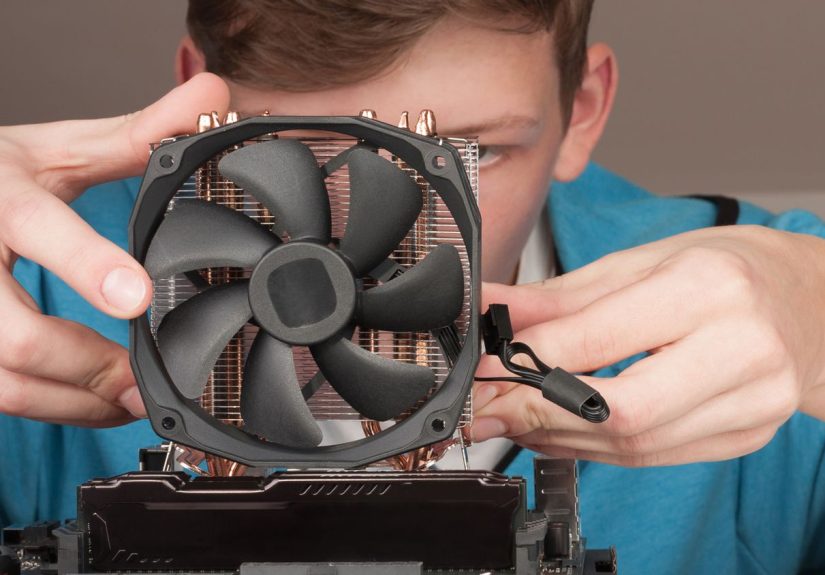
For a desktop PC, remove the side panel and locate the CPU cooler. It is usually mounted directly on the motherboard, sitting on top of the processor. Check whether the fan cable is firmly plugged in. The connector should be seated all the way down, not half-connected like it is thinking about committing.
Look for the motherboard label near the header. You want CPU_FAN in most air-cooling setups. If the fan is connected to a case fan header, move it to the CPU fan header. If your cooler has two fans, one may connect to CPU_FAN and the other to CPU_OPT or a splitter, depending on the cooler and motherboard manual.
Step 3: Confirm the Fan Spins When Powered On
After checking the cable, briefly power on the computer while watching the CPU fan. If the fan does not spin at all, shut the system down again. A non-spinning CPU fan can indicate a dead fan, a blocked blade, a loose connector, or a faulty fan header.
If the fan twitches but does not continue spinning, inspect the blades for obstruction. A cable may be touching the fan. A dusty clump may be blocking movement. Sometimes a fan that has not moved in a while needs replacement because the bearing is worn out.
Step 4: Clean Dust from the Fan, Heatsink, and Vents
Use compressed air to blow dust out of the CPU fan, heatsink, and case vents. Hold the fan blades gently in place while cleaning so the fan does not spin wildly from air pressure. Overspinning a fan with compressed air may damage it.
For desktops, clean the front intake filters, rear exhaust area, power supply vent, and radiator if you use liquid cooling. For laptops, blow air through the vents in short bursts. Do not use a vacuum directly on internal components, and do not spray liquid cleaners into the machine. Your PC wants airflow, not a spa day.
Step 5: Check BIOS or UEFI Fan Readings
Restart the computer and enter BIOS or UEFI. The key varies by system, but common keys include Delete, F2, F10, or F12. Look for a hardware monitor, fan control, Q-Fan, Smart Fan, thermal, or PC health section.
Check whether the CPU fan RPM is detected. A normal reading depends on the fan model, cooler type, and temperature. A quiet fan may idle around a few hundred RPM. A stock cooler or performance fan may run faster. If the BIOS shows N/A, 0 RPM, or no reading, the motherboard is not receiving a proper fan speed signal.
Step 6: Lower the CPU Fan Speed Warning Limit
If the fan is working and temperatures are normal, the warning threshold may be too high. Some motherboards allow you to change the CPU Fan Speed Low Limit. For low-RPM fans, setting the warning limit to a lower value, such as 200 RPM or 300 RPM, may solve the problem while keeping protection enabled.
This is usually better than disabling monitoring entirely. You still want the motherboard to warn you if the fan truly stops. The goal is not to silence the smoke alarm by removing the battery; it is to stop it from screaming every time you make toast.
Step 7: Use the Correct Setting for Liquid Coolers
All-in-one liquid coolers can confuse motherboards because the pump, radiator fans, controller hub, and tach cable may all connect differently. In many setups, the pump connects to AIO_PUMP or a dedicated pump header, while a tach cable or radiator fan connects to CPU_FAN.
If your BIOS reports a CPU fan error after installing a liquid cooler, check the cooler manual and motherboard manual. Make sure the pump has power, usually through SATA power, USB, or a motherboard header depending on the model. If the pump is working and CPU temperature stays stable, you may need to set CPU fan monitoring to ignore or assign monitoring to the correct header. Only do this after confirming cooling is actually working.
Step 8: Watch CPU Temperature
Temperature tells the truth when cables and BIOS menus are being mysterious. In BIOS, check the CPU temperature for a minute or two. If the temperature rises rapidly toward dangerous levels, shut down immediately. A fast climb can mean the cooler is not seated correctly, the pump is not running, thermal paste is missing or poorly applied, or the fan is not cooling the heatsink.
Once in Windows, you can use reputable hardware monitoring software from your motherboard maker or a trusted system monitoring tool. Under normal light use, desktop CPU temperatures are usually far below emergency levels. During gaming, rendering, or heavy workloads, temperatures rise, but they should remain within the safe operating range for your specific processor.
Step 9: Reseat the Cooler if Temperatures Are High
If the fan spins but the CPU temperature climbs quickly, the cooler may not be mounted properly. Shut down, unplug the system, and inspect the heatsink or pump block. Make sure all mounting screws are tightened evenly. If you remove the cooler, clean off old thermal paste from the CPU and cooler base using isopropyl alcohol and a lint-free cloth, then apply fresh thermal paste before reinstalling.
Do not overapply thermal paste. A small pea-sized amount or a thin line is enough for many CPUs, depending on the processor shape and cooler instructions. More paste does not mean more cooling; it means more mess and possibly more regret.
Step 10: Test a Different Fan Header or Fan
If the CPU fan does not report RPM, try connecting it to another compatible fan header temporarily to see if it spins and reports speed. You can also connect a known-good fan to the CPU_FAN header. This helps identify whether the problem is the fan, the header, or the BIOS setting.
If another fan works correctly on the CPU_FAN header, your original fan may be failing. If no fan reports correctly on that header, the motherboard header or BIOS configuration may be the issue.
Step 11: Update BIOS Carefully
A BIOS update can sometimes improve hardware detection, fan control, and thermal behavior. However, BIOS updates should be done carefully. Download the correct BIOS only from the motherboard or computer manufacturer’s official support page. Do not interrupt power during the update.
If your system is unstable, overheating, or shutting down, fix the cooling problem before attempting a BIOS update. Updating firmware on a machine that may suddenly power off is not a hobby; it is a suspense film.
Step 12: Replace the Fan or Cooler
If the fan is noisy, stuck, inconsistent, or not reporting speed after testing, replace it. For a standard tower air cooler, replacing the fan may be simple. For stock coolers, small-form-factor systems, and laptops, you may need an exact replacement part.
If you use a liquid cooler and the pump has failed, replacing only the radiator fans will not fix the cooling issue. A failed pump usually means the liquid cooler must be replaced or professionally serviced, depending on the model.
When Is It Safe to Ignore a CPU Fan Error?
It may be safe to set CPU fan speed monitoring to Ignore only when you have confirmed that the CPU is being cooled properly. This is most common with certain liquid cooler configurations, fan hubs, or ultra-low-RPM fans that do not report speed the way the motherboard expects.
Before ignoring the warning, confirm three things: the fan or pump is physically running, CPU temperatures remain stable in BIOS and under light operating system use, and the cooler is connected according to the manufacturer’s instructions. If you cannot confirm all three, do not ignore the warning.
CPU Fan Error on a Laptop
A laptop fan error is different from a desktop CPU fan error because the cooling system is compact, custom-shaped, and harder to access. If your laptop displays a fan error, shut it down and let it cool. Check the vents for dust, hair, or fabric blockage. Use compressed air in short bursts to clear the vents.
Next, run the manufacturer’s built-in diagnostics if available. Many business laptops and major-brand notebooks include startup diagnostics that can test the fan. If the fan fails diagnostics or the error returns after cleaning, the laptop may need professional service. Replacing a laptop fan often requires removing the bottom cover, battery connector, heatsink assembly, or keyboard deck depending on the model.
Quick Troubleshooting Checklist
- Shut down the computer and let it cool.
- Confirm the CPU fan is connected to the CPU_FAN header.
- Make sure the fan cable is fully seated.
- Remove dust from fans, heatsinks, filters, and vents.
- Check whether the fan spins during startup.
- Enter BIOS and check CPU fan RPM and CPU temperature.
- Lower the CPU fan speed warning limit if using a low-RPM fan.
- For liquid coolers, confirm pump power and tach cable placement.
- Reseat the cooler and reapply thermal paste if temperatures rise quickly.
- Replace the fan or cooler if hardware testing points to failure.
Mistakes to Avoid
Pressing F1 Forever
Pressing F1 to continue may get you past the warning, but it does not fix the cause. If the fan is truly not cooling the CPU, continuing to boot can lead to overheating, shutdowns, poor performance, and possible hardware damage.
Disabling Fan Monitoring Too Soon
Disabling CPU fan monitoring should be a final configuration step, not the first troubleshooting step. Confirm cooling first. Silence the warning only when you know the warning is false.
Assuming Spinning Means Cooling
A spinning fan is good, but it is not the whole story. The cooler must be mounted correctly, thermal paste must transfer heat, and airflow must move through the heatsink or radiator. A fan can spin beautifully while the CPU quietly cooks underneath a badly seated cooler.
Forgetting About Fan Direction
If you recently built or upgraded your PC, check airflow direction. Fans usually have small arrows on the frame showing airflow direction. CPU tower coolers should typically push air toward the rear exhaust fan, not fight against it like two leaf blowers in a hallway.
Real-World Experience: What Usually Fixes a CPU Fan Error
In everyday troubleshooting, the most common CPU fan error fixes are surprisingly simple. The first is moving the fan cable to the correct motherboard header. Many people build a PC carefully, cable-manage it beautifully, close the side panel with pride, and then discover that the CPU cooler fan is connected to a chassis fan header. The fan spins, the lights glow, and the motherboard still complains because it is watching the CPU_FAN header and seeing nothing. One cable move later, the error disappears.
The second common fix is adjusting the fan speed warning threshold in BIOS. This often happens with quiet aftermarket coolers. A large heatsink with a high-quality fan may idle at a very low RPM because the CPU is cool. The motherboard, however, may expect a higher minimum speed and mistake silence for failure. Lowering the CPU fan low-limit setting keeps the warning system useful without punishing the user for owning a quiet cooler.
The third pattern appears with all-in-one liquid coolers. A user installs a shiny new AIO, connects the pump to the pump header, connects the radiator fans to a controller, and boots into a CPU fan error. Nothing is necessarily wrong. The motherboard simply wants an RPM signal on CPU_FAN. Depending on the cooler, the solution may be connecting the pump tach cable or one radiator fan to CPU_FAN, then setting pump and fan behavior correctly in BIOS or the cooler software.
Dust is another repeat offender. A PC may work fine for years, then suddenly complain after a hot day, a room renovation, or a long period under a desk. Open the case and the cooler looks like it has been filtering a wool sweater. Cleaning the heatsink and fan often lowers temperatures, reduces noise, and prevents future warnings. It is not glamorous, but neither is replacing a CPU because dust won the battle.
The more serious cases usually involve a failing fan, a dead pump, or a badly mounted cooler. A failing fan may rattle, stop randomly, or need a finger nudge to start spinning. A dead AIO pump may leave radiator fans spinning while the CPU temperature rises extremely fast. A poorly mounted cooler may look correct from the outside but fail to make firm contact with the CPU. These problems require replacement, reseating, or professional repair.
The best troubleshooting habit is to combine visual inspection with temperature monitoring. Do not trust only one clue. A spinning fan, a BIOS reading, and a stable CPU temperature together tell a much stronger story. When all three look healthy, the fix is often a BIOS setting or cable placement issue. When temperatures climb quickly, treat the warning as real and shut the system down.
Conclusion
A CPU fan error is not something to panic about, but it is something to respect. In many cases, the fix is as simple as reconnecting the fan cable, using the correct CPU_FAN header, cleaning dust, or lowering the BIOS fan speed warning limit. In other cases, the warning is doing its job by alerting you to a dead fan, failed pump, loose cooler, or overheating processor.
Start with the safest checks: power down, inspect the fan connection, clean the cooling system, and verify fan speed and CPU temperature in BIOS. If the hardware is working and temperatures are stable, you can fine-tune BIOS monitoring settings. If temperatures rise quickly or the fan does not spin, stop troubleshooting from within the operating system and fix the cooling hardware first.
Your CPU does not need luxury. It just needs firm cooler contact, working airflow, and a motherboard that knows the fan exists. Give it those three things, and the “CPU Fan Error” message can go back to wherever annoying boot warnings take their vacations.







 Close
Close