
Table of Contents >> Show >> Hide
- What Is a Kindle Email Address, Anyway?
- How to Find Your Kindle Email Address on the Amazon Website
- How to Find the Kindle Email for a Specific Device or App
- How to Find Your Kindle Email on the Device Itself
- How to Change or Customize Your Kindle Email Address
- Set Up Your Approved Personal Document Email List
- Common Problems (and Easy Fixes)
- Practical Tips and Real-World Experiences with Kindle Email
- Final Thoughts
If you’ve ever tried to send a PDF, ebook, or long article to your Kindle and thought,
“Wait… what’s my Kindle email again?”, you’re absolutely not alone. Amazon hides the
Kindle email address so well it feels like a side quest in a video game.
The good news: once you know where to look, it’s actually simple, and it works the same
way across most Kindle devices and apps.
In this guide, we’ll walk through exactly how to find your Kindle email address on the
Amazon website, on e-ink Kindles like the Paperwhite, on Fire tablets, and inside the
Kindle apps. We’ll also talk about how to change that address, manage your approved
senders, and fix common “why didn’t my file show up?” problems. Finally, we’ll wrap up
with some real-world tips and experiences to help you get the most from this underrated
feature.
What Is a Kindle Email Address, Anyway?
Every compatible Kindle device or app tied to your Amazon account has its own
Send to Kindle email address. It usually looks something like:
[email protected]. When you email supported documents to that address,
Amazon quietly converts the file and drops it into your Kindle library. From there, you
can download it on that specific device or, in many cases, on any Kindle connected to the
same account.
A few key points:
- Each Kindle device or app has its own unique send-to-Kindle email.
- Addresses almost always end in
@kindle.com. -
Amazon filters senders with an Approved Personal Document Email List to
block spam. -
Supported formats include DOC/DOCX, HTML, RTF, JPG, EPUB, and others, which are
converted for reading.
In other words, your Kindle email address is your private back door into your Kindle
library. Once you’ve found it and set it up, saving web articles, work reports, and
ebooks to read later becomes ridiculously convenient.
How to Find Your Kindle Email Address on the Amazon Website
The most universal way to find any Kindle email is through your Amazon account. This
works whether you use a classic e-ink Kindle, a Fire tablet, or just the Kindle app on
your phone.
Step 1: Sign in to Your Amazon Account
Open a browser on your computer or phone and sign in to the Amazon account connected to
your Kindle. Make sure it’s the same account you used to register your device or appif
you’re logged into the wrong account, you’ll see totally different devices.
Step 2: Go to “Manage Your Content and Devices”
Hover over or tap the Account & Lists menu, then choose
Manage Your Content and Devices. This is command central for your Kindle
ebooks, documents, and devices.
Step 3: Open the “Preferences” Tab
At the top of the page, you’ll see three main tabs:
Your Content, Devices, and
Preferences. Click Preferences. This tab hides a lot of
the Kindle “magic” settings, including personal documents.
Step 4: Scroll to “Personal Document Settings”
Scroll down until you find Personal Document Settings. Expand this
section and look for Send-to-Kindle Email Settings. Here you’ll see a
list of:
- Your Kindle devices and apps (by name).
- The corresponding send-to-Kindle email address for each one.
That’s the gold: your full Kindle email address, ready to copy into your email client,
note-taking app, or password manager so you don’t have to hunt for it again.
How to Find the Kindle Email for a Specific Device or App
If you have multiple Kindles and apps, you might only want the email address for one
devicemaybe your main reader, or your phone. You can grab it from two places: the
Devices tab on Amazon or directly on the device.
From the Devices Tab on Amazon
- From Manage Your Content and Devices, click the Devices tab.
- Choose the device category, such as Kindle or Fire.
- Click the device you care about to open its details.
-
In the device information panel, look for a line labeled something like
Send-to-Kindle Email or just Email. That’s your
device-specific Kindle email address.
This method is perfect when you want to double-check that you’re sending documents to the
correct Kindle, especially if you share an account with family members.
How to Find Your Kindle Email on the Device Itself
Away from your computer? You can still find the Kindle email address directly on many
Kindle devices and apps. The exact path may vary slightly depending on model and
software version, but the general flow is similar.
On Kindle Paperwhite and Other E-Ink Kindles
- From the Home screen, tap the More or Menu icon.
- Tap Settings.
- Go to Device Options.
- Tap something like Personalize Your Kindle or Device Info.
-
Look for a field labeled Send-to-Kindle Email or
Kindle Email. The address will end in@kindle.com.
If you’ve renamed your Kindle (for example, “Sophie’s Paperwhite”), you’ll see that name
here too, which makes it easier to match it to the device list on Amazon later.
On Kindle Fire / Fire Tablet
- Swipe down from the top of the screen to open the quick settings.
- Tap Settings.
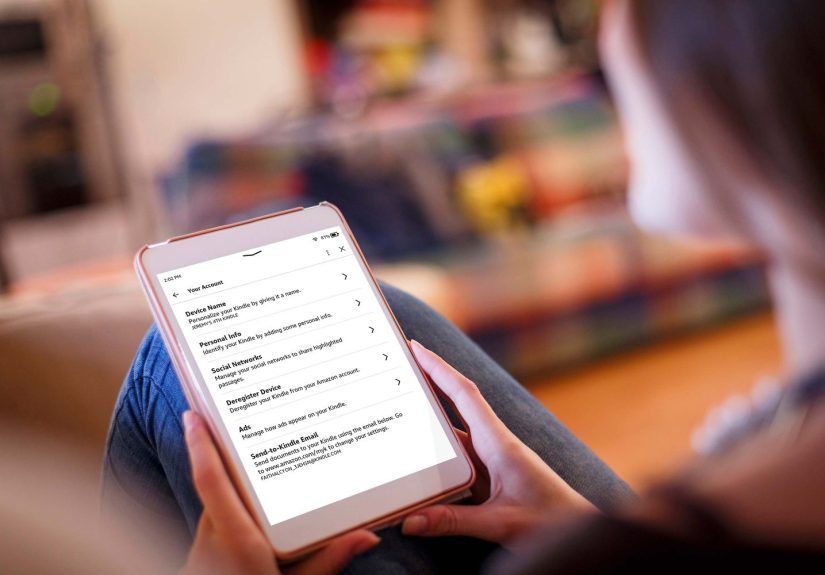
- Tap My Account (sometimes under Account & Profile).
-
On many Fire tablets, you’ll see your Kindle email address listed on
this page.
If you don’t see it there, you can always fall back to the Amazon website method using
the Devices and Preferences tabs.
On the Kindle App (Android or iOS)
- Open the Kindle app on your phone or tablet.
- Tap More (often three horizontal lines or a “More” label).
- Go to Settings.
-
Look for a section that mentions Send-to-Kindle Email or
Kindle Email Address. Your app’s unique email address should appear
there.
Remember that the Kindle app also has its own email address separate from your hardware
Kindle. That way, you can send a file straight to your phone if that’s where you prefer
to read.
How to Change or Customize Your Kindle Email Address
Not a fan of [email protected]? You can usually edit the part
before @kindle.com to something easier to rememberjust don’t use your main
personal email, for security reasons.
- Go to Manage Your Content and Devices on Amazon.
- Click the Preferences tab.
- Scroll to Personal Document Settings.
-
Under Send-to-Kindle Email Settings, find the device or app you want
to edit. - Click Edit next to that device.
- Enter a new unique address (for example,
[email protected]). - Click Save.
If the name you want is already taken (anywhere in the Kindle universe), Amazon will ask
you to choose something else. Adding a short number or symbol often solves it.
Set Up Your Approved Personal Document Email List
Finding your Kindle email address is only half the story. To prevent strangers from
spamming your Kindle with weird documents, Amazon only accepts files emailed from
approved senders.
To add an approved sender:
- Open Manage Your Content and Devices and go to Preferences.
- Scroll to Personal Document Settings.
- Find the section called Approved Personal Document Email List.
- Click Add a new approved e-mail address.
-
Enter the email address you’ll be sending from (for example,
[email protected]). - Save your changes.
If you use a web service like a magazine, newsletter tool, or “Push to Kindle”-style
extension, they’ll usually give you an address like
[email protected] that you’ll also need to add to this list.
Common Problems (and Easy Fixes)
“I Emailed a File, but It Never Showed Up”
A missing document usually comes down to one of these:
- The sender’s email isn’t on your approved list.
- You mistyped the Kindle email address (double-check spelling).
- The file format isn’t supported, or it’s too large.
- The message had too many attachments (Amazon caps the number per email).
- Your device isn’t connected to Wi-Fi, or sync is delayed.
Start by checking the approved list and verifying you used the exact Kindle email
address. If everything looks right, try sending a smaller test file, like a one-page DOCX
or simple EPUB.
“I Changed My Amazon Login EmailDid My Kindle Address Change Too?”
Your login email and your Kindle send-to address are
separate things. Changing the email you use to sign in does not automatically change your
Kindle email address or make you lose your books. Your Kindle email sticks to the
account, not the login address. You can manage or rename the Kindle email separately in
the Personal Document Settings.
“Does It Matter Which Device Email I Use?”
Yes and no:
-
If you send a document to a specific device’s Kindle email, it’s primarily queued for
that device. -
However, once it lands in your Kindle library, you can often download it on other
devices under the same Amazon account.
Many people pick one “main” Kindle email address (for example, their e-ink reader) and
send everything there, then pull it down onto other devices as needed.
Practical Tips and Real-World Experiences with Kindle Email
Knowing how to find your Kindle email address is one thing; actually using it
consistently is another. Here are some experience-based ideas and scenarios that show how
this little feature can quietly change the way you read and work.
Turning the Internet into a Personal Reading Queue
Imagine you’re at your desk, drowning in interesting long-form articles you never seem to
finish. Instead of leaving 47 open tabs, you can email those articles directly to your
Kindle email address. Some browser extensions even let you send a cleaned-up version of
the article without ads or clutter. Set your Kindle email as the default destination, and
suddenly your Kindle becomes your personal “read it later” libraryno extra subscription
needed.
Over time, this habit adds up. Instead of doom-scrolling before bed, you’re reading
high-quality content in a distraction-free format. You might even start looking forward
to clearing your “Kindle inbox” the way some people clear their email.
Helping Students and Professionals Stay Organized
Students and professionals can get a lot of mileage out of the Kindle email feature. A
law student, for example, might send class readings, case summaries, and outlines to a
dedicated “[email protected]” address. Each document is searchable, can be highlighted,
and survives even if a laptop dies the night before finals. Similarly, someone in
consulting or tech can send white papers, slide decks converted to PDF, and research
reports to their Kindle email to review on a flight.
If you create separate device names and corresponding email addresses (for example,
“Work Kindle” vs. “Personal Kindle App”), you can mentally separate what you’re reading
and avoid mixing heavy work documents with light weekend novels.
Sharing Reading Across a Household
In many homes, one Amazon account manages multiple Kindles: maybe a parent, a partner,
and a couple of kids. Each device has its own send-to-Kindle email address, but they all
share the same content library. Once you know how to find each address, you can send
specific documents where they make the most sense: practice tests to a child’s Kindle,
recipes to the kitchen tablet, and travel itineraries to the parent who always ends up
handling logistics.
Just remember: because all those devices often share an account, anything you send may
live in the same library. That’s great for convenience, but if you prefer privacy, you
might want a separate Amazon accountor at least be thoughtful about what gets sent.
Using Kindle Email for Digital Decluttering
Emailing documents to your Kindle can actually be part of a digital decluttering strategy.
Instead of keeping everything in your inbox “just in case,” you can:
- Forward important reference documents to your Kindle email address.
- Verify that they show up and download correctly on your Kindle.
- Archive or delete the original email, knowing you have a quiet, searchable copy.
This works particularly well for manuals, how-to guides, and long PDFs that you reference
occasionally but don’t want clogging up your day-to-day inbox.
Common Mistakes People Make (and How to Avoid Them)
A few pitfalls come up over and over:
-
Sending from the wrong email: People forget to add their new work or
school email to the approved list, then wonder why nothing arrives. -
Using an overly obvious Kindle address: Choosing something like
[email protected]may be easier to remember, but if it leaks,
it’s easier for random people to guess. Add a short number or word to keep it unique. -
Never copying the address somewhere safe: Then they have to dig through
Amazon settings every time. A quick note in your password manager or notes app solves
this permanently. -
Forgetting about the app’s email: Many people only use the Kindle app
on their phone now and don’t realize it has its own address. Once they start using it,
they’re surprised by how much more reading they get done during small gaps in the day.
Once you’ve stumbled through these once, you rarely make the same mistake again. That’s
the beauty of taking a few minutes to set up your Kindle email address correctlyit pays
off for years.
Final Thoughts
Your Kindle email address might be buried a few layers deep in Amazon’s menus, but it’s
one of the most powerful features the Kindle ecosystem offers. With it, you can turn
almost any document, article, or report into a clean, focused reading experience that
follows you across devices.
To recap, you can:
- Find your Kindle email under Manage Your Content and Devices.
- Check each device’s email on the Devices tab or on the device itself.
- Customize the address to something memorable.
- Set up an approved sender list so your documents don’t vanish into the void.
- Use that address to build your own personal, portable reading library.
Once you’ve set it up and saved it somewhere safe, sending content to your Kindle becomes
as natural as sending any other emailjust with a much nicer reading experience at the
other end.







 Close
Close