
Table of Contents >> Show >> Hide
- Before You Start: PDF to JPG vs. Extracting Images (Important)
- Method 1: Use Adobe Acrobat Online (Fastest All-Around Option)
- Method 2: Use Smallpdf (Great for Simple Page Conversion)
- Method 3: Use iLovePDF (Best for Choosing Page-to-JPG or Extract Images)
- Method 4: Use PDF24 Tools (Free with Adjustable Settings)
- Method 5: Use Windows Snipping Tool (No Uploads, No Extra Apps)
- Method 6: Use Mac Preview (Built-In, Clean, and Reliable)
- Method 7: Use GIMP (Free Desktop App for Better Control)
- How to Choose the Best Method (Without Overthinking It)
- Image Quality Tips: How to Avoid Blurry or Huge JPEGs
- Safety Tips for Online PDF to JPEG Converters
- Troubleshooting Common PDF-to-JPEG Problems
- Final Thoughts
- Real-World Experiences and Practical Lessons (500+ Words)
PDFs are fantasticuntil you need to drop one page into a slide deck, upload a product sheet to a marketplace, or send a quick image preview in a chat. That’s when you need a JPEG. The good news? You do not need expensive software or a PhD in file formats to make it happen.
In this guide, you’ll learn 7 free and easy methods to convert a PDF to JPEG on Windows, Mac, or in your browser. We’ll also cover image quality tips, privacy concerns, and how to avoid the classic “Why does my text look fuzzy?” moment.
If you’ve ever typed “PDF to JPG free” and immediately felt like you wandered into a sketchy corner of the internet, this article is for you.
Before You Start: PDF to JPG vs. Extracting Images (Important)
Not all PDF-to-JPEG conversions do the same thing. Some tools convert each PDF page into an image. Others extract the images already embedded inside the PDF.
- Page to JPG: Turns the whole page (text, graphics, layout, everything) into a JPEG image.
- Extract images: Pulls out only the pictures that are already inside the PDF.
If you want a screenshot-like copy of the page, choose Page to JPG. If you only need the photos, choose Extract images. This one decision saves a lot of time (and some mild, unnecessary frustration).
Method 1: Use Adobe Acrobat Online (Fastest All-Around Option)
If you want the simplest method with a polished interface, Adobe’s free online converter is a strong starting point. It’s easy to use in any browser and lets you choose output formats like JPG, PNG, or TIFF.
How to do it
- Open Adobe Acrobat’s online PDF-to-image converter.
- Upload your PDF (or drag and drop it).
- Select JPG (or JPEGsame format, different file extension spelling).
- Click convert.
- Download your image file(s).
Why this method is great
- Works in Chrome, Edge, Safari, and other major browsers.
- No software installation required.
- Good output quality for most everyday tasks.
- Supports multiple image format options.
Best for
Quick conversions, occasional use, and people who want a clean interface without fiddling with settings.
Method 2: Use Smallpdf (Great for Simple Page Conversion)
Smallpdf is another popular browser-based option that’s especially easy for converting full pages into JPEGs. It also supports extracting images in some cases (depending on plan/features), and it clearly labels what’s free vs. premium.
How to do it
- Open Smallpdf’s PDF to JPG tool.
- Upload your PDF.
- Select Convert entire pages (free option).
- Convert and download the result.
Pros
- Very beginner-friendly.
- Clean, fast workflow.
- Good cross-platform support (Windows, Mac, mobile, etc.).
Watch out for
Some advanced options (like extracting individual images) may be limited to paid tiers or trials. If you only need page-to-JPG conversion, the free path is usually enough.
Method 3: Use iLovePDF (Best for Choosing Page-to-JPG or Extract Images)
iLovePDF is especially handy because it clearly presents two common workflows: Page to JPG and Extract images. It also gives you image quality options, which is useful when you need a better-looking result.
How to do it
- Open iLovePDF’s PDF to JPG tool.
- Upload your file.
- Choose Page to JPG or Extract images.
- Pick image quality (Normal or High, if offered).
- Convert and download.
Best for
Users who need flexibilityespecially when the PDF contains photos you want to extract instead of turning the whole page into a single image.
Method 4: Use PDF24 Tools (Free with Adjustable Settings)
PDF24 is a free online converter that stands out because it exposes useful settings like DPI and image quality controls. That can be a big win if your default conversion looks blurry or oversized.
How to do it
- Open PDF24’s PDF to JPG converter.
- Upload your PDF.
- Adjust settings like DPI and image quality percentage (optional).
- Convert and download your JPG files.
Why it’s useful
- Free and straightforward.
- Offers more control than many basic converters.
- Works in common browsers without installing software.
If you’re converting a page for print, product listings, or design mockups, those settings can help you get a cleaner result on the first try.
Method 5: Use Windows Snipping Tool (No Uploads, No Extra Apps)
Need just one page (or part of a page) and don’t want to upload a file anywhere? Windows already has your back. The built-in Snipping Tool lets you capture a PDF page displayed on screen and save it as an image.
How to do it on Windows
- Open the PDF on your computer (browser, PDF reader, etc.).
- Zoom in until the page looks sharp on screen.
- Press Windows + Shift + S to open Snipping Tool capture.
- Select the area (or full window) you want to capture.
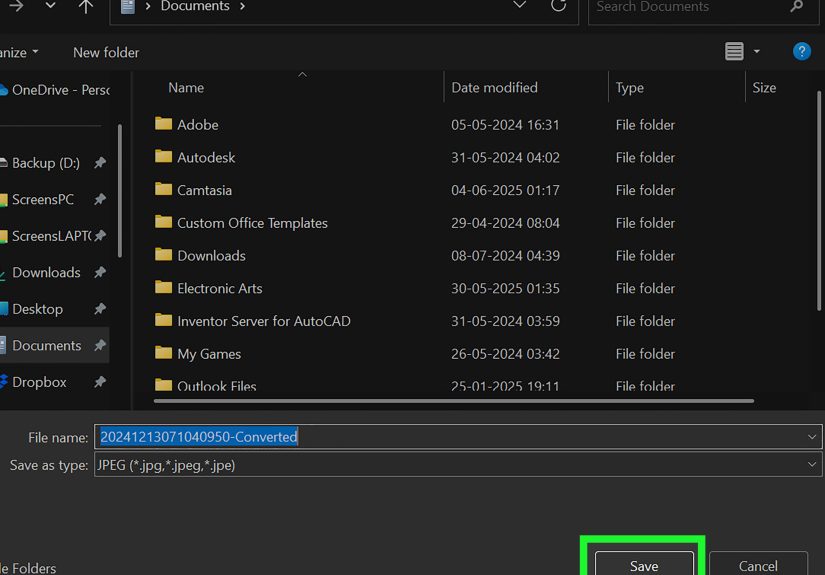
- Save the snip, and choose JPG/JPEG as the file type if available in your save dialog.
Why this method is underrated
- Works offline.
- No file upload (better for sensitive documents).
- Perfect for one-off pages or cropped sections.
Limitations
- Not ideal for multi-page PDFs (unless you enjoy repetition as a hobby).
- Quality depends on your zoom level and screen resolution.
Method 6: Use Mac Preview (Built-In, Clean, and Reliable)
Mac users can do this without downloading anything. Preview can export PDFs and images to different file formats, which makes it one of the easiest native ways to convert a PDF page into JPEG.
How to do it in Preview
- Open the PDF in Preview.
- Select the page you want (or open the PDF you need to export).
- Click File > Export.
- Choose JPEG from the format menu.
- Save the file.
Mac shortcut alternative (for quick grabs)
If you only need a quick image and don’t care about a full export workflow, use macOS screenshots:
- Shift + Command + 4 for a selected area
- Shift + Command + 5 for more screenshot options
This is the Mac equivalent of “I need this page as an image in 12 seconds, please.”
Method 7: Use GIMP (Free Desktop App for Better Control)
If you want more control over resolution, page selection, and JPEG export settingsbut still want a free optionGIMP is a great choice. It’s a free image editor that can import PDF pages and export them as JPEG.
How to do it in GIMP
- Install and open GIMP.
- Go to File > Open and choose your PDF.
- Select the page(s) to import.
- Set resolution (important for output quality).
- After import, go to File > Export As.
- Choose .jpg as the file extension.
- Adjust JPEG quality settings and export.
Why advanced users like it
- Control over page resolution during import.
- Useful for image cleanup, cropping, and edits before export.
- More JPEG export settings than many web tools.
Translation: this is the “I want it to look right, not just convert” option.
How to Choose the Best Method (Without Overthinking It)
Here’s a quick cheat sheet:
- Need a fast browser tool: Adobe Acrobat Online or Smallpdf
- Need page-to-JPG vs. image extraction options: iLovePDF
- Need DPI/quality controls online: PDF24
- Need privacy/offline conversion for one page: Windows Snipping Tool or Mac screenshots
- Need higher control and editing: GIMP
If you’re converting a confidential file (taxes, IDs, contracts, medical paperwork), consider an offline method first.
Image Quality Tips: How to Avoid Blurry or Huge JPEGs
1) Match the output to the job
- Web/upload previews: lower resolution is usually fine
- Slides/presentations: medium resolution often works best
- Printing: higher resolution (often around 300 DPI) is safer
Some tools let you choose DPI directly. If they do, use it. It’s one of the most effective ways to control sharpness.
2) Use PNG instead of JPEG for text-heavy pages (sometimes)
JPEG uses lossy compression, which can make small text and crisp lines look soft. If the page is mostly text, diagrams, or screenshots, PNG may preserve sharper edgesthough the file size is usually larger.
3) Zoom before screenshotting
If you’re using Snipping Tool or Mac screenshots, zoom the PDF page in first. A screenshot captures what you see, so better on-screen clarity usually means a better saved image.
4) Keep the original PDF
JPEG is great for sharing and quick previews, but you lose PDF features like searchable text, bookmarks, and embedded elements. Keep the original file so Future You doesn’t send Present You an angry email.
Safety Tips for Online PDF to JPEG Converters
Online tools are convenient, but not every “free converter” site deserves your trust. U.S. law enforcement has warned that some malicious file converter sites can deliver malware or scrape sensitive data. That doesn’t mean all converters are dangerousit means you should be selective.
Safer habits
- Use well-known tools and official sites.
- Avoid uploading confidential documents unless necessary.
- Prefer offline methods for sensitive files.
- Scan downloaded files if something looks suspicious.
- Read basic privacy/deletion notes before uploading.
In short: convenience is great, but your passport scan should not become a character in someone else’s cybercrime documentary.
Troubleshooting Common PDF-to-JPEG Problems
The JPEG looks blurry
- Increase DPI/resolution (if available).
- Choose “High” image quality.
- Use PNG instead of JPEG for text-heavy pages.
- If screenshotting, zoom in more before capture.
The file size is too big
- Lower the DPI.
- Reduce JPEG quality slightly.
- Crop empty margins before saving.
- Convert only the pages you need.
I only need one page from a multi-page PDF
- Use a tool that exports pages individually.
- Or open the PDF to the page you want and use a screenshot method.
I need the images from the PDF, not a picture of the page
Use a tool with an Extract images option (like iLovePDF and some other converters), not a page-to-JPG conversion.
Final Thoughts
Converting a PDF to JPEG is one of those tasks that sounds technical but is actually pretty simple once you pick the right method. For most people, a browser-based tool like Adobe, Smallpdf, iLovePDF, or PDF24 is the fastest route. If privacy matters, built-in tools on Windows or Mac are excellent for quick one-page captures. And if you want more control, GIMP gives you professional-level flexibility for free.
The real trick isn’t just converting the fileit’s choosing the method that fits your goal: speed, quality, privacy, or control. Once you match the tool to the job, PDF-to-JPEG conversion becomes a two-minute task instead of a 30-minute detour.
Real-World Experiences and Practical Lessons (500+ Words)
Let’s talk about the part no one mentions in most tutorials: the conversion itself is easy, but choosing the right workflow saves you time, file cleanup, and at least one dramatic sigh.
A common real-world example is a small business owner who has a product catalog in PDF format and needs a few pages as images for social media or an online store. Their first instinct is usually to take screenshots. That works for one image in a pinch, but the results can look soft if the page isn’t zoomed in enough. In that situation, using an online converter with page-to-JPG output often produces cleaner images fasterespecially if multiple pages are involved.
Another common scenario: a student or office worker needs to send “just page 3” of a document in a messaging app that doesn’t handle PDFs well. This is where built-in tools shine. On Windows, Snipping Tool is incredibly practical. On Mac, Preview export or a quick screenshot gets the job done in seconds. You don’t need an account, a subscription, or a mysterious downloader that also promises to “boost your PC speed” (never a good sign).
Designers and marketers often run into a different problem: the converted JPEG technically works, but text looks fuzzy and fine lines look rough. That’s usually not because the tool is brokenit’s because JPEG is optimized for photos, not razor-sharp text. In practice, many teams solve this by converting to PNG instead for text-heavy pages, or by increasing the output DPI when a tool supports it. If the image is going into a printed flyer or presentation screen, resolution choices matter a lot more than people expect.
There’s also the privacy angle, which becomes very real when someone tries to convert invoices, contracts, IDs, or medical records. Online converters are convenient, but this is where experienced users slow down and think before uploading. If the file contains personal or financial information, an offline method (Snipping Tool, Preview, or GIMP) is often the safer move. It may take an extra minute, but it avoids unnecessary risk.
GIMP, specifically, becomes useful when people move beyond “just convert it” and into “make it look good.” For example, if you need to crop white margins, improve readability, or export at a specific quality level, GIMP gives you more control than most free browser tools. It’s not the fastest option for casual use, but it’s excellent when quality matters.
One more lesson from real workflows: always keep the original PDF. People sometimes convert everything to JPEG, send it around, and then later realize they need searchable text, a clickable link, or a clean reprint. JPEGs are great for sharing and previews, but they’re a flattened version of the original document. Save the PDF somewhere safe and treat the JPEG as a distribution copy.
The bottom line from real users is simple: there is no single “best” method for every situation. The best method is the one that matches your goal. If you need speed, use a web tool. If you need privacy, stay local. If you need precision, use GIMP. And if you need a result in 10 seconds because your boss is waiting on Slack… yes, screenshotting is absolutely a valid life choice.





 Close
Close