
Table of Contents >> Show >> Hide
- What “Favorites” Actually Means on iPhone (and Where You’ll See It)
- Quick Prep: Make Sure Your Contacts Are Ready for Favorites
- How to Add Favorite Contacts on iPhone (3 Easy Ways)
- How to Manage Favorites: Reorder, Remove, and Fine-Tune
- Favorites and Focus: Let Important People Reach You (Without Letting Everyone In)
- Put Favorites Where You’ll Actually Use Them: Widgets and Shortcuts
- Favorites vs. Other “Important People” Features (Don’t Mix Them Up)
- Common Problems (and Fast Fixes)
- Conclusion: Make Favorites a Tiny Upgrade That Feels Huge
- Real-World Experiences and Lessons Related to iPhone Favorites (Extra 500+ Words)
Your iPhone already knows who you talk to the most. The problem is: it still makes you work to reach them.
Favorites are the shortcut that turns “scroll, scroll, scroll… where’s Mom?” into “tap once, done.”
Think of Favorites as your iPhone’s front-row seats: the people you’d like to access fast, even when your brain is running on 2% battery.
In this guide, you’ll learn how to add favorite contacts, choose what happens when you tap them (call, message, FaceTime, email),
organize and reorder the list, troubleshoot the common “wait… where did my Favorites go?” panic, and use Favorites alongside widgets,
Focus modes, and a few smart iPhone features that pair beautifully with your VIP people.
What “Favorites” Actually Means on iPhone (and Where You’ll See It)
“Favorites” is a special list tied to the Phone app (and the Contacts card action you pick). It’s designed for quick access.
When you add someone to Favorites, you usually pick a method (like Call, Message, Video/FaceTime, or Mail)
and sometimes even a specific number or emailso tapping a Favorite can do exactly what you want without extra prompts.
One detail that trips people up: on newer iPhone software, the Phone app can appear in different layouts.
In one layout, Favorites has its own tab. In another, Favorites may show up at the top of a combined Calls screen.
Don’t worrythis article covers both, so you’re never stuck hunting for a button that “used to be right there.”
Quick Prep: Make Sure Your Contacts Are Ready for Favorites
1) Clean up a contact card (it makes Favorites smarter)
Favorites work best when each important person has a solid contact card: correct phone numbers, labeled emails,
and (ideally) a clear name like “Dr. Chen (Derm)” instead of “Dr???”future-you will be grateful.
2) Confirm your contacts are syncing the way you expect
If you use iCloud Contacts, your contact list stays consistent across Apple devices signed into the same Apple Account.
If your contacts live in multiple places (iCloud, Gmail, Exchange), you might see duplicatesor new contacts saving to the “wrong” account.
You can choose a default account for new contacts and enable/disable accounts so your Favorites don’t point to messy data.
How to Add Favorite Contacts on iPhone (3 Easy Ways)
Method 1: Add to Favorites from the Contacts app (the most direct)
- Open the Contacts app (or open a contact card from Phone or Messages).
- Tap the person you want to favorite.
- Scroll down and tap Add to Favorites.
-
Choose what tapping this Favorite should do (for example: Call, Message,
Video/FaceTime, or Mail). - If the person has multiple numbers or emails, select the one you actually use (mobile vs work, personal email vs office inbox).
Why this method rocks: you’re editing the person’s “identity card” directly, which is helpful when you’re already fixing
a number, adding a label (like “Work”), or updating their photo.
Method 2: Add Favorites from the Phone app in “Classic” layout
- Open the Phone app.
- Tap Favorites (usually along the bottom).
- Tap the + button.
- Select the contact.
- Choose the action (Call/Message/Video/Mail) and pick the correct number or email if prompted.
Pro tip: You can favorite the same person more than once with different actions.
Example: One Favorite for “Call Dad (Mobile)” and another for “FaceTime Dad (Video).”
That way, you’re not deciding what you meant to do after you tapyou decided when you set it up.
Method 3: Add Favorites from the Phone app in “Unified” layout
In the Unified layout, Favorites may live inside the Calls experience instead of being a separate bottom tab.
The good news: you can still add them quickly.
- Open the Phone app.
- Tap Calls.
- Tap Edit.
- Tap Add Favorite (or go into Edit Favorites and then add).
- Select the contact and choose the action/number/email.
If you’re thinking “I swear I had a Favorites tab yesterday,” you’re not imagining thingsyour layout probably changed.
Later, we’ll cover how to switch layouts so Favorites appears exactly where your thumb expects it to be.
How to Manage Favorites: Reorder, Remove, and Fine-Tune
Reorder your Favorites list
A Favorites list is only as useful as its top three. If your most-called person is buried under “That one coworker from 2019,”
it’s time for some digital housekeeping.
- Open Phone → go to Favorites (Classic) or Calls (Unified).
- Tap Edit (or Edit Favorites).
- Drag contacts into the order you want (look for the reorder “grab handle” lines).
- Tap Done.
Remove someone from Favorites
Removing a Favorite doesn’t delete the contact. It simply stops them from being on your “fast access” list.
(Your aunt is still your aunt. She’s just… no longer one tap away. A healthy boundary.)
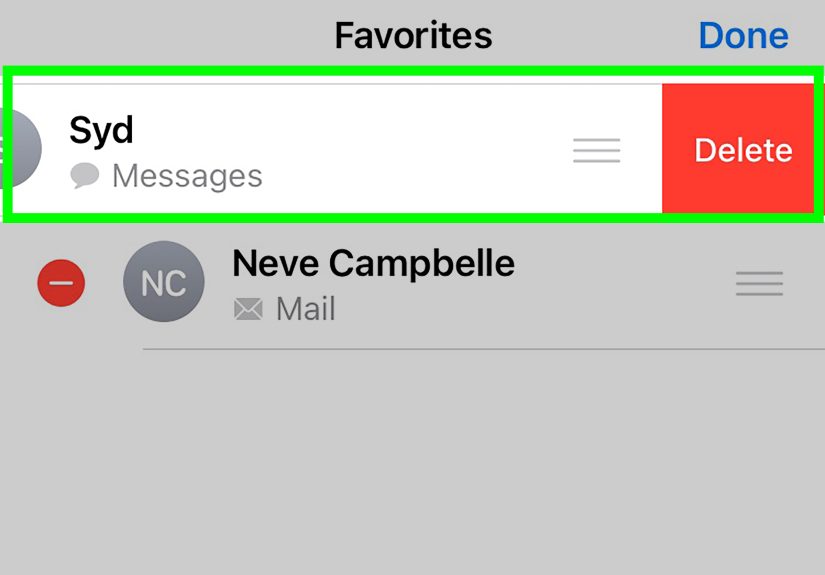
- Classic layout: In Favorites, swipe left on the entry (or use Edit and delete).
- Unified layout: Go to Calls → Edit → Edit Favorites, then remove the entry and tap Done.
Change what happens when you tap a Favorite
If tapping your spouse calls their office landline (hello, 2006), don’t suffer in silence.
Favorites can be adjusted so the tap triggers the right method and destination.
- Open your Favorites list and tap Edit.
- Remove the “wrong” Favorite entry (the one pointing to the wrong number/action).
- Add the person again, selecting the correct action (Call/Message/Video/Mail) and the correct number/email.
Build a “Favorites strategy” that matches real life
Here are a few organizing patterns that work well for most people:
- Family first: Put household members at the top, then close friends, then work.
- Emergency-ready: Add your partner, parent/guardian, and one local friend who can actually show up.
- Workday mode: Add your manager, your top collaborator, and your “this project is on fire” person.
- Caregiving list: Add a doctor’s office line, pharmacy, and key family contacts.
Favorites and Focus: Let Important People Reach You (Without Letting Everyone In)
Favorites become dramatically more useful when you pair them with Focus (the modern version of Do Not Disturb).
You can configure Focus so calls from Favorites are allowed through while the rest of the world gets politely ignored.
That means fewer missed important callsand fewer interruptions from “Unknown Caller: Warranty Department.”
Allow calls from Favorites during a Focus mode
- Open Settings → Focus.
- Select a Focus mode (for example: Do Not Disturb, Work, or Sleep).
- Tap People.
- Find Allow Calls From and set it to Favorites.
- Optionally enable Repeated Calls so a second call within a short window can come through (useful for genuine urgency).
Reality check: Favorites don’t magically override Focus by themselves.
The override happens because you told Focus that Favorites are allowed.
If you want one specific person to always break through, you can also explore Emergency Bypass in that contact’s ringtone settings,
but Focus-based rules are cleaner for most people because they’re consistent and easier to audit later.
Put Favorites Where You’ll Actually Use Them: Widgets and Shortcuts
Use the built-in Contacts widget for one-tap access
iPhone widgets can put specific contacts on your Home Screen so you can call or message without opening the Phone app first.
This is perfect if you mostly contact the same 1–4 people and want “grandma” to be one tap away at all times.
- Touch and hold an empty spot on the Home Screen until icons jiggle.
- Tap Edit (or the + add widget button).
- Search for Contacts and choose a widget size.
- Add it, then configure it to show the people you want.
Create a “Favorites Launcher” with Shortcuts (great for power users)
If you want ultra-specific actionslike “Text my partner: I’m outside” or “FaceTime Audio Mom”
create Shortcuts and place them in a Shortcuts widget. This is also a popular workaround when people miss older-style “favorites” widgets.
A practical setup:
Create a folder called “People” in Shortcuts, add a few contact-based shortcuts (call/text/FaceTime),
then add a Shortcuts widget and point it at that folder. It’s like building your own “speed dial dashboard.”
Favorites vs. Other “Important People” Features (Don’t Mix Them Up)
iPhone has several ways to mark people as important, but they serve different purposes. Favorites is for the Phone app,
while these other tools solve slightly different problems:
Pin conversations in Messages
If you mainly communicate by text, pinning keeps key conversations at the top of Messages so they never get buried.
It’s the texting equivalent of Favorites: less scrolling, more communicating.
VIPs in Mail
VIP lets you star certain senders so their emails stand out and can be filtered into a VIP mailbox.
It’s not the same as Phone Favorites, but it’s useful if important people tend to email you at inconvenient moments.
Emergency Contacts and Medical ID
Emergency contacts are about safety and accessibility from the lock screen. They’re not “Favorites,” but they’re worth setting up.
Your emergency contacts can be notified during SOS events, and responders can view the list in certain situations.
This is one of those features you hope you never needand then you’re very glad you configured it.
Common Problems (and Fast Fixes)
“My Favorites tab disappeared!”
You’re likely in a Phone app layout that no longer shows Favorites as a bottom tab.
Look for a menu icon (often three lines or a “more” control) in the Phone app and switch back to a Classic-style layout,
or stay in Unified layout and use Calls → Edit to manage favorites. If Favorites are showing at the top of Calls, that’s normal in Unified view.
“I tapped Add to Favorites, but it didn’t add anything.”
Favorites often require you to choose a method (Call/Message/Video/Mail) and then select the right number or email.
If you backed out before selecting, it may not have saved. Try again and complete the full selection.
“I have duplicates in Favorites.”
Sometimes duplicates are intentional (Call + FaceTime). Sometimes they’re accidental (Mobile + old work number).
Go to Edit Favorites and remove the entries you don’t want, then re-add the correct one.
“My Favorites aren’t consistent across devices.”
Start by confirming your contacts are syncing through iCloud (or the account you use), and that you’re signed into the same Apple Account.
If your contacts are split across accounts, the same person can appear as separate entrieswhich makes Favorites feel inconsistent.
Consolidating duplicates and setting a default contact account helps a lot.
“I want only Favorites to reach me during Focusbut texts still come through.”
Calls and messages are controlled differently in Focus. Allowing calls from Favorites doesn’t automatically mean only Favorites can text you.
In each Focus mode, review People settings for allowed notifications and decide whether Messages should be allowed from specific people,
or whether you want stricter filtering.
Conclusion: Make Favorites a Tiny Upgrade That Feels Huge
Setting up Favorites is one of those “two minutes now, daily payoff later” improvements.
Once your Favorites list matches your real lifepartner, family, best friend, key work contactsyour iPhone stops feeling like a
contact database and starts feeling like a helpful assistant.
The best setup is the one you’ll actually use: a clean Favorites list, a Contacts or Shortcuts widget for your top people,
and Focus configured so the right folks can reach you when it matters.
Your future selfmid-grocery run, juggling bags, trying to call someone with one thumbwill be deeply impressed.
Real-World Experiences and Lessons Related to iPhone Favorites (Extra 500+ Words)
People usually discover Favorites in one of two emotional states: (1) “I should probably organize my phone like an adult,”
or (2) “WHY DID MY FAVORITES TAB VANISH AFTER THAT UPDATE?” Both journeys lead to the same place: realizing that Favorites
is less about being fancy and more about reducing friction in everyday life.
One common experience: parents (or caregivers) setting up an iPhone for someone who doesn’t want to “learn new tech,”
they just want the phone to behave. A short Favorites listthree to six peopleoften works better than a Home Screen full of apps.
Add “Call” Favorites for the people they contact most, then add a Contacts widget with those same faces. The result feels
almost like speed dial, but without the “press and hold 1 like it’s 1998” vibe.
Another real-life pattern: people add Favorites quickly but forget to choose the correct number. Later, they tap “Spouse”
and accidentally call the office line, then spend ten seconds doing that silent stare at the screen like it personally betrayed them.
The fix is simple: remove the wrong Favorite entry and re-add it choosing “Mobile” (or the right FaceTime option). The lesson:
Favorites is picky in a good wayyour tap should do exactly what you intended, but you have to set the intention once.
Work situations create their own Favorites philosophy. Some people keep work Favorites separate by using two approaches:
a short Phone Favorites list for urgent calls, and pinned Messages threads for the day-to-day chatty stuff. That combo prevents
the “I pinned everyone and now nothing is special” problem. If you’re juggling multiple projects, you’ll also notice that
Favorites becomes a rotating list: during crunch time, your top collaborator rises; when the project ships, they gently slide down.
Treat Favorites like a living list, not a tattoo.
Travel is where Favorites quietly becomes a hero. When you’re in a new placemaybe dealing with a delayed flight, a lost reservation,
or just trying to coordinate with friendsFavorites saves time because you’re not searching through Contacts while walking
and pretending you’re totally not lost. Many travelers also add a local contact (hotel front desk, host, or a friend in the area)
temporarily, then remove them later. That’s a healthy way to use Favorites: it’s allowed to be temporary and practical.
Focus mode stories are especially relatable. People turn on Do Not Disturb (or Sleep Focus) expecting peaceand then miss an important call.
The “aha” moment usually comes when they realize Focus can allow calls from Favorites. After that, the setup becomes:
Favorites = trusted callers; Focus = the gatekeeper. It’s a simple mental model that keeps the phone quiet while still letting
the right people break through. The best part is emotional: the phone stops feeling like an interruption machine and starts
feeling like it respects your time.
Finally, there’s the most universal experience: once Favorites is working well, you forget it existswhich is the highest compliment.
You just tap, connect, and move on with your day. And that’s the whole point.





 Close
Close