
Table of Contents >> Show >> Hide
- Quick Answer: Turn On a Mac Mini in Under 60 Seconds
- Where Is the Power Button on a Mac Mini?
- First-Time Startup Checklist (So You Don’t Get Stuck on Step Zero)
- “It’s Off” vs “It’s Sleeping”: How to Wake a Mac Mini
- If Your Mac Mini Won’t Turn On: Step-by-Step Troubleshooting
- Step 1: Check power like a skeptic
- Step 2: Press and hold the power button (the “reset the moment” move)
- Step 3: Unplug accessories (yes, even that “harmless” USB hub)
- Step 4: Confirm the Mac is on, but your display is not cooperating
- Step 5: If you see a blank screen, force restart and try recovery
- Step 6: If you see a symbol on startup, it’s onjust not booting normally
- Step 7: Know when it might be a known hardware program (2023 M2 “No Power” issue)
- Step 8: When to stop DIY and contact support
- Smart Habits That Make Power Problems Less Likely
- Real-World Examples (Because Reality Loves Plot Twists)
- Experiences That People Commonly Have When Turning On a Mac Mini (500+ Words)
- Conclusion
Turning on a Mac mini should be the easiest part of owning a computer. And most days, it is. But on the day you’re
staring at a tiny aluminum box like it’s a minimalist art exhibit titled “Where’s the Button?”this guide is for you.
Below you’ll learn how to power on any Mac mini model, what to do during first-time setup, how to wake it when it’s
“off” (but actually sleeping), and what to try when nothing happensno light, no chime, no drama… just silence.
Quick Answer: Turn On a Mac Mini in Under 60 Seconds
1) Plug in the essentials (power + display)
Start with the basics: connect the power cord to your Mac mini and a working wall outlet (not a “maybe” outlet that
only works when the kitchen light is onevery house has one).
Next, connect a display. Most Mac minis support connecting a monitor via HDMI and/or USB-C/Thunderbolt, depending on
the model. Make sure your monitor is powered on and set to the correct input (HDMI 1 vs HDMI 2 is the difference
between “I did everything right” and “I guess I live here now”).
2) Connect a keyboard and mouse (or trackpad)
For first-time setup, a wired keyboard/mouse is the path of least resistance. Bluetooth accessories can work, but
wired avoids the “I can’t pair because I can’t click anything” loop.
3) Press the power button (location depends on model)
Here’s the part that confuses people because Mac minis have evolved:
- Many older Mac minis: the power button is on the back of the unit.
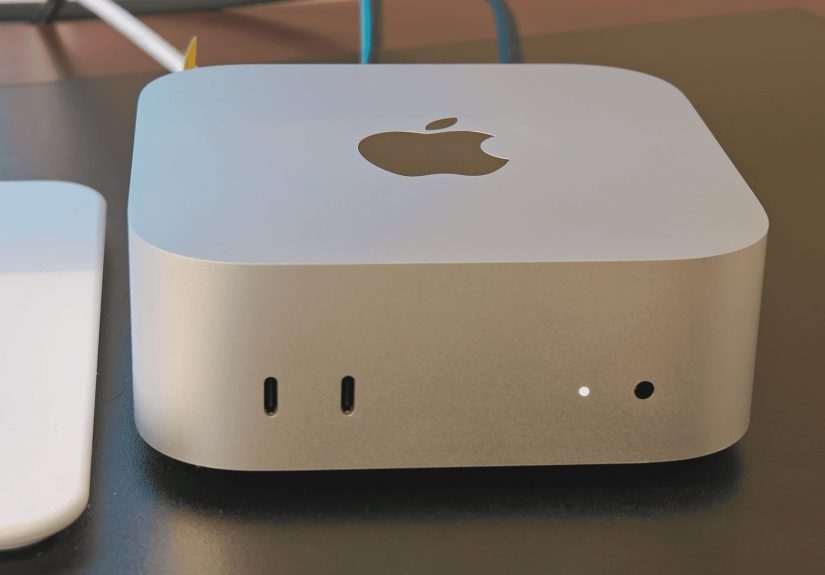
- Current Mac mini designs (like the M4 generation): the power button is on the bottom.
Press the button once. You may see a status light and/or hear a startup sound. If you don’t, don’t panic yetwe’ll troubleshoot later.
4) Complete Setup Assistant
If this is your first boot (or the Mac has been erased), Setup Assistant walks you through language, Wi-Fi/Ethernet,
signing into your Apple Account, and choosing whether to transfer data from another computer.
Where Is the Power Button on a Mac Mini?
The Mac mini power button’s location depends on the generationApple has moved it in different designs, and the newer
redesigns can surprise even longtime Mac users.
Older Mac mini models: button on the back
On many Mac mini models, the power button is on the rear panel. If you’re looking at the ports (HDMI, USB, Ethernet),
you’re basically in the right neighborhood. The button is typically a small, round button you press once to power on.
Newer Mac mini (notably the M4 redesign): button on the bottom
On the current Mac mini guide for the M4/M4 Pro generation, the power button is shown on the bottom of the device.
Translation: yes, you may need to feel underneath the edge to press it.
Practical tip: If your Mac mini sits flat on a desk and your fingers can’t reach the underside button easily,
slide it forward slightly so the front edge overhangs the desk by a tiny amount, or gently tilt it just enough to pressno need to deadlift it.
First-Time Startup Checklist (So You Don’t Get Stuck on Step Zero)
If you’re powering on a brand-new Mac mini (or one that was reset), these details save time and reduce “Why isn’t anything happening?” moments.
Confirm your display setup is actually working
- Make sure the monitor has power and is turned on.
- Choose the correct input source (HDMI vs DisplayPort, etc.).
- Try a different cable if you suspect the current one is damaged or finicky.
Use a wired keyboard/mouse if possible
Wireless peripherals are greatafter setup. During setup, a wired keyboard and mouse keep you moving even if Bluetooth
pairing isn’t automatic.
Know your setup options (new, migrate, or iPhone/iPad)
Setup Assistant usually gives you choices:
- Set up as new: fastest if you want a fresh start.
- Migrate from another Mac: brings over apps, accounts, and files (often via Migration Assistant).
- Transfer from Windows: also supported through migration tools.
- Set up with iPhone or iPad: on supported versions, this can transfer certain settings and iCloud data quickly.
Finish the basics: Apple Account, updates, and security
During setup you may be prompted to sign in, enable location services, set up Siri, choose analytics sharing,
and (optionally) enable disk encryption (FileVault). If you’re unsure, you can usually skip and change later in System Settings.
“It’s Off” vs “It’s Sleeping”: How to Wake a Mac Mini
A huge percentage of “my Mac mini won’t turn on” reports are actually “my Mac mini is sleeping and my monitor is being dramatic.”
Macs are designed to sleep and wake quickly, so many people rarely shut them down completely.
How to wake it (the gentle way)
- Press a key on the keyboard.
- Click the mouse or trackpad.
- Tap the power button once (especially helpful if the display isn’t waking).
Why the power button may feel “hidden” on purpose
On newer designs where the button is less visible, the philosophy is basically: you shouldn’t need it often.
Sleep mode does the daily heavy lifting, while shutdown is more of an “I’m traveling” or “I’m troubleshooting” move.
If Your Mac Mini Won’t Turn On: Step-by-Step Troubleshooting
If you press the power button and get nothingno light, no startup sound, no display signalwork through these steps in order.
The goal is to isolate whether the issue is power, display, accessories, or something deeper.
Step 1: Check power like a skeptic
- Confirm the power cable is firmly seated in the Mac mini and the outlet.
- Try a different outlet (preferably on a different wall, not the same tired power strip).
- Bypass surge protectors temporarilysome fail quietly.
- If you have another compatible power cable, test it.
Step 2: Press and hold the power button (the “reset the moment” move)
Apple’s standard guidance for a Mac that won’t turn on includes pressing and holding the power button for about 10 seconds,
then releasing and pressing normally again. This can help if the Mac is stuck in a weird half-state.
Step 3: Unplug accessories (yes, even that “harmless” USB hub)
Disconnect everything except power and display: printers, external drives, USB hubs, audio interfaces, dongles,
and any “mystery cable” you can’t remember buying. Then try again.
Step 4: Confirm the Mac is on, but your display is not cooperating
Sometimes the Mac mini is awake, but your monitor shows a blank screen. Try:
- Switch monitor inputs manually.
- Unplug and replug the video cable.
- Try a different port or cable if you can (HDMI vs USB-C/Thunderbolt).
- Look closely for signs of life: a status light, faint fan noise, or keyboard backlight changes.
Step 5: If you see a blank screen, force restart and try recovery
If the Mac seems to power on but the display stays blank, Apple recommends forcing it off (hold power up to 10 seconds),
then turning it back on, and if needed, starting from macOS Recovery to run checks.
Step 6: If you see a symbol on startup, it’s onjust not booting normally
A flashing folder/question mark, a prohibited symbol, or an Apple logo with a stuck progress bar usually means the Mac mini
is powered on but can’t complete startup. That’s a “startup troubleshooting” situation rather than a “no power” situation.
Step 7: Know when it might be a known hardware program (2023 M2 “No Power” issue)
Apple has acknowledged that a small percentage of Mac mini (2023) with M2 may stop powering on, and created a
service program where eligible devices can be repaired at no cost. The affected manufacturing window has been published by Apple.
If you have that model and nothing works, it’s worth checking eligibility using Apple’s service program flow.
Step 8: When to stop DIY and contact support
If you’ve tested outlets, removed accessories, tried the long-press power step, and verified the monitor/cableand still get
absolutely no sign of lifeprofessional service is the smartest next step. At that point you’re trying to diagnose hardware
without tools, and nobody wants a weekend hobby called “accidentally made it worse.”
Smart Habits That Make Power Problems Less Likely
Use sleep for everyday life; shut down for long breaks
For most people, sleep is ideal: fast wake, minimal wear-and-tear feelings, and fewer “why won’t my apps come back” moments.
If you won’t use the Mac mini for a long time (travel, moving, extended downtime), a full shutdown makes sense.
Give it breathing room
The Mac mini is compact, but it still needs airflow. Don’t wedge it into a tight cubby behind a space heater (yes,
that’s oddly specific because it happens). A little ventilation helps keep performance stable.
Be cautious with cheap hubs and power strips
Many startup issues aren’t the computerthey’re the accessories chain. A flaky hub can cause weird behavior, and a failing
power strip can make “won’t turn on” look like a computer problem.
Real-World Examples (Because Reality Loves Plot Twists)
Example 1: “It won’t turn on” (actually: monitor on the wrong input)
You press the power button. The Mac mini’s light is on. Your monitor says “No Signal.” The fix? Switch the monitor input
from HDMI 2 to HDMI 1. Suddenly you’re a tech wizard. You didn’t change the Macyour monitor just needed directions.
Example 2: The “USB hub of doom”
Everything is plugged into one mega-hub: external SSD, webcam, microphone, phone charger, probably a toaster.
The Mac mini acts weird. You unplug the hub, boot cleanly, then reconnect devices one at a time. The culprit turns out to be
an overworked hub or one misbehaving device cable. Moral: simplify first, troubleshoot second.
Example 3: The power strip that retired without telling you
The power strip’s switch is “on,” but it’s not delivering consistent power. Plug the Mac mini directly into the wall,
and it boots instantly. The power strip didn’t die loudlyit just decided to become a decorative object.
Experiences That People Commonly Have When Turning On a Mac Mini (500+ Words)
If you’ve never owned a Mac mini before, the first “turn it on” experience can feel strangely suspensefullike you’re about to
launch a rocket, except the rocket is a tiny aluminum square and your mission control is a monitor that may or may not be on HDMI 1.
A very common first-timer moment goes like this: you connect the power cable, connect HDMI, sit back confidently… and see nothing.
For a solid 30 seconds, you wonder if you bought a very expensive paperweight. Then you realize your monitor is still set to the
input for your game console. One button press later, macOS appears, and you immediately forgive the Mac mini for the emotional damage.
Another frequent experience is the “button hide-and-seek” situation. People who grew up with obvious front-facing power buttons
(often glowing, sometimes aggressively) expect the same. The Mac mini’s design philosophy is calmeralmost too calm. On older models,
the button is usually on the back, so you end up rotating the device like you’re examining a rare coin. On newer redesigns where the
power button is on the bottom, it can feel like the Mac mini is politely asking, “Are you sure you want to do that?” Users often adapt
by nudging the Mac mini closer to the desk edge or placing it on a stand that makes the underside more reachable. After a week, many
people stop thinking about the button at all because the Mac spends most of its life sleeping, not fully shut down.
The sleep-versus-shutdown learning curve is its own little rite of passage. Plenty of folks shut down their computer every night out of habit.
With a Mac mini, people often try that once or twice, realize they almost never need to, and switch to letting it sleep. The experience is
surprisingly nice: you tap a key, and everything wakes up quicklyno long boot sequence, no “starting 47 services,” no fan noise that sounds
like a leaf blower. It’s also common to see someone worry that leaving it on is “bad,” then discover that sleep mode is basically the Mac’s
default lifestyle choice. The power button becomes a special-occasion tool, like the fire extinguisher: great to have, rarely used.
Then there are the cable and accessory stories. People love a clean desk setup, so they run everything through one hub: monitor, keyboard,
audio interface, storage, maybe a ring light. When the Mac mini doesn’t boot the way they expect, the solution is often to simplifyjust power,
just display, just one input devicethen add accessories back one at a time. The experience can be annoying in the moment, but it teaches an
important lesson: troubleshooting is easiest when you reduce the number of moving parts. Many users end up labeling cables or using better hubs
afterward, because once you’ve crawled under a desk to reseat a cable at 11:47 p.m., you become a different person.
Finally, there’s the “it’s on, but it’s not on” experiencewhen the Mac mini is awake but the monitor is asleep, or the monitor is awake but
showing the wrong input, or the monitor is awake and correct but the brightness is turned down so far it’s basically pretending to be off.
People often learn to look for signs of life: a status light on the Mac mini, a tiny monitor indicator, the sound of an attached drive spinning up,
or a keyboard backlight turning on. Once you’ve had this happen a couple times, you develop a quick mental checklist and stop assuming the Mac mini
is the problem. In other words: the Mac mini teaches patienceand a healthy skepticism of peripherals.
Conclusion
Turning on a Mac mini is usually straightforward: plug in power, connect a display and input devices, press the power button, and follow Setup Assistant.
The only real “gotchas” are the power button’s location (which varies by model), the monitor input setting (classic), and accessory-related hiccups.
If your Mac mini won’t turn on, start simple: verify the outlet, bypass the power strip, unplug accessories, try the long-press power step, and confirm
your monitor is cooperating. If it still shows no signs of lifeespecially on specific affected modelsofficial support and service programs can be the best path forward.







 Close
Close