
Table of Contents >> Show >> Hide
- What Does “LAN for Xbox” Actually Mean?
- 1. Start With the Right Xbox LAN Plan
- 2. Use Wired Ethernet Whenever Possible
- 3. Build the LAN With a Router and an Unmanaged Switch
- 4. Set Up System Link for Supported Xbox Games
- 5. Use Wi-Fi Only When Ethernet Is Not Practical
- 6. Check Xbox Network Settings Before Playing
- 7. Configure UPnP, Port Forwarding, or Alternate Ports
- 8. Use Network Transfer to Copy Games Across the LAN
- 9. Troubleshoot the LAN Like a Calm Human
- Recommended Xbox LAN Setup Examples
- Safety and Comfort Tips for an Xbox LAN Party
- Real-World Experiences: What Actually Makes an Xbox LAN Work Better
- Conclusion
- SEO Tags
Setting up a LAN for Xbox sounds like something only a caffeine-powered network engineer should attempt, but the truth is much friendlier. A local area network, or LAN, simply lets multiple Xbox consoles communicate through the same home network. That network might be built with Ethernet cables, a router, a gigabit switch, or even Wi-Fi in a pinch. Done well, an Xbox LAN setup can mean smoother multiplayer sessions, faster game transfers, fewer download headaches, and fewer dramatic shouts of “Who unplugged the router?”
Whether you are planning a weekend Xbox LAN party, connecting two consoles for local multiplayer, moving games from an Xbox One to an Xbox Series X|S, or trying to fix strict NAT problems before everyone arrives with pizza, this guide walks through nine practical ways to build a reliable Xbox LAN. The focus is on Xbox Series X, Xbox Series S, Xbox One, and Xbox 360 where relevant. Some older games support classic System Link, while newer titles may rely on online services even when everyone is sitting in the same room. That is why a good LAN setup is part hardware, part settings, and part “check the game before your friends show up.”
What Does “LAN for Xbox” Actually Mean?
A LAN is a private network in your home, office, dorm, garage, or temporarily transformed living room gaming arena. For Xbox players, a LAN can serve several purposes. It can connect consoles for local multiplayer in games that support System Link or LAN play. It can let one console copy games and apps from another console through Network Transfer. It can also give every Xbox a stable path to the internet for party chat, matchmaking, updates, and cloud saves.
The most important thing to remember is that not every Xbox game supports true offline LAN play. Some games offer local split-screen. Some support System Link. Some require each console to be online, signed in, and connected to the game’s servers. Before building your setup, check the game’s multiplayer options. If you see “System Link,” “LAN,” or “local network,” you are in business. If the game only says “online multiplayer,” your LAN can still help performance, but the match probably still depends on the internet.
1. Start With the Right Xbox LAN Plan
The first way to set up a LAN for Xbox is not glamorous, but it saves the most pain: plan the network before you plug things in. Count how many consoles will join. Count how many TVs or monitors are available. Decide whether everyone needs internet access or only local console-to-console play. Also check whether each player has the game installed, updated, and ready to launch.
For two consoles, you may be able to keep things simple with a router and two Ethernet cables. For three or more consoles, an unmanaged Ethernet switch is usually the cleanest solution. For a larger party, such as eight Xbox consoles in one room, use a gigabit switch with enough ports for every console plus one uplink to the router. Always leave at least one spare port. Someone will bring an extra console. Someone always does.
Basic planning checklist
- Confirm the game supports LAN, System Link, or the online mode you plan to use.
- Install the same game version and updates on every Xbox.
- Use one screen per console unless the game supports split-screen.
- Prepare enough Ethernet cables, power strips, and controller batteries.
- Keep the router and switch in a ventilated spot, not buried under snack bags.
A strong plan keeps the LAN simple. The more consoles you add, the more important the physical layout becomes. Place the switch near the center of the room if possible, run cables along walls, and use tape or cable covers where people walk. Lag is annoying; tripping over a cable while carrying nachos is a full tragedy.
2. Use Wired Ethernet Whenever Possible
The best Xbox LAN setup uses Ethernet. Wi-Fi is convenient, but Ethernet is usually more stable, especially when several consoles are fighting for bandwidth in the same room. A wired connection reduces interference, avoids weak signal problems, and generally delivers lower latency. For competitive games, that stability matters. Nobody wants to lose a match and then hear, “Sorry, my Wi-Fi sneezed.”
For most Xbox LAN setups, Cat5e or Cat6 Ethernet cables are enough. Cat5e supports gigabit speeds in typical home setups, while Cat6 offers stronger performance headroom and better resistance to interference. Cat6 is a smart choice if you are buying new cables because it is affordable and future-friendly. Keep cable runs reasonable. Ethernet standards generally support up to 328 feet for common twisted-pair cabling, but a LAN party rarely needs anything close to that unless your gaming room is secretly an aircraft hangar.
How to connect one Xbox with Ethernet
- Plug one end of an Ethernet cable into the back of the Xbox.
- Plug the other end into a LAN port on your router or switch.
- Press the Xbox button on the controller.
- Go to Profile & system > Settings > General > Network settings.
- Run Test network connection.
If the Xbox does not detect the wired connection, try another cable, another router port, or another switch port. A surprising number of “network disasters” are actually one sad Ethernet cable that retired without telling anyone.
3. Build the LAN With a Router and an Unmanaged Switch
For multiple Xbox consoles, the easiest setup is router to switch, then switch to consoles. The router assigns local IP addresses and provides internet access if needed. The switch expands the number of wired ports. An unmanaged gigabit switch is ideal for most Xbox LAN parties because it is plug-and-play. No configuration, no web dashboard, no networking degree required.
Recommended layout
Modem → Router → Gigabit switch → Xbox consoles
Connect the router’s LAN port to any port on the switch. Then connect each Xbox to the switch with Ethernet. Most unmanaged switches automatically detect the connection, so you do not need a special uplink port. Once everything is plugged in, power on the router first, then the switch, then the consoles. This order helps the consoles receive clean network addresses from the router.
A five-port switch works for a small setup with three or four consoles. An eight-port switch is better for a typical LAN party. If you are hosting more players, consider a 16-port switch. Gigabit is the sweet spot. A 100 Mbps switch may still work for some older games, but it can feel painfully slow when copying large games between consoles.
4. Set Up System Link for Supported Xbox Games
System Link is the classic Xbox LAN experience. It lets supported games connect multiple consoles over a local network. This was especially popular on the original Xbox and Xbox 360, and some backward-compatible titles can still make LAN nights feel wonderfully old-school. Think less “cloud gaming future” and more “four consoles, four screens, one room full of suspiciously competitive friends.”
The exact process depends on the console and game. For Xbox 360 System Link, Microsoft’s guidance includes connecting consoles with Ethernet or through compatible network hardware, then selecting System Link inside the game. For modern Xbox One and Xbox Series X|S consoles, LAN-style play depends heavily on the game. Backward-compatible titles may expose System Link options, while modern releases may use online private matches instead.
System Link tips
- Use the same game edition and update version on every console.
- Make sure each player has access to the game license or disc where required.
- Launch the same multiplayer mode on each Xbox.
- Have one console host the match, then let the others search for local games.
- If consoles cannot see each other, restart the game and test the network connection.
If you are mixing old and new Xbox hardware for backward-compatible titles, test everything before the event. Nostalgia is great. Troubleshooting at 11 p.m. while seven people stare at you is less great.
5. Use Wi-Fi Only When Ethernet Is Not Practical
Ethernet is the champion, but Wi-Fi can still work for a casual Xbox LAN setup. If cables are impossible because of room layout, rented space, or a family member who refuses to let your living room become a blue-cable jungle, connect every Xbox to the same Wi-Fi network. Use the 5 GHz or 6 GHz band if your router and consoles support it, because those bands are usually faster and less crowded than 2.4 GHz.
Place the router high and central, away from thick walls, microwaves, Bluetooth clutter, and metal shelves. Keep consoles within strong signal range. If possible, avoid having half the consoles on a guest network and half on the main network. Guest networks often isolate devices from each other, which can prevent LAN discovery and Network Transfer.
Best Wi-Fi practices for Xbox LAN
- Use the same Wi-Fi network name for all consoles.
- Avoid guest networks unless device isolation is disabled.
- Keep the router close to the gaming area.
- Pause large downloads during matches.
- Restart the router before a long gaming session.
Wi-Fi is fine for relaxed co-op, party games, and smaller groups. For competitive shooters, racing games, or anything where one missed frame turns into a courtroom-level argument, use Ethernet.
6. Check Xbox Network Settings Before Playing
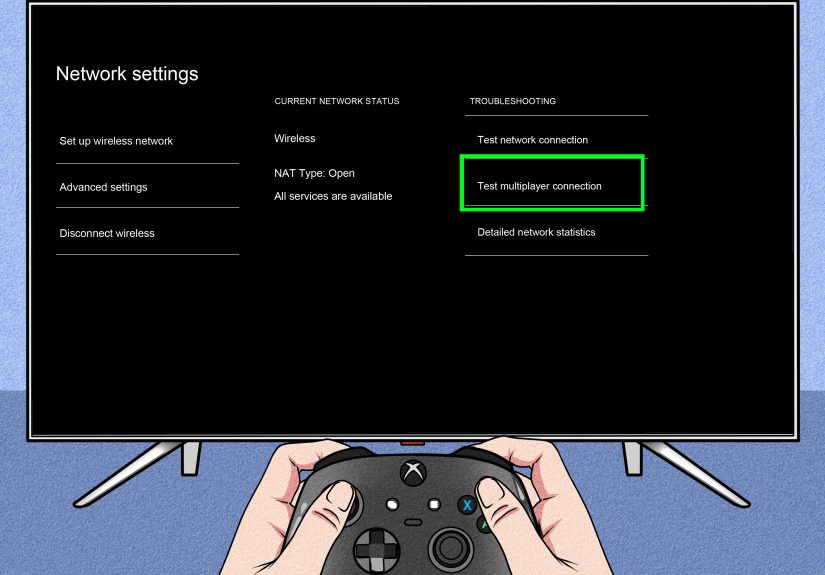
Once every Xbox is connected, open the network settings on each console. On Xbox One and Xbox Series X|S, go to Settings > General > Network settings. From there, test the connection, check NAT type, and review advanced settings if needed.
For local-only LAN play, NAT type may not matter as much. For party chat, online private matches, matchmaking, and game servers, NAT matters a lot. An Open NAT is ideal. Moderate NAT may work but can cause party or matchmaking issues. Strict NAT can prevent players from joining each other. If your LAN party needs internet-based multiplayer, test NAT before everyone arrives.
Common Xbox network checks
- Test network connection: Confirms the console can reach the network.
- Test multiplayer connection: Checks online multiplayer readiness.
- NAT type: Shows whether the console has Open, Moderate, Strict, or Unavailable NAT.
- Advanced settings: Shows IP address, DNS, MAC address, and port options.
If one console works and another does not, compare their settings. Make sure they are on the same local network and not accidentally connected to a neighbor’s Wi-Fi named something like “PrettyFlyForAWiFi.”
7. Configure UPnP, Port Forwarding, or Alternate Ports
If the Xbox LAN needs online multiplayer, the router must handle Xbox network traffic correctly. The simplest option is UPnP, which lets devices request the ports they need automatically. Many home routers support UPnP, and it can be helpful when multiple Xbox consoles are online at once. However, UPnP has security considerations, so keep your router firmware updated and avoid enabling it on networks you do not trust.
If UPnP does not work, use port forwarding. Microsoft lists common Xbox network ports, including UDP 88, UDP and TCP 3074, TCP and UDP 53, TCP 80, UDP 500, UDP 3544, and UDP 4500. Router menus vary, but the general process is the same: reserve a local IP address for the Xbox, create port forwarding rules, choose TCP or UDP as required, save, and restart the router and console.
Multiple Xbox consoles on one network
Multiple Xbox consoles can be trickier because two devices may try to use the same default multiplayer port. Xbox includes alternate port selection in advanced network settings. If one console has NAT problems while another works, set an alternate port on the affected console and configure the router accordingly if you are using manual port forwarding.
Do not place every Xbox in the router’s DMZ as a first move. DMZ can expose a device more broadly than necessary. For most homes, UPnP, DHCP reservations, and targeted port forwarding are better first steps. The goal is not to turn your router into a nightclub with every door open. The goal is to let the right traffic through.
8. Use Network Transfer to Copy Games Across the LAN
An Xbox LAN is not only for multiplayer. It is also useful for copying games and apps between consoles. Xbox Network Transfer lets one Xbox copy installed games and apps from another Xbox on the same home network. This can be faster than downloading everything again, especially if your internet plan has data caps or your favorite game update is the size of a small moon.
How to use Xbox Network Transfer
- Connect both Xbox consoles to the same home network.
- On the source console, go to Settings > System > Backup & transfer > Network transfer.
- Enable Allow network transfer.
- On the destination console, open the same Network Transfer menu.
- Select the source Xbox when it appears.
- Choose the games or apps to copy.
For best results, connect both consoles with Ethernet. Wi-Fi works, but large games can take much longer. Also remember that copying a game does not magically grant ownership. Each account still needs the right license, disc, subscription, or Home Xbox arrangement to play.
9. Troubleshoot the LAN Like a Calm Human
Even a well-built Xbox LAN can misbehave. The good news is that most problems follow patterns. If a console cannot connect, start with the physical layer: cable, switch port, router port, and power. If consoles cannot see each other, confirm they are on the same network and not separated by a guest network, extender isolation, or a second router. If online play fails, check NAT type, UPnP, port forwarding, and double NAT.
Fast fixes for common Xbox LAN problems
- No wired connection: Try another Ethernet cable and another switch port.
- Console gets no IP address: Restart the router, then restart the Xbox.
- Strict NAT: Enable UPnP or configure port forwarding carefully.
- Double NAT detected: Put the modem-router combo into bridge mode or avoid using two routers in series.
- Game does not appear in System Link: Confirm the game supports LAN play and that all copies are updated.
- Slow Network Transfer: Use Ethernet on both consoles and pause downloads.
Keep troubleshooting simple. Change one thing at a time, test, then move on. If you change five settings at once, you may fix the problem but have no idea which setting mattered. That is how home networks become haunted.
Recommended Xbox LAN Setup Examples
Two-console setup
Use a router with two Ethernet cables. Connect both Xbox consoles to LAN ports on the router. Test each connection. Launch the game and choose System Link, local multiplayer, or online private match depending on the title. This is the easiest setup for siblings, roommates, or one-on-one matches where bragging rights are the main prize.
Four-console LAN party
Use a router, one eight-port gigabit switch, and four Ethernet cables for the consoles. Connect the router to the switch, then connect every Xbox to the switch. This layout is clean, stable, and easy to expand. Add one cable per console and keep the switch somewhere nobody will kick it during an emotional overtime round.
Large Xbox LAN event
Use a strong router, a 16-port or larger gigabit switch, labeled Ethernet cables, and dedicated power strips. Pre-install games and updates. Test NAT type on every Xbox if the games require online services. If possible, separate gaming traffic from streaming devices, smart TVs, and random laptops downloading mystery files. A large LAN party rewards preparation.
Safety and Comfort Tips for an Xbox LAN Party
Networking is only half the battle. Power and heat matter too. Multiple Xbox consoles, screens, and speakers can draw significant power and warm up a room quickly. Do not overload one outlet. Use quality surge protectors. Give consoles space to breathe. Do not stack consoles on top of each other, and do not cover vents with hoodies, backpacks, or the world’s largest bag of chips.
Labeling also helps. Put small tape labels on cables and controllers. Name each console clearly in Xbox settings so players can identify the host during Network Transfer or multiplayer setup. Keep a spare Ethernet cable, a spare HDMI cable, and extra batteries nearby. These small details make the difference between a smooth LAN party and a group of people crawling behind furniture like raccoons with controllers.
Real-World Experiences: What Actually Makes an Xbox LAN Work Better
The best Xbox LAN setups are not always the most expensive. In real-world home gaming sessions, the biggest improvements usually come from simple choices: wired connections, updated games, enough switch ports, and testing before people arrive. A common beginner mistake is assuming that “same room” means “same network.” It does not. Two consoles can sit three feet apart and still fail to find each other if one is connected to the main Wi-Fi and the other is connected to a guest network with device isolation turned on.
Another practical lesson is that updates are the silent boss fight before the real boss fight. If four friends arrive with consoles that have not been powered on in three months, your LAN party may become an update party. That is less exciting unless your favorite game is Progress Bar Simulator 2026. The best host powers on every console the day before, launches the game, checks for updates, and confirms that multiplayer menus work. This one habit can save hours.
Ethernet cables also deserve more respect than they get. A cheap, damaged, or badly bent cable can cause random disconnects that look like router problems. During a LAN setup, it helps to keep two known-good spare cables. If one Xbox acts weird, swap the cable first. It is quick, cheap, and often effective. The same goes for switch ports. Move the cable to another port and test again. A calm five-minute check beats a dramatic thirty-minute router ritual.
For families with multiple Xbox consoles, alternate port selection can be a lifesaver when online multiplayer is involved. One Xbox may report Open NAT while another gets Moderate or Strict NAT. Instead of blaming the console, the router, the internet provider, and possibly Mercury in retrograde, check advanced network settings. Assigning alternate ports or using UPnP correctly can help multiple consoles share the same internet connection more gracefully.
For game transfers, Ethernet feels almost magical compared with redownloading huge games. If one Xbox already has the latest version installed, Network Transfer can spare your internet connection from downloading the same massive files again. This is especially useful before a LAN party where everyone needs the same title. Connect both consoles by Ethernet, enable Network Transfer, and copy the game while you do something productive, such as organizing controllers or pretending you are not ordering too much pizza.
The final experience-based tip is to keep the setup boring. Boring networks win. A simple router, one good switch, short Cat6 cables, updated consoles, and tested games will outperform a complicated mess of extenders, double routers, mystery cables, and “advanced” settings nobody remembers changing. A great Xbox LAN should disappear into the background so players can focus on the match, the jokes, the snacks, and the sacred tradition of accusing the winner of screen-peeking even when everyone has their own TV.
Conclusion
Learning how to set up a LAN for Xbox is really about building a stable local network and matching it to the way your games actually play. For classic System Link titles, the LAN can create a true local multiplayer experience. For modern online games, the LAN gives every console a stronger, cleaner path to the router and internet. For game management, Network Transfer can save time, bandwidth, and sanity.
The best formula is simple: use Ethernet when possible, connect consoles through a router and gigabit switch, verify game compatibility, check Xbox Network settings, solve NAT issues before game time, and keep spare cables ready. Do that, and your Xbox LAN party will feel less like troubleshooting homework and more like what it should be: a room full of players, fast connections, friendly chaos, and just enough trash talk to make the rematch mandatory.






 Close
Close