
Table of Contents >> Show >> Hide
- What “sync Facebook on Android” really means today
- Way 1: Sync the Facebook app itself on Android
- Way 2: Sync your phone contacts with Facebook or Messenger
- Way 3: Sync Facebook events to your Android calendar
- Which sync method should you choose?
- Common problems and how to fix them
- Real-world experiences with syncing Facebook on Android
- Final thoughts
- SEO Tags
If you have ever tried to sync Facebook on Android, you already know the internet is full of advice that feels like it was written by a time traveler from 2012. One tutorial tells you to tap a magical sync button. Another promises your phone will instantly turn every Facebook friend into a contact card with a smiling profile photo. Then you open your Android device, stare at the settings, and realize that magical button appears to have taken early retirement.
Here is the good news: you can still sync your Facebook account on an Android device. You just need to think about what you actually want to sync. On modern Android phones, Facebook syncing is less about one giant master switch and more about three practical methods: keeping the Facebook app itself updated and permission-ready, syncing your phone contacts with Facebook or Messenger, and syncing Facebook events with your Android calendar.
In other words, the process still works. It is just more modular, a little less glamorous, and slightly more likely to make you mutter, “Why is this buried in three menus?”
What “sync Facebook on Android” really means today
Before diving into the steps, it helps to define the job. When people search for how to sync a Facebook account on Android, they usually mean one of these things:
- Keep the Facebook app current so notifications, uploads, and account activity stay in step across the device.
- Upload phone contacts so Facebook or Messenger can help you find people you know.
- Add Facebook events to your Android calendar so you do not miss birthdays, meetups, school events, or that barbecue you swore you would attend.
That distinction matters because each sync method uses different permissions, different menus, and different expectations. If you skip that part, you can spend twenty minutes wandering around Settings like a confused tourist in a very boring museum.
Way 1: Sync the Facebook app itself on Android
The first and most basic way to sync your Facebook account on Android is to make sure the Facebook app is signed in properly, updated, and allowed to do its job in the background. This is the version of syncing most people actually want, even if they do not call it that. They want notifications to arrive, posts to refresh, messages to behave, and media uploads to stop acting like they are on a union break.
Step 1: Install or update the Facebook app
Start by checking that you are using the current version of the Facebook app from Google Play. An outdated app can cause login issues, missing features, notification glitches, or menus that do not match current instructions.
If you use Facebook constantly, turning on automatic updates is the easiest move. It saves you from troubleshooting problems that are really just “your app is old enough to remember floppy disks.”
Step 2: Sign in and review your account settings
Open Facebook and sign in with the account you want to use on the device. Once you are in, review your settings, security options, and any connected experiences you use with Messenger or other Meta services. If your setup includes Messenger, this is also a good time to make sure both apps are signed in to the correct account so you are not accidentally syncing the wrong profile.
Step 3: Grant the right Android permissions
Android controls app access very tightly, which is generally a good thing. If Facebook cannot access what it needs, though, syncing feels broken. Open your phone’s settings, find Facebook under Apps, and review permissions. Depending on what you want Facebook to do, you may need to allow access to notifications, photos and videos, contacts, camera, microphone, or calendar.
For example, if you want to add a Facebook event to your calendar, the app may need calendar access. If you want to upload media without friction, photos and videos access matters. If your notifications are unreliable, check both notification permissions and system battery settings.
Step 4: Allow background activity and data when needed
Some Android phones get aggressively protective about battery life and background data. That can be useful when you are squeezing the last 7% out of a phone at the airport. It is less useful when you want Facebook to refresh in the background like a normal app.
If syncing seems delayed, check whether Data Saver, restricted background data, or battery optimization is interfering. Facebook also has its own data-saving controls in the app, so if images load slowly or content seems limited, that setting may be part of the story.
Why this method matters
This method does not sync your contacts or calendar by itself, but it creates the foundation for everything else. If the Facebook app is outdated, blocked from running in the background, or stripped of permissions, every other sync method becomes harder than it needs to be.
Best for: everyday Facebook use, notifications, media access, account stability, and smoother app behavior.
Way 2: Sync your phone contacts with Facebook or Messenger
The second way to sync Facebook on an Android device is through contact uploading. This is one of the most useful modern sync options because it helps Facebook and Messenger match the people in your phone with people on the platform.
There is one important catch: this does not work exactly like the old-school “pull every Facebook friend into Android Contacts” feature people remember from ancient smartphone folklore. Today, the more common method is uploading your phone contacts to Facebook or Messenger so Meta can suggest connections and improve contact matching.
How to sync contacts in the Facebook app
- Open the Facebook app.
- Go to Settings & privacy, then Settings.
- Open Accounts Center.
- Tap Your information and permissions.
- Choose Upload contacts.
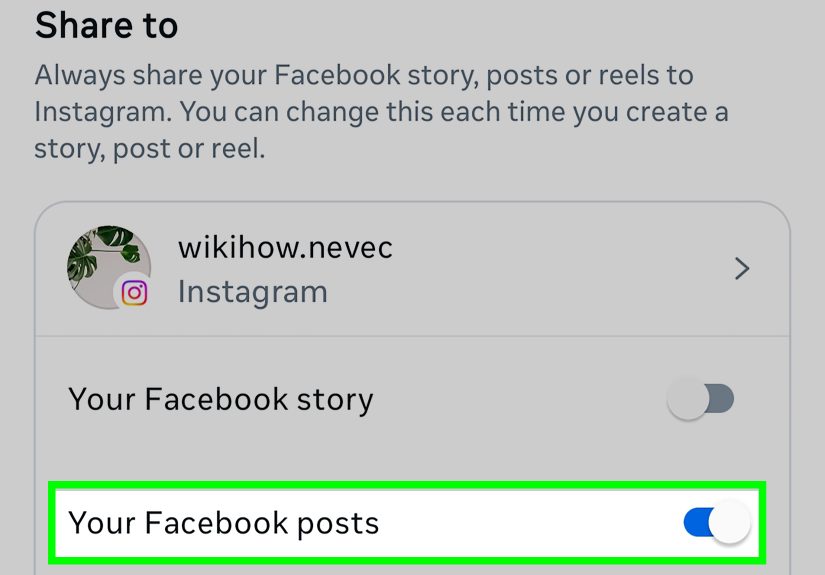
- Turn on continuous contact uploading for the Facebook account you want to use.
Once enabled, Facebook can upload your phone contacts on an ongoing basis. That helps the platform suggest friends, improve messaging matches, and connect you with people you already know.
How to sync contacts in Messenger
If you use Messenger more than the main Facebook app, you can do something similar there:
- Open Messenger.
- Go to Settings.
- Find the contacts or phone contacts section, or open Accounts Center if prompted.
- Turn on contact uploading.
Messenger can continuously upload contacts from your device when that setting is enabled, which is useful if most of your Facebook life happens inside chats rather than in the main app feed.
Privacy note you should not skip
This method is helpful, but it is also the one where you should pause for a second and read the room. Uploading contacts means sharing address book information from your Android device with Meta. If you are comfortable with that, great. If not, leave it off.
The good news is you can manage or remove uploaded contacts later. Messenger also lets you turn contact uploading off, and uploaded contacts can be deleted. So this is not a one-way door with spooky elevator music playing behind it.
What if you want your actual Android contacts synced?
If your real goal is keeping your phone’s address book backed up and available across Android devices, the better tool is usually Google Contacts sync. In that setup, your phone contacts sync with your Google account, not with Facebook. That is more reliable for device-to-device backup, restoring contacts after a phone switch, and keeping your Android address book clean and consistent.
In plain English: use Facebook or Messenger contact upload to help Facebook recognize your people. Use Google Contacts if you want your phone’s contact list to stay backed up and synced across Android hardware.
Best for: finding friends, improving Messenger matching, and syncing your phonebook information with Facebook’s contact-upload features.
Way 3: Sync Facebook events to your Android calendar
This is the most underrated method of all, and honestly, it might be the most useful. If your social life, family plans, community events, or work networking all pass through Facebook, syncing Facebook events to your Android calendar can save you from the classic disaster of remembering an event exactly twelve minutes after it started.
Option A: Add an individual Facebook event to your phone calendar
If you only need a single event, the Facebook app can add that event to your calendar. Open the event, look for the options menu, and choose Add to Calendar if the feature is available for that event and device setup. This is the simplest option for one-offs such as concerts, parent meetings, birthday parties, or local events.
This is the quick-and-clean approach. One event. One tap path. Minimal drama.
Option B: Sync multiple Facebook events with Google Calendar
If you want something more automatic, the better play is to subscribe to your Facebook events through Google Calendar. The setup usually begins in a web browser, not inside the Android app itself. Once added to Google Calendar, though, those events can appear on your Android device through the Google Calendar app.
Here is the basic flow:
- Open Facebook in a web browser and go to your events section.
- Find the option to export or subscribe to upcoming events.
- Copy the calendar URL or export link.
- Open Google Calendar in a web browser.
- Choose Add calendar and then From URL or use import options if needed.
- Add the Facebook calendar feed.
- Open Google Calendar on your Android phone and let it sync.
Why the extra browser step? Because subscribing to a new calendar feed is still something Google generally expects you to set up from a computer web browser. Once the calendar is added to your Google account, the Android app takes over and displays the results like the helpful grown-up in the room.
When this method shines
This setup is especially useful if you mark lots of events as “Going” or “Interested,” rely on Facebook for community happenings, or want your Android calendar to show social events alongside work meetings and family appointments. It is a small quality-of-life improvement that makes your phone feel smarter and your memory feel less like a leaky bucket.
Best for: keeping Facebook events visible in Google Calendar on Android and avoiding missed plans.
Which sync method should you choose?
If you are not sure where to start, use this cheat sheet:
- Choose Way 1 if you mainly want Facebook to refresh properly, send notifications, and behave well on Android.
- Choose Way 2 if you want Facebook or Messenger to use your phone contacts for friend suggestions and contact matching.
- Choose Way 3 if you want Facebook events to show up in your Android calendar.
You can also use all three together. That is the closest thing modern Android has to a full Facebook sync setup, and it works much better when you treat each sync type as its own tool rather than hunting for one mythical master switch.
Common problems and how to fix them
Facebook is not refreshing in the background
Check app updates, background data access, battery optimization, and notification permissions. Also make sure Android has not paused app activity because the app was unused for a while.
Contacts are not syncing the way you expected
Make sure you understand whether you are uploading contacts to Facebook or syncing contacts with Google Contacts. Those are different jobs, and mixing them up is a very popular hobby on support forums.
Calendar events do not appear on Android
Confirm the Facebook event feed was added to Google Calendar correctly, then verify the calendar is enabled in the Google Calendar app. If you use third-party calendar apps, also check whether Google Calendar data sharing with other apps is turned on.
The settings do not match the article exactly
That is normal. Android phone makers love customizing menus, renaming settings, and pretending every path to the same feature needs its own personality. If a label looks slightly different, search inside your Settings app for terms like Permissions, Accounts Center, Contacts sync, or Calendar.
Real-world experiences with syncing Facebook on Android
In real life, most people do not wake up excited to “sync a Facebook account.” They do it because something practical is broken. A college student wants Messenger to recognize classmates from phone contacts. A parent wants birthday parties and school fundraisers from Facebook to show up in Google Calendar. A small-business owner wants to respond to customers on Messenger without missing notifications because Android decided the app was too quiet to deserve background access. Syncing becomes important the moment Facebook is part of your daily routine instead of just a tab you open once in a while.
One common experience is the new-phone scenario. Someone upgrades to a new Android device, installs Facebook, logs in, and assumes everything will magically return exactly as before. Some things do come back, like the account itself and cloud-based Facebook data. But contacts, calendar behavior, permissions, and background settings may not. That is usually where frustration starts. The app is technically installed, but it is not fully integrated into the way the person used it before. Once they turn on the right permissions, review contact uploading, and reconnect calendar syncing, the phone suddenly feels familiar again.
Another common situation involves people who use Facebook mainly for events. They may not care much about posting status updates, but they absolutely care about neighborhood gatherings, church schedules, hobby groups, school reminders, and family birthdays. For them, syncing Facebook events to Google Calendar on Android is a game changer. Instead of checking Facebook constantly, they can see social plans alongside work meetings and dentist appointments. It cuts down on mental clutter and lowers the odds of saying, “Wait, that was today?” while putting on one shoe and grabbing car keys in a panic.
Then there is the privacy-conscious user, which is increasingly most people. These users often want some syncing, but not all of it. They may be fine with calendar syncing and app notifications, but not with uploading their entire address book to Meta. That selective approach makes sense. Modern syncing on Android is flexible enough that you can choose what to enable and what to leave off. You do not need to go all in just because the option exists. In fact, the smartest setup is often the one that gives you convenience without sharing more than you intended.
There is also a work-life-balance angle here. Plenty of people use Facebook and Messenger for local business groups, marketplace messages, networking events, and community outreach. On Android, proper sync settings can be the difference between staying organized and living in a state of low-grade digital chaos. When Facebook notifications arrive on time, events land in the calendar, and contacts are managed intentionally, the device becomes more useful and less annoying. And that, frankly, is the dream: not a futuristic superphone, just a phone that does not make your Tuesday harder.
Final thoughts
If you want to sync your Facebook account on an Android device, the smartest move is to stop looking for one giant universal switch. Modern Facebook syncing works best when you break it into parts: app syncing, contact syncing, and calendar syncing.
That may sound less elegant than the old days, but it is actually more practical. You get more control, better privacy choices, and a setup that reflects how you really use Facebook on Android. Want smoother app behavior? Start with permissions and updates. Want Facebook to recognize your people? Turn on contact uploading. Want your social calendar to stop ambushing you? Sync Facebook events with Google Calendar.
Do those three things, and your Android phone will feel a lot more connected, a lot less chaotic, and far less likely to surprise you with a party invitation after the cake is already gone.





 Close
Close