
Table of Contents >> Show >> Hide
- Before You Sync: A 5-Minute Checklist That Saves 50 Minutes Later
- Way 1: Use Your Samsung Account for Built-In Galaxy Continuity
- 1A) Turn On Samsung Cloud Sync for Samsung Apps (Notes, Contacts, Calendar, and More)
- 1B) “Continue Apps on Other Devices” for Samsung Notes and Samsung Internet
- 1C) “Call & Text on Other Devices” (So Your Tablet Can Pretend It’s Your Phone)
- 1D) Sync Photos the Samsung Way: Gallery “Sync to OneDrive”
- Way 2: Let Your Google Account Do the Heavy Lifting
- Way 3: Use Samsung Flow for Daily “Handoff” Sync Between Phone and Tablet
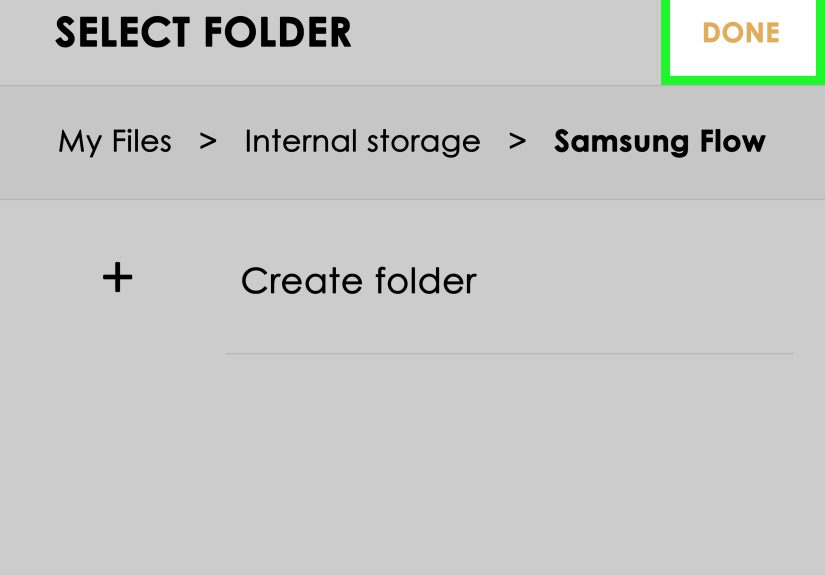
- 3A) Set Up Samsung Flow (Phone + Tablet Pairing)
- 3B) Notification Sync (So Your Tablet Gets the Pings)
- 3C) Fast File Transfers (Photos, PDFs, Screenshots, Random Things Your Teacher Suddenly Needs)
- 3D) Screen Mirroring and “I Need to See My Phone App on My Tablet” Moments
- 3E) When to Use Quick Share Instead (Because Sometimes You Just Want It Done)
- Troubleshooting: When Sync Goes Sideways
- Security and Privacy Tips (Sync Without Regrets)
- Which Way Should You Pick?
- of Real-World Syncing Experiences
- Conclusion
- SEO Tags
If your Samsung phone and tablet are part of the same “Galaxy family,” they should act like itsharing the
important stuff, remembering where you left off, and not making you text yourself screenshots like it’s 2012.
The trick is choosing the right kind of sync for what you actually mean by “sync.”
Some people want continuous syncing (notes, contacts, photos, tabs, settings). Others want
device-to-device handoff (grab a file from your phone on your tablet, mirror a screen, respond to a notification).
And sometimes you just want your tablet to feel like your phone’s bigger, calmer sidekick.
Below are three reliable, real-world ways to sync a Samsung phone and tableteach with a different superpower.
Mix and match if you want (because nobody’s stopping you, and frankly it’s kind of fun).
Before You Sync: A 5-Minute Checklist That Saves 50 Minutes Later
- Update both devices (Settings > Software update). Sync features often ride along with updates.
- Sign in to the same accounts on both devices (Samsung account and/or Google account).
- Use the same Wi-Fi for setup when possible (it makes pairing and transfers smoother).
- Turn off Data Saver / Extreme power saving during setupthese can block background syncing.
- Confirm Bluetooth is on if you plan to use device-to-device features (especially Samsung Flow).
Way 1: Use Your Samsung Account for Built-In Galaxy Continuity
If your devices are both Galaxy, your Samsung account is the “glue” that can keep Samsung apps and features in step.
This is the best option when you want your phone and tablet to feel like two rooms in the same house:
different spaces, same stuff.
1A) Turn On Samsung Cloud Sync for Samsung Apps (Notes, Contacts, Calendar, and More)
Samsung Cloud syncing is less about dumping every file into the sky and more about keeping key Samsung data aligned
across devices. Here’s how to enable it:
- On both devices, open Settings.
- Tap your Samsung account name at the top (or go to Accounts and backup).
- Tap Samsung Cloud.
- Look for Synced apps (or sync settings) and toggle on what you want (for example: Samsung Notes, Contacts, Calendar).
- Optional: choose whether syncing uses Wi-Fi only or Wi-Fi or mobile data.
Tip: If you only care about a couple of things (like Notes and Contacts), don’t toggle everything on “because it’s there.”
Syncing is like seasoning: a little is delicious; too much is chaos.
1B) “Continue Apps on Other Devices” for Samsung Notes and Samsung Internet
This is the closest thing to “Apple-style handoff,” Samsung edition. Start a note or browse a page on your phone,
then pick up on your tablet without hunting for it again.
- On both devices, go to Settings.
- Tap Connected devices (or sometimes Advanced features, depending on One UI version).
- Turn on Continue apps on other devices.
- Make sure you’re signed into the same Samsung account on both devices.
When it’s working, you’ll often see a small “continue” icon on your Recents screentap it and keep going.
Perfect for: reading recipes on your phone, then continuing on your tablet where the font can breathe.
1C) “Call & Text on Other Devices” (So Your Tablet Can Pretend It’s Your Phone)
Want to answer calls or send texts from your tablet while your phone is across the room charging (or hiding under a couch cushion)?
If your devices support it, this feature makes your tablet a legit communications sidekick.
- On your phone: Settings > search for Call & text on other devices > turn it on.
- On your tablet: Settings > search for Call & text on other devices > turn it on.
- Confirm both devices use the same Samsung account.
- Follow any prompts for permissions (Phone, Contacts, Messages).
Reality check: This feature is device/region/carrier dependent. If you don’t see it, it’s not youit’s the feature list.
1D) Sync Photos the Samsung Way: Gallery “Sync to OneDrive”
Samsung’s Gallery app can sync with Microsoft OneDrive on many Galaxy devices. This is handy if you want your tablet
and phone to show the same recent photos without manually copying them.
- Open Gallery on your phone.
- Tap Menu (three lines) > Settings.
- Tap Sync with OneDrive.
- Choose which albums to sync.
- Repeat on your tablet (or simply sign into the same OneDrive account so the photos show up there too).
This setup is great if you already live in OneDrive for school/work filesor if you just like the idea of your camera roll having a backup plan.
Way 2: Let Your Google Account Do the Heavy Lifting
Even if you’re Team Samsung, Google is still the default backbone of Android syncing. This method is the most universal:
it works across brands, across devices, and across the future scenario where you “accidentally” buy a third device.
(It happens.)
2A) Turn On Google Account Sync (Contacts, Calendar, and More)
Start here if your goal is: “I want my essentials to match on both devices.” The exact menu labels can vary slightly,
but the path usually looks like this:
- Open Settings.
- Tap Passwords & accounts (or Accounts and backup).
- Select your Google account.
- Tap Account sync.
- Toggle on what you want (like Contacts and Calendar).
Pro tip: If you have multiple Google accounts (personal, school, “I signed up for one coupon once”), make sure
you’re syncing the one you actually use day-to-day.
2B) Google Photos for “Same Library Everywhere”
If photos are your main sync priority, Google Photos is built for this. Once backup is enabled on your phone,
your photos appear on your tablet as soon as the tablet is logged into the same Google account and using Google Photos.
- On your phone: open Google Photos > tap your profile icon > Photos settings > Backup > turn it on.
- On your tablet: install/open Google Photos and sign in to the same account.
- Optional: choose backup quality/storage settings if prompted.
This is especially useful for people who edit on a bigger screen: shoot on phone, review and organize on tablet,
then share to family group chats like a responsible digital citizen.
2C) Drive + Docs + Keep: Your “Shared Brain” Across Devices
For notes, lists, and files that need to show up everywhere:
- Google Drive syncs files you upload or create (Docs, Sheets, PDFs).
- Google Keep is great for quick notes and checklists (and it updates across devices fast).
- Google Docs is basically “work that follows you around,” but in a helpful way.
Example: Draft a class outline in Docs on your tablet, then open it on your phone while you’re waiting in line and add the last-minute idea you swear you’ll forget.
(You will. That’s why syncing exists.)
2D) Chrome Sync: Tabs, Bookmarks, and Passwords Without the Treasure Hunt
If you use Chrome, turn on sync so your tablet feels like an extension of your phone’s browsing life:
bookmarks, saved passwords, and even open tabs can be available across devices when you’re signed in.
Way 3: Use Samsung Flow for Daily “Handoff” Sync Between Phone and Tablet
Samsung Flow is the best answer when your idea of syncing is: “I want my tablet to pull things from my phone on demand.”
It’s not primarily cloud syncit’s a secure connection between devices for notifications, file sharing, and continuity tasks.
3A) Set Up Samsung Flow (Phone + Tablet Pairing)
- Install/open Samsung Flow on both your phone and tablet.
- Make sure Bluetooth and Wi-Fi are enabled.
- Open Flow and follow the prompts to pair (often via a code or device list).
- Approve permissions when requested (notifications, files/media access, etc.).
Once paired, Flow becomes a “bridge” between your deviceslike a tiny digital hallway you can walk through carrying files.
3B) Notification Sync (So Your Tablet Gets the Pings)
Flow can mirror phone notifications onto your tablet, which is great when your phone is face-down and pretending it doesn’t exist.
In Flow settings, you can often choose which app notifications get passed through.
Good use case: Keep your phone on silent, but still see important alerts on your tablet while studying, drawing, or working.
3C) Fast File Transfers (Photos, PDFs, Screenshots, Random Things Your Teacher Suddenly Needs)
With Flow, you can send content between devices quicklyespecially useful for:
- Moving a freshly-scanned PDF from phone to tablet for annotation.
- Sending a photo you took on your phone to your tablet for editing on a larger screen.
- Dropping a screenshot into a note without emailing it to yourself (we don’t do that anymore).
3D) Screen Mirroring and “I Need to See My Phone App on My Tablet” Moments
Flow can also support phone screen viewing/mirroring on the tablet in some setups. This is handy when:
you have an app that looks better (or is easier to control) while you’re on the tablet but the content lives on the phone.
3E) When to Use Quick Share Instead (Because Sometimes You Just Want It Done)
If your goal is “send this file right now,” Samsung’s Quick Share can be the fastest option for one-off transfers.
Think of it as tossing a file across the room instead of building a whole bridge.
Troubleshooting: When Sync Goes Sideways
Fix #1: Confirm You’re Signed Into the Same Account (Yes, Really)
Most “sync isn’t working” issues boil down to one device using Account A and the other using Account B.
Double-check Samsung account and Google account emails on both devices.
Fix #2: Toggle Sync Off and Back On
- For Samsung sync: Samsung Cloud > Synced apps > toggle the app off/on.
- For Google sync: Google account > Account sync > toggle off/on.
Fix #3: Let the Apps Run in the Background
Battery optimization can stop sync quietly. If Notes/Photos aren’t updating, check:
Settings > Apps > (App name) > Battery and allow normal/background activity where appropriate.
Fix #4: Restart Both Devices (The Classic, Because It Works)
A quick restart can refresh account tokens, background services, and connection handshakesespecially for Flow pairing issues.
Fix #5: Re-Pair Samsung Flow
If Flow gets flaky, remove the connection inside Flow on both devices and pair again. It’s annoying,
but so is yelling at your tablet like it can feel shame.
Security and Privacy Tips (Sync Without Regrets)
- Use a screen lock on both devices (PIN, pattern, fingerprint).
- Turn on 2-step verification for your Samsung and Google accounts if available.
- Be selective about what you sync (especially sensitive notes or work data).
- Watch shared devices: if your tablet is used by family, create separate user profiles where possible or lock apps appropriately.
Which Way Should You Pick?
| Goal | Best Option |
|---|---|
| Keep Samsung Notes/Internet activity flowing between devices | Way 1 (Samsung account + Continue apps) |
| Match contacts and calendar across everything | Way 2 (Google account sync) |
| Get phone notifications and quickly move files to tablet | Way 3 (Samsung Flow) |
| Keep photos available on both devices with backup | Way 1 (Gallery to OneDrive) or Way 2 (Google Photos) |
| Answer calls/texts from the tablet | Way 1 (Call & Text on Other Devices) |
of Real-World Syncing Experiences
In the real world, syncing isn’t a single momentit’s a routine that quietly proves itself when you’re busy.
One of the most common “aha” moments happens with Samsung Notes. Someone jots a messy idea on their phone
while walking to classhalf sentences, no punctuation, pure chaos. Later, they open their tablet, and there it is,
waiting like a calmer version of their brain. They add headers, clean it up, maybe even pretend it was organized all along.
Another practical scenario is photo workflow. People often take pictures on their phone because it’s always there,
but they prefer reviewing and organizing on a tablet because bigger screens are kinder to your eyes.
With Google Photos or OneDrive-based syncing, the phone becomes the “camera,” and the tablet becomes the “studio.”
The win isn’t just convenienceit’s the way you stop losing time on transfers and start spending time on the task.
Then there’s the “I need this file right now” panic. A teacher asks for a PDF. A coach needs a form.
A family member wants “that one photo you took.” With Samsung Flow, people tend to build a simple habit:
capture on phone, send to tablet, annotate or rename, then share. After doing it a few times, it feels less like technology
and more like muscle memory. The only time it feels dramatic is when it doesn’t workand that’s usually because battery saving
was quietly blocking background activity. Once they learn to whitelist the key apps, the drama fades.
The most underrated syncing “experience” is peace and quiet. Some users keep their phone on silent to focus,
but still want to catch important notifications. Flow-style notification syncing makes the tablet a “control center”:
you see what matters, ignore what doesn’t, and you’re not constantly picking up your phone just to learn it was a meme.
(Not that memes aren’t essential. They are. Just… later.)
Finally, there’s the lifestyle upgrade of Call & Text on Other Devices. People don’t realize how often
their phone is physically inconvenient until their tablet can step in. Phone charging across the room? Tablet handles it.
Phone in a bag while you’re cooking? Tablet handles it. Phone doing that mysterious “I’m at 2% even though I swear I was at 40%”
thing? Tablet, once again, handles it. It’s not magicalit’s just continuity done well. And once you get used to it,
going back feels like giving up power steering.
Conclusion
Syncing your Samsung phone and tablet doesn’t have to be complicatedit just needs the right method for the right job.
Use your Samsung account for Galaxy-native continuity (Notes, Internet, calls/texts, and Samsung Cloud syncing),
lean on your Google account for universal essentials (contacts, calendar, photos, files),
and pick Samsung Flow when you want quick handoffs and day-to-day device teamwork.
Set it up once, and your devices stop feeling like two separate gadgetsand start acting like a coordinated duo that’s actually on your side.







 Close
Close