
Table of Contents >> Show >> Hide
- Before You Send Anything on Facebook
- 1. Send a File in Messenger on Your Phone
- 2. Send a File on Desktop Through Facebook Messages
- 3. Upload a File in a Facebook Group or Share a Cloud Link When Needed
- Which of These 3 Ways to Send Files on Facebook Is Best?
- File-Sending Mistakes to Avoid
- Real-World Experiences With Sending Files on Facebook
- Conclusion
Facebook is great for sharing updates, memes, birthday wishes, and the occasional “Look what my dog did now” photo. But when it comes to sending actual files, things can feel a little less obvious. One minute you are confidently trying to send a PDF, and the next minute Facebook is acting like you just asked it to carry a refrigerator up three flights of stairs.
The good news is that sending files on Facebook is much easier than it used to be. Between Messenger on mobile, Facebook Messages on desktop, and Facebook Groups, you now have several practical ways to share documents, spreadsheets, images, and other common file types. The trick is knowing which method fits the moment.
In this guide, you will learn three reliable ways to send files on Facebook, plus the smartest tips for avoiding upload headaches, privacy slip-ups, and the classic “Oops, wrong version” disaster. Whether you are sending a school form, work document, party plan, or family photo collection, here is how to get it done without turning your chat into a tech support ticket.
Before You Send Anything on Facebook
Take 30 seconds and do a tiny file check before you hit send. It saves a lot of future grumbling.
- Check the file size: Very large files can still be a problem. If your file is huge, you may need to compress it or use a cloud link instead.
- Rename the file clearly: “Final_v2_REALfinal.pdf” is funny until it is not. Use a clean name like April-Budget-Report.pdf.
- Make sure you are in the right chat or group: Facebook is fast. Regret is also fast.
- Think about privacy: If the file contains personal information, double-check who can view it before posting publicly or inside a large group.
- Use the latest version of Messenger or Facebook: Old app versions love to act confused.
Now that the boring-but-important adulting is out of the way, let’s get to the three best ways to send files on Facebook.
1. Send a File in Messenger on Your Phone
This is the easiest option for most people. If you already use Messenger on Android or iPhone, sending a file from your phone is usually the fastest route from “I have the document” to “I sent the document.”
How to do it
- Open the Messenger app.
- Tap the conversation with the person or group you want to send the file to.
- Tap the plus icon or attachment area near the message box.
- Select Files if the option appears.
- Browse your phone for the document, spreadsheet, PDF, ZIP file, image set, or other supported file.
- Choose the file.
- Tap Send.
That is it. No carrier pigeon. No email detour. No “Please confirm you are not a robot” drama.
When this method works best
Using Messenger on your phone is ideal when the file is already saved locally on your device. Think doctor forms, invoices, class notes, resumes, screenshots, recipes, or travel confirmations. It is especially handy when someone messages you, “Can you send that file really quick?” and you want to be a hero instead of replying, “Give me 45 minutes.”
Best tips for sending files in Messenger on mobile
Keep the file simple and clean. If you are sending a document, PDF is usually the safest choice because formatting stays intact better than it might in an editable file.
Watch your mobile connection. Large uploads can stall on weak data connections. If the upload bar starts crawling like it is emotionally exhausted, switch to Wi-Fi.
Use file names that make sense. A recipient is much more likely to open Schedule-May-2026.pdf than doc0004421.pdf.
Send context with the file. Don’t just drop the file into the chat like a mystery brick. Add a short message such as, “Here’s the signed form,” or, “This is the updated budget sheet.”
Common mobile problems
If you do not see a file option, update Messenger first. Also check whether the file is stored in a location your phone can access easily, such as Downloads, Files, or cloud storage synced to your device. Some phones make attachments feel like a scavenger hunt designed by raccoons.
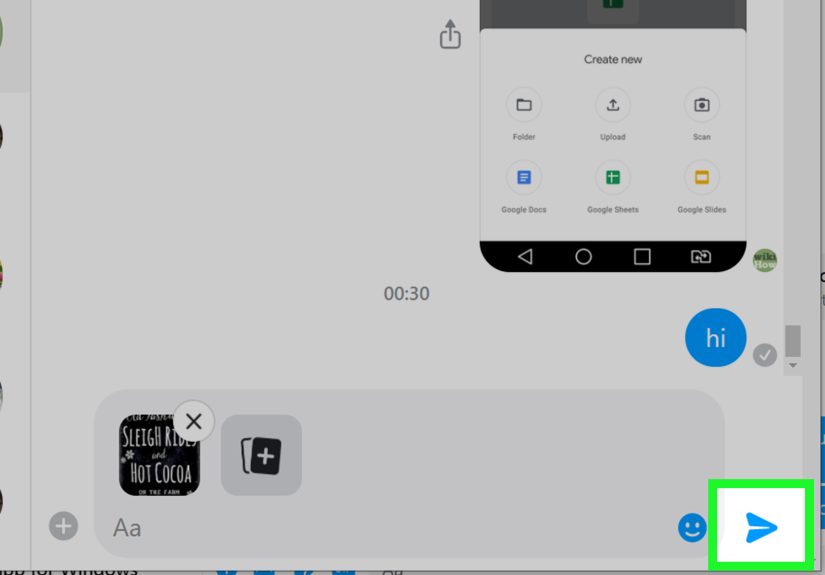
2. Send a File on Desktop Through Facebook Messages
If you are working on a computer, this method is often even better than mobile. Why? Because desktop file management is still easier for most people. Dragging, dropping, renaming, finding the correct folder, and selecting the right version all tend to be less painful on a full screen.
As of now, the cleanest desktop workflow is to use Facebook’s messaging interface on the web. So if your file lives on your laptop or desktop computer, this is your best bet.
How to do it
- Log in to Facebook on your computer.
- Open Messages or go to the messaging section.
- Select the conversation where you want to send the file.
- Click the attachment or file icon near the message field.
- Choose the file from your computer.
- Add a short message if needed.
- Press Enter or click Send.
Why desktop is often the smarter option
If you are sending contracts, presentations, spreadsheets, design drafts, or school documents, desktop usually wins. You can preview the file name more easily, verify the correct version, and avoid accidentally sharing the blurry screenshot of the file instead of the file itself. Yes, people do that. Yes, it is a whole thing.
Desktop is also great when you need to send multiple related items in a row, like:
- a PDF proposal
- a matching spreadsheet
- a folder zipped into one package
- a quick explanatory message
Drag-and-drop can save time
On many desktop setups, dragging a file directly into the chat window works just as well as clicking the attachment button. If you are the kind of person who likes fast, no-nonsense workflows, this can shave off a few clicks.
Desktop file-sending habits that make life easier
Compress multiple files into one ZIP file. If you need to send five related documents, zipping them together keeps the conversation cleaner and makes the download easier for the recipient.
Send the final version only. If you have three drafts, pick the right one before uploading. Facebook is not your filing cabinet, and your recipient should not have to play detective.
Use a short explanation. Example: “Here’s the updated deck with the pricing changes on slides 8–11.” That one sentence can save ten follow-up messages.
3. Upload a File in a Facebook Group or Share a Cloud Link When Needed
This third method is the most underrated one. If you are trying to share a file with more than one person, especially inside a club, team, family group, neighborhood group, or class group, posting it in a Facebook Group can be more useful than sending it one by one in Messenger.
And if a regular Facebook surface is being stubborn, or your file is too big, sharing a cloud-storage link is often the smartest workaround.
Option A: Upload the file in a Facebook Group
- Open the Facebook Group.
- Start a new post.
- Choose the option to Add File if it is available.
- Select your file.
- Write a short caption explaining what it is.
- Post it to the group.
This works well for things like meeting notes, sign-up sheets, event documents, team rules, printable handouts, or neighborhood forms. Instead of sending the file to twelve people individually and hoping no one says “Can you resend that?”, you put it where the whole group can find it.
Option B: Share a cloud link when that makes more sense
Sometimes the best way to send a file on Facebook is to not send the file directly at all. If your document is large, needs live updates, or should stay editable, upload it to Google Drive, Dropbox, OneDrive, or another storage service and send the link in Messenger or in a post.
This is usually the better move when:
- the file is too large for a direct upload
- you want people to always see the newest version
- multiple people need editing access
- you want to avoid duplicate downloads floating around forever
Just be careful with permissions. A cloud link is only useful if people can actually open it. “I shared the file” means very little when the link says Access Denied like a nightclub bouncer with a clipboard.
When group posts beat Messenger
If the file is meant to stay visible for a community, a team, or an ongoing discussion, posting in a group is often better than burying it in a chat thread. Chats move fast. Useful files vanish into scroll-history quicksand. Group posts are easier to revisit later.
Which of These 3 Ways to Send Files on Facebook Is Best?
Here is the quick version:
- Use Messenger on mobile when the file is already on your phone and you need speed.
- Use Facebook Messages on desktop when the file is on your computer or you are sending work-style documents.
- Use a Facebook Group or a cloud link when multiple people need access or the file needs to stay easy to find.
In other words, the “best” method depends less on Facebook itself and more on where the file lives, how big it is, and who needs it.
File-Sending Mistakes to Avoid
Sending the wrong file version
This is the grand champion of avoidable problems. Always open the file once before sending it. A 5-second check can save a 25-message apology tour.
Posting sensitive files too publicly
If the file includes private information, do not post it somewhere visible to a large group unless that is truly necessary. Messenger is better for one-to-one sharing. Private groups are better than public spaces. Common sense still deserves a gold medal.
Forgetting that people open files on different devices
A spreadsheet that looks fine on your laptop might look chaotic on a small phone screen. If readability matters, PDF is often your friend.
Using weird file names
If your recipient cannot identify the file in a crowded downloads folder, your job is only half done. A clear file name is a kindness. Be kind.
Real-World Experiences With Sending Files on Facebook
In real life, people do not usually think, “Ah yes, today I shall leverage a social messaging platform for optimized document transfer.” They think, “I need to send this thing right now before somebody texts me again.” That is exactly why Facebook file sharing matters more than it sounds.
A freelancer, for example, might use Messenger on a phone to send a signed PDF contract while waiting in line for coffee. It is quick, low-drama, and feels almost effortless when the file is already saved in the phone’s Downloads folder. That same person might switch to desktop later to send a full proposal deck, because reviewing filenames and checking the right attachment is easier on a computer. In that situation, Facebook becomes less of a social platform and more of a practical communication bridge.
Parents use it differently. One parent may post a permission slip in a private school group so several families can grab it at once. Another may send a soccer schedule through Messenger to a small team chat. The experience is not glamorous, but it is useful. And honestly, useful wins. Nobody needs sparkles when they just need the updated carpool sheet.
Small communities also get a lot out of Facebook Groups for file sharing. Volunteer organizations, neighborhood associations, church groups, hobby clubs, and study circles often need one central place for printable documents, event checklists, and meeting notes. In those cases, posting the file in the group feels much more organized than tossing it into a group chat where it disappears under 57 new messages about snacks, parking, or who is bringing folding chairs.
There are frustrations too, of course. Sometimes a file sends beautifully on one device and acts stubborn on another. Sometimes a person shares a cloud link but forgets to enable access, which is the digital version of mailing someone a locked box with no key. Sometimes the file technically sends, but nobody can find it later because the chat has moved on and the document is buried under a week of memes and thumbs-up reactions.
That is why experience teaches a simple lesson: the best Facebook file-sharing method is not always the fanciest one. It is the one that matches the moment. Fast mobile send for quick one-to-one sharing. Desktop upload for heavier work files. Group posting for community access. Cloud links for bigger or living documents. Once you get that rhythm down, sending files on Facebook stops feeling awkward and starts feeling surprisingly efficient.
So yes, Facebook can still be messy. It is social media. Chaos is part of the wallpaper. But when you use the right file-sharing method at the right time, it can also be a pretty solid tool for getting everyday digital life done.
Conclusion
If you have been wondering how to send files on Facebook without wasting time, the answer is refreshingly simple: use Messenger on your phone for quick sharing, use Facebook Messages on desktop for cleaner computer-based uploads, and use Facebook Groups or cloud links when the file needs to reach several people or stay easy to find.
That makes these 3 ways to send files on Facebook practical for almost every everyday scenario. You do not need a complicated workaround for every document, image, or PDF. You just need the right route. Choose the method that fits the file, the device, and the audience, and you will spend less time wrestling with uploads and more time getting on with your day.







 Close
Close